# Tychos Documentation and Reference

## How To Get Started

Tychos is a tool for teaching and learning about computational modeling of physical phenomenon. It has been designed to be easy to use and contains many features that make it ideal for helping teachers incorporate computational thinking into the science classroom.

### Video Guides

If you are new to computational modeling, we suggest taking a look out our video tutorials first as a way to get oriented with Tychos.

{% hint style="info" %}
Note that we are currently working on a new video series that demonstrates the use of the Python language, but at this point we only have video guides that demonstrate MathJs.
{% endhint %}

{% content-ref url="/pages/-LCBTHimH4o\_MsrryusL" %}
[Video Guides](/docs/learn/video-guides)
{% endcontent-ref %}

### Python Demonstrations and MathJs Demonstrations

A good way to learn how to use Tychos is to explore some examples. Tychos scenarios can be written in two different languages. The default language is the popular Python programming language, but you can easily switch to MathJs which is how Tychos scenarios were originally authored.

{% content-ref url="/pages/9VdHscR5sVvXlRz6r6FH" %}
[Python Demonstrations](/docs/learn/demonstrations)
{% endcontent-ref %}

{% content-ref url="/pages/SJAI06520Tf4dGnzvaIt" %}
[MathJs Demonstrations](/docs/learn/demonstrations-1)
{% endcontent-ref %}

### Learn The Tychos Language (Python or MathJs)

Depending on which language you feel more comfortable learning/using, the language reference documentation is a good place to go to get more information about the coding interface, syntax and built in objects that you can use in Tychos.

The Tychos Python Application Programming Interface (API) and the MathJs Application Programming Interface (API) are similar but have important differences, so be sure to read the one that matches the language you intend to use for your Tychos scenarios.

{% content-ref url="/pages/6yyMrBQh9CeBLoz4Kktq" %}
[Tychos Python Language Reference](/docs/learn/language-reference-api)
{% endcontent-ref %}

{% content-ref url="/pages/-LDvolCP3i\_rToqAXNWu" %}
[Tychos MathJs Language Reference](/docs/learn/language-reference-api-1)
{% endcontent-ref %}

### Example Tutorials

If you are a teacher and you want to begin using Tychos in your classroom, we have created a series of example tutorials that begin with an introduction to Tychos and computational modeling. These lessons provide you with a scope and sequence for taking students from basic coding all the way through teaching them how to model complex behavior like orbiting planets and oscillations!

{% hint style="info" %}
We are working on updating our documentation to include example lessons using our new Python API, but currently we only have lessons that reference the MathJs language.
{% endhint %}

{% content-ref url="/pages/nQ8ustiLhDYraoemu2oW" %}
[Tutorials (Python)](/docs/for-teachers/tutorials-python)
{% endcontent-ref %}

{% content-ref url="/pages/-LCBToKFSbClQ1NbQk-I" %}
[Tutorials (MathJs)](/docs/for-teachers/example-lessons)
{% endcontent-ref %}


# Change Log

See what's new in Tychos!

## 2026-6-25

### Added

#### New Widgets

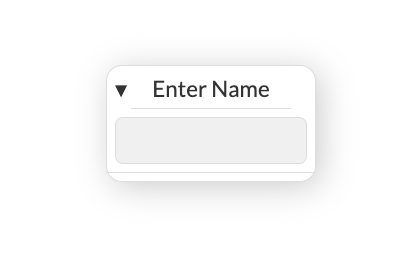
* **Text Input** — New widget for user text entry with optional type validation
* **Text Display** — New widget for displaying formatted text output
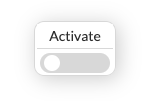
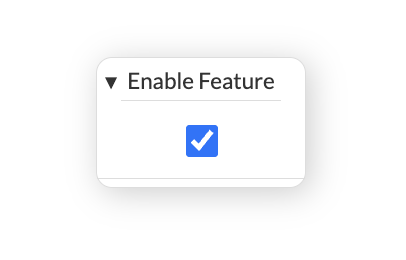
* **Checkbox** — Boolean toggle control
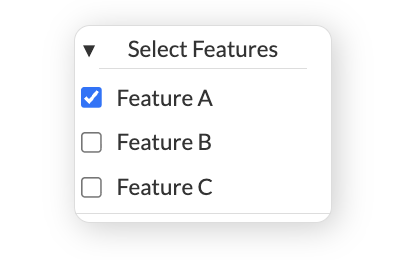
* **Checkbox Group** — Multiple related toggles
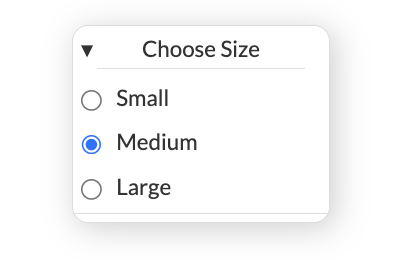
* **Radio Button** — Mutually exclusive options
* **Popup** — Modal or modeless dialog for displaying prompts and custom content

#### Widget Documentation

* Comprehensive API documentation for all new widgets (text\_input, text\_display, checkbox, checkbox\_group, radio\_button, popup)
* Added `on_change` callback documentation for interactive widgets: toggle, slider, input, menu, text\_input, checkbox, checkbox\_group, radio\_button

#### Console Pane Redesign

The console has been moved from the Hack Panel into its own collapsible pane below the World visualization. You can toggle it with Ctrl+\` or the Status Bar button.

### Fixed

* **MathJsSim serialization** — Fixed critical bugs in compound object serialization and object deserialization that were causing performance regressions and missing object types.

## 2026-5-28

### Added

#### Hardware Devices Panel

You can now connect physical hardware sensors directly to your Tychos simulation and read live data from them using `scenario.get_device(index)`.

Two device types are supported:

**Vernier wireless sensors** — Connect any [Vernier GoDirect](https://www.vernier.com/products/sensors/wireless-sensors/) wireless sensor over Bluetooth LE by clicking **+ Add Vernier** in the Devices panel.

**USB serial devices** — Click **+ Connect Serial Device** to connect any microcontroller that sends data over USB serial: Micro:bit, Arduino, Raspberry Pi, ESP32, and others. Your device can send data as JSON, key-value pairs, or CSV — Tychos parses all three formats automatically at 115200 baud.

```python
# Read live sensor data each frame
sensor = scenario.get_device(0)
if sensor:
    temp = sensor.data.get("temperature", 0)
```

Click the **?** icon in the Devices panel header to open the full [hardware devices documentation](/docs/learn/hardware-devices), including code examples and Arduino/Micro:bit starter sketches.

## 2026-5-26

### Added

#### Matplotlib Plot Widget

You can now display any [matplotlib](https://matplotlib.org/) figure directly in your Tychos simulation using the new `plot` widget. Create your chart using standard matplotlib code — 2D or 3D — then hand it off to Tychos with just two lines:

```python
my_plot = plot(title="Pendulum", width=500, height=300)
my_plot.figure = fig
```

The widget supports pan and zoom (scroll to zoom, drag to pan, double-click to reset) and includes a download button to save the chart as a PNG.

<figure><img src="https://2165864134-files.gitbook.io/~/files/v0/b/gitbook-x-prod.appspot.com/o/spaces%2F-LCBQtB7AkKJtVQIbOdo%2Fuploads%2Fgit-blob-0299be5598911fa63c2fe5e7e0fad8567e06ea53%2Fmatplotlib_plot_widget.png?alt=media" alt="A 3D surface plot displayed inside a Tychos plot widget."><figcaption><p>A 3D surface chart rendered with matplotlib inside a Tychos <code>plot</code> widget.</p></figcaption></figure>

See the [plot widget documentation](/docs/learn/language-reference-api) for full details.

## 2026-5-25

### Added

#### Goal Hints and Helper Functions

Writing goals is now easier and more powerful. See the updated [Writing Goals](/docs/for-teachers/writing-goals) guide for full details.

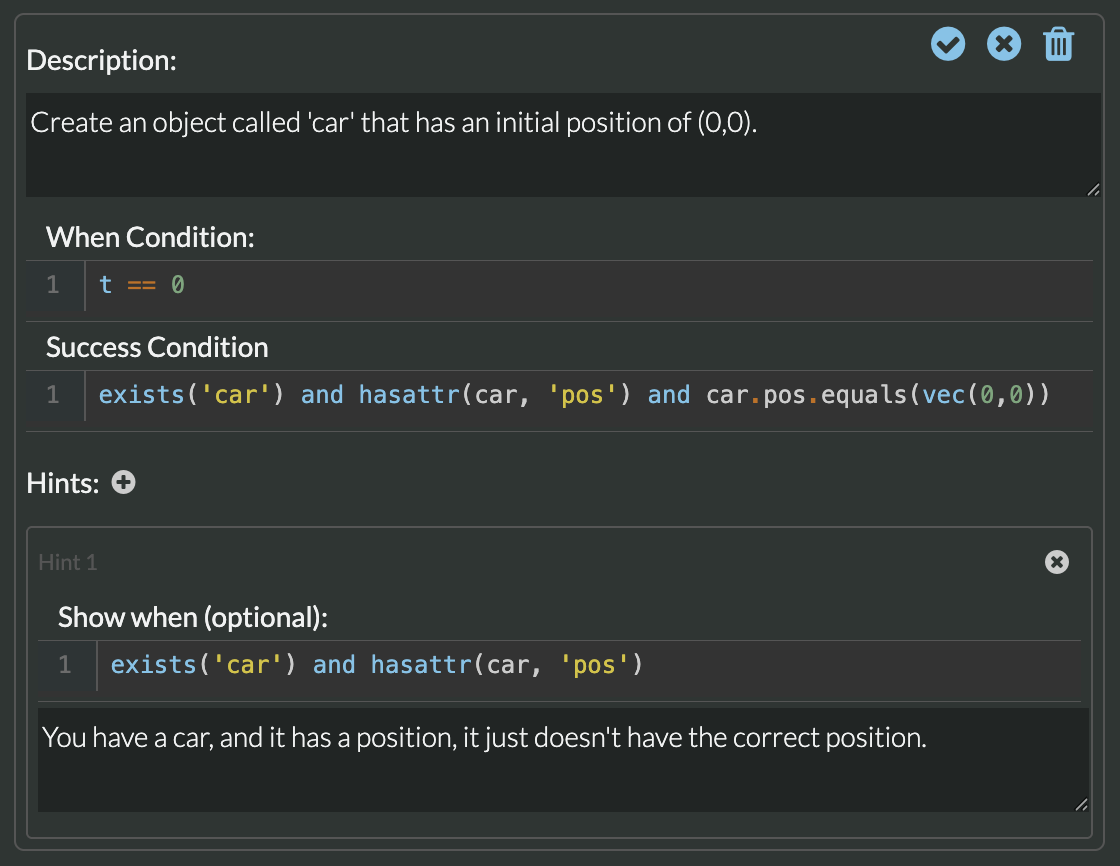
**Hints** — Each goal can now have one or more hints that appear to students when a goal is failing. Hints can be shown unconditionally, or only when a custom condition is met, letting you give targeted guidance without giving away the answer.

<figure><img src="https://2165864134-files.gitbook.io/~/files/v0/b/gitbook-x-prod.appspot.com/o/spaces%2F-LCBQtB7AkKJtVQIbOdo%2Fuploads%2Fgit-blob-f3ec24c3d6d32495527df349857209aee43ae92b%2Fgoal_editor.png?alt=media" alt="Goal editor showing Description, When Condition, Success Condition, and Hints fields."><figcaption><p>The goal editor with a hint configured. The "Show when" condition controls when the hint is visible to students.</p></figcaption></figure>

**New goal helper functions** — The following functions are now available in all goal code (When Condition, Success Condition, and Hint Conditions):

* `exists('name')` — returns `True` if a variable with that name has been defined. Replaces the old `"name" in globals()` pattern.
* `close(a, b, tolerance)` — returns `True` if two numbers or vectors are within `tolerance` of each other. Use this instead of `==` for floating-point comparisons.
* `between(value, min, max)` — returns `True` if `value` is strictly between `min` and `max`.
* `has_attr(obj, 'name')` — returns `True` if an object has a given attribute.

**`frame(n)` for historical values** — Use `frame(n).variable_name` in goal code to read what a variable's value was at a specific simulation frame. Tychos automatically tracks the variables you reference — no extra configuration needed.

**ERROR goal state** — If goal code throws an error, the goal now shows a distinct ⚠️ ERROR state (with the error message) to instructors, rather than silently failing. Students still see it as a normal fail state.

#### Blend Mode for Graphic Objects

All graphic objects (`circle`, `rectangle`, `ellipse`, `arc`, `arrow`, `label`, `line`, `sprite`, `tilemap`, `compound`, etc.) now support a `blend_mode` property that controls how the object composites with objects beneath it. Accepts any CSS `mix-blend-mode` value such as `"multiply"`, `"screen"`, `"overlay"`, `"difference"`, and more.

```python
glow = circle(pos=vec(0, 0), radius=30, color="white", blend_mode="screen")
shadow = circle(pos=vec(5, -5), radius=30, color="black", blend_mode="multiply")
```

## 2026-5-22

### Added

#### IntelliSense for the Python Code Editor

The Python code editor now has full IntelliSense support powered by [Pyright](https://github.com/microsoft/pyright), giving you smart code assistance as you write your simulations.

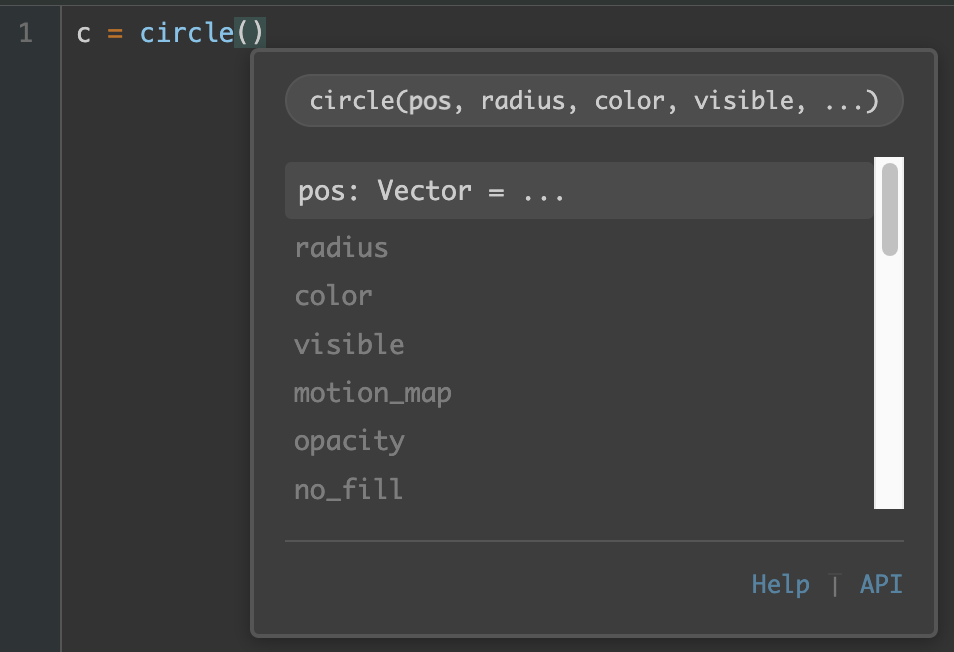
**Autocomplete with signature help** — As you type, the editor suggests completions for Tychos API functions, built-in Python functions, and variables in your scenario. When you select a function, a signature popup shows you each parameter with its type and a description, and highlights the current parameter as you move through the arguments.

<figure><img src="https://2165864134-files.gitbook.io/~/files/v0/b/gitbook-x-prod.appspot.com/o/spaces%2F-LCBQtB7AkKJtVQIbOdo%2Fuploads%2Fgit-blob-b041fee4cf67574bdd7f9918a548c97ca1e15b44%2Fautocomplete.png?alt=media" alt=""><figcaption><p>Autocomplete with signature help and parameter highlighting.</p></figcaption></figure>

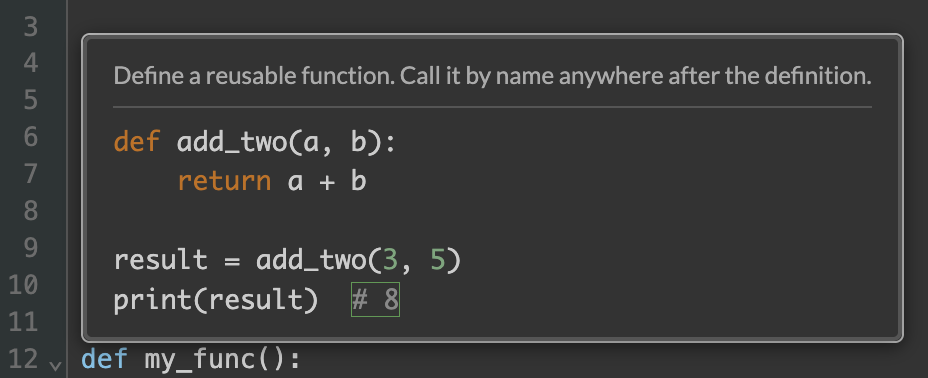
**Hover tooltips** — Hover over any Tychos API call or variable to see its type signature and a plain-English description of what it does.

<figure><img src="https://2165864134-files.gitbook.io/~/files/v0/b/gitbook-x-prod.appspot.com/o/spaces%2F-LCBQtB7AkKJtVQIbOdo%2Fuploads%2Fgit-blob-adc9bb93ee7f0ff857cc5e4a272a485ca538892c%2Fhint-hover.png?alt=media" alt=""><figcaption><p>Hover tooltip showing a function signature and description.</p></figcaption></figure>

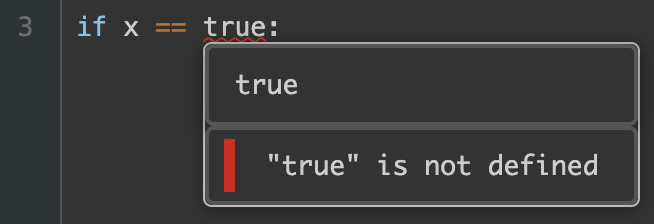
**Inline error highlighting** — Syntax and type errors are underlined with squiggles directly in the editor, and hovering over the squiggle shows the error message.

<figure><img src="https://2165864134-files.gitbook.io/~/files/v0/b/gitbook-x-prod.appspot.com/o/spaces%2F-LCBQtB7AkKJtVQIbOdo%2Fuploads%2Fgit-blob-960fa074bae1df33f9d6ba8989ad826dd92acc1d%2Flinting.png?alt=media" alt=""><figcaption><p>Inline error squiggle with tooltip.</p></figcaption></figure>

#### In-App Documentation Panel

The Tychos help documentation is now available directly inside the app — no more switching to a separate browser tab. Click the **Help** button in the header to open the docs panel alongside your simulation.

The panel is **context-sensitive**: Python scenarios automatically show the Python API and demos, while MathJS scenarios show the MathJS API and demos.

When browsing autocomplete suggestions or hovering over a function call, clicking the **API** link at the bottom of the popup opens the relevant section of the API reference directly in the help panel.

<figure><img src="https://2165864134-files.gitbook.io/~/files/v0/b/gitbook-x-prod.appspot.com/o/spaces%2F-LCBQtB7AkKJtVQIbOdo%2Fuploads%2Fgit-blob-d34e88a5945837cedc3e8366c986a98c70b0d6cc%2Fgitbook_integration.png?alt=media" alt=""><figcaption><p>The in-app documentation panel open alongside a simulation.</p></figcaption></figure>

#### Auto Run Setting

A new **Auto Run** checkbox is available in the Simulation Settings panel. When enabled, the simulation starts automatically as soon as the scenario loads — useful for published scenarios and multi-scenario sequences where you don't want students to have to press Play manually.

#### `reset()` Function

A new global `reset()` function lets you restart the current simulation from within your Loop Code. It re-runs Setup Code from scratch, reinitializing all objects and variables.

```python
if ball.pos.x > 100:
    reset()    # restart the simulation from the beginning
```

#### `load_scenario()` Function

A new global `load_scenario()` function lets you jump from one scenario to another programmatically — making it easy to chain levels, quizzes, or multi-part simulations together.

```python
if score >= 10:
    load_scenario('ABCDEF')
```

You can also pass a dictionary of values to the next scenario, which can then read them via `scenario.params`:

```python
# In the current scenario's Loop Code
load_scenario('ABCDEF', {'score': score, 'lives': lives})
```

```python
# In the new scenario's Setup Code
initial_score = scenario.params.get('score', 0)
initial_lives = scenario.params.get('lives', 3)
```

## 2026-3-1

### Added

#### New Scenario Object

The `scenario` object manages simulation settings, device connections, and scenario transitions in Tychos. The `scenario` object is a global instance available in all Tychos simulations. Use it to configure simulation behavior and load different scenarios. Learn more [here](/docs/learn/language-reference-api#scenario).

#### New `tilemap` Object (Python Only)

The `tilemap()` function creates a grid-based map from a sprite sheet. This allows you to easily place graphic tiles on the screen so that you can build platforms, mazes and more!

For example, you can create a simple tileset graphic like this which represents different 16x16 pixel tiles in a 4x4 grid:

<figure><img src="https://2165864134-files.gitbook.io/~/files/v0/b/gitbook-x-prod.appspot.com/o/spaces%2F-LCBQtB7AkKJtVQIbOdo%2Fuploads%2FZj4RYwgm28Tg8U9rx1Nl%2Ftiles.png?alt=media&amp;token=85dff284-e48e-4427-8f38-3c77d5c6a483" alt=""><figcaption></figcaption></figure>

Then you upload your asset (tileset.png) to Tychos, and then you can refer to it in your scenario. Tilemaps are broken into tiles that can be checked for collision detection using the `has_collided` and `get_mtv` collision detection algorithms in the Tychos API.

**basic syntax**

```python
tm = tilemap(
    image="tileset.png",      # Your sprite sheet image
    cols=4,                            # Columns in the tileset
    rows=4,                            # Rows in the tileset
    size=vec(200, 200),               # Size in world coordinates
    tiles=[[0, 1], [2, 3]],          # Which tiles to show where
    pos=vec(0, 0)                     # Position in world
)
```

## 2026-2-7

### Added

#### New Sprite Object

Added a new [`sprite`](/docs/learn/language-reference-api#sprite) object that can be used for controlling sprite animations with ease.

You just need to have a sprite sheet of "frames" like this:

<figure><img src="https://2165864134-files.gitbook.io/~/files/v0/b/gitbook-x-prod.appspot.com/o/spaces%2F-LCBQtB7AkKJtVQIbOdo%2Fuploads%2FofRdsezaS3ykzITcl8KG%2FMORGIX-Sheet.png?alt=media&amp;token=8c98b738-de36-4167-8d60-3b08c1f5d36a" alt=""><figcaption></figcaption></figure>

Upload the sprite sheet into your Assets, and then write the following code:

```python
# Here is a sprite object
hero = sprite(image="hero_sprites.png", n_rows=1, n_cols=25, width=30, height=50)
```

And then in your scenario, define the animation cycle:

```python
hero.animations = {
    "jump" : {
        "frame_indices": [0,1,2,3,4,5,6],      # First row: columns 0-6
        "time_per_frame": 100,
        "on_end": "repeat"
    }
```

<figure><img src="https://2165864134-files.gitbook.io/~/files/v0/b/gitbook-x-prod.appspot.com/o/spaces%2F-LCBQtB7AkKJtVQIbOdo%2Fuploads%2FsSr5hK2B6dpl2IjMJlWC%2FMORGIX_jump.gif?alt=media&amp;token=1683eb85-dccb-455f-8ab8-6e874036b4d3" alt=""><figcaption><p>The "jump" animation.</p></figcaption></figure>

And the above animation will be displayed.

#### Mouse Event Listeners

All the objects in Python scenarios now listen for mouse events, and you can define your own handler function for these objects like this:

```python
# Define your handler
def change_color(target):
    target.color = "green"
    
# Now attach your handler
c = circle()
c.on_click = change_color
```

## 2025-8-12

### Changed

#### Faster and More Stable Python Code Execution

Most of the changes we have made recently are "under the hood". These changes have improved the Python code execution, as well as animation rendering. We hope you notice the speed improvements!

Here are the specific changes we have made:

* We have updated Tychos to use Pyodide 0.28.0.
* The Python code now runs in it's own thread which has sped up the code execution as well as solved a problem where the user could make an infinite loop and it would cause the entire application to crash. Tychos now detects if something has caused the Python thread to hang, and makes it possible to recover from this.

#### Renamed "Initial State" Pane to "Setup Code"and "Calculations" to "Loop Code"

We felt that these might be a little more helpful and match more closely the convention that is used in the very popular Arduino platform.

## 2025-5-22

### Added

#### Assets

Tychos now provides the ability to upload your own image, sound and data file (csv) assets into a scenario. These assets can then by referenced in your scenario code using the asset's file name.

<figure><img src="https://2165864134-files.gitbook.io/~/files/v0/b/gitbook-x-prod.appspot.com/o/spaces%2F-LCBQtB7AkKJtVQIbOdo%2Fuploads%2FCTPHH7PXQ1iS4RwCFvb6%2FAssets.png?alt=media&amp;token=36bf23df-4613-4ba0-86c5-d45e8c62e742" alt=""><figcaption><p>This scenario has three uploaded assets.</p></figcaption></figure>

#### Skew, Flip and Blur

Most graphic objects in Tychos can now by skewed, flipped, and blurred.

<figure><img src="https://2165864134-files.gitbook.io/~/files/v0/b/gitbook-x-prod.appspot.com/o/spaces%2F-LCBQtB7AkKJtVQIbOdo%2Fuploads%2FADc2GLFggP67YB0Axvrg%2Fskew-flip-blur.png?alt=media&amp;token=6b4b6c20-23b7-412e-be5f-9ff55a2db18b" alt="" width="375"><figcaption><p>New attributes allow for image manipulation.</p></figcaption></figure>

To learn more about how to set these attributes, please refer to the API documentation.

### Fixed

Lots of bugs were fixed:

* Students couldn't delete a scenario that they cloned if it was part of a class. They can now.
* When trying to delete a scenario that is part of a class, it would throw an error. Now it informs you that you have to remove the scenario from any classes before you can delete it.
* An update broke the Console for Python scenarios. That is working again.
* The code editor for MathJs would crash the entire app if a user deleted a line in the editor that contained a comment. That no longer happens.
* Arc objects were rendering incorrectly. They now should appear as expected.
* Graph plots were not rendering correctly if you wanted to view the plot as filled if there were more than on plotted data series. That has been fixed.
* Gradient fills were not working correctly for poly\_line objects. They should render correctly now.
* The World view was not resizing correctly when launching for the first time. It is now correctly sized.
* A previous update accidentally caused the simulation to continue to run in the background even after the simulation was stopped! This caused Tychos to slow down significantly over time. Fixed that one!
* A previous update caused an issue with Goals being checked when they should be. They should now be checked when you expect.
* Users could no longer send us comments in our Send Comments menu tool. That has been fixed, so send us your comments! 😁

## 2025-2-18

### Added

#### Compound Objects

<figure><img src="https://2165864134-files.gitbook.io/~/files/v0/b/gitbook-x-prod.appspot.com/o/spaces%2F-LCBQtB7AkKJtVQIbOdo%2Fuploads%2FH62Ckc9KlWcl89bWuZ6U%2Ftychos_compound.png?alt=media&amp;token=49221512-9459-4e35-a748-0dd74363dfb8" alt=""><figcaption><p>These two graphic elements are made up of compounds that contain graphic objects.</p></figcaption></figure>

Compound objects give you the ability to group other graphic objects together so that you can move and rotate them as one - making it much easier to create and animate complex graphics. You can add compound objects to other compound objects too - the image here is composed of several “levels” of compounds. Check the demonstration out here:

<https://www.tychos.org/en/scenarios/pRqBAF>

#### Control Panels

User interface widgets, graphs and tables can now be organized into a control panel that can have either a “row” layout, or a “column” layout.:

<figure><img src="https://2165864134-files.gitbook.io/~/files/v0/b/gitbook-x-prod.appspot.com/o/spaces%2F-LCBQtB7AkKJtVQIbOdo%2Fuploads%2F6oJNhSY9tfiDGeVZNuoj%2Ftychos_control_panel_2.png?alt=media&amp;token=c1cd2af3-6e0b-42fc-adbf-5485b740c6ca" alt=""><figcaption><p>Control panel with a "row" layout.</p></figcaption></figure>

<figure><img src="https://2165864134-files.gitbook.io/~/files/v0/b/gitbook-x-prod.appspot.com/o/spaces%2F-LCBQtB7AkKJtVQIbOdo%2Fuploads%2F1SoYx7F7EqhJricEt4xR%2Ftychos_control_panel_1.png?alt=media&amp;token=e4c214d7-cac2-4e52-9c51-c08572191654" alt="" width="251"><figcaption><p>Control panel with a "column" layout.</p></figcaption></figure>

This gives you the ability to organize your widgets better so they don’t clutter your screen.

#### Autohide Simulation Controls and Main Menu Bar

In settings, we added the ability to autohide the control buttons and/or the main menu bar. This allows for a true full screen view where you see only what you create for people to view your scenarios. When your mouse gets close to the bottom of the screen, the controls pop back into view, and likewise for the menu bar when your mouse moves to the top of the screen.

### Fixed

Here are the bug fixes we have recently made:

* The automatic world extents now work for rotated objects that are rotated from an axis outside themselves.
* Menus weren’t working properly on some pages, and now they are!
* The world view was not resizing correctly when it was first viewed in the app. That has been fixed.

## 2024-11-17

### Added

#### Collections

Scenarios can now be organized into collections. Simply click on the + button to add a collection:

<figure><img src="https://2165864134-files.gitbook.io/~/files/v0/b/gitbook-x-prod.appspot.com/o/spaces%2F-LCBQtB7AkKJtVQIbOdo%2Fuploads%2F68DDAto73ATpqbmHABJU%2FTychos%20Collections1.png?alt=media&amp;token=44f8e243-0f2f-40f5-90cd-1edc24be0cae" alt=""><figcaption><p>Click the + to create a new collection.</p></figcaption></figure>

To learn more, check out our [documentation](/docs/learn/creating-and-managing-scenarios) for a full description on how to organize your scenarios into collections.

#### Pie Chart

A new pie chart widget has been added:

<figure><img src="https://2165864134-files.gitbook.io/~/files/v0/b/gitbook-x-prod.appspot.com/o/spaces%2F-LCBQtB7AkKJtVQIbOdo%2Fuploads%2FSabPIwRZu914HdD6sWfl%2FTychos%20Pie%20Chart.png?alt=media&amp;token=fac9fca2-c0b9-4738-b5c0-61987cac4470" alt="" width="375"><figcaption><p>A pie chart widget.</p></figcaption></figure>

Check the Python API or the MathJs API for more details.

### Changed

#### Fancier Labels

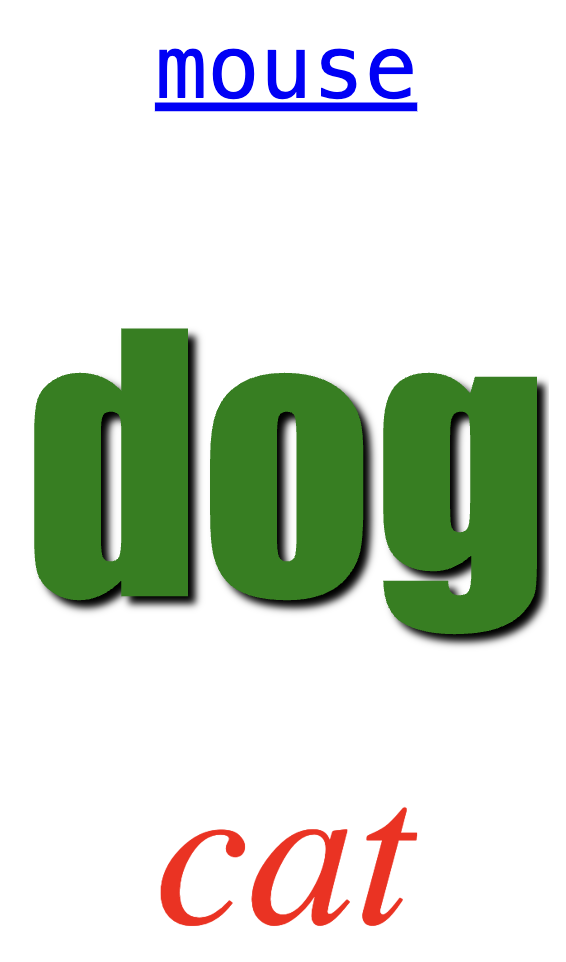
The font stying for labels can now be changed by specifying the font, or by setting the style attribute to a set of CSS style rules.

<figure><img src="https://2165864134-files.gitbook.io/~/files/v0/b/gitbook-x-prod.appspot.com/o/spaces%2F-LCBQtB7AkKJtVQIbOdo%2Fuploads%2FnQerV5YHaVzCApoPpLHE%2FTychos%20Labels.png?alt=media&amp;token=8cd74315-23d5-49d8-afb8-1f9c5a774f21" alt="" width="142"><figcaption><p>Three different labels</p></figcaption></figure>

Check out the [Python API](/docs/learn/language-reference-api#label) or the [MathJs API ](/docs/learn/language-reference-api-1#label)to learn how to make your label objects look fancier!

The labels that are added to circles, rectangles, ellipses and arcs can also be made fancier in the same way.

#### Fancier Buttons

Labels can now be added to your buttons, and the buttons come in different styles as well:

<figure><img src="https://2165864134-files.gitbook.io/~/files/v0/b/gitbook-x-prod.appspot.com/o/spaces%2F-LCBQtB7AkKJtVQIbOdo%2Fuploads%2FROMEz8pULPrA9ufCrReH%2Fbuttons.png?alt=media&amp;token=cf7540ba-bfab-4969-85dd-e2797b642499" alt="" width="167"><figcaption></figcaption></figure>

Check the [Python API](/docs/learn/language-reference-api#button) or the the [MathJs API](/docs/learn/language-reference-api-1#button) for more details on how to add labels and styling to the buttons.

#### Width and Height for graphs, bar charts, pie charts, and tables

You can now set the width and height of the graph bar chart, pie chart and table widgets. This can be set to a pixel dimension or a percentage of the viewable world.

#### Graph plot rate

Graph widgets can now have their own plot rates, overriding the scenario's default plotting rate.

#### New graph options

You can now change the mode of your graphs to be either "scatter" or "line" and you can also display them as filled or not filled

<figure><img src="https://2165864134-files.gitbook.io/~/files/v0/b/gitbook-x-prod.appspot.com/o/spaces%2F-LCBQtB7AkKJtVQIbOdo%2Fuploads%2Fn60g2sKee31DUuNYUqU5%2FTychos%20Scatter%20Graph.png?alt=media&amp;token=fa47647f-9fb8-402d-b87c-958baae05856" alt=""><figcaption><p>Scatter mode</p></figcaption></figure>

<figure><img src="https://2165864134-files.gitbook.io/~/files/v0/b/gitbook-x-prod.appspot.com/o/spaces%2F-LCBQtB7AkKJtVQIbOdo%2Fuploads%2FSTPrT2cjHX418NOj6VZD%2FTychos%20Line%20Graph.png?alt=media&amp;token=af39b665-4e97-4ad0-9e8c-c4f320ab6bc9" alt=""><figcaption></figcaption></figure>

## 2024-10-15

### Added

#### Teacher Comments

You can now add comments to your students’ code. This allows you to add feedback that they can easily view and then resolve.

This makes giving feedback on student work super efficient.

<figure><img src="https://2165864134-files.gitbook.io/~/files/v0/b/gitbook-x-prod.appspot.com/o/spaces%2F-LCBQtB7AkKJtVQIbOdo%2Fuploads%2FceTV9scBaqkdlHER8hwI%2Ftychos_comment_2.png?alt=media&amp;token=159483c4-f731-4dff-9473-4b6488f44cb8" alt=""><figcaption><p>Adding a comment.</p></figcaption></figure>

Just click on a line, add your comment, and then the student will see an icon next to the line number, and when they hover over that line, the comment will pop up!

<figure><img src="https://2165864134-files.gitbook.io/~/files/v0/b/gitbook-x-prod.appspot.com/o/spaces%2F-LCBQtB7AkKJtVQIbOdo%2Fuploads%2FXvo4rj2aS7m0ZuKtCdyX%2Ftychos_comment_3.png?alt=media&amp;token=17f174ce-6f4f-4b3b-8b88-83360bb02b3e" alt=""><figcaption><p>Viewing a comment.</p></figcaption></figure>

Students can then remove the comment if they like by clicking on the trash icon button.

### Changed

#### Enhanced Python Code Editor

We have added some new enhanced features to our code editor:

* Code completion for all standard Python language features.
* Code folding.
* Find and replace.
* Hotkeys

#### Python Imports

You can now import other Python libraries as long as they are supported by [Pyodide](https://pyodide.org/en/stable/index.html). [Check here for an allowed list of imported Python libraries.](https://pyodide.org/en/stable/usage/packages-in-pyodide.html)

### Fixed

Here are the bug fixes we have recently made:

* Due to an upgrade on our server, users weren’t able to make changes to their profile. You should now be able to change your own profile.
* Teachers couldn’t delete classes, they could only archive them. Teachers can now delete classes.
* The entire app crashed when a user deleted a line of code that had previously caused an error. We fixed that in the Python editor, but we are still working on fixing that bug in the MathJs editor…
* Goal states were not always saving, so the goal states on the Scenarios Index were not in sync with the actual goal states of the scenario. That has been fixed.

## 2024-5-25

### Added

#### Teacher Classes

We are excited to announce new Teacher Classes!

<figure><img src="https://2165864134-files.gitbook.io/~/files/v0/b/gitbook-x-prod.appspot.com/o/spaces%2F-LCBQtB7AkKJtVQIbOdo%2Fuploads%2FR2NR9VJjRgzmrcdy003F%2Fnew_classes.png?alt=media&amp;token=20d325f4-b78b-4d45-9cd1-a23254738883" alt="" width="263"><figcaption></figcaption></figure>

Teachers can now create classes, add students to those classes, and then choose scenarios from their own scenario index to that class.

Students join the class through a simple join code. Once they have joined, they can see a listing of scenarios that the teacher has included for that class. Students can then click on that scenario and then clone it.

Through the classes interface, the teacher can see the students who have cloned a particular scenario and even see the goals that they have achieved, if there are goals defined for that scenario.

To learn more, check out the guide on [Creating and Managing Classes](/docs/for-teachers/creating-and-managing-classes)

#### New Audio Tools

You can now add sound to your scenarios! Through the audio object, there are several ways to add different types of sounds:

* simple tones
* generate audio oscillations
* play audio files from a URL.

Check out our [Python API](/docs/learn/language-reference-api#audio) or our [MathJs API](/docs/learn/language-reference-api-1#audio) for more information on how to use the new audio tools.

#### Set World Extents from Python or MathJs

You can now set the world extents, meaning the position and size of the world view, through the Python or MathJs API. This is really handy when you want to control what is being seen in the simulation window based on user input or based on some other data value - like the position of an object.

Check out the [Python API](/docs/learn/language-reference-api#world) or [MathJs API](/docs/learn/language-reference-api-1#world) to learn more.

### Fixed

#### Bugs

Here are the bug fixes we have recently made:

* The **Console** for Python scenarios was broken (whoops!) from a recent update. That has been fixed.
* Signing up for a new account was confusing if you weren’t using the Google authentication method, so we clarified that for new users.
* Goals were not working properly in MathJs. That has been fixed.
* Sometimes a keyboard key would get “stuck” in the keys list, especially if a user was pressing more than one key at a time. Keys are being cleared properly from the list now.

## 2024-3-2

### Added

#### New Radial Gradient and Linear Gradient objects

We have added two new gradient fill options for many of the Tychos objects.

<figure><img src="https://2165864134-files.gitbook.io/~/files/v0/b/gitbook-x-prod.appspot.com/o/spaces%2F-LCBQtB7AkKJtVQIbOdo%2Fuploads%2F0I0cr3WqIKdkC4hoCYYU%2Ftychos_gradients.png?alt=media&amp;token=b46e6221-543e-41ac-926c-22eeea3c0b28" alt="" width="375"><figcaption></figcaption></figure>

The radial gradient and linear gradient objects are used as fill parameters for the following objects:

* circle
* rectangle
* ellipse
* arc
* poly\_line

Check out our [Python API](https://docs.tychos.org/docs/learn/language-reference-api#gradient-fills) or our [MathJs API](https://docs.tychos.org/docs/learn/language-reference-api-1#gradient-fills) for more information on how to use the new gradient fills.

#### New Update Clone Goals Button

Teachers can now update the goals in student cloned scenarios with the click of a button. This allows a teacher to adjust goals (by adding, removing, or editing them) after students have already cloned the teacher's scenario and have started working on their clone.

We know that you don't always get those goals written correctly, and then it was a real pain to have the students have to re-clone your scenario once you found the mistake...now you can change your goals, and then click a button (see below) and the new goals are pushed to all existing clones.

<figure><img src="https://2165864134-files.gitbook.io/~/files/v0/b/gitbook-x-prod.appspot.com/o/spaces%2F-LCBQtB7AkKJtVQIbOdo%2Fuploads%2FgOVdcve1LxuTnRWgUdzk%2FUpdate_clones_button.png?alt=media&amp;token=48aa24b7-8745-49c9-9b45-0936c9ea0cc3" alt="" width="375"><figcaption><p>The new Update Clones button on the Goals tab.</p></figcaption></figure>

### Fixed

#### Bugs

We fixed a few bugs in this release:

* Graph, Table and Bar Chart tools were not showing up in the main World view. They are now viewable.
* In the Python coding interface, The Toggle, Input, and Button tools were breaking if the input was `None` or the binding was `None`.
* When a tool had an error due to some setting value being incorrectly input, the app went into an error state, but the tool disappeared, and so the user couldn't correct the error in the tool. The tools now are viewable, even when the app is in an error state.
* Menus (in Python) were not filling in the values with choices if the values were not specified, which they should have been. Also, values could ony be numerical, but now they are strings. NOTE: If you want a value to be interpreted as a numeric value, you will need to cast it - e.g. `int(my_menu.value)`

## 2024-1-15

### Added

#### New Arc Object

We have one more object that you can create for your scenarios - the arc! In MathJs or Python, you can now create an elliptical arc.

<figure><img src="https://2165864134-files.gitbook.io/~/files/v0/b/gitbook-x-prod.appspot.com/o/spaces%2F-LCBQtB7AkKJtVQIbOdo%2Fuploads%2F8LJFFNZQ6DtpRfqw5AsR%2Ftychos_arcs.png?alt=media&amp;token=a65779fc-94e0-43c4-b959-4c2d6f39dd7e" alt="" width="375"><figcaption><p>Different arcs</p></figcaption></figure>

The start and end parameters specify the starting angular position of the arc (in radians) and the ending angular position of the arc along an elliptical curve. Just like the ellipse object, arc objects also are defined by a center position as well as a size that identifies the length of the major and minor axes.

There are also three options for drawing the arc object to the screen. use the `mode` parameter. You can choose "chord" mode, which will draw a connecting line from the starting point of the arc to the ending point of the arc, if the arc has a border. The "open" mode does not draw the connecting line. Finally, the "pie" mode creates a "pie slice" from the arc. You can also set the `no_fill` parameter so that the arc is not filled in with a color.

Check out our Python API or our MathJs API for more information on how to create arcs.

#### New Python Science Libraries

We have added some new Python libraries to Tychos that are now loaded by default so that you can easily import them into your scenarios. Here is a listing of all the libraries that you can now import:

* [NumPy](https://numpy.org/)
* [Pandas](https://pandas.pydata.org/)
* [SciPy](https://scipy.org/)

You can also import many of the standard Python packages that are included in the standard installation of Python, like `math`, `random`, `datetime`, etc.

### Changed

#### Step Rate Setting

In the Settings Pane, we have changed out the slider which set the value of your `dt` variable (the delta time for each step in your Calculations) to a numerical input defining your step rate. So when you enter a value of 100, this means that Tychos will set your `dt` value to 1/100 or .01 seconds. You can now enter a rate value of 1000 or even higher, but keep in mind that the simulation will most likely run in real time at a much slower rate because it take time for the code in Calculations to be executed. So setting the rate to a high value (>50) will make your simulations more accurate, but they will slow down.

Additionally, the screen refresh rate is about 50 fps, so additional steps won't be rendered to the screen. If you use the step button, you will actually render these steps in the World view.

#### New Align Property for Widgets (graphs, meters, etc.)

All widgets now have an `align` property so that you can align them to either the left or right side of the screen. This allows for more control over how your widgets appear on the screen when the scenario is loaded.

### Fixed

#### Bugs

We fixed a few bugs in this release:

* Python scenarios were not rendering arrow components. They should be visible now when you set the `show_components` to `True`.
* The `suffix` value in the `meter()` widget was not displaying. This has been fixed.
* When a Goal was deleted, it's associated "goal state" (FAIL/PASS) was not being deleted as well, so those orphaned goal states were visible in the Scenarios Index page. They will be removed as soon as the scenario is loaded by Tychos, removing any orphaned goal states.

## 2023-9-30

### Added

#### New Button

You can now add a button UI control that allows you to hook into the button's click event. The button is styled like a classic video game from the 1980's, because we love those games! You can make the button any color you like as well!

To learn more, see our API for adding a button to your scenarios.

<figure><img src="https://2165864134-files.gitbook.io/~/files/v0/b/gitbook-x-prod.appspot.com/o/spaces%2F-LCBQtB7AkKJtVQIbOdo%2Fuploads%2FpCoP3aiM24M1gllmgGDo%2Ftychos_buttons.png?alt=media&amp;token=c340b8f5-bdcf-4bb8-a23d-2525a3199d83" alt="" width="375"><figcaption></figcaption></figure>

### Changed

#### New Graph and BarChart UI Controls

We are now using the amazing Plotly graphing library to render our graphs and bar charts in Tychos. There are now some nifty tools for downloading images of the graphs and bar charts, as well as zooming into a region of the graph. Just hover your mouse over the graph or bar chart to see these tool buttons display in the top right corner of the graph.

#### Upgraded to Python 3.11

We upgraded to Pyodide 0.24 which runs on Python 3.11. This has made Python significantly faster - approximately x 1.25.

## 2023-8-26

### Added

#### Hide or display the grid

You can now hide the grid in your scenarios with just the click of a checkbox.

<figure><img src="https://2165864134-files.gitbook.io/~/files/v0/b/gitbook-x-prod.appspot.com/o/spaces%2F-LCBQtB7AkKJtVQIbOdo%2Fuploads%2FqoA6BH1CzaegCquyGSyM%2Fdisplay_grid.png?alt=media&amp;token=4fcf54dc-da60-4162-b89c-5b7a2e79b698" alt="" width="375"><figcaption></figcaption></figure>

#### Remove objects

Objects can now be removed from the World using a simple API call `remove` that all objects support.

### Changed

We significantly changed the **Console Hack Panel** so that it now allows for input, much like a REPL. You can execute lines of code, even updating objects in the simulation. The Python Console also allows users to use the help() command to get some help with the Python API.

<figure><img src="https://2165864134-files.gitbook.io/~/files/v0/b/gitbook-x-prod.appspot.com/o/spaces%2F-LCBQtB7AkKJtVQIbOdo%2Fuploads%2FQDEOkxoGEc7gmUzYzzbU%2Fnew_tychos_console.png?alt=media&amp;token=b39dffd4-7a0e-4767-9a58-4340a2f16586" alt="" width="563"><figcaption></figcaption></figure>

### Fixed

Errors are now reported to the **Console** rather than to the World view, reducing clutter, and making the errors more readable. Error handling in general has been improved throughout Tychos.

We also made various speed/efficiency improvements so that scenarios with multiple objects run much smoother.

## 2023-4-28

### Changed

We enhanced some of the collision detection functions in our Python and MathJs API's. Here is a list of the changes:

* Collisions can be detected for circles and rectangles that are rotated around an axis besides their own center points.
* Lines have been added to object detection.
* Using either `get_intersections` in the Python API or `getIntersectionPoints` in the MathJs API returns the points where the object boundaries have intersected.

## 2023-4-20

### Added

Tables are back! Sorry that we took tables away, we had an issue with them, and we wanted to re-design them anyway. Now rather than the table being hidden in the Hack Panel, you can now add them as a draggable, resizable widget that floats above your scenario.

![](https://2165864134-files.gitbook.io/~/files/v0/b/gitbook-x-prod.appspot.com/o/spaces%2F-LCBQtB7AkKJtVQIbOdo%2Fuploads%2FzpcSDKDECbIEEUshSUgv%2Ftychos_table.png?alt=media\&token=6f43e9f2-fa28-4fcc-9ff3-a9b2fe8e7a94)

You can add a table by defining a new table object in your Python or MathJs code or you can add a table through the Tools menu. Please check out our [Python API](/docs/learn/language-reference-api#table) or our [MathJs API ](/docs/learn/language-reference-api-1#table)to learn how to do this programmatically.

You can learn more about how to use tables in your scenarios by watching this [tutorial video.](/docs/learn/video-guides/video-tutorial-tables)

### Added

You can now upload a comma separated values (CSV) file into your Tychos session and then reference that data within your scenario. To do this, you simply go to the Settings pane of the Hack Panel, and then click on the Upload CSV button and choose your CSV file.

<figure><img src="https://2165864134-files.gitbook.io/~/files/v0/b/gitbook-x-prod.appspot.com/o/spaces%2F-LCBQtB7AkKJtVQIbOdo%2Fuploads%2FTFtAJbsouUHVjyGGHo95%2Fcsv_data_upload.png?alt=media&amp;token=a5a95738-8230-4307-b184-1174470edd40" alt=""><figcaption></figcaption></figure>

Keep in mind that we don't save this file to our server, so if you refresh your browser, the file will need to be uploaded again in order to reference the data in file.

## 2022-9-25

## 2023-4-4

### Added

#### New Table Tools

We have brought back a table display tool for viewing data as a table. You can use API calls in either our Python or our MathJs language interfaces, or alternatively, you can add a table by choosing the tool from the Tools menu.

![](https://2165864134-files.gitbook.io/~/files/v0/b/gitbook-x-prod.appspot.com/o/spaces%2F-LCBQtB7AkKJtVQIbOdo%2Fuploads%2FzpcSDKDECbIEEUshSUgv%2Ftychos_table.png?alt=media\&token=6f43e9f2-fa28-4fcc-9ff3-a9b2fe8e7a94)

For more details please see our [Python API](/docs/learn/language-reference-api#table) our [MathJs API](/docs/learn/language-reference-api-1#table) to learn how to add a table by typing a few simple lines of code.

To learn more about how to use tables, we also have a tutorial video that will get you started.

[Video Tutorial: Tables](/docs/learn/video-guides/video-tutorial-tables)

### Added

#### New CSV File Upload Data Access

You can now upload *comma separated values* (csv) data into Tychos and use then access that data through our API. To upload the data, you will find a new panel in the Settings tab that allows you to click a button, choose your file (*it must have .csv as the file extension)* and then you can access the data in your scenarios.

![](https://2165864134-files.gitbook.io/~/files/v0/b/gitbook-x-prod.appspot.com/o/spaces%2F-LCBQtB7AkKJtVQIbOdo%2Fuploads%2FOCCSRgg9q7Dx08TMRXYK%2Fcsv_data_upload.png?alt=media\&token=bc94c261-be83-4fde-a620-24584c1903af)

To learn more about how to access data that you have uploaded, check out our Pythn API documentation, or our MathJs documentation.

## 2022-9-25

### Changed

#### `degrees` and `radians` functions fixed for MathJs

Oops! We accidentally switched these calculations in the MathJs API. The functions `degrees` and `radians` have been fixed. The old aliases for these functions have also been brought back so as to be backwards compatible - `rad_to_deg` and `deg_to_rad.`

### Changed

#### New "Tour" video.

Many of our current videos are very outdated, and we are trying to get those updated as time permits. The first one to be updated is our front page "tour" video. Finally...ugh.

## 2022-8-15

### Added

#### Python Coding Interface Added!

We have added Python as the default language for coding your Tychos simulations! This is a huge change to Tychos, and if you are used to writing your scenarios in MathJs, don't worry, you still can! We have made it so Tychos will create simulations using either of the languages.

Python is such a great language with so much support and interest in both the scientific world and the academic world, that we decided to add Python and then make it the default language.

To switch between languages, you simply choose it in the Settings tab, from the Coding Language drop down.

![](https://2165864134-files.gitbook.io/~/files/v0/b/gitbook-x-prod.appspot.com/o/spaces%2F-LCBQtB7AkKJtVQIbOdo%2Fuploads%2FgyILbtkewIRxQYxi2BDu%2FScreen%20Shot%202022-08-12%20at%202.10.57%20PM.png?alt=media\&token=baf89bf2-ed66-4691-87d7-9fcbc3f2a1dc)

We are using [`Pyodide`](https://pyodide.org/en/stable/index.html) as our Python in the browser implementation. Pyodide allows Tychos users to write scenarios using Python using the standard library, but you can also import many other modules, such as [numpy](https://numpy.org/) and [pandas](https://pandas.pydata.org/)!

We think that the power of Python, as well as the flexibility of writing code that might match what many users are already familiar with will be a huge improvement in writing Tychos simulations. All the standard Tychos objects still exist, and we have tried to maintain much of our Tychos API, with only minor changes to match the style and syntax of other popular Python libraries and tools such as VPython.

Please note there are some Python modules that are not compatible with Pyodide, and therefore Tychos. Please refer to this [page](https://pyodide.org/en/stable/usage/wasm-constraints.html) to learn more.

Much of the interface has not changed, but there are some differences, such as the addition of a **Console** that displays the **stdout**.

## 2022-5-10

### Added

#### New Tools!

We have added a number of new tools to the tool menu that you can add to a scenario for analyzing data or for accepting a user's input. These are essentially identical to the components that can be added to a scenario by writing code, but now you can add them directly through the Tools menu.

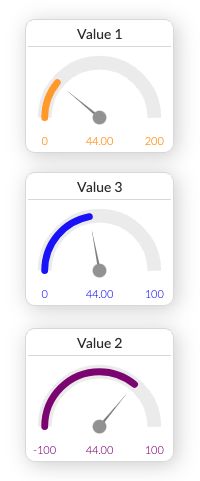
The tools that can now be added are: Ruler, Timer, Meter, Gauge, Graph, Bar Chart, Toggle, Slider, Input, Menu.

![](https://2165864134-files.gitbook.io/~/files/v0/b/gitbook-x-prod.appspot.com/o/spaces%2F-LCBQtB7AkKJtVQIbOdo%2Fuploads%2FOFCHELYjrMvRaZvi2a7a%2FScreen%20Shot%202022-05-14%20at%208.45.16%20AM.png?alt=media\&token=e124afa9-a91c-47bc-86b5-c5b0bba49eea)

You can also edit any of these tools properties by clicking on the little "gear" icon on top left side of the tool's panel, which will reveal that tool's different settings.

![](https://2165864134-files.gitbook.io/~/files/v0/b/gitbook-x-prod.appspot.com/o/spaces%2F-LCBQtB7AkKJtVQIbOdo%2Fuploads%2Fqz4q2xcPoGzzKS0FJc38%2FScreen%20Shot%202022-05-14%20at%208.02.52%20AM.png?alt=media\&token=3fdb3009-4f14-4a19-84d0-c2bef5264b63)

To **bind** the tool to a variable in your scenario, you just need to reference that variable in the **Binding** setting. The tool will then display the value of the bound variable, or if its an input tool (Toggle, Slider, Menu, Input) it will update that variable's value in your scenario.

For tools that are used for displaying values, you can also have Tychos evaluate an expression. For example, it the image below, the graph plot sets are evaluated using math expression for the y axis values: `t^2` and `sin(2*t)`

![](https://2165864134-files.gitbook.io/~/files/v0/b/gitbook-x-prod.appspot.com/o/spaces%2F-LCBQtB7AkKJtVQIbOdo%2Fuploads%2F30Syuxow2s8vAleVdp8w%2FScreen%20Shot%202022-05-14%20at%208.10.46%20AM.png?alt=media\&token=2f8f120a-c91c-4a33-8d82-f0d3ff219640)

Which results in this graph:

![](https://2165864134-files.gitbook.io/~/files/v0/b/gitbook-x-prod.appspot.com/o/spaces%2F-LCBQtB7AkKJtVQIbOdo%2Fuploads%2FAFbsNQuzRJKfhjWexfOa%2FScreen%20Shot%202022-05-14%20at%208.10.35%20AM.png?alt=media\&token=21b9c499-c02e-4636-a618-7d9a27a201de)

## 2022-3-9

### Added

#### New Borders and Line, Arrow Styling

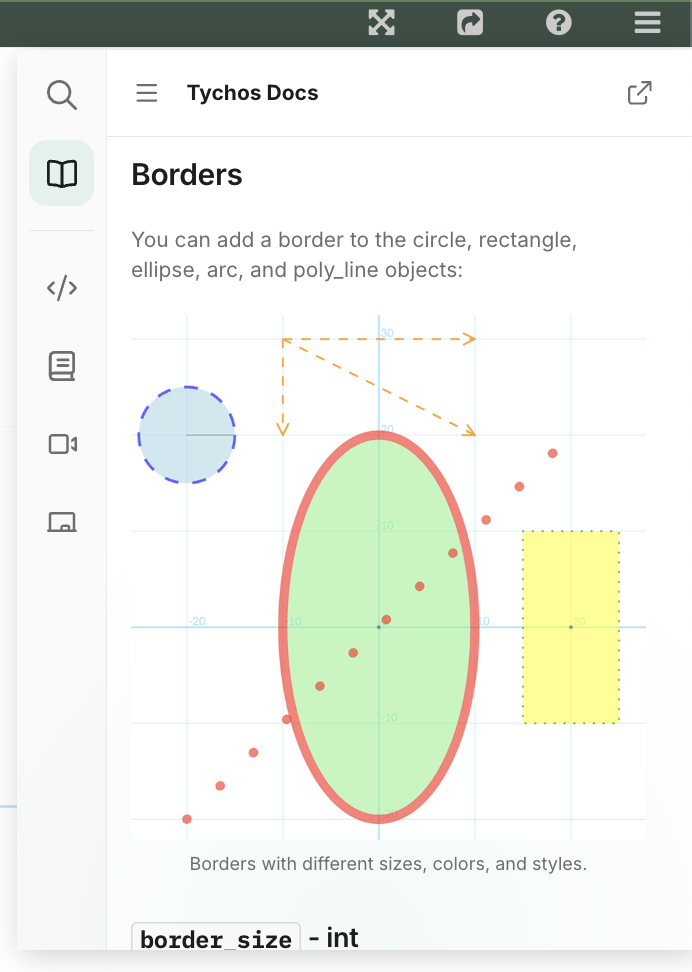
Circles, Rectangles and Ellipses can now be displayed with borders. These borders can also be displayed as either the default solid border (style: "none") or dashed (style: "dash") or dotted (style: "dot").

![Examples of different borders and styling.](https://2165864134-files.gitbook.io/~/files/v0/b/gitbook-x-prod.appspot.com/o/spaces%2F-LCBQtB7AkKJtVQIbOdo%2Fuploads%2FODBSIIOXQFz2n0eYtgkf%2FScreen%20Shot%202022-03-09%20at%203.48.57%20PM.png?alt=media\&token=8a347500-bd01-464e-94c1-4b775ce8610e)

Lines as well as Arrows can also now be styled in the same way.

## 2022-2-28

### Added

#### New BarChart widget

Now you can add a bar chart for visualizing data in your simulations. `BarChart` is a chart of data that is displayed as a set of bars representing an array of data values. Each `BarChart` that is created will appear on the right side of the World View.

![Example of a BarChart](https://2165864134-files.gitbook.io/~/files/v0/b/gitbook-x-prod.appspot.com/o/spaces%2F-LCBQtB7AkKJtVQIbOdo%2Fuploads%2FxoSB6k47X5D8SEG5weQB%2FScreen%20Shot%202022-03-01%20at%206.02.56%20AM.png?alt=media\&token=95e59a32-7d2d-4dc0-8557-930f4cafb7a0)

```
# Create the bar chart
bc_energy = BarChart({title:"Energy Bar Chart", min:0, max:500})
# Set the data for the bars
bc_energy.setData([x,y,z,w]) # Where x, y, z, and w are numerical data values
# Set the labels for the bars
bc_energy.setLabels(["KE", "Ue", "Ug", "TE"])
# Set the colors for the bars
bc_energy.setColors(["red", "blue", "green", "black"])
```

## 2022-1-23

### Added

#### New Ruler Tool

We have added one new measuring tool to Tychos so that you can measure the distance between two points on the screen as well as the angle. You will find this new tool in a new menu that we also created where we intend to put some other tools soon!

{% embed url="<https://vimeo.com/669235193>" %}
The ruler tool measures length and angle.
{% endembed %}

## 2022-1-12

### Changed

It's been quite some time since we added anything new to Tychos. That's because we have been busy working on a complete rewrite of our codebase as well as...well, you know, in a pandemic.

Most of what we have been working on will be unnoticeable for our users (hopefully!) but it gives us some added flexibility as we move forward with some new features that are in the pipeline.

### Added

#### PolyLine object

We have added one new object that we think you will like - the PolyLine object. The [`PolyLine`](/docs/learn/language-reference-api-1#polyline) object draws a series of connected lines between a given set of points. This object can be used to represent a complex path or a shape other than a circle or rectangle.

![Three PolyLine objects showing different styles and fills.](https://2165864134-files.gitbook.io/~/files/v0/b/gitbook-x-prod.appspot.com/o/spaces%2F-LCBQtB7AkKJtVQIbOdo%2Fuploads%2F6uyTaRmtQB5tHWWlU3oY%2FScreen%20Shot%202022-01-12%20at%203.38.47%20PM.png?alt=media\&token=115ddbe0-9024-41bd-b65c-db0918283b7c)

Example:

```
star1 = PolyLine({stroke: 3, style:"dash", fill: true, opacity: .2, color: "blue"})
star1.setPoints([[0,75-200], [379-350,161-200],[469-350,161-200],[397-350,215-200], [423-350,301-200], [350-350,250-200], [277-350,301-200], [303-350,215-200], [231-350,161-200], [321-350,161-200], [0,75-200]])
star2 = PolyLine({stroke: 2, style:"none", color: "green"})
star2.setPoints([[0,75-200], [379-350,161-200],[469-350,161-200],[397-350,215-200], [423-350,301-200], [350-350,250-200], [277-350,301-200], [303-350,215-200], [231-350,161-200], [321-350,161-200], [0,75-200]])
star2.translate([100, 100])
star3 = PolyLine({stroke: 3, style:"dot", color: "red"})
star3.setPoints([[0,75-200], [379-350,161-200],[469-350,161-200],[397-350,215-200], [423-350,301-200], [350-350,250-200], [277-350,301-200], [303-350,215-200], [231-350,161-200], [321-350,161-200], [0,75-200]])
star3.translate([-100, 100])
```

#### New createPoints function

The new createPoints function allows you to create a certain number of \[X, Y] points based on a mathematical expression. You define the minimum and maximum value for the domain, as well as the "step". The range is then evaluated based on an expression.

The expression has to be a string that can be evaluated by the Tychos engine as a function of "x":

```
points = createPoints(-10, 10, .1, "sin(x)")
```

This can be useful for a number of things such as creating a set of points for a PolyLine object (see above):

```
sinewave = PolyLine({stroke: 2, fill: false, style: "none", color: "blue"})
sinewave.setPoints(points)
```

![A PolyLine object with a set of points created using createPoints](https://2165864134-files.gitbook.io/~/files/v0/b/gitbook-x-prod.appspot.com/o/spaces%2F-LCBQtB7AkKJtVQIbOdo%2Fuploads%2F6Df7wnHr3kiF70IKr5wI%2FScreen%20Shot%202022-01-12%20at%204.48.09%20PM.png?alt=media\&token=ffbf3a8a-d684-439d-9d31-ef105a148a88)

## 2020-12-15

### Changed

#### Bug Fix: User control widgets now update if scenario is not running

We have fixed a problem where the Input, Menu and Slider user control widgets were not allowing you to update their values unless the scenario was running. It is now possible to update the widgets, and then press the "play" button and the values are all immediately captured from the widget in the first frame of the simulation.

#### Input Widget now has min, max and step attributes

The [`Input`](/docs/learn/language-reference-api-1#input) widget now allows you to define a limit to the maximum and minimum value that it will accept in the input as well as a step value.

```
in_x = Input({title: "X input", min:0, max:5, step:.1})
```

You can override the step value by just inputting the value from the keyboard as opposed to clicking the step buttons, but the maximum and minimum values can only be overridden in the code.

## 2020-10-20

### Added

#### New Circle and Rectangle Objects

We decided to add a new Circle and Rectangle object that are meant to replace the Particle and Block objects. We did this in order to reflect a more general use for these objects. This way, Circle and Rectangle objects reflect just their visual nature, not a functional nature. A circle could represent a particle, but can also represent a wheel, a ball, etc. A rectangle could be a block, but it could also be a table, the ground, a ramp, etc.

New [`Circle`](/docs/learn/language-reference-api-1#circle) Class

```
# New Circle
c = Circle({pos: [0,0], radius: 10, color: "red"})
```

New [`Rectangle`](/docs/learn/language-reference-api-1#rectangle) Class

```
# New Rectangle
r = Rectangle({pos: [0,0], size: [10, 10], color: "purple"})
```

{% hint style="info" %}
We have not removed the Particle and Block objects, so all your past scenarios will work. We just think, moving forward, these new object names will better represent a more generalized definition.
{% endhint %}

Please check out the Circle and Rectangle classes to learn how you can start using these objects in your scenarios.

#### New Arrow and Line Objects

You have been able to draw arrows and lines on the screen, but these were not treated as objects in their own right.

We decided to change that, and now Arrows and Lines are objects, much like the other objects in Tychos.

New [`Arrow`](/docs/learn/language-reference-api-1#arrow) Class

```
# New Arrow
arrow = Arrow({pos: [0,0], size: [10, 10], color: "red", components: true})
```

New [`Line`](/docs/learn/language-reference-api-1#line) Class

```
# New Line
line = Line({pos: [0,0], pos2: [10, 10], color: "purple", thickness: 2})
```

{% hint style="info" %}
We have not removed the `drawArrow` or `drawLine` functions, so all your past scenarios will work. We just think, moving forward, these new objects will better represent a more generalized definition.
{% endhint %}

Please check out the Circle and Rectangle classes to learn how you can start using these objects in your scenarios.

#### New Object Constructors For All Objects and UI Widgets

Every object and user interface (UI) widget now can be initialized using a more easily readable and decipherable `name:value` input. This allows you to identify all the attributes with a name value pair as opposed to a list of comma separated arguments.

```
{name1: value1, name2: value2} 
```

For example, before when creating a Spring object, you had to write this:

```
# Old API
s = Spring([0,0], [100, 0], "black", 5, 10, 1)
```

Which forced you to know the correct order of the parameters. You can now input a named/value pair in any order:

```
# New API
s = Spring({color:"black", pos2:[10, 10], pos:[0, 0], coils:10, thickness:1, width:5})
```

Although it does mean that there is more to type, you don't need get the order correct, and the name allows you to identify which parameter is which. Any missing parameters will just be replaced by default parameters for those objects and UI widgets. Please check out our updated [Language Reference](/docs/learn/language-reference-api-1#built-in-classes) for more details.

#### New Input and Menu User Interface Widgets

We have added two new UI widgets to Tychos; the `Input` widget and the `Menu` widget. These will add additional interactivity options to your simulations.

![Input widget and Menu widget](https://2165864134-files.gitbook.io/~/files/v0/b/gitbook-legacy-files/o/assets%2F-LCBQtB7AkKJtVQIbOdo%2F-MJi27fSo1O8iQVDbyJS%2F-MJmt3sADpgsex0e6SOO%2FScreen%20Shot%202020-10-16%20at%2012.25.02%20PM.png?alt=media\&token=89ac96f7-82a6-41ff-a923-1f83ae7d3124)

The `Input` widget:

To add the widget to your scenarios, you only need one parameter `title`:

```
# In Initial State
in = Input({title:"X Velocity"})
```

To access the value in the Input widget, you just need to do this:

```
# In Calculations
buggy.v[X] = in.value
```

The `Menu` widget:

To add this widget to your scenarios, you need two parameters, the `title` and an array for `choices` and an optional third array argument `values` that represent the values corresponding to the `choices`, though if you don't supply these, the `choices` array is used in place of `values`:

```
# In Initial State
color_menu = Menu({title:"Color", choices: ["green", "orange", "blue"]})
```

Top access the chosen value, you simply type this:

```
# In Calculations
buggy.color = color_menu.value
```

#### New Attributes for All Objects

We have been making some important changes to all the Tychos simulation objects. We have added these three attributes to every object:

* `opacity`: A value from 0 to 1 (default) that sets the opacity level of the object: 0 = transparent, 1 = opaque.
* `visible`: A value of `true` (default) which means the object is visible, or `false`, which means the object is invisible.
* `motion_map`: A flag (`true` or `false`) for activating the Motion Map for this object.

#### Motion Map Maximum Strobe Adjustment

Motion maps are now activated by an attribute flag for each object in your simulation (see above). If an object's `motion_map` attribute is set to `true`, then a motion map will be displayed for this object.

Additionally, we have added a new setting in the Settings Panel where you can set the maximum motion map strobe images that will be displayed. This sets the number of motion map strobe images per object, so if you set this to 10, then each object in your scenario that has their `motion_map` attribute set to `true`, will display a maximum of 10 strobe images.

![Set Max. Strobe Images to reduce clutter and maximize performance](https://2165864134-files.gitbook.io/~/files/v0/b/gitbook-legacy-files/o/assets%2F-LCBQtB7AkKJtVQIbOdo%2F-MJi27fSo1O8iQVDbyJS%2F-MJmwGozOrX8vfEgAtep%2FScreen%20Shot%202020-10-16%20at%2012.44.03%20PM.png?alt=media\&token=20b36b70-2255-41b0-b2f7-48b509510cf3)

Limiting the number can be helpful for two reasons. It can reduce clutter on your screen and improve performance/speed of your simulation.

### Changed

We want to apologize because we have noticed that there has been an inconsistency in how angles have been dealt with in Tychos. Object angles of rotation tended to be in degrees, while many of the functions in Tychos return angles in radians. That required annoying translation.

So we decided to standardize all angle values to radians. You can still translate between radian values and degree values using our helper conversion functions:

`degrees(angle)`: takes a radian input angle and returns the angle in degrees.

`radians(angle)`: takes a degree input angle and returns the angle in radians.

{% hint style="warning" %}
This may affect existing scenarios that have used functions that have by default expected degree inputs or returned degree outputs.
{% endhint %}

## 2020-7-17

### Added

#### Goal Status Added to Scenarios Page

The Scenarios page now displays the goal status of each Goal in the scenario. This is true for your scenarios as well as the scenarios of anyone who clones your scenarios. If you are a teacher, this means that you will be able to now easily see your students' progress.

You can move your mouse over the green "check", red "X" or grey "?" to get a goal description, making it easy to see the goal associated with the goal status.

![Hover your mouse over the goal status to get a](https://2165864134-files.gitbook.io/~/files/v0/b/gitbook-legacy-files/o/assets%2F-LCBQtB7AkKJtVQIbOdo%2F-MCTWpmPuKiQ6uzTdmEv%2F-MCTZ-k4nLjNDS0dQKf8%2FScreen%20Shot%202020-07-17%20at%203.45.57%20PM.png?alt=media\&token=3a18f38a-7d41-4443-a83f-6250684ad5c1)

{% hint style="info" %}
When Tychos detects a change to the goal status in a scenario, the user can update that new goal status by saving the scenario. If they don't save the scenario, the goal status will not be updated.

A "?" status indicates that the goal has not been tested because the goal *when condition* has not been met. For more details, please see [Writing Goals.](/docs/for-teachers/writing-goals-1)
{% endhint %}

## 2020-3-19

### Added

#### Frame History

Tychos now provides a way to access all the variables defined in the simulation at any frame. When writing goals it is often useful to compare a variable's value from one point of the simulation to another. For example, you might want to check if a Particle has moved, or accelerated. You can now do this because all your variable values are stored for each frame of the simulation.

To access a frame, you can simply type:

```
frame(10)
```

This captures all the variables values at frame 10. This is essentially a snap-shot of the simulation at that frame. To access an object and its properties (for example, the position of a particle) you simply use the "dot" notation:

```
# Access a Particle's (called "puck") position at frame 10
frame(10).puck.pos
```

This allows you to compare attributes of various objects or variables from one frame to another. So for example we can test to see if the "puck" particle has moved a certain distance by a specified time:

![](https://2165864134-files.gitbook.io/~/files/v0/b/gitbook-legacy-files/o/assets%2F-LCBQtB7AkKJtVQIbOdo%2F-M2nSyw6sotNchzNGosX%2F-M2o8UrEHNQW_txZPvqE%2FScreen%20Shot%202020-03-19%20at%201.54.13%20PM.png?alt=media\&token=928b62d6-7fa0-4d15-b1cb-b2213f8ddfb5)

In this case the Goal is:

1. **Description***:* "*Move the particle a distance of 10 from the origin after two seconds."*
2. **When Condition:** "*`t == 2`"*
3. **Victory Condition**: "`distance(frame(0).puck.pos, puck.pos) == 10`"

The **victory condition** in this case calculates the distance between the position of the "puck" particle's position at frame 0 and the current position of the "puck" particle when the time is 2 seconds.

You could also use frames to test if a particle is moving in a specific direction:

```
# Is the puck moving in the positive X direction?
frame(1).puck.pos[X] > frame(0).puck.pos[X] >
```

We think this is a great improvement to writing better Goals, and we hope you like it.

#### **Some New Useful Functions:**

We have added some new useful functions. Here is a list of those functions and briefly what each one does:

* `between(value, min, max)` :\
  This function allows you to see if a value is between a minimum value and a maximum value. It is exclusive.
* `constrain(value, min, max)`:\
  This function takes a value and then constrains it to a minimum value or a maximum value.
* `perpCW(vec)`:\
  This function returns a two dimensional matrix representing the clockwise perpendicular vector of the given vector.
* `perpCCW(vec)`:\
  This function returns a two dimensional matrix representing the counter-clockwise perpendicular vector of the given vector.

## 2020-2-28

### Changed

#### Collision Functions

We have greatly enhanced two functions for helping model collisions. Collision detection and resolution are typically quite difficult for students to program. We have added the ability to detect as well as assist in the modeling of collision resolution much easier. The functions and how they have been enhanced are listed below:

* `hasCollided(source, target)`:\
  This function takes two objects (`Particle` or `Block`) as its arguments and then returns true or false if the two objects are overlapping.
* `getIntersect(source, target)`:\
  This function returns a two dimensional matrix representing the minimum translation vector (MTV) that would be needed to separate two objects when they overlap. This can be used to simulate collision forces based on the magnitude and direction of the MTV.

For some good examples of how these functions can be used to model realistic collisions, check out these demonstrations:

* [Demo: Particle In A Box](https://www.tychos.org/en/scenarios/sae23y)
* [Demo: Modeling Collisions With An Elastic Force](https://www.tychos.org/en/scenarios/vugK2C)

#### General Download Speed Increases

We have made some significant improvements in load times for Tychos when you first visit the site due to utilizing some caching and compression technologies. We hope you appreciate the faster loading times!

## 2020-1-13

### Changed

#### **Moved Tychos servers**

We have moved Tychos.org to different servers to improve reliability and monitoring. Tychos was unavailable for half a day—we apologize for that. Now that we have created this change history for Tychos, we will announce maintenance issues here.

## 2020-1-03

### Fixed

#### Settings Pane crashing for some scenarios

Some scenarios were crashing when the Settings pane was opened. We found the problem and now all scenarios should have an accessible Settings pane.

## 2019-11-25

### Added

#### **Hide/Show Panes:**

Teachers can now hide different panes in order to more finely control access to different aspects of scenarios. In the Settings Pane, there is now an Access sub pane that allows you to show or hide one of the Hack Panel's panes:

![](https://2165864134-files.gitbook.io/~/files/v0/b/gitbook-legacy-files/o/assets%2F-LCBQtB7AkKJtVQIbOdo%2F-Lykut6HHxfkF0Diws1N%2F-Lyl-CcX4raSxaaCTPD4%2FScreen%20Shot%202020-01-16%20at%204.53.32%20PM.png?alt=media\&token=9d6337a7-29dd-47ac-9614-0fa905c0dec0)

## 2019-11-9

### Added

![](https://2165864134-files.gitbook.io/~/files/v0/b/gitbook-legacy-files/o/assets%2F-LCBQtB7AkKJtVQIbOdo%2F-Lyq9rNXLCfDQM15SquY%2F-LyqA5Mzswj0A9Tdtd8J%2Fimage.png?alt=media\&token=4edb2835-c87a-404f-b6c6-b84aa4bf52f9)

#### **Labels:**

You can now add a Label object to your simulations. This gives users the ability to add and then animate text in the Tychos world.\
\
You can create text in any RGB color and define its size and position:\
\
`myLabel = Label(position=[0, 0], size=[100, 100], “text”, “green")`\
\
You can then rotate the text as well:\
\
`myLabel.rotate(PI/4)`\
\
Particle and Block objects can also be given a text labels. This is similar to the Label object.\
\
`particle.addLabel(text="Hello", color="green")`\
\
To learn more, check out our documentation here:\
\
<https://docs.tychos.org/docs/learn/language-reference-api#label><br>

#### **Some New Useful Functions:**

We have added some new useful functions. Here is a list of those functions and briefly what each one does:

* `stop(test=false)` :\
  Allows you to stop the simulation if a condition is met. The input can be any logical statement that can be evaluated to true or false.
* `hasCollided(p1 = Particle, p2 = Particle)`:\
  This function takes two Particle objects as its arguments and then returns true or false if the two Particles are overlapping. This function only works with particles at this time, but we plan on building in more sophisticated collision detection for blocks too!
* `getIntersect(source, target)`:\
  This function returns a two dimensional matrix representing the minimum translation vector (MTV) that would be needed to separate two Particle objects when they overlap. This can be used to simulate collision forces based on the magnitude and direction of the MTV.
* `polar(radius, angle, units=”rad”)`:\
  This function is a utility function for quickly defining a 2d vector in polar form. It takes two required arguments, the scalar angle, and the scalar radial length. You can optionally include a tag of “deg” or “rad” to identify the angular units. The default value for units is “rad” for radians.

#### **Code Presentation Mode**

In the Settings Pane, you can now choose a new code color scheme that is better for presentation. Besides these changes we have added some other UI enhancements like better tooltips for the output gutter in the Initial State pane and the Calculations pane as well as a more organized Settings Panel. We hope you like the changes, and we are always looking for feedback and ideas on how to make Tychos better. A huge thanks to all the users that have contacted us and given us some great ideas!

### Changed

#### **Graph Enhancements**

We have added some new enhancements to graphs:

* Graphs are now resizable so that you can make them larger or smaller on the screen.
* You can alternatively “roll” up the graph into the panel title bar.
* We have added tooltips for the data points in the graphs.

## 2019-8-19

### Added

#### **Data Output Table:**

This is has been a feature that we have wanted to add for quite some time, and we have an initial version ready for you! With just a few lines of code, you can now create a data table for displaying variable values. This can be really helpful for recording a history of the simulation. We think this is a crucial tool for helping students connect the code they write to the simulation animation. You can create a data table by setting the columns in the Initial State Pane like this:

`table.setColumns(["column1", "column2", ...])`

Where the array of strings `"column1"` and `"column2"` would be the table column headers. You must have a table with at least one column, but you can have many more. Then you can record a new row in the table using this command in the Calculations Pane:

`table.addRow([val1, val2, ...])`

Where the array of values for example - `val1` and `val2` - could be any variable values you would like to record. The array of values must have the same number of values as columns in the table.<br>

#### **Mouse Interactivity**

You can now get the position of the mouse mapped to the simulation extents. This allows you, for example, to build interactive simulations where Particles or Blocks can respond to the mouse position. To do so, you simply just need to reference the mouse position like this: `mouse.pos` This will return the mouse position within the scenario coordinate system. We have also added the ability to detect “mouse over” events. The following function allows you to test if the mouse is over a Particle or a Block:

```
# Where p is a Particle, but could be a Block too!
mouse.is_over(p)  
```

Here is a demonstration to check out these the new mouse interaction features:

<https://tychos.org/scenarios/nQqTE7>


# Learn


# Overview

We have created several learning resources to help you get started quickly. These resources are continually being updated, so please check back...Feel free to let us know if we can provide any extra help, or if you have any suggestions about how we can be more helpful.

{% content-ref url="/pages/G72YH2slWQnBz1q9zoOB" %}
[Creating and Managing Scenarios](/docs/learn/creating-and-managing-scenarios)
{% endcontent-ref %}

{% content-ref url="/pages/-LDvolCN--hFyV4UgEhT" %}
[The Interface](/docs/learn/interface-overview)
{% endcontent-ref %}

{% content-ref url="/pages/-LCBTHimH4o\_MsrryusL" %}
[Video Guides](/docs/learn/video-guides)
{% endcontent-ref %}

{% content-ref url="/pages/6yyMrBQh9CeBLoz4Kktq" %}
[Tychos Python Language Reference](/docs/learn/language-reference-api)
{% endcontent-ref %}

{% content-ref url="/pages/-LDvolCP3i\_rToqAXNWu" %}
[Tychos MathJs Language Reference](/docs/learn/language-reference-api-1)
{% endcontent-ref %}


# Creating and Managing Scenarios

### Scenarios Table

Your scenarios can be found by clicking the Scenarios link in the main navigation menu.

This will show you a table of scenario links. The scenarios can be sorted according to the title, the date created or the date modified. You can also set a scenario to be private - meaning only you can see it, even if someone has the link to your scenario - make a copy of the scenario, or delete the scenario:

<figure><img src="https://2165864134-files.gitbook.io/~/files/v0/b/gitbook-x-prod.appspot.com/o/spaces%2F-LCBQtB7AkKJtVQIbOdo%2Fuploads%2Fd4rIBxo978fRrLGAi5NX%2FTychos%20Collections%205.png?alt=media&amp;token=4fcde5c9-eec3-426e-acab-88fd4bb77332" alt=""><figcaption></figcaption></figure>

Above this table, you can click on either a button to create a new Python scenario or a MathJs scenario:

<figure><img src="https://2165864134-files.gitbook.io/~/files/v0/b/gitbook-x-prod.appspot.com/o/spaces%2F-LCBQtB7AkKJtVQIbOdo%2Fuploads%2F68DDAto73ATpqbmHABJU%2FTychos%20Collections1.png?alt=media&amp;token=44f8e243-0f2f-40f5-90cd-1edc24be0cae" alt=""><figcaption></figcaption></figure>

### Collections

#### Add A Collection

You can also create collections to help you organize your scenarios. Simply click the + button to add a new collection:

<figure><img src="https://2165864134-files.gitbook.io/~/files/v0/b/gitbook-x-prod.appspot.com/o/spaces%2F-LCBQtB7AkKJtVQIbOdo%2Fuploads%2FsZyRpjZridnuy21bwbZt%2FTychos%20Collections%202.png?alt=media&amp;token=3aacc128-537c-46e1-9538-a70d00c27a04" alt=""><figcaption><p>Add new collection</p></figcaption></figure>

You will need to give the collection a Title, a Description, and you can make the collection private so that no one can see your collection, even if they have the link.

#### Add Scenarios To Your Collection

When you want to add a scenario to your collection, a dialog box will appear with a list of all the scenarios that you have created:

<figure><img src="https://2165864134-files.gitbook.io/~/files/v0/b/gitbook-x-prod.appspot.com/o/spaces%2F-LCBQtB7AkKJtVQIbOdo%2Fuploads%2FpmtMGwthEkGVrYIgXWPQ%2FTychos%20Collections%204.png?alt=media&amp;token=e0ef3426-01ec-440d-947d-ed4c9aa120bc" alt=""><figcaption></figcaption></figure>

Once they have been added, you will see those scenarios in a table that represents all the scenarios in this collection:

<figure><img src="https://2165864134-files.gitbook.io/~/files/v0/b/gitbook-x-prod.appspot.com/o/spaces%2F-LCBQtB7AkKJtVQIbOdo%2Fuploads%2FInmWsq03rjvHCFg49BzD%2FTychos%20Collections%203.png?alt=media&amp;token=5268f042-0969-43f4-bfc3-6293daf135c3" alt=""><figcaption></figcaption></figure>

#### Remove Scenarios From Your Collection

When you remove a scenario from your collection, simply click the Remove button. This does not delete the scenario. To delete a scenario, you need to Delete the scenario from the **All Scenarios** collection.

#### Editing or Deleting The Collection

Any collection can be edited by clicking on the pencil icon button next to the Add Scenarios button. Likewise, you can delete the collection (but not the associated scenarios) by clicking on the trash icon button next to the pencil icon button.


# The Interface

## World View

The main application screen shows the simulated world filled with particles, and any graphs that have been defined. The main window primarily consists of a two dimensional grid that represents a limitless two dimensional euclidean space. This is the space where all simulation animations take place.

<figure><img src="https://2165864134-files.gitbook.io/~/files/v0/b/gitbook-x-prod.appspot.com/o/spaces%2F-LCBQtB7AkKJtVQIbOdo%2Fuploads%2FcZxiqY8w8pDG9ErhA789%2Fthe_interface_1024x640.png?alt=media&amp;token=dd3d29b9-c15c-4e95-8aa5-6e3794c0f6e9" alt=""><figcaption></figcaption></figure>

There are several key user interface elements on the screen that serve important functions for accessing different aspects of the application:

1. **Hack Panels** - access the editing and settings panels for your scenarios.
2. **Tools** - There are a number of tools that you can add to help analyze and explore your scenario. Many of these can also be added through the programming API's.
3. **Full Screen** - View the scenario in full screen mode.
4. **Share and Help Menus** - Different menu options for sharing your scenario and getting help.
5. **Main Menu** - click on this to access links to other content on our website, and to view your scenario library,
6. **Scenario Controls** - these are the controls for running (or pausing), stepping through, or saving your scenario.
7. **Console** - A console where you can interact and log messages.

## **Console**

The button in the bottom right of the main interface window opens a panel that provides a REPL like tool so that you can execute code from the command line interface, but it also serves to print out messages to the console that you insert into your code. It's a great way to test some code, explore the current state of a running simulation.

<figure><img src="https://2165864134-files.gitbook.io/~/files/v0/b/gitbook-x-prod.appspot.com/o/spaces%2F-LCBQtB7AkKJtVQIbOdo%2Fuploads%2FroOsYNzi38myDMMUmOYz%2Fconsole.png?alt=media&amp;token=fad7a2b5-2da6-483a-9159-3fdeb2d09bf7" alt=""><figcaption></figcaption></figure>

## Hack Panels

The panels shown below are accessed by clicking the small wrench icon in the upper left hand corner of the screen. Each panel has its own function with different information displayed and often editable by the user.

### **Description Panel**

This is the description of the simulation, as well as any optional directions that can be identified by the simulation author.

<figure><img src="https://2165864134-files.gitbook.io/~/files/v0/b/gitbook-x-prod.appspot.com/o/spaces%2F-LCBQtB7AkKJtVQIbOdo%2Fuploads%2FA81b53jy7mSbEtQnH2P3%2Fdescription.png?alt=media&amp;token=da040239-1f0c-4ecc-99ce-fcf8ac278739" alt=""><figcaption></figcaption></figure>

### Goals Panel

The instructor or whoever wrote the scenario may include specific goals that the student should accomplish with this Scenario. Each goal has a description and the goal will turn from a question mark to a green check when your program achieves that goal.

#### For Teachers:

The teacher interface looks a bit different. There are two buttons in this panel, the first for creating goals, and the other that allows teachers to update the goals for all student clones.

For more on Goals, and how to write them, please visit [Writing Goals (Python)](/docs/for-teachers/writing-goals) or [Writing Goals (MathJs)](/docs/for-teachers/writing-goals-1).

<figure><img src="https://2165864134-files.gitbook.io/~/files/v0/b/gitbook-x-prod.appspot.com/o/spaces%2F-LCBQtB7AkKJtVQIbOdo%2Fuploads%2FiwHLF1MxwRNmevnWhqxO%2Fgoals.png?alt=media&amp;token=ea16caba-10af-445a-a8ce-8ee75bc74a31" alt=""><figcaption></figcaption></figure>

### **Setup Code**

The **Setup Code Panel** is where you program the initial conditions of the simulation, e.g. creating circles, rectangles, springs, setting their initial position, and perhaps defining initial values such as the gravity or mass.

This is also where you define functions that can then be called in the **Loop Code** panel.

**Indentation** — Indent several lines of code by selecting them and typing `Cmd-]` or `Tab`. Un-indenting is `Cmd-[` or `Shift-Tab`.

**Comments** — Comment lines by selecting them and typing `Cmd-/` or `Ctrl-/`.

<figure><img src="https://2165864134-files.gitbook.io/~/files/v0/b/gitbook-x-prod.appspot.com/o/spaces%2F-LCBQtB7AkKJtVQIbOdo%2Fuploads%2FbwdFqD92eYPCAwZtBmqU%2Fsetup_code.png?alt=media&amp;token=8de562d5-2fb7-4d32-ad6a-2785bc9cb830" alt=""><figcaption></figcaption></figure>

### **Loop Code Panel**

In this panel, you write your program for calculating what the simulation does for every moment in time as the simulation runs - called a step. E.g. for a simulation of objects moving in space, you might calculate a new position for them given their existing momentum.

<figure><img src="https://2165864134-files.gitbook.io/~/files/v0/b/gitbook-x-prod.appspot.com/o/spaces%2F-LCBQtB7AkKJtVQIbOdo%2Fuploads%2FR0QvyZe8AYAR03ZPJnvC%2Floop_code.png?alt=media&amp;token=f02cfc50-722b-4ab6-975f-38c1ba7d22c3" alt=""><figcaption></figcaption></figure>

## **Settings Panel**

This panel allows you to change several settings of the simulation. It is actually broken into three "sub panels:

#### Simulation Settings:

These are general settings that control how the simulation runs:

<figure><img src="https://2165864134-files.gitbook.io/~/files/v0/b/gitbook-x-prod.appspot.com/o/spaces%2F-LCBQtB7AkKJtVQIbOdo%2Fuploads%2FANMX3CbO7PTvNTuzlzzI%2Fsim_settings.png?alt=media&amp;token=cbe7896a-9e34-4edd-9881-7557715571c3" alt=""><figcaption></figcaption></figure>

* **Coding Language:** You can write your simulation using the Python language (default) or switch to MathJs as another coding language option!
* **Loop Iteration Rate (dt):** Set the time interval between each calculation and simulation world update.
* **Simulation Duration:** The total length of time for the simulation to run.
* **Graph Plot Rate**: The rate at which new points are added to your graph widgets.
* **Table Record Rate**: The rate at which new rows are added to table widgets.
* **Auto Run**: Set the scenario to automatically run once it has been loaded.

#### Display Settings:

These settings control the visual look of the simulation world:

<figure><img src="https://2165864134-files.gitbook.io/~/files/v0/b/gitbook-x-prod.appspot.com/o/spaces%2F-LCBQtB7AkKJtVQIbOdo%2Fuploads%2FufOFwFUBXKjB46wwWkDe%2FTychos%20Display%20Settings.png?alt=media&amp;token=047ada93-07af-40b9-b74e-dde8d400e82e" alt=""><figcaption></figcaption></figure>

* **Open Hack Panel On Open** - This sets the default opening of the hack panel. When selected, the scenario will load with the hack panel open.
* **Auto Hide Header** - Allows you to hide the header toolbar, and it will reappear when the mouse is brought close to the top of the screen.
* **Auto Hide Controls** - Allows you to hide the simulation control buttons, but they will reappear when the mouse is brought close to the bottom of the screen.
* **Background Color** - The background color of the world.
* **Display Grid** - You can remove the grid by unchecking this.
* **Grid Color**: The color of the grid
* **Motion Map**: If any objects in the world have their `motion_map` flag set to true, then checking this box will enable a motion map to be displayed.
* **Motion Map Rate**: This sets the rate at which each new strobe image is created (and removed) from the world.
* **Max Strobe Images**: Set the total number of strobe images that will be displayed *per object*.
* **Zoom Extents:** The World View window can either scale automatically depending on the space inhabited by any objects, or it can be set to a specific viewing size.
  * **Choose automatically**: The World View scales to fit the objects in the simulation.
  * **Set fixed size**: The World View is sized based on the **Minimum value** and the **Maximum value.**
* **Code Color Mode**: This changes the color theme for the code editing panes.

#### Assets

Tychos allows you to add certain file assets to your scenarios. You can upload and then link images, sound files or .csv data files easily by referencing the name of the asset in your code.

<figure><img src="https://2165864134-files.gitbook.io/~/files/v0/b/gitbook-x-prod.appspot.com/o/spaces%2F-LCBQtB7AkKJtVQIbOdo%2Fuploads%2FCTPHH7PXQ1iS4RwCFvb6%2FAssets.png?alt=media&amp;token=36bf23df-4613-4ba0-86c5-d45e8c62e742" alt=""><figcaption><p>Three assets have been uploaded.</p></figcaption></figure>

You simply need to click the *Choose* button and then select a file from the file browser and click the *Upload* button. You can then use the name of the file to link the asset to your scenarios. For more information on how to do this, please take a look at the MathJs API or the Python API.

#### Devices

You can connect different devices to Tychos so that you can read data from various sensors or microcontrollers. Tychos can read from [**Vernier GoDirect**](https://www.vernier.com/products/go-direct/)  sensors via Bluetooth, or connect to any serial device (Arduino, Micro:bit, etc.) using a USB connection.

<figure><img src="https://2165864134-files.gitbook.io/~/files/v0/b/gitbook-x-prod.appspot.com/o/spaces%2F-LCBQtB7AkKJtVQIbOdo%2Fuploads%2Fhh2IZj65xAOlK0gcrl4M%2Fdevices_settings.png?alt=media&amp;token=735220ac-8d10-4598-871a-6837e4cd1d0e" alt=""><figcaption></figcaption></figure>

#### Access Settings (Only viewable by Teacher accounts)

This section of the Settings Panel is only viewable if you have a teacher account. It gives teachers the ability to limit certain access to the scenarios that are created.

![](https://2165864134-files.gitbook.io/~/files/v0/b/gitbook-legacy-files/o/assets%2F-LCBQtB7AkKJtVQIbOdo%2F-MMsErel42a_KJlc6f7O%2F-MMsGSNKQDm5TWF2F2Xm%2FScreen%20Shot%202020-11-23%20at%203.57.52%20PM.png?alt=media\&token=f98876f0-e8b4-4a05-8a8d-50c3e5689680)

* **Privacy**: Clicking the little lock icon changes the scenario to being publicly viewable (default) or private.
* **Hackable**: This settings allows users to limit others who view their scenarios from making copies of their scenarios as well as limiting access to the different Hack Panels.


# Tychos Python Language Reference

The following reference guide identifies the language syntax, built in variables, functions, and classes that are used to code your simulations using the Python Language. We have included documentation here for some of the helpful functions defined in the Python language. This is not a complete list of all functions available in Python, just ones that might be commonly used in Tychos for building scenarios as well as defining goals for those scenarios.

## Comments

Comments are statements that you can insert in your code that do not get interpreted and executed by Tychos. To create a comment, you simply indicate a comment by using a hashtag:

```python
# This is a comment.
```

## Variables

To define a variable in Tychos all you need to do is identify a name for the variable. You then type an `=` sign to assign a value to the variable. The following demonstrates various variable declarations

```python
# Assigns a variable called x the value of 10
x = 10
# Assign a new variable y the value of the x
y = x
# Assign x the value of itself plus 1
x = x + 1
```

## Built-in Scenario Variables

There are a few variables that are built into Tychos. These variables are:

* `t` — How many seconds has passed since this Scenario was started?
* `dt` — Time between frames as seconds, e.g. 0.1 is 1/10th of a second.
* `frame_count` — How many frames have passed? e.g. 1, 2, 3...

## Common Math Operators and Functions

These are some common mathematical operators and functions for performing various calculations.

### Mathematical Operators

Tychos uses the following operators to perform basic math calculations:

* `+` — Addition
* `-` — Subtraction
* `*` - Multiplication
* `/` - Division
* \*\* - Exponent
* `%` - Modulo

### Basic Math Functions

You can also use the following basic math functions:

#### **sqrt(positive\_number)**

The `sqrt(positive_number)` function takes a single non negative number and returns the real square root of the number.

```python
# returns number 2
sqrt(4)
```

#### **exp(power)**

The `exp(power)` function calculates Euler's number (e) to the given power.

```python
# returns 54.59815
exp(4)
```

#### **log(x)**

The `log(x)` returns the natural log (base e) of x.

```python
# returns approximately 2
log(7.389)
```

#### **ceil(x)**

The `ceil(x)` function rounds a number *up* to the nearest integer.

```python
# returns 5
ceil(4.1)
```

#### **floor(x)**

The `floor(x)` function rounds a number *down* to the nearest integer.

```python
# returns 4
floor(4.9)
```

#### **sign(x)**

The `sign(x)` function returns +1 if x is greater than 0, -1 if x is less than 0, and 0 if x is equal to 0.

```python
# returns -1
sign(-42)
# returns 1
sign(42)
# returns 0
sign(0)
```

#### **abs(x)**

The `abs(x)` function returns the absolute value of a number.

```python
# returns number 2
abs(-2)
```

#### **random\_value()**

The `random_value()` function returns a random number between 0 and 1.

```python
x = random_value()
```

#### **factorial(x)**

The `factorial(x)` function calculates the product of all positive integers less than or equal to the given positive integer.

```python
# x! = x*(x-1)*(x-2)....(1)
# returns 120
factorial(5)
```

#### **combin(n, r)**

The `combin(n, r)` function calculates the number of ways to choose a sample of r elements from a set of n distinct objects where order does not matter and replacements are not allowed.

```python
# x!/(y!*(x-y)!)
# returns 10
combin(5,2)
```

### Trigonometric Functions

The following functions all use radians as the angle measurement. You can use `pi` to represent PI.

#### **sin(angle)**

The `sin(angle)` function is used to evaluate the trigonometric sine value for a given input angle. The input angle must be provided in radians.

```python
# returns number 1
sin(pi/2)
```

#### **cos(angle)**

The `cos(angle)` function is used to evaluate the trigonometric cosine value for a given input angle. The input angle must be provided in radians.

```python
# returns number 1
cos(0)
```

#### **tan(angle)**

The `tan(angle)` function is used to evaluate the trigonometric tangent value for a given input angle. The input angle must be provided in radians.

```python
# returns number 1
tan(pi/4)
```

#### **asin(value)**

The `asin(value)` function is used to evaluate the trigonometric arcsine value (inverse sine) for a given input. The output angle is given in radians.

```python
# returns number 1.57
asin(1)
```

#### **acos(value)**

The `acos(value)` function is used to evaluate the trigonometric arccosine value (inverse cosine) for a given input. The output angle is given in radians.

```python
# returns number 0
acos(1)
```

#### **atan2(x, y)**

The `atan2(x, y)` function is used to evaluate the trigonometric arctangent value (inverse tangent) for a given x and y input. The output angle is given in radians.

```python
# returns number -0.785
atan2(-1, 1)
# returns 2.36
atan2(1, -1)
```

**radians(angle)**

The input is an angle measurement in degrees and the output is the angle measurement in radians.

```python
# returns number .785
radians(45)
```

**degrees(angle)**

The input is an angle measurement in radians and the output is the angle measurement in degrees.

```python
# returns number 180
degrees(pi)
```

## Vector and Vector Functions

The following functions provide operations for creating and using vectors in calculations.

#### **vec(x, y), or vec(x,y,z)**

Creates a **Vector** object representing a 3d vector with components identified as x, y, and z.

```python
# Create a vector with components x=2, y=2, z=0
v1 = vec(2,2)

# Create a vector with components x=2, y=2, z=2
v2 = vec(2,2,2)

# Change a component of the vector:
v1.x = 3
```

#### **Adding and Subtracting Vectors**

Vectors can be added or subtracted from one another using standard +, - operators:

```python
v1 = vec(2,2)
v2 = vec(1,1)

# Add the two vectors together:
v3 = v1 + v2 # Returns vec(3,3,0)
```

#### **Multiplying and Dividing By A Scalar**

Vectors can also by scaled using the standard \*, / operators:

```python
v1 = vec(2,2)

# Multiply by a scalar
v2 = 2 * v1 # Returns vec(4,4,0)

# Divide by a scalar
v3 = v1 / 2 # Returns vec(1,1,0)
```

#### **dot(v1, v2)**

Calculates the dot product of two Vector objects.

```python
# Work is the dot product of Force (F) and displacement (r)
F = vec(2, 2)
r = vec(3, 3)
# returns 12
Work = dot(F, r)
```

#### **cross(v1, v2)**

Calculates the cross product for two vectors in three dimensional space.

```python
# Torque is the cross product of Force and moment arm (r)
F = vec(2, 0, 0)
r = vec(0, 2, 0)
# returns Vector vec(0, 0, 4)
cross(F, r)
```

#### **norm(vec)**

Same as `hat`. See below.

#### **hat(vec)**

This function returns a unit vector representation of the given input vector. Its magnitude is 1 and the direction matches the direction of the input vector. This can be useful if you need just the direction of a vector, but not its magnitude.

* `vec` - any two or three dimensional vector.

Example:

```python
u = hat(vec(3, 4))  # returns vec(0.6, 0.8, 0)
mag(u)             # returns 1
```

#### **mag(vec)**

This function returns the scaler magnitude of any given vector. This is helpful when you want to know the length of a vector, for example, if you want the magnitude of a vector, but not the direction.

* `vec` - any two or three dimensional vector.

Example:

```python
mag(vec(3, 4))             # returns 5
```

**mag2(vec)**

This function returns the scaler squared magnitude of any given vector.

* `vec` - any two or three dimensional vector.

Example:

```python
mag2(vec(3, 4))             # returns 25
```

#### **diff\_angle(vec1, vec2)**

This function returns the angle between two vectors. The angle value is returned in radians.

* `vec1` - any two or three dimensional vector.
* `vec2` - any two or three dimensional vector.

Example:

```python
# returns 0.7853981633974484
diff_angle(vec(4, 4), vec(4, 0))
```

#### **proj(vec1, vec2)**

This function returns the vector projection of `vec1` along `vec2`.

* `vec1` - any two or three dimensional vector.
* `vec2` - any two or three dimensional vector.

#### **comp(vec1, vec2)**

This function returns the scalar projection of `vec1` along `vec2`.

* `vec1` - any two or three dimensional vector.
* `vec2` - any two or three dimensional vector.

#### **distance**(point1, point2)

This function returns a scalar quantity representing the distance between two points.

* `point1` - any two or three dimensional vector representing a point in space.
* `point2` - any two or three dimensional vector representing a point in space.

Example:

```
distance(vec(5,5), vec(3,3))            # returns 2.8284271247461903
```

#### **direction(vec)**

This function returns a scalar angle measurement. This is helpful when you want to know the direction of a vector, like the direction of a velocity vector, or the direction of a force vector. The returned angle is given in radians, measured from the positive x axis.

* `vec` - any two or three dimensional vector.

Example:

```
direction(vec(4, 4))             # returns 0.7853981633974483
```

#### polar(radius, angle)

This function returns a two-dimensional vector representing the cartesian components of a polar coordinate corresponding to the magnitude of the radius and the radial angle.

* `radius` - scalar quantity representing the magnitude of the radius
* `angle` - scalar quantity representing the angle measurement of the polar coordinate.

Example:

```
polar(10, pi/4)            # returns vec(7.07, 7.07, 0)
```

#### get\_rotated\_position(position, angle, axis)

This function is simply used for finding a point that has been rotated a given angle about a specific axis. It is just a utility function that could be performed by doing some simple trigonometry calculations, but hey, why not make it easier for you?

* `position` - A vector representing the point that is rotated.
* `angle` - scalar quantity representing the angle measurement of rotation.
* `axis` - A 2D vector that identifies the axis point about which the position has been rotated.

Example:

```
get_rotated_position(vec(10, 0), pi, vec(0, 0))            # returns vec(-10, 0, 0)
```

## Other Useful Functions

Some other useful functions...\_

#### rgb(r, g, b)

This function returns a hexadecimal value for the red, green, and blue input values. This can be useful for setting the color of an object based on the RGB color model.

* `r` - a value between 0 and 255 representing the RED of RGB.
* `g` - a value between 0 and 255 representing the GREEN of RGB.
* `b`- a value between 0 and 255 representing the BLUE of RGB.

Example:

<pre class="language-python"><code class="lang-python"><strong>color = rgb(100, 100, 0)            # returns '#646400'
</strong></code></pre>

#### stop()

This function interrupts the simulation and stops it at the current frame.

`stop()` -> stops the simulation.

Example:

{% code lineNumbers="true" %}

```python
if buggy.pos.x > 100:
    stop()             # simulation stops
```

{% endcode %}

#### reset()

This function resets the simulation back to the beginning, re-running the Setup Code from scratch. All objects and variables are reinitialized.

`reset()` -> resets the simulation to the initial state.

This function can only be used in the **Loop Code** and cannot be called from the **Setup Code**.

Example:

{% code lineNumbers="true" %}

```python
if ball.pos.x > 100:
    reset()            # restart simulation from the beginning
```

{% endcode %}

#### load\_scenario(url\_key, params=None)

This function loads a different scenario into the Tychos interface, allowing you to chain scenarios together.

`load_scenario(url_key)` -> loads the scenario with the given URL key.

`load_scenario(url_key, params)` -> loads the scenario and passes a dictionary of values to it.

This function can only be used in the **Loop Code** and cannot be called from the **Setup Code**.

**Parameters:**

* `url_key` (str): Non-empty string identifying the scenario to load
* `params` (dict, optional): A dictionary of values to pass to the new scenario. Read them in the new scenario's Setup or Loop Code via `scenario.params`.

Example:

{% code lineNumbers="true" %}

```python
# Level 1 — pass score and lives to the next level
if score >= 10:
    load_scenario('ABCDEF', {'score': score, 'lives': lives})
```

{% endcode %}

In the new scenario's **Setup Code**, access the passed values via `scenario.params`:

{% code lineNumbers="true" %}

```python
# Level 2 setup — read values carried over from the previous scenario
initial_score = scenario.params.get('score', 0)
initial_lives = scenario.params.get('lives', 3)
```

{% endcode %}

### Collision Functions

{% hint style="info" %}
Currently `circle` ,`rectangle` , and `line` objects work with any of the collision functions. We are working to add other objects soon.
{% endhint %}

The following functions are meant to help users model collisions more easily. These functions could be used for other purposes rather than modeling collisions as Tychos is not a physics engine. These functions could be thought of as "overlap" functions. They return information about the *overlap* of objects.

#### has\_collided(source, target)

This function returns a boolean true/false value when two objects are given as the source and target. It returns false if the two objects are not determined to be *overlapping.*

* `source` - `circle` or `rectangle` or `line` object
* `target` - `circle` or `rectangle` or `line` object

Example:

<img src="https://2165864134-files.gitbook.io/~/files/v0/b/gitbook-legacy-files/o/assets%2F-LCBQtB7AkKJtVQIbOdo%2F-M1Gz_JkgHeb2qElY8fn%2F-M1H2ldqYMhdQkM2Jgls%2FhasCollided_example.png?alt=media&amp;token=85865cc7-cb6a-4641-99e9-dbf613a90e41" alt="" width="375">

{% code lineNumbers="true" %}

```python
# Setup Code
p1 = circle(pos=vec(15, 0), radius=10, color=rgb(0, 200, 200), opacity=.6)
b1 = rectangle(pos=vec(0, 0), size=vec(15, 15), color=rgb(200, 0, 200), opacity=.6)
b1.rotate(radians(45))
p3 = circle(pos=vec(-15, 0), radius=10, color=rgb(0, 0, 200), opacity=.6)
```

{% endcode %}

{% code lineNumbers="true" %}

```python
# Loop Code
has_collided(p1, b1)            # returns True
has_collided(b1, p3)            # returns True
has_collided(p1, p3)            # returns False
```

{% endcode %}

#### get\_mtv(source, target)

This function returns a two dimensional vector representing the *minimum translation vector* (MTV) that would be needed to separate two objects when they overlap. This can be used to simulate collision forces or to move objects apart based on the magnitude and direction of the MTV.

* `source` - `circle` or `rectangle` or `line` object
* `target` - `circle` or `rectangle` or `line` object

Example:

<img src="https://2165864134-files.gitbook.io/~/files/v0/b/gitbook-legacy-files/o/assets%2F-LCBQtB7AkKJtVQIbOdo%2F-M1Gz_JkgHeb2qElY8fn%2F-M1H6tG9DYavjNO3G2O5%2FgetIntersect_example.png?alt=media&amp;token=3872a6a6-6dbc-4ecf-831f-0891a9ca540b" alt="" width="375">

{% code lineNumbers="true" %}

```python
# Setup Code
p1 = circle(pos=vec(0, 0), radius=10, color=rgb(200, 200, 200), opacity=.6)
p2 = circle(pos=vec(12, 10), radius=10, color=rgb(0, 200, 0), opacity=.6)
b1 = rectangle(pos=vec(-12, 0), size=vec(15, 15), color=rgb(200, 0, 0), opacity=.6)
mtv1 = arrow(pos=p1.pos, color="green")
mtv2 = arrow(pos=p1.pos, color="red")
```

{% endcode %}

{% code lineNumbers="true" %}

```python
# Loop Code
mtv1.size = get_mtv(p1, p2)
mtv2.size = get_mtv(p1, b1)
```

{% endcode %}

#### get\_intersections(source, target)

This function returns a list containing all the points where the object boundaries intersect. The points are vectors corresponding with the coordinates of those intersection locations. This can be used to identify exactly where the overlap is occurring in your scenarios.

* `source` - `circle` or `rectangle` or `line` object
* `target` - `circle` or `rectangle` or `line` object

The image below shows an example of the points of intersection between a rectangle and a line, but note, those points are being showed for demonstration only, and would not be visible unless you assign them to a visible object, in this case the position of two small circle objects.

<img src="https://2165864134-files.gitbook.io/~/files/v0/b/gitbook-x-prod.appspot.com/o/spaces%2F-LCBQtB7AkKJtVQIbOdo%2Fuploads%2FamaLa1f73BGYsCPQwceI%2FScreen%20Shot%202023-04-29%20at%209.00.28%20AM.png?alt=media&amp;token=8fdd3ccd-35e1-4eaa-a657-e7d7e87a8d4c" alt="" width="359">

Example:

{% code lineNumbers="true" %}

```python
# Setup Code
r = rectangle(pos=vec(-4, 0), size=vec(10,15), color="orange", opacity=.5)
r.rotate(.1)
l = line(pos=vec(0,10), pos2=vec(-10, -20))
```

{% endcode %}

{% code lineNumbers="true" %}

```python
# Loop Code
points = get_intersections(r, l)
```

{% endcode %}

#### get\_collisions(source, objects\_list)

This function returns a list of all objects from `objects_list` that are currently overlapping with `source`, along with the minimum translation vector (MTV) needed to separate each pair. Results are sorted by MTV magnitude (smallest overlap first).

* `source` - `circle`, `rectangle`, or `line` object
* `objects_list` - a list of `circle`, `rectangle`, or `line` objects to check against

Each item in the returned list is a tuple `(object, mtv)` where `object` is the colliding object and `mtv` is the vector needed to push `source` out of the overlap.

{% code lineNumbers="true" %}

```python
# Setup Code
all_balls = []
ball_A = circle(pos=vec(0, 0), radius=10, color="orange")
for i in range(5):
    all_balls.append(circle(pos=vec(i * 15, 20), radius=10, color="blue"))
```

{% endcode %}

{% code lineNumbers="true" %}

```python
# Loop Code
collisions = get_collisions(ball_A, all_balls)
if collisions:
    obj, mtv = collisions[0]   # closest collision
    ball_A.pos = ball_A.pos + mtv
```

{% endcode %}

### Helper Functions

The following functions are useful for testing conditions in your simulation. They are especially handy in goal expressions but can be used anywhere in your code.

#### exists(name)

Returns `True` if a variable with the given name has been defined in the simulation.

* `name` - a string with the variable name to check

```python
exists('velocity')      # True if 'velocity' has been defined
exists('ball')          # True if 'ball' object has been created
```

#### close(a, b, tolerance)

Returns `True` if `a` and `b` are within `tolerance` of each other. Works with both numbers and vectors (uses Euclidean distance for vectors).

* `a` - a number or vector
* `b` - a number or vector
* `tolerance` - the maximum allowed difference (default: `1e-9`)

```python
close(speed, 9.8, 0.01)        # True if speed is within 0.01 of 9.8
close(ball.pos, target, 5)     # True if ball position is within distance 5 of target
```

#### between(value, min, max)

Returns `True` if `min < value < max` (exclusive on both ends).

* `value` - the number to test
* `min` - the lower bound (exclusive)
* `max` - the upper bound (exclusive)

```python
between(angle, -3.14, 3.14)    # True if -π < angle < π
between(score, 0, 100)         # True if score is between 0 and 100 (not including 0 or 100)
```

#### has\_attr(obj, name)

Returns `True` if `obj` has an attribute with the given name. Useful for checking whether a student added a custom property to an object.

* `obj` - any object
* `name` - a string with the attribute name to check

```python
has_attr(ball, 'velocity')     # True if ball has a 'velocity' attribute
has_attr(ball, 'color')        # True if ball has a 'color' attribute
```

### Logical Operators

The following operators are used to execute logical AND and OR comparisons for the use of evaluating logical statements.

#### **and**

This is used for performing a logical AND conjunction. For example, "A and B" is true only if A is true and B is true. "A and B" is false if either A or B is false.

{% code lineNumbers="true" %}

```python
A = True
B = True
A and B         # returns true
B = False
A and B         # returns false
```

{% endcode %}

You can use the `and` operator to test if two comparisons are both true:

{% code lineNumbers="true" %}

```python
x = 2
(x < 3) and (x == 2)  # returns True
(x < 3) and (x != 2)  # returns False
```

{% endcode %}

#### **or**

This is used for performing a logical OR conjunction. For example, "A or B" is true if A or B is true. "A or B" is false only if A and B are both false.

```
A = True
B = False
A or B # returns True
A = False
A or B # returns False
```

You can use the `or` operator to test if one of two comparisons are true:

```
x = 2
(x < 3) or (x == 3)    # one is true, so returns True
(x < 1) or (x == 3)             # both are false, so returns False
```

## Built-in Classes

Tychos has only a few classes that are used to create the basic simulated objects in the Tychos universe as well as a few tools for analyzing those objects in the simulated world. The graphical objects in Tychos that can be used are:

* [`circle`](#circle)
* [`rectangle`](#rectangle)
* [`ellipse`](#ellipse)
* [`arc`](#arc)
* [`arrow`](#arrow)
* [`line`](#line)
* [`label`](#label)
* [`spring`](#spring)
* [`poly_line`](#poly_line)
* [`sprite`](#sprite)

There are also two gradient fill objects that can be added to some of the above graphical objects (circle, rectangle, ellipse, arc, poly\_line)

* [`radial_gradient`](#radial_gradient)
* [`linear_gradient`](#linear_gradient)

### Common Attributes

The following attributes are shared by most of the graphical objects listed above. Exceptions are noted below.

#### `pos` - vector

The position of of the graphic object scaled to the world. This is not a pixel position, but rather a position in the World as a vector with `x,y,z` coordinates. Currently the z coordinate value does not affect the position of the object in the World. The `linear_gradient` and `radial_gradient` do not have these attributes

#### `color` - string

Objects will be drawn in this color. Use HTML colors e.g. "#ff3300", "blue", or the [`rgb`](#rgb-r-g-b) function.

#### `opacity` - float

Objects can be drawn with an opacity between 1 and 0, representing 100% opaque to 100% transparent.

#### `image` - string

Certain objects (**circle, rectangle, ellipse, arc**) can also be represented with an image by setting the image attribute of the object. The text can either be a URI link or an [asset reference](/docs/learn/interface-overview#assets) to a graphic file that can be a PNG, SVG, GIF, or JPEG image.

Here is an example of using a URI for displaying a circle as an image:

```python
rocket = circle(pos=vec(0, 0), radius=10)
rocket.image = "https://upload.wikimedia.org/wikipedia/commons/3/3d/Spacecraft.png"
```

![A circle that looks like a rocket.](https://2165864134-files.gitbook.io/~/files/v0/b/gitbook-legacy-files/o/assets%2F-LCBQtB7AkKJtVQIbOdo%2F-LEM5y6qSZGv3tkY5pGN%2F-LEMDYX74SDR4RTOlWVn%2Fdirection.png?alt=media\&token=f771875f-6b02-4758-aa44-a5ea880f035f)

{% hint style="info" %}
The above image also demonstrates the use of the `direction` function as well as the `rotate` method:

`rocket.rotate(direction(rocket.v))`
{% endhint %}

#### `no_fill` - boolean

If set to `True`, the area inside the object will be transparent.

#### `fill` - object

Optional argument for rendering the filled area with either a `linear_gradient` or `radial_gradient`

#### `visible` - boolean

All objects can be hidden from view by setting this flag to `False`.

#### `motion_map` - boolean

This flag tells Tychos to attach a series of strobe images called a motion map.

### Mouse Interaction

All graphical objects in Tychos (`circle`, `rectangle`, `sprite`, `line`, `label`, etc.) are capable of detecting mouse events. You can make your simulation interactive by defining a Python function and assigning it to one of the object's event handlers.

**Event Attributes**

* `on_click` : *Function*

  Triggered when the mouse button is pressed and released on the object.
* `on_dbl_click` : *Function*

  Triggered when the mouse button is double-clicked on the object.
* `on_mouse_down` : *Function*

  Triggered when the mouse button is pressed down while over the object.
* `on_mouse_up` : *Function*

  Triggered when the mouse button is released while over the object.
* `on_mouse_move` : *Function*

  Triggered repeatedly when the mouse pointer is moving while over the object.
* `on_mouse_enter` : *Function*

  Triggered once when the mouse pointer enters the object's boundary.
* `on_mouse_leave` : *Function*

  Triggered once when the mouse pointer leaves the object's boundary.
* `on_mouse_over` : *Function*

  Triggered repeatedly while the mouse pointer is over the object (similar to `on_mouse_move`, but can fire even if the mouse is stationary).
* `on_mouse_out` : *Function*

  Triggered when the mouse pointer moves off the object (alias for `on_mouse_leave`).
* `on_context_menu` : *Function*

  Triggered when the right mouse button is clicked on the object (often used for custom menus).

**How to Use**

1. Define a function that accepts a single argument (commonly named `target` or `obj`). When the event fires, Tychos will call your function and pass the object that was clicked (the source of the event) as this argument.
2. Assign that function (without parentheses) to the object's event attribute.

**Examples**

1\. Click to Change Color

This example shows how the `target` argument allows you to write a generic handler that can be reused for multiple objects.

Python

```python
# 1. Define a generic handler
def change_color(target):
    # 'target' is the object that was clicked
    target.color = "green"

# 2. Create objects
c1 = circle(pos=vec(0, 0), radius=5, color="red")
c2 = circle(pos=vec(20, 0), radius=5, color="blue")

# 3. Attach the SAME handler to both
c1.on_click = change_color
c2.on_click = change_color
```

2\. Mouse Hover Effects

Use `on_mouse_enter` and `on_mouse_leave` to create highlight effects.

Python

```python
button = rectangle(size=vec(40, 20), color="gray")

def highlight(target):
    target.color = "white"

def unhighlight(target):
    target.color = "gray"

button.on_mouse_enter = highlight
button.on_mouse_leave = unhighlight
```

3\. Dragging an Object

Python

```python
box = rectangle(pos=vec(0, 0), size=vec(10,10))
box.is_dragging = False

def start_drag(target):
    target.is_dragging = True

def stop_drag(target):
    target.is_dragging = False

def drag_move(target):
    if target.is_dragging:
        # Move the target to the mouse position
        target.pos = mouse.pos

# Wire up the events
box.on_mouse_down = start_drag
box.on_mouse_up = stop_drag
box.on_mouse_move = drag_move
```

***

### Labels

The circle, rectangle, ellipse and arc objects can display a text label within their bounded areas. The text will scale with the object.

#### `label_text` - string

The text of an attached label.

#### `label_color` - string

The color of the attached label text.

#### `label_font` - string

The font family of the attached label text.

#### `label_style` - dictionary

A dictionary whose key-value pairs match CSS font styling attributes of the attached label text.

### Borders

You can add a border to the circle, rectangle, ellipse, arc, and poly\_line objects:

<figure><img src="https://2165864134-files.gitbook.io/~/files/v0/b/gitbook-x-prod.appspot.com/o/spaces%2F-LCBQtB7AkKJtVQIbOdo%2Fuploads%2FODBSIIOXQFz2n0eYtgkf%2FScreen%20Shot%202022-03-09%20at%203.48.57%20PM.png?alt=media&amp;token=8a347500-bd01-464e-94c1-4b775ce8610e" alt="" width="375"><figcaption><p>Borders with different sizes, colors, and styles.</p></figcaption></figure>

#### `border_size` - int

The border thickness in pixels.

#### `border_color` - string

The border will be drawn in this color. Use HTML colors e.g. `"#ff3300"`, `"blue"`.

#### `border_style` - string

Sets the border as either solid (`default = "none"`) or `"dash"` for a dashed border, or `"dot"` for a dotted border.

### Effects

Objects can also be visually altered by setting the following attributes:

<figure><img src="https://2165864134-files.gitbook.io/~/files/v0/b/gitbook-x-prod.appspot.com/o/spaces%2F-LCBQtB7AkKJtVQIbOdo%2Fuploads%2FADc2GLFggP67YB0Axvrg%2Fskew-flip-blur.png?alt=media&amp;token=6b4b6c20-23b7-412e-be5f-9ff55a2db18b" alt="" width="375"><figcaption></figcaption></figure>

#### `skew_x` - float

The value represents the radian angle value that the object's coordinate map is transformed about its x axis.

#### `skew_y` - float

The value represents the radian angle value that the object's coordinate map is transformed about its y axis.

#### `flip_x` - boolean

Mirrors the object about its x axis.

#### `flip_y` - boolean

Mirrors the object about its y axis.

#### `blur` - float

Sets the standard deviation value of a Gaussian blur.

#### `blend_mode` - string

Sets the CSS `mix-blend-mode` for the object, controlling how it composites with objects beneath it. Accepts any valid CSS blend mode value: `"multiply"`, `"screen"`, `"overlay"`, `"darken"`, `"lighten"`, `"difference"`, `"exclusion"`, and others. Defaults to `None` (normal rendering).

```python
circle(pos=vec(0,0), radius=20, color="red", blend_mode="multiply")
```

### Common Methods

#### `remove()`

All Tychos objects can be removed from the scenario world scope. Once this done, you will not be able to reference the object as it will be removed from your scenario's collection of viewable objects.

#### `rotate()`

`object.rotate(angle=0, axis=vec(0, 0))` — Rotates the object by a given angle value in radian units. You can also provide an optional vector that identifies the axis of rotation.

{% hint style="info" %}
Lines, arrows and springs can't be rotated. Instead, you can just change the second position `pos2` to a different position in order for these objects to effectively rotate.
{% endhint %}

![Three different rectangle objects rotated at different angles](https://2165864134-files.gitbook.io/~/files/v0/b/gitbook-legacy-files/o/assets%2F-LCBQtB7AkKJtVQIbOdo%2F-LELhdkS9qf1eni8epq-%2F-LELi7zhujAo60I3ZA_9%2Fblock_rotate.png?alt=media\&token=a89fa3a6-3ac8-4d9c-8d30-4c85d6b60d62)

Example:

```python
# Loop Code editor
r_green.rotate(-pi/4)
r_blue.rotate(radians(90))
r_orange.rotate(radians(45))
```

#### `clone()`

All objects can be cloned. This creates and returns a duplicate object that can be modified independently.

### circle

A `circle` is drawn as a colored circle in the World View. Circle objects can have borders, labels, or even image overlays (see below).

```python
c = circle()
c_big_red = circle(pos=vec(50, 0), radius=25, color="red")
c_green = circle(pos=vec(100, 0), color="green", opacity=.5)
c_green.border_size=5
c_green.border_color="blue"
c.label_text="hi"
c.label_color="white"
c.label_font="Courier"
```

<figure><img src="https://2165864134-files.gitbook.io/~/files/v0/b/gitbook-x-prod.appspot.com/o/spaces%2F-LCBQtB7AkKJtVQIbOdo%2Fuploads%2FgMZPAh6Sl0IlNlKwigVx%2FTychos%20Circles.png?alt=media&amp;token=b385fb96-00a7-4281-81aa-f465f4b3c05c" alt="" width="375"><figcaption></figcaption></figure>

Below is the constructor for the `circle` object that shows its default values:

```python
circle(
   pos=vec(0,0), 
   radius=10, 
   color="black",
   no_fill=False,
   fill=None,
   image="",   
   opacity=1,
   visible=True, 
   motion_map=False,
   label_text="",
   label_color="black",
   label_font="default",
   label_style={},
   border_size=0,
   border_color="black",
   border_style="none",
   skew_x = 0,
   skew_y = 0,
   flip_x = False,
   flip_y = False,
   blur = 0
)
```

* `radius` — The radius of the `circle`.

### ellipse

An `ellipse` is drawn as a colored ellipse in the World View.

```python
e1 = ellipse(pos=vec(0, 0), size=vec(10,5), color="green", opacity=.6)
e2 = ellipse(pos=vec(10, 0), size=vec(5,10), color="blue", opacity=.6)
e3 = ellipse(pos=vec(0, -10), size=vec(5,5), color="red", opacity=.6)
```

<img src="https://2165864134-files.gitbook.io/~/files/v0/b/gitbook-x-prod.appspot.com/o/spaces%2F-LCBQtB7AkKJtVQIbOdo%2Fuploads%2Fg38FRD9PG15NsxaRQpiG%2FScreen%20Shot%202022-02-18%20at%206.30.14%20AM.png?alt=media&amp;token=a3b8e79c-7fc4-4c2b-af27-e5ac86c834fc" alt="Three ellipses with different sizes" width="375">

Below is the constructor for the `ellipse` class that shows its default values:

```python
ellipse(
   pos=vec(0,0), 
   size=vec(10,5), 
   color=default_color, 
   no_fill=False,
   fill=None,
   border_size=0,
   border_color=default_color,
   border_style="none",
   image="",   
   opacity=1, 
   visible=True, 
   motion_map=False,
   label_text="",
   label_color="black",
   label_font="",
   label_style={},
   skew_x = 0,
   skew_y = 0,
   flip_x = False,
   flip_y = False,
   blur = 0
) 
```

* `size` — The size of the `ellipse` given as a vector with `x,y,z` coordinates.

These attributes may also be modified on the `ellipse` after it is created, just like the `circle`.

### rectangle

A `rectangle` is very similar to a `circle` but it is represented as a colored rectangle in the World View.

```python
# Setup Code
r = rectangle(size=vec(20,10))
r_big_red = rectangle(pos=vec(25, 0), size=vec(25, 25), color="red")
r_green = rectangle(pos=vec(50, 0), color="green", opacity=.5)
r_green.border_size=5
r_green.border_color="blue"
r.label_text="hi"
r.label_color="white"
r.label_font="Courier"
```

<figure><img src="https://2165864134-files.gitbook.io/~/files/v0/b/gitbook-x-prod.appspot.com/o/spaces%2F-LCBQtB7AkKJtVQIbOdo%2Fuploads%2FjrfcGPnbTssc7mWmnhdc%2FTychos%20Rectangles2.png?alt=media&amp;token=ea93272e-f79d-45b5-bd11-1272d6add8e8" alt="" width="375"><figcaption></figcaption></figure>

Below is the constructor for the `rectangle` object that shows its default values:

```python
rectangle( 
   pos=vec(0,0), 
   size=vec(10,5), 
   color=default_color,
   no_fill=False,
   fill=None, 
   border_size=0,
   border_color=default_color,
   border_style="none",
   image="",   
   opacity=1, 
   visible=True, 
   motion_map=False,
   label_text="",
   label_color=default_color,
   label_font="default",
   label_style={},
   skew_x = 0,
   skew_y = 0,
   flip_x = False,
   flip_y = False,
   blur = 0
)
```

* `size` — The size of the `rectangle` given as a vector with `x,y,z` coordinates.

### arc

The `arc` object represents a graphical elliptical arc that sweeps out from a starting angular position to an ending angular position.

{% code overflow="wrap" lineNumbers="true" %}

```python
# Different arc objects
a1 = arc(pos=vec(10, 10), size=vec(10, 10), start=0, end=pi/2, mode="chord",     color="green", border_color="purple", border_size=3)
a2 = arc(pos=vec(-10, 10), size=vec(10, 5), start=0, end=5*pi/4, mode="open",     color="red", border_color="purple", border_size=3)
a3 = arc(pos=vec(-10, -10), size=vec(10, 10), start=0, end=pi/2, mode="pie",     color="orange", border_color="purple", border_size=3)
a4 = arc(pos=vec(-10, 20), size=vec(10, 10), start=pi, end=6*pi/5, mode="pie",     no_fill=True, border_color="purple", border_size=3)
```

{% endcode %}

<figure><img src="https://2165864134-files.gitbook.io/~/files/v0/b/gitbook-x-prod.appspot.com/o/spaces%2F-LCBQtB7AkKJtVQIbOdo%2Fuploads%2F8LJFFNZQ6DtpRfqw5AsR%2Ftychos_arcs.png?alt=media&amp;token=a65779fc-94e0-43c4-b959-4c2d6f39dd7e" alt="" width="375"><figcaption><p>Different arc objects.</p></figcaption></figure>

Below is the constructor for the `arc` object that shows its default values:

```python
arc(
   pos=vec(0,0), 
   size=vec(10,5), 
   start=0,
   end=pi,
   mode="chord",
   no_fill=False,
   fill=None,
   color=default_color, 
   border_size=0,
   border_color=default_color,
   border_style="none",
   opacity=1, 
   visible=True, 
   motion_map=False,
   skew_x = 0,
   skew_y = 0,
   flip_x = False,
   flip_y = False,
   blur = 0
) 
```

* `size` — The size of the `arc` ellipse given as a vector with `x,y,z` coordinates.
* `start` — The starting angular value for the arc sweep.
* `end` — The ending angular value of the arc sweep.
* `mode` — The render mode which can be "`chord`", "`open`", or "`pie`".

### arrow

The `arrow` object represents a graphical arrow and is commonly used to illustrate vectors, but can be used for representing anything in your simulations.

```python
# Setup Code editor
c = circle(pos=vec(0,0), color="green")
a = arrow(pos=c.pos, size=vec(20, 20), color="purple")
a.show_components = True
```

Below is the constructor for the `arrow` object that shows its default values:

```python
arrow(
   pos=vec(0,0), 
   size=vec(0,1), 
   color=default_color, 
   stroke=0,
   style="none",
   opacity=1,
   show_components=False, 
   visible=True, 
   motion_map=False,
   skew_x = 0,
   skew_y = 0,
   flip_x = False,
   flip_y = False,
   blur = 0
) 
```

* `pos` — The initial position of your `arrow` tail as a vector with `x,y,z` coordinates.
* `size` — The size of the `arrow` given as a vector with `x,y,z` coordinates.
* `stroke` — The `arrow` thickness in pixels.
* `style` — An `arrow` can have a "dash" style, or a "dot" style, or "none" which is the default.
* `show_components` — This flag tells Tychos to attach additional x and y component arrows.

### line

The `line` class draws a line and is commonly used to illustrate some connecting member like a string or cable, but could really represent anything you like.

```python
myLine = line(pos=vec(0, 0), pos2=vec(20, 20), color="purple", stroke=2)
anotherLine = line(pos=vec(0, 0), pos2=vec(10, 20), color="green", stroke=10)
```

![](https://2165864134-files.gitbook.io/~/files/v0/b/gitbook-legacy-files/o/assets%2F-LCBQtB7AkKJtVQIbOdo%2F-LR327haq9kuj6IHN0S3%2F-LR32TDaeXVYokKRK4u5%2FLine-Example.png?alt=media\&token=3c786959-3ffb-4468-9859-f070e9d9afc1)

Below is the constructor for the `line` class that shows its default values:

```python
line(
   pos=vec(0,0), 
   pos2=vec(1,0), 
   color=default_color,
   stroke=1,
   style="none", 
   opacity=1, 
   visible=True, 
   motion_map=False,
   skew_x = 0,
   skew_y = 0,
   flip_x = False,
   flip_y = False,
   blur = 0
)
```

* `pos` — coordinates for the starting point of the `line` as vector
* `pos2` — coordinates of the termination point of the `line` as a vector.
* `stroke` — Stroke value that determines the visual thickness of the `line`. This is measured in pixels.
* `style` — Sets the `line` as either solid (default = "none") or "dash" for a dashed line, or "dot" for a dotted line.

### poly\_line

The `poly_line` class draws a series of connected lines between a given set of points. This object can be used to represent a complex path or a shape other than a circle or rectangle.

<img src="https://2165864134-files.gitbook.io/~/files/v0/b/gitbook-x-prod.appspot.com/o/spaces%2F-LCBQtB7AkKJtVQIbOdo%2Fuploads%2F6uyTaRmtQB5tHWWlU3oY%2FScreen%20Shot%202022-01-12%20at%203.38.47%20PM.png?alt=media&amp;token=115ddbe0-9024-41bd-b65c-db0918283b7c" alt="Three poly_line objects showing different styles and fills." width="375">

Below is the constructor for the `poly_line` class that shows its default values:

```python
poly_line(
   pos=vec(0,0), 
   color=default_color,
   stroke=1,
   style="none",
   fill=None, 
   no_fill=True,
   opacity=1, 
   visible=True, 
   motion_map=False,
   skew_x = 0,
   skew_y = 0,
   flip_x = False,
   flip_y = False,
   blur = 0
)
```

* `stroke` — Stroke value that determines the visual thickness of the `poly_line`. This is measured in pixels.
* `style` — Can be `"none"` for solid segments, `"dash"` for dashed line segments or `"dot"` for dotted line segments.

`poly_line` objects have a number of methods for manipulating the `poly_line` points, like adding new points, changing existing points, removing points, etc:

* `set_points: (points)` -> Set the points for the `poly_line` given a `List` of points.
* `translate: (delta_position)` -> Move all the points according to a vector.
* `rotate: (angle, axis)` -> Transform the points a certain angle measurement about an axis. This axis is relative to the first point in the `poly_line`.
* `npoints():` -> Returns the number of points in the `poly_line`.
* `append: (*points)` -> Add a point (or many points) to the end of the `poly_line`.
* `unshift: (*points)` -> Add a point (or many points) at the beginning of the `poly_line`.
* `shift: ()` -> Remove the first point in the `poly_line` object.
* `splice: (start, how_many, *points)` -> Insert a point or several points anywhere at the specific index position. You can also identify how many points you would like to remove from the `poly_line` as well.
* `pop: (n)` -> Get the vector for point number n and remove it. Can use negative values, where -1 is the last point, -2 the next to the last, etc.
* `clear: ()` -> Remove all the points in the `poly_line`.
* `modify: (n, point)` -> Modify the point at the specified n position, replacing it with the given vector.
* `slice: (start, end)` -> Returns the set of points (but does not remove them) from the `poly_line` object beginning at the `start` value and ending at the `end` index position.

### spring

A `spring` is a visual representation of a common elastic connector that displays a given number of coils that dynamically change shape once the dimensions of the `spring` are changed in the **Loop Code** pane.

The code below shows the three different `spring` objects above that have different lengths, widths and coil numbers. The `circle` objects are shown just for reference.

```python
# Setup Code editor
c1 = circle(pos=vec(0, 0), radius=2, color="green")
spring1 = spring(pos=vec(0, 20), pos2=c1.pos, color="black", coils=20, width=2)
c2 = circle(pos=vec(10, 0), radius=2, color="green")
spring2 = spring(pos=vec(10, 20), pos2=c2.pos, color="black", coils=10, width=4)
c3 = circle(pos=vec(20, 0), radius=2, color="green")
spring3 = spring(pos=vec(20, 20), pos2=c3.pos, color="black", coils=20, width=2)
```

<img src="https://2165864134-files.gitbook.io/~/files/v0/b/gitbook-legacy-files/o/assets%2F-LCBQtB7AkKJtVQIbOdo%2F-LR2PRNhbNu_czjzZWhW%2F-LR2SQrF1kfAATmvdVEs%2FSprings.png?alt=media&amp;token=c3f345aa-7072-48b5-8312-d862557bd5b0" alt="Three different Spring objects" width="375">

Below is the constructor for the `spring` class that shows its default values:

```python
spring(
   pos=vec(0,0), 
   pos2=vec(1,0), 
   color=default_color,
   coils=5,
   width=10,
   stroke=1, 
   opacity=1, 
   visible=True, 
   motion_map=False,
   skew_x = 0,
   skew_y = 0,
   flip_x = False,
   flip_y = False,
   blur = 0
)
```

* `pos` — coordinates for the starting point of the `spring` as a 2D vector.
* `pos2` — coordinates of the termination point of the `spring` as 2D vector
* `coils` — The number "coil" zig-zags.
* `width` — The width of the "coil" zig-zags.
* `stroke` — Stroke value that determines the visual thickness of the `spring`. This is measured in pixels.

These attributes may also be modified after the `spring` is created.

### label

You can add text labels to any scenario using the `label` object.

```python
lbl_dog = label(pos=vec(0,0), size=vec(20,20), text="dog", color="green")
lbl_cat = label(pos=vec(0,-15), size=vec(10,10), text="cat", color="red")
lbl_mouse = label(pos=vec(0,15), size=vec(10,10), text="mouse", color="blue")
lbl_dog.font="Impact"
lbl_cat.font="Times"
lbl_mouse.font="monospace"
lbl_dog.style = {"text-shadow":"3px 3px 3px black"}
lbl_cat.style = {"font-style":"oblique"}
lbl_mouse.style = {"text-decoration":"underline"}
```

<figure><img src="https://2165864134-files.gitbook.io/~/files/v0/b/gitbook-x-prod.appspot.com/o/spaces%2F-LCBQtB7AkKJtVQIbOdo%2Fuploads%2FnQerV5YHaVzCApoPpLHE%2FTychos%20Labels.png?alt=media&amp;token=8cd74315-23d5-49d8-afb8-1f9c5a774f21" alt="" width="142"><figcaption></figcaption></figure>

Below is the constructor for the `label` class that shows its default values:

```python
label(
   pos=vec(0,0), 
   size=vec(10,10), 
   text="",
   color=default_color, 
   font="default",
   style={},
   opacity=1, 
   visible=True, 
   motion_map=False,
   skew_x = 0,
   skew_y = 0,
   flip_x = False,
   flip_y = False,
   blur = 0
)
```

* `size` — The width and height of the `label` as a 2D vector.
* `text` — The text of the `label` as a string.
* `font` — CSS font family identifier, e.g. "Times", or "Courier"
* `style` — A dictionary with key value pairs that represent CSS font styling rules.

These attributes may also be modified after the `label` object is created.

***

### sprite

A Sprite is a graphical object displayed using an image. It behaves similarly to other simulation objects but supports sprite-sheet animations. It shares most of the common attributes that all objects do in Tychos, but has some specific attributes that are used to define and control sprite animations.

```python
my_sprite = sprite(pos=vec(0,0), image="", width=32, height=32, ...)
```

**Parameters**

* `pos` — *Vector* (default: `vec(0, 0)`)

  The position vector of the sprite's center in the simulation world. This is no different than setting the position of any other object in Tychos.
* `image` — *String* (default: `""`)

  The name of the image asset to display. This must match the name of an uploaded asset. The part of image that is actually shown will match only the current frame based on how the image has been divided into rows and columns, and how large the width and size of that animation cell is defined (see below).
* `size` — *Vector* (default: `vec(10, 10)`)

  The dimensions of the sprite in simulation units. This determines how large the object appears in the world and its collision boundaries.
* `width` — *Number* (default: 32)

  The width of the source image in pixels. This is used to calculate frame sizes for animations (e.g., `frame_width = width / n_cols`).
* `height` — *Number* (default: 32)

  The height of the source image in pixels. This is used to calculate frame sizes for animations (e.g., `frame_height = height / n_rows`).
* `n_rows` — *Number* (default: 1)

  The number of rows in the sprite sheet.
* `n_cols` — *Number* (default: 1)

  The number of columns in the sprite sheet.
* `border_width` — *Number* (default: 0)

  The thickness of the border drawn around the sprite frames.
* `spacing_width` — *Number* (default: 0)

  The spacing (padding) in pixels between frames in the sprite sheet.
* `scale` — *Number* (default: 1)

  A visual scaling factor applied to the sprite (does not affect collision `size`).
* `current_animation_name` — *String* (default: `"idle"`)

  The name of the animation sequence currently playing.
* `animations` — *Dictionary* (default: `None`)

  A dictionary defining animation sequences. See *Defining Animations* below.

#### Animation Structure

The `animations` parameter is a dictionary where keys are animation names and values are animation definitions:

```python
animations = {
    "idle": {
        "frame_indices": [0],
        "time_per_frame": 250,
        "on_end": "stop"
    },
    "walk": {
        "frame_indices": [0, 1, 2, 3],
        "time_per_frame": 100,
        "on_end": "repeat"
    },
    "blink": {
        "frame_indices": [0, 1, 0],
        "time_per_frame": 50,
        "on_end": "ping-pong"
    }
}
```

#### Animation Keys

* **frame\_indices** (list of int): Which frames from the sprite sheet to use. References cells in row-major order starting at 0
* **time\_per\_frame** (int): Milliseconds each frame displays. Default: `250`
* **on\_end** (str): What to do when animation reaches the last frame:
  * `"repeat"` — Loop back to first frame (default)
  * `"stop"` — Hold on last frame (use `is_animation_finished()` to detect)
  * `"ping-pong"` — Reverse direction and bounce back and forth

#### Animation Control Methods

**`play_animation(name)`**

Switch to a different animation by name.

**Parameters:**

* **name** (str): Name of the animation to play (must exist in animations dict)

**Example:**

```python
my_sprite.play_animation("walk")
my_sprite.play_animation("jump")
```

**`is_animation_finished()`**

Check if the current non-repeating animation has completed.

**Returns:**

* **bool**: `True` if animation reached its last frame, `False` otherwise
  * Always returns `False` for animations with `"on_end": "repeat"`
  * Returns `False` if no animation is playing

**Example:**

```python
if my_sprite.is_animation_finished():
    my_sprite.play_animation("idle")
```

**`reset_animation()`**

Reset the current animation to its first frame.

Resets:

* Frame index to 0
* Elapsed time within current frame to 0
* Direction to forward (useful for ping-pong mode)

**Example:**

<pre class="language-python"><code class="lang-python"><strong>my_sprite.reset_animation()
</strong></code></pre>

**`get_animation_frame_index()`**

Get the current frame index of the active animation.

**Returns:**

* **int**: 0-based frame index in the current animation

**Example:**

```python
frame = my_sprite.get_animation_frame_index()
print(f"Playing frame {frame}")
```

**`set_animation_frame_index(index)`**

Set the current frame index of the active animation. This allows you to manually control which cell of the sprite sheet is currently displayed.

**Parameters:**

* **index** (int): The index value of the frame in `frame_indices` for the current animation.

**Example:**

```python
my_sprite.set_animation_frame_index(5)
```

#### Example:

You just need to have a sprite sheet of "frames" like this:

<figure><img src="https://2165864134-files.gitbook.io/~/files/v0/b/gitbook-x-prod.appspot.com/o/spaces%2F-LCBQtB7AkKJtVQIbOdo%2Fuploads%2FofRdsezaS3ykzITcl8KG%2FMORGIX-Sheet.png?alt=media&amp;token=8c98b738-de36-4167-8d60-3b08c1f5d36a" alt=""><figcaption></figcaption></figure>

Upload the sprite sheet into your **Assets**, and then write the following code:

```python
# Here is a sprite object
hero = sprite(image="hero_sprites.png", n_rows=1, n_cols=25, width=30, height=50)
```

And then in your scenario, define some animation cycles based on the index of the frame in the sprite sheet:

```python
hero.animations = {
    "jump" : {
      "frame_indices": [0,1,2,3,5,6],
      "time_per_frame": 100,
      "on_end": None
    },
    "walk": {
      "frame_indices": [10,11,12,13],
      "time_per_frame": 100,
      "on_end": "repeat"
    },
    "idle": {
      "frame_indices": [7,8,9],
      "time_per_frame": 100,
      "on_end": "repeat"
    }
}
    
hero.play_animation("jump")
```

<figure><img src="https://2165864134-files.gitbook.io/~/files/v0/b/gitbook-x-prod.appspot.com/o/spaces%2F-LCBQtB7AkKJtVQIbOdo%2Fuploads%2FsSr5hK2B6dpl2IjMJlWC%2FMORGIX_jump.gif?alt=media&amp;token=1683eb85-dccb-455f-8ab8-6e874036b4d3" alt=""><figcaption><p>The "jump" animation.</p></figcaption></figure>

And the above animation will be displayed.

***

### tilemap

The `tilemap()` function creates a grid-based map from a sprite sheet. This allows you to easily place graphic tiles on the screen so that you can build platforms, mazes and more!

#### basic syntax

```python
tm = tilemap(
    image="tileset.png",      # Your sprite sheet image
    cols=4,                            # Columns in the tileset
    rows=4,                            # Rows in the tileset
    size=vec(200, 200),               # Size in world coordinates
    tiles=[[0, 1], [2, 3]],          # Which tiles to show where
    pos=vec(0, 0)                     # Position in world
)
```

#### parameters

| Parameter | Type    | Description                                                      |
| --------- | ------- | ---------------------------------------------------------------- |
| `image`   | string  | URL or path to your sprite sheet PNG                             |
| `cols`    | int     | How many tile columns are in your sprite sheet                   |
| `rows`    | int     | How many tile rows are in your sprite sheet                      |
| `size`    | Vector  | Total size of the rendered tilemap in world units                |
| `tiles`   | 2D list | Which tiles to display (indices 0 to cols×rows-1)                |
| `pos`     | Vector  | Center position in the world                                     |
| `visible` | bool    | Show/hide the tilemap (default: True)                            |
| `color`   | string  | Fallback color (usually not visible)                             |
| Other     |         | Standard SimThing options: opacity, blur, flip\_x, flip\_y, etc. |

#### Example 1: Simple 2×2 Tilemap

```python
# Create a 2x2 tilemap using a 4x4 sprite sheet
tm = tilemap(
    image="https://example.com/tileset.png",
    cols=4,
    rows=4,
    size=vec(100, 100),
    tiles=[
        [0, 1],
        [2, 3]
    ]
)
```

This creates a 100×100 unit tilemap displaying 4 tiles in a 2×2 grid.

#### Example 2: Larger Map with Blank Spaces

Use `-1` to create blank/empty spaces:

```python
tm = tilemap(
    image="grass_tileset.png",
    cols=4,
    rows=4,
    size=vec(200, 160),
    tiles=[
        [0, 1, 2, 3],
        [4, 5, -1, 6],    # Blank space in middle
        [7, 8, 9, 10],
        [11, -1, 12, 13]  # Another blank
    ]
)
```

#### Example 3: Positioned Tilemap

```python
tm = tilemap(
    image="dungeon.png",
    cols=3,
    rows=3,
    size=vec(150, 150),
    pos=vec(50, 50),           # Position at (50, 50)
    tiles=[
        [0, 1, 0],
        [2, 3, 2],
        [0, 1, 0]
    ]
)
```

#### Example 4: With Visual Effects

```python
tm = tilemap(
    image="lava_tileset.png",
    cols=2,
    rows=2,
    size=vec(100, 100),
    tiles=[[0, 1], [2, 3]],
    opacity=0.8,              # Semi-transparent
    blur=2,                   # Blurred edges
    flip_x=True               # Flipped horizontally
)
```

#### Important Notes

1. **Tile Indices**: Tiles are numbered left-to-right, top-to-bottom starting at 0
   * For a 4×4 tileset: tiles 0-3 are top row, 4-7 are second row, etc.
2. **Blank Spaces**: Use `-1` to skip a tile
3. **Size vs. Tile Count**:
   * `size` = total rendered size
   * `tiles` = how many tiles you're displaying (doesn't have to match cols×rows)
4. **Resizing Tiles**: If your tilemap is 200×200 with 2×2 tiles, each tile renders at 100×100 units
5. **Common Gotcha**: Make sure your tileset image URL is accessible and the image loads properly!

### compound

Compound objects allow you to group any of the above graphical objects together so that they can all be animated as a single object. Compound objects can even be added to other compound objects to make some complex object compositions.

<figure><img src="https://2165864134-files.gitbook.io/~/files/v0/b/gitbook-x-prod.appspot.com/o/spaces%2F-LCBQtB7AkKJtVQIbOdo%2Fuploads%2FH62Ckc9KlWcl89bWuZ6U%2Ftychos_compound.png?alt=media&amp;token=49221512-9459-4e35-a748-0dd74363dfb8" alt=""><figcaption><p>These are made up of several objects that are grouped in compounds that can then be moved together.</p></figcaption></figure>

Below is the constructor for the `compound` class that shows its default values:

```python
compound(
   pos=vec(0,0), 
   opacity=1, 
   visible=True,
)
```

* `pos` — coordinates for the center point of the `compound` as a 2D vector.
* `opacity` — The objects in the `compound` will be drawn with an opacity between 1 and 0, representing 100% opaque to 100% transparent.
* `visible` — The objects in the `compound` can be hidden from view by setting this flag to `False`.

These attributes may also be modified after the `compound` object is created.

#### compound.add(\*objects)

To add an object to a compound, you simply call the add method with the object variable that you want to add. You can add as many objects as you want in one call.

```python
# Make some graphic objects.
c1 = circle(pos=vec(-5, 0), radius=1, color="orange")
c2 = circle(pos=vec(5, 0), radius=1, color="orange")
r1 = rectangle(pos=vec(0,0), size=vec(11, 1), color="orange")

# Add them to a compound
cmp1 = compound(pos=vec(0,0))
cmp1.add(c1, c2, r1)
```

#### compound.remove()

`compound` objects, like all Tychos objects can be removed from the scenario world scope. Once this is done, you will not be able to reference the objects as they will all be removed from your scenario's collection of viewable objects.

#### compound.clone()

As is the case with all other Tychos objects, compounds can be cloned, the only difference is that all the objects in the compound are also cloned.

## World

The world object represents the viewable area of the scenario.

#### world.set\_extents

You can set the viewable extents of the world in the Settings Pane, or by calling the following method on the world object:

```python
world.set_extents(pos=vec(0,0), size=vec(10,10))
```

The inputs are two vector objects representing the center position of the view of the world, and secondly the size of the viewable world.

## Scenario

The `scenario` object manages simulation settings, device connections, and scenario transitions in Tychos. The `scenario` object is a global instance available in all Tychos simulations. Use it to configure simulation behavior and load different scenarios.

***

#### Method Reference

<table><thead><tr><th width="256.9296875">Setter/Getter</th><th width="448.0087890625">Description</th></tr></thead><tbody><tr><td><code>set_background_color()</code></td><td>Sets the simulation background color</td></tr><tr><td><code>get_background_color()</code></td><td>Gets the background color; returns <code>None</code> if using default</td></tr><tr><td><code>set_grid_visible()</code></td><td>Shows/hides the grid overlay</td></tr><tr><td><code>get_grid_visible()</code></td><td>Gets grid visibility; returns <code>None</code> if using default</td></tr><tr><td><code>set_grid_color()</code></td><td>Sets the grid line color</td></tr><tr><td><code>get_grid_color()</code></td><td>Gets the grid color; returns <code>None</code> if using default</td></tr><tr><td><code>set_strobe_count()</code></td><td>Sets max number of motion trail images (20-50 typical)</td></tr><tr><td><code>get_strobe_count()</code></td><td>Gets the strobe count; returns <code>None</code> if using default</td></tr><tr><td><code>set_tick_rate()</code></td><td>Sets simulation step size (e.g., 0.02 for 50 ticks/sec)</td></tr><tr><td><code>get_tick_rate()</code></td><td>Gets tick rate in seconds; returns <code>None</code> if using default</td></tr><tr><td><code>set_graph_strobe_rate()</code></td><td>Sets how often graph data is recorded (in seconds)</td></tr><tr><td><code>get_graph_strobe_rate()</code></td><td>Gets graph sample rate; returns <code>None</code> if using default</td></tr><tr><td><code>set_table_strobe_rate()</code></td><td>Sets how often table data is recorded (in seconds)</td></tr><tr><td><code>get_table_strobe_rate()</code></td><td>Gets table sample rate; returns <code>None</code> if using default</td></tr><tr><td><code>set_motion_map_rate()</code></td><td>Sets how often motion trails update (in seconds)</td></tr><tr><td><code>get_motion_map_rate()</code></td><td>Gets motion map rate; returns <code>None</code> if using default</td></tr><tr><td><code>load(url_key, params=None)</code></td><td>Deprecated — prefer the global <code>load_scenario()</code> function</td></tr><tr><td><code>reset()</code></td><td>Deprecated — prefer the global <code>reset()</code> function</td></tr><tr><td><code>params</code></td><td>Read-only dict of values passed from the previous scenario (or URL query params)</td></tr><tr><td><code>get_device()</code></td><td>Gets connected hardware device by index</td></tr></tbody></table>

#### Scenario Navigation

{% hint style="info" %}
Prefer the global `load_scenario(url_key)` and `reset()` functions over calling these methods directly on `scenario`. The global functions are more concise and are the recommended approach.
{% endhint %}

Using the `scenario.load()` method (or the global `load_scenario()` function), you can load a different scenario into the Tychos interface. This allows you to connect scenarios together, jumping from one to another.

Using the `scenario.reset()` method (or the global `reset()` function), you can restart the current simulation from the beginning, re-running Setup Code.

These functions can only be used in the **Loop Code** and cannot be called from the **Setup Code**.

**Parameters for load:**

* `url_key` (str): Non-empty string identifying the scenario to load
* `params` (dict, optional): Values to pass to the new scenario, accessible via `scenario.params`

**Example:**

```python
scenario.load('ABCDEF')                          # deprecated form
load_scenario('ABCDEF')                          # preferred
load_scenario('ABCDEF', {'score': score})        # with params

scenario.reset()           # deprecated form
reset()                    # preferred
```

**Reading params in the new scenario:**

```python
# In the new scenario's Setup Code:
initial_score = scenario.params.get('score', 0)
```

**Behavior:**

* `load_scenario()` requests a scenario transition; the application fetches and loads the specified scenario
* Any `params` dict is available in the new scenario via `scenario.params` before Setup Code runs
* `reset()` restarts the current simulation from scratch; all objects and variables are reinitialized
* Current scenario's code continues running until the reset happens

***

#### Complete Example

```python
# Configure simulation environment
scenario.set_background_color('#f0f0f0')
scenario.set_grid_visible(True)
scenario.set_grid_color('lightgray')

# Adjust simulation speed
scenario.set_tick_rate(1/60)         # 60 FPS
scenario.set_motion_map_rate(0.05)   # Frequent strobe updates

# Configure data collection
scenario.set_graph_strobe_rate(0.1)  # Record graphs every 100ms
scenario.set_table_strobe_rate(0.1)  # Record tables every 100ms

# Set motion map quality
scenario.set_strobe_count(40)        # 40 trailing images

# Create your simulation objects
ball = circle(pos=vec(0, 0), radius=5, color='blue')
ground = rectangle(pos=vec(0, -50), size=vec(200, 10), color='brown')

# Later, load a different scenario (preferred: global function)
if some_condition:
    load_scenario('XXXXXX')

# Or reset the current simulation
if other_condition:
    reset()
```

***

## Gradient Fills

The `radial_gradient` and `linear_gradient` objects are used as fill parameters for the following objects:

* circle
* rectangle
* ellipse
* arc
* poly\_line

### radial\_gradient

Below is the constructor for the `radial_gradient` object that shows its default values:

```python
radial_gradient(
   start_x=50, 
   start_y=50, 
   end_x=50,
   end_y=50, 
   colors=[]
   offsets=[]
)
```

* `start_x` — This attribute defines the relative x position (as a percentage) of the start the radial gradient.
* `start_y` — This attribute defines the relative y position (as a percentage) of the start the radial gradient.
* `end_x` — This attribute defines the relative x position (as a percentage) of the end the radial gradient.
* `end_y` — This attribute defines the relative y position (as a percentage) of the end the radial gradient.
* `colors` — A list of HTML color values for your `radial_gradient`, e.g. "red" or "#ff0000".
* `offsets` — A list of corresponding numerical values defining where the associated gradient stop is placed along the gradient.

Example:

```python
c1 = circle(pos=vec(-50,0), radius=10)
c1.fill = radial_gradient(start_x=10, start_y=10, end_x=30, end_y=30, colors=["white", "red", "black"], offsets=[0,50,100])
r1 = rectangle(size=vec(20,20), pos=vec(0,50))
r1.fill = radial_gradient(start_x=10, start_y=10, end_x=30, end_y=30, colors=["white", "purple", "black"], offsets=[0,40,100])
e1 = ellipse(pos=vec(50,50), size=vec(20, 10))
e1.fill = radial_gradient(start_x=10, start_y=10, end_x=30, end_y=30, colors=["white", "purple", "black"], offsets=[0,40,100])
a1 = arc(pos=vec(-50, 50))
a1.fill = radial_gradient(start_x=10, start_y=10, end_x=30, end_y=30, colors=["white", "purple", "black"], offsets=[0,40,100])
p1 = poly_line(pos=vec(0, 0), stroke=1, color="red")
p1.append(vec(0,0))
p1.append(vec(25,0))
p1.append(vec(0,25))
p1.append(vec(0,0))
p1.fill = linear_gradient(colors=["black", "red"])
c2 = circle(pos=vec(50,0), radius=10)
c2.fill = linear_gradient(colors=["black", "red"])
r2 = rectangle(size=vec(20, 20), pos=vec(0,-50))
r2.fill =linear_gradient(colors=["yellow", "red"])
e2 = ellipse(pos=vec(50,-50), size=vec(20, 10))
e2.fill = linear_gradient(colors=["orange", "red", "black"], offsets=[0,30,100])
a2 = arc(pos=vec(-50, -50))
a2.fill = linear_gradient(colors=["red", "black"], offsets=[30, 100], angle=pi/2)
```

<figure><img src="https://2165864134-files.gitbook.io/~/files/v0/b/gitbook-x-prod.appspot.com/o/spaces%2F-LCBQtB7AkKJtVQIbOdo%2Fuploads%2F0I0cr3WqIKdkC4hoCYYU%2Ftychos_gradients.png?alt=media&amp;token=b46e6221-543e-41ac-926c-22eeea3c0b28" alt="" width="375"><figcaption><p>Different gradients on different objects</p></figcaption></figure>

### linear\_gradient

Below is the constructor for the `linear_gradient` object that shows its default values:

```coffeescript
linear_gradient(
   angle=0, 
   colors=[]
   offsets=[]
)
```

* `angle` — This attribute transforms the linear gradient by rotating the gradient from the relative center position of the filled object. The value is defined in radians.
* `colors` — A list of HTML color values for your `radial_gradient`, e.g. "red" or "#ff0000".
* `offsets` — A list of corresponding numerical values defining where the associated gradient stop is placed along the gradient.

## Interface Widgets

Tychos also provides several "widgets" for displaying data in different ways as well as adding user interactivity so that your simulations can respond to input.

### graph

A `graph` is a 2-dimensional chart of data that you specify in the **Setup Code** editor. Each `graph` that is created will appear by default on the right side of the World View, but can be aligned to the left instead. Your program needs to add points to the graph with the `plot`command.

```python
g1 = graph(title="Line Graph", align="left", width="50%", height=200)
g1.plot(color="purple", mode="line", x=[0,1,2,3], y=[0, 10, 10, 0], fill=True)
g1.plot(color="green", mode="line", x=[0,1,2,3], y=[0, 2, 4, 9], fill=False)
```

<figure><img src="https://2165864134-files.gitbook.io/~/files/v0/b/gitbook-x-prod.appspot.com/o/spaces%2F-LCBQtB7AkKJtVQIbOdo%2Fuploads%2FSTPrT2cjHX418NOj6VZD%2FTychos%20Line%20Graph.png?alt=media&amp;token=af39b665-4e97-4ad0-9e8c-c4f320ab6bc9" alt=""><figcaption><p>A line graph with two different colored plots.</p></figcaption></figure>

```python
g2 = graph(title="Scatter Graph", align="right", width="50%", height=400)
x_vals = random.sample(range(-50, 50), 100)
y_vals = random.sample(range(0, 100), 100) 
g2.plot(color="orange", mode="scatter", x=x_vals, y=y_vals)
```

<figure><img src="https://2165864134-files.gitbook.io/~/files/v0/b/gitbook-x-prod.appspot.com/o/spaces%2F-LCBQtB7AkKJtVQIbOdo%2Fuploads%2Fn60g2sKee31DUuNYUqU5%2FTychos%20Scatter%20Graph.png?alt=media&amp;token=fa47647f-9fb8-402d-b87c-958baae05856" alt=""><figcaption><p>A scatter graph</p></figcaption></figure>

Here is the constructor for creating a `graph` object

```python
graph(
    title="Graph", 
    align="right", 
    y_axis="Y", 
    x_axis="X",
    width=500,
    height=350,
    plot_rate=None
)
```

* `title` = Optional text that will appear at the top of the graph.
* `align` = Optional value of "`left`" or "`right`" to align the graph to the corresponding side of the view window.
* `y_axis` = Optional text that will appear on the left side of the graph as the vertical axis label.
* `x_axis` = Optional text that will appear at the bottom of the graph as the horizontal axis label.
* `width` = Optional numeric value in pixels for setting the width, or a text value percentage e.g. "50%" or "90%".
* `height` = Optional numeric value in pixels for setting the height, or a text value percentage e.g. "50%" or "90%".
* `plot_rate` = Optional numerical value greater than 0 that sets the individual graph's plotting schedule. This over rides the default ***Graph Strobe Rate*** value set in the **Settings** tab.

#### **Plotting Values**

To plot values for the graph, the `plot` method is used. You can either plot points by calling the plot method with the x and y arguments set to single numerical inputs, or to plot more than a single point, you can instead set the x and y arguments to be lists of numerical values.

When plotting, Tychos will plot the points you specify when the simulation plot timer has expired. This is called "strobing" the graph. There is a default plot timer set in the **Settings** tab called ***Graph Strobe Rate*** for the scenario, but this can be over ridden by setting the graph's plot rate.

{% hint style="info" %}
Note that depending on the simulation step time and the graph plot rate, graph plots may not appear on the graph at the exact time specified by the graph plot rate. For example, if the plot rate is actually faster than the animation step rate, the plotting of the points will not appear to be in sync because the animation is actually running slower than rate at which points should be plotted.
{% endhint %}

The arguments for the plot method are shown below:

```python
graph.plot(
    x=0, 
    y=0, 
    color=default_color,
    mode="line",
    fill=False
)
```

* `x` = This is either a single numerical value or a list of numerical values.
* `y` = This is either a single numerical value or a list of numerical values.
* `color` = Optional "line" or "scatter" that will either display the points as connected with lines, or not. The default is to connect the plotted points with lines.
* `mode` = Optional "line" or "scatter" that will either display the points as connected with lines, or not. The default is to connect the plotted points with lines.
* `fill` = Optional boolean value for filling in the plotted area.

#### **Clearing Values**

To clear values for the graph, the `clear` method is used. Clearing the plotted values occurs immediately when the method is called, clearing all the plotted values from the graph:

```
graph.clear()
```

### bar\_chart

A `bar_chart` is a chart of data that is displayed as a set of bars representing an array of data values. Each `bar_chart` that is created will appear on the right side of the World View.

```python
bc_energy = bar_chart(title="Energy Bar Chart", min=0, max=500)
bc_energy.data = [150, 250, 200, 500]
bc_energy.colors = ["red", "blue", "green", "black"]
bc_energy.labels = ["KE", "Ue", "Ug", "TE"]
```

<figure><img src="https://2165864134-files.gitbook.io/~/files/v0/b/gitbook-x-prod.appspot.com/o/spaces%2F-LCBQtB7AkKJtVQIbOdo%2Fuploads%2FElutZHIVf7qgXtbMxUVQ%2FTychos%20bar%20Chart.png?alt=media&amp;token=42a4b2c0-d953-4c91-8e1b-eda480cd9114" alt=""><figcaption><p>A <code>bar_chart</code> with four bars.</p></figcaption></figure>

* `title` = Optional text that will appear at the top of the `bar_chart.`
* `align` = Optional value of "`left`" or "`right`" to align the bar chart to the corresponding side of the view window.
* `min` = Optional minimum value whose default is 0. If any bar data value is less than this minimum, the bar will be truncated.
* `max` = Optional maximum value whose default is 1. This sets the maximum viewable bar height. If any bar data value is greater than this maximum, the bar will be truncated.
* `width` = Optional numeric value in pixels for setting the width, or a text value percentage e.g. "50%" or "90%".
* `height` = Optional numeric value in pixels for setting the height, or a text value percentage e.g. "50%" or "90%".

#### **bar\_chart.data**

`bar_chart.data` — Sets the data values for the bars in the bar chart.

```python
# Set the data for the bars
bc_energy.data =[x,y,z,w] # Where x, y, z, and w are numerical data values
```

#### **bar\_chart.labels**

`bar_chart.labels` — Defines a set of labels - one label corresponding to each data bar in the chart. If the number of labels does not match the number of bars set by the number of data values, then a numbered label will be assigned to the extra data value.

```python
# Set the labels for the bars
bc_energy.labels = ["KE", "Ue", "Ug", "TE"]
```

#### **bar\_chart.colors**

`bar_chart.colors` — List of colors, one color corresponding to each data bar in the chart. If the number of colors does not match the number of bars set by the number of data values, then any extra bars will be given the default HTML color of `#aaa`.

```python
# Set the colors for the bars
bc_energy.colors = ["red", "blue", "green", "black"]
```

### pie\_chart

A `pie_chart` is a chart of data that is displayed as circle that is "sliced" into different pieces of a "pie" representing the relative proportion to the sum of all the values in the chart's data. Each `pie_chart` that is created will appear on the right side of the World View by default, but can be aligned to the left.

```python
pc = pie_chart(title="Pie Chart", data=[10,20, 30], width=300, height=200)
pc.labels = ["yes", "no", "maybe"]
pc.colors = ["lightgreen", "red", "gold"]
```

<figure><img src="https://2165864134-files.gitbook.io/~/files/v0/b/gitbook-x-prod.appspot.com/o/spaces%2F-LCBQtB7AkKJtVQIbOdo%2Fuploads%2FSabPIwRZu914HdD6sWfl%2FTychos%20Pie%20Chart.png?alt=media&amp;token=fac9fca2-c0b9-4738-b5c0-61987cac4470" alt="" width="563"><figcaption><p>A <code>pie_chart</code>.</p></figcaption></figure>

The constructor options for adding a `pie_chart` to your scenario are the following:

* `title` = Optional text that will appear at the top of the `pie_chart.`
* `align` = Optional value of "`left`" or "`right`" to align the `pie_chart` to the corresponding side of the view window.
* `width` = Optional numeric value in pixels for setting the width, or a text value percentage e.g. "50%" or "90%".
* `height` = Optional numeric value in pixels for setting the height, or a text value percentage e.g. "50%" or "90%".

#### **pie\_chart.data**

`pie_chart.data` — Sets the data values for the pie slices in the pie chart.

```python
# Set the data for the bars
pc.data =[x,y,z] # Where x, y, z, are numerical data values
```

#### **pie\_chart.labels**

`pie_chart.labels` — Defines a set of labels - one label corresponding to each data slice in the chart. If the number of labels does not match the number of data values, then a numbered label will be assigned to the extra data value.

```python
# Set the labels for the pie chart slices
pc.labels = ["yes", "no", "maybe"]
```

#### **pie\_chart.colors**

`pie_chart.colors` — List of colors, one color corresponding to data value in the chart. If the number of colors does not match the number of data values, then any extra values will be given the default colors.

```python
# Set the colors for the data values
pc.colors = ["lightgreen", "red", "gold"]
```

### plot

A `plot` is a widget that displays a [matplotlib](https://matplotlib.org/) figure, letting you render any matplotlib chart — 2D or 3D — directly in your Tychos simulation. Each `plot` that is created will appear on the right side of the World View.

Plots are rendered as SVG, so they remain sharp at any size. You can **pan** by clicking and dragging inside the widget, **zoom** by scrolling, and **double-click** to reset the view. A download button appears on hover and saves the current chart as a PNG.

The `plot` widget works with standard matplotlib code. Create your figure using the matplotlib library as normal, then assign it to `my_plot.figure` to display it. Only the last two lines in the example below are specific to Tychos:

```python
import matplotlib.pyplot as plt
import numpy as np
from matplotlib import cbook, cm
from matplotlib.colors import LightSource

# Load and format data
dem = cbook.get_sample_data('jacksboro_fault_dem.npz')
z = dem['elevation']
nrows, ncols = z.shape
x = np.linspace(dem['xmin'], dem['xmax'], ncols)
y = np.linspace(dem['ymin'], dem['ymax'], nrows)
x, y = np.meshgrid(x, y)

region = np.s_[5:50, 5:50]
x, y, z = x[region], y[region], z[region]

# Set up plot
fig, ax = plt.subplots(subplot_kw=dict(projection='3d'))

ls = LightSource(270, 45)
RGB = ls.shade(z, cmap=cm.gist_earth, vert_exag=0.1, blend_mode='soft')
surf = ax.plot_surface(x, y, z, rstride=1, cstride=1, facecolors=RGB,
                       linewidth=0, antialiased=False, shade=False)

plt.show()

# Add these two lines to display the plot in Tychos
my_plot = plot(title="Pendulum", width=500, height=300)
my_plot.figure = fig
```

<figure><img src="https://2165864134-files.gitbook.io/~/files/v0/b/gitbook-x-prod.appspot.com/o/spaces%2F-LCBQtB7AkKJtVQIbOdo%2Fuploads%2Fgit-blob-0299be5598911fa63c2fe5e7e0fad8567e06ea53%2Fmatplotlib_plot_widget.png?alt=media" alt=""><figcaption><p>A <code>plot</code> widget showing a 3D surface chart created with matplotlib.</p></figcaption></figure>

The constructor options for adding a `plot` to your scenario are the following:

* `title` = Optional text that will appear at the top of the `plot`.
* `align` = Optional value of `"left"` or `"right"` to align the `plot` to the corresponding side of the view window.
* `width` = Optional numeric value in pixels for setting the width, or a text value percentage e.g. `"50%"` or `"90%"`.
* `height` = Optional numeric value in pixels for setting the height, or a text value percentage e.g. `"50%"` or `"90%"`.

#### **plot.figure**

`plot.figure` — Sets the matplotlib figure to display in the widget. Assign any `matplotlib.figure.Figure` object to this property.

```python
import matplotlib.pyplot as plt

fig, ax = plt.subplots()
ax.plot([0, 1, 2, 3], [0, 1, 4, 9])
plt.show()

my_plot = plot(title="My Chart")
my_plot.figure = fig
```

#### **plot.update()**

`plot.update()` — Re-renders the current figure. Call this in your step code after modifying the figure in-place, rather than reassigning `my_plot.figure` each frame.

```python
# In initialization code:
import matplotlib.pyplot as plt
fig, ax = plt.subplots()
my_plot = plot(title="Live Chart")
my_plot.figure = fig

# In step code:
ax.cla()
ax.plot(t_data, y_data)
my_plot.update()
```

### table

A `table` displays data organized in columns and rows.

Each `table` that is created will appear on the right side of the World View. When creating a `table` you can give it a title, and will need to define the column names for the `table`. You can also optionally define the precision for the numerical values being displayed in the table.

Below is the constructor for the `table` widget and default values:

`table(title="Table", align="right", columns=[], precision=4)`

* `title` = Optional text that will appear at the top of the `table` widget.
* `align` = Optional value of "`left`" or "`right`" to align the table to the corresponding side of the view window.
* `columns` — A list of strings representing the column names that will appear in the table.
* `precision` — Optional precision level for representing numerical values.

#### **table.add\_row(\[value1, value2, ...])**

`table.add_row([values])` — This adds a row of data to the table. Keep in mind that you must supply a list of values whose length is equal to that of the columns in the table.

* `values` = A list of values corresponding to the columns in the table.

<div align="center"><figure><img src="https://2165864134-files.gitbook.io/~/files/v0/b/gitbook-x-prod.appspot.com/o/spaces%2F-LCBQtB7AkKJtVQIbOdo%2Fuploads%2FzpcSDKDECbIEEUshSUgv%2Ftychos_table.png?alt=media&amp;token=6f43e9f2-fa28-4fcc-9ff3-a9b2fe8e7a94" alt=""><figcaption><p>Table of data</p></figcaption></figure></div>

Example:

```python
# Setup Code
table1 = table(title="example")

table1.columns = ["Time", "X Pos", "Y Pos"]

table1.precision = 6
```

```python
# Loop Code
# c is a circle object that is moving
table1.add_row([t, c.pos.x, c.pos.y])
```

### meter

A `meter` is a numeric display of data. Each `meter` that is created will appear on the left side of the World View. Your program needs to tell the `meter` what value it needs to display by using the `display` command.

<figure><img src="https://2165864134-files.gitbook.io/~/files/v0/b/gitbook-legacy-files/o/assets%2F-LCBQtB7AkKJtVQIbOdo%2F-MJxEU1OZTQWkBNkGuwf%2F-MJxWiXWbOGE-MzAgPUd%2FScreen%20Shot%202020-10-18%20at%202.03.33%20PM.png?alt=media&amp;token=e02c782f-bc42-48ec-b355-5929cfd592d8" alt=""><figcaption></figcaption></figure>

Below is the constructor for the `meter` widget and default values:

`meter(title="Meter", align="left", color="black", suffix="")`

* `title` = Optional text that will appear at the top of the `meter` widget.
* `align` = Optional value of "`left`" or "`right`" to align the meter to the corresponding side of the view window.
* `color` — HTML color value for your `meter`, e.g. "red" or "#ff0000".
* `suffix` — text added at the end of the data value display.

#### **meter.display()**

`meter.display(value)` — Displays the value on the `meter`.

* `value` = Numeric value to be displayed.

Example:

```python
# Setup Code
mt = meter(title="Time", color="red", suffix="s")
```

```python
# Loop Code
mt.display(t)
```

### gauge

A `gauge` is an analog display of data that is very similar to a `meter` that you specify in the Initial Sate pane. Each `gauge` that is created will appear on the left side of the World View. Gauges also need to to be set up with a specific minimum and maximum value for identifying the range of the `gauge`. Your scenario needs to tell the `gauge` what value it needs to display by using the `display` command.

<figure><img src="https://2165864134-files.gitbook.io/~/files/v0/b/gitbook-legacy-files/o/assets%2F-LCBQtB7AkKJtVQIbOdo%2F-MJxEU1OZTQWkBNkGuwf%2F-MJxPa5QJ3BAJEdDpWxs%2FScreen%20Shot%202020-10-18%20at%201.32.00%20PM.png?alt=media&amp;token=d0137c79-8694-4a68-88cb-4de0e9841c6f" alt=""><figcaption></figcaption></figure>

Below is the constructor for the `Gauge` widget and default values:

`gauge(title="Gauge", align="left", min=0, max=100, color="black")`

* `title` = Optional text that will appear at the top of the `gauge` widget.
* `align` = Optional value of "`left`" or "`right`" to align the gauge to the corresponding side of the view window.
* `min` = The minimum value of the `gauge`
* `max` = The maximum value of the `gauge`
* `color` — HTML color value for your `gauge`, e.g. "red" or "#ff0000".

#### **gauge.display()**

`gauge.display(value)` — Displays the value in the Gauge.

Example:

```python
# Setup Code editor
g1 = gauge(title="Value 1", min=0, max=200, color="orange")
g2 = gauge(title="Value 2", min=-100, max=100, color="purple")
g3 = gauge(title="Value 3", min=0, max=100, color="blue")
```

```python
# Loop Code editor
val = 44
g1.display(val)
g2.display(val)
g3.display(val)
```

### button

A `button` is a clickable widget that you can add to your scenarios that allows you to respond to the mouse in several ways.

<figure><img src="https://2165864134-files.gitbook.io/~/files/v0/b/gitbook-x-prod.appspot.com/o/spaces%2F-LCBQtB7AkKJtVQIbOdo%2Fuploads%2FROMEz8pULPrA9ufCrReH%2Fbuttons.png?alt=media&amp;token=cf7540ba-bfab-4969-85dd-e2797b642499" alt="" width="167"><figcaption><p>Three different buttons.</p></figcaption></figure>

To create a button, you can supply all the following properties defined below:

```python
button(
    title = "Button",
    align = "left",
    color = "red",
    label_text = ""
    label_color = "black",
    label_font = "default",
    style = "normal",
    on_click = None
    on_mouse_over = None
    on_mouse_out = None
    on_mouse_down = None
    on_mouse_up = None
)
```

* `title` - Optional text that will appear at the top of the button widget.
* `align` = Optional value of "left" or "right" to align the button to the corresponding side of the view window.
* `color` — HTML color value for your button, e.g. "red" or "#ff0000".
* `label_text` - Text that you want to appear on the button itself.
* `label_color` - HTML color value for your label text, e.g. "red" or "#ff0000".
* `label_font` - A font family name for the label text, like "Courier" or "Times New Roman".
* `style` - This can be one of three options, "arcade", "normal", or "alert", but can also be a CSS style object, i.e. {text-decoration: "underline"}
* `on_click` — The name of a function that will be called whenever the button is clicked.
* `on_mouse_over` — The name of a function that will be called whenever the moves over the button.
* `on_mouse_out` — The name of a function that will be called whenever the mouse moves away from the button.
* `on_mouse_down` — The name of a function that will be called whenever the mouse button is pressed while on the button.
* `on_mouse_up` — The name of a function that will be called whenever the button is release while on the button.

Example

{% tabs %}
{% tab title="Tychos" %}
{% code lineNumbers="true" %}

```python
b1 = button(title="Arcade", style="arcade", color="green", label_text="YES")
b1.label_font = "Impact"
b1.label_color = "white"
b2 = button(title="Normal", style="normal", label_text="Hello!")
b2.style = {"text-decoration":"underline"}
b2.color = "lightblue"
b3 = button(title="Alert", style="alert", label_text="Danger!")
b3.label_font = "Courier"
```

{% endcode %}
{% endtab %}
{% endtabs %}

### toggle

A `toggle` is an interactive widget that allows you to associate a boolean value (`True` or `False`) with the state of the `toggle` widget.

<figure><img src="https://2165864134-files.gitbook.io/~/files/v0/b/gitbook-legacy-files/o/assets%2F-LCBQtB7AkKJtVQIbOdo%2F-MJxEU1OZTQWkBNkGuwf%2F-MJxMJXj3pP6HVQ2LwoE%2FScreen%20Shot%202020-10-18%20at%201.17.13%20PM.png?alt=media&amp;token=82680694-401e-48a4-9c15-8dd16596104e" alt=""><figcaption><p>A toggle that is <code>False</code></p></figcaption></figure>

<figure><img src="https://2165864134-files.gitbook.io/~/files/v0/b/gitbook-legacy-files/o/assets%2F-LCBQtB7AkKJtVQIbOdo%2F-MJxEU1OZTQWkBNkGuwf%2F-MJxN8eOZiXofjhvwpLV%2FScreen%20Shot%202020-10-18%20at%201.21.55%20PM.png?alt=media&amp;token=13fa0a2f-121b-4f8e-8a3c-b7be4a92358c" alt=""><figcaption><p>A toggle that is <code>True</code></p></figcaption></figure>

Below is the constructor for the `toggle` widget and default values:

```python
toggle(
    title="Toggle",
    align="left",
    value=False,
    on_change=None
)
```

* `title` = Optional text that will appear at the top of the `toggle` widget.
* `align` = Optional value of "`left`" or "`right`" to align the toggle to the corresponding side of the view window.
* `value` = Optional boolean value (True or False) for the initial state of the toggle.
* `on_change` = Optional callback function that will be called whenever the toggle is changed.

#### Toggle.value

`x = toggle.value` — Returns the current value of the `toggle`. This is read/write.

#### toggle.on\_change

`toggle.on_change = my_function` — Set a callback function that will be called whenever the toggle value changes.

Example:

```python
# Setup Code editor
t1 = toggle(title="Activate")
```

```python
# Loop Code editor
is_active = t1.value
```

### slider

A `slider` is an interactive widget that allows you to link a value in your scenario to the current value of a horizontal slider.

<figure><img src="https://2165864134-files.gitbook.io/~/files/v0/b/gitbook-legacy-files/o/assets%2F-LCBQtB7AkKJtVQIbOdo%2F-MJxEU1OZTQWkBNkGuwf%2F-MJxKRckXSYUapXnRLtt%2FScreen%20Shot%202020-10-18%20at%2012.42.29%20PM.png?alt=media&amp;token=b82693d0-c654-46e3-a0bb-f27a10fc6d95" alt=""><figcaption><p>A <code>slider</code> widget with a value of 0.</p></figcaption></figure>

Below is the constructor for the `slider` widget and default values:

```python
slider(
    title="Slider",
    align="left",
    min=0, 
    max=100,
    value=0, 
    step=1,
    on_change=None
)
```

* `title` = Optional text that will appear at the top of the `slider` widget.
* `align` = Optional value of "`left`" or "`right`" to align the slider to the corresponding side of the view window.
* `min` = The minimum value of the `slider`
* `max` = The maximum value of the `slider`
* `step` = The step increment of the `slider`
* `on_change` = Optional callback function that will be called whenever the slider value changes.

#### **slider.value**

`x = slider.value` — Returns the current value of the Slider. This is read/write.

#### **slider.on\_change**

`slider.on_change = my_function` — Set a callback function that will be called whenever the slider value changes.

Example:

```coffeescript
# Setup Code editor
s1 = slider(title="I'm A Slider", min=0, max=100, step=2)
```

```coffeescript
# Loop Code editor
x = s1.value
```

### Input

An `input` is an interactive widget that allows you to link a value in your scenario to the current value input into a text box.

{% hint style="info" %}
Note: The input values are currently limited to numerical inputs.
{% endhint %}

<figure><img src="https://2165864134-files.gitbook.io/~/files/v0/b/gitbook-legacy-files/o/assets%2F-LCBQtB7AkKJtVQIbOdo%2F-MJwJRhhWOgviJhDOm5B%2F-MJwREDbAKH76quUSBfm%2FScreen%20Shot%202020-10-18%20at%209.00.01%20AM.png?alt=media&amp;token=adb06121-207a-4b5d-b07f-b7843ecb933a" alt=""><figcaption><p>An <code>input</code> widget</p></figcaption></figure>

Below is the constructor for the `Input` widget:

```python
input(
    title="Input",
    align="left",
    min=0,
    max=100,
    step=1,
    on_change=None
)
```

* `title` — The text title of the `input`
* `align` = Optional value of "`left`" or "`right`" to align the input to the corresponding side of the view window.
* `min` = The minimum value that the user can enter in the `input`
* `max` = The maximum value that the user can enter in the `input`
* `step` = The step increment of the `input`
* `on_change` = Optional callback function that will be called whenever the input value changes.

#### input.value

`x = input.value` — Returns the current value of the `Input`.

#### input.on\_change

`input.on_change = my_function` — Set a callback function that will be called whenever the input value changes.

Example:

```python
# Setup Code editor
input_widget = input(title="Size", max=10, min=-10, step=.1)
```

```python
# Loop Code editor
x = input_widget.value
```

### menu

A `menu` is an interactive widget that allows you to link a value in your scenario to the current value selected from a drop-down menu.

<figure><img src="https://2165864134-files.gitbook.io/~/files/v0/b/gitbook-legacy-files/o/assets%2F-LCBQtB7AkKJtVQIbOdo%2F-MJwSbZ8SuvMe7T_flrR%2F-MJwUIXVbHC6fAt26-Jm%2FScreen%20Shot%202020-10-18%20at%209.13.35%20AM.png?alt=media&amp;token=595f2842-baa5-419d-bd36-c67365821883" alt=""><figcaption><p>A <code>menu</code> widget</p></figcaption></figure>

Below is the constructor for the `menu` widget:

```python
menu(
    title="Menu",
    align="left",
    choices=[],
    values=[],
    on_change=None
)
```

* `title` — The text title of the `menu`
* `align` = Optional value of "`left`" or "`right`" to align the menu to the corresponding side of the view window.
* `choices` — A `list` of menu choices to display.
* `values` — An optional `list` of corresponding menu values for each choice. If no values are given, the values are assumed to be the choices.
* `on_change` = Optional callback function that will be called whenever the menu selection changes.

#### **menu.value**

`x = menu.value` — Returns the current value of the `menu`.

#### **menu.on\_change**

`menu.on_change = my_function` — Set a callback function that will be called whenever the menu selection changes.

Example:

```python
# Setup Code editor
m = menu(title="Pick One", choices=["A","B","C"], values=[1,2,3])
```

```python
# Loop Code editor
x = menu.value
```

### text\_input

A `text_input` is an interactive widget that allows you to capture text input from the user. Unlike the `input` widget which is limited to numbers, `text_input` accepts any text string.

<figure><img src="https://2165864134-files.gitbook.io/~/files/v0/b/gitbook-x-prod.appspot.com/o/spaces%2F-LCBQtB7AkKJtVQIbOdo%2Fuploads%2Fgit-blob-58239115b0131e57b058b81b8dc5e684193dd0aa%2Ftext-input.png?alt=media" alt=""><figcaption><p>A text_input widget</p></figcaption></figure>

Below is the constructor for the `text_input` widget:

```python
text_input(
    title="Text Input",
    align="left",
    value="",
    on_change=None
)
```

* `title` — Optional text that will appear at the top of the `text_input` widget.
* `align` = Optional value of "`left`" or "`right`" to align the text\_input to the corresponding side of the view window.
* `value` = Optional initial text value for the input field.
* `on_change` = Optional callback function that will be called whenever the text input value changes.

#### text\_input.value

`x = text_input.value` — Returns the current text value of the `text_input`. This is read/write.

#### text\_input.on\_change

`text_input.on_change = my_function` — Set a callback function that will be called whenever the text input value changes.

Example:

```python
# Setup Code editor
name_input = text_input(title="Enter Name")

# Loop Code editor
name = name_input.value
```

### checkbox

A `checkbox` is an interactive widget that represents a single boolean option that can be checked (True) or unchecked (False).

<figure><img src="https://2165864134-files.gitbook.io/~/files/v0/b/gitbook-x-prod.appspot.com/o/spaces%2F-LCBQtB7AkKJtVQIbOdo%2Fuploads%2Fgit-blob-5ad408ae3bd6a8fd72f9720427bccfd825db4563%2Fcheckbox.png?alt=media" alt=""><figcaption><p>A checkbox widget</p></figcaption></figure>

Below is the constructor for the `checkbox` widget:

```python
checkbox(
    title="Checkbox",
    align="left",
    value=False,
    on_change=None
)
```

* `title` — Optional text that will appear at the top of the `checkbox` widget.
* `align` = Optional value of "`left`" or "`right`" to align the checkbox to the corresponding side of the view window.
* `value` = Optional boolean value (True or False) for the initial state.
* `on_change` = Optional callback function that will be called whenever the checkbox state changes.

#### checkbox.value

`x = checkbox.value` — Returns the current value (True or False) of the `checkbox`. This is read/write.

#### checkbox.on\_change

`checkbox.on_change = my_function` — Set a callback function that will be called whenever the checkbox is toggled.

Example:

```python
# Setup Code editor
c = checkbox(title="Enable Feature")

# Loop Code editor
if c.value:
    # Feature is enabled
    pass
```

### checkbox\_group

A `checkbox_group` is an interactive widget that allows you to select multiple options from a list using checkboxes.

<figure><img src="https://2165864134-files.gitbook.io/~/files/v0/b/gitbook-x-prod.appspot.com/o/spaces%2F-LCBQtB7AkKJtVQIbOdo%2Fuploads%2Fgit-blob-ad9a0174a4c921cc4c0d68d9f20b81889ea8664b%2Fcheckbox-group.png?alt=media" alt=""><figcaption><p>A checkbox_group widget</p></figcaption></figure>

Below is the constructor for the `checkbox_group` widget:

```python
checkbox_group(
    title="Checkbox Group",
    align="left",
    choices=[],
    value=[],
    on_change=None
)
```

* `title` — Optional text that will appear at the top of the `checkbox_group` widget.
* `align` = Optional value of "`left`" or "`right`" to align the checkbox\_group to the corresponding side of the view window.
* `choices` — A `list` of available checkbox options to display.
* `value` = Optional `list` of selected choices (items that are checked).
* `on_change` = Optional callback function that will be called whenever any checkbox in the group is toggled.

#### checkbox\_group.value

`x = checkbox_group.value` — Returns a `list` of currently selected choices. This is read/write.

#### checkbox\_group.on\_change

`checkbox_group.on_change = my_function` — Set a callback function that will be called whenever any checkbox in the group changes.

Example:

```python
# Setup Code editor
cg = checkbox_group(
    title="Select Features",
    choices=["Feature A", "Feature B", "Feature C"],
    value=["Feature A"]
)

# Loop Code editor
selected = cg.value
```

### radio\_button

A `radio_button` is an interactive widget that allows you to select exactly one option from a list of mutually exclusive choices.

<figure><img src="https://2165864134-files.gitbook.io/~/files/v0/b/gitbook-x-prod.appspot.com/o/spaces%2F-LCBQtB7AkKJtVQIbOdo%2Fuploads%2Fgit-blob-25b6470734f7d28b0e3e18c17265c6ad044b692f%2Fradio-button.png?alt=media" alt=""><figcaption><p>A radio_button widget</p></figcaption></figure>

Below is the constructor for the `radio_button` widget:

```python
radio_button(
    title="Radio Button",
    align="left",
    choices=[],
    value=None,
    on_change=None
)
```

* `title` — Optional text that will appear at the top of the `radio_button` widget.
* `align` = Optional value of "`left`" or "`right`" to align the radio\_button to the corresponding side of the view window.
* `choices` — A `list` of available options to display as radio buttons.
* `value` = Optional initial selection from the choices list.
* `on_change` = Optional callback function that will be called whenever the selection changes.

#### radio\_button.value

`x = radio_button.value` — Returns the currently selected choice. This is read/write.

#### radio\_button.on\_change

`radio_button.on_change = my_function` — Set a callback function that will be called whenever the radio button selection changes.

Example:

```python
# Setup Code editor
rb = radio_button(
    title="Choose Size",
    choices=["Small", "Medium", "Large"],
    value="Medium"
)

# Loop Code editor
size = rb.value
```

### text\_display

A `text_display` is a read-only widget that displays text or dynamically updated values to the user. Unlike input widgets, text\_display cannot be modified by user interaction.

<figure><img src="https://2165864134-files.gitbook.io/~/files/v0/b/gitbook-x-prod.appspot.com/o/spaces%2F-LCBQtB7AkKJtVQIbOdo%2Fuploads%2Fgit-blob-a1e790055dc3d9a1208b761b692a3a7f5aeaee59%2Ftext-display.png?alt=media" alt=""><figcaption><p>A text_display widget</p></figcaption></figure>

Below is the constructor for the `text_display` widget:

```python
text_display(
    title="Display",
    align="left",
    value="",
    color=None,
    style=None
)
```

* `title` — Optional text that will appear at the top of the `text_display` widget.
* `align` = Optional value of "`left`" or "`right`" to align the text\_display to the corresponding side of the view window.
* `value` = The initial text to display. Can be a string or any value that can be converted to a string.
* `color` = Optional HTML color value for the text (e.g., "red" or "#ff0000").
* `style` = Optional CSS style dictionary for custom styling.

#### text\_display.value

`text_display.value = "new text"` — Updates the displayed text. Any value is automatically converted to a string.

Example:

```python
# Setup Code editor
status_display = text_display(title="Status", value="Ready")
status_display.style = {"color": "green", "fontFamily": "Impact", "fontSize" : "30px", "textAlign": "center"}

# Loop Code editor
status_display.value = f"Frame: {frame_count}"
```

### control\_panel

A `control_panel` widget allows you to group other widgets together which better organizes your widgets. Once you create a `control_panel`, you simply add other UI widgets to it. You can can set the layput of the control\_panel to be either "row" or "column:.

<figure><img src="https://2165864134-files.gitbook.io/~/files/v0/b/gitbook-x-prod.appspot.com/o/spaces%2F-LCBQtB7AkKJtVQIbOdo%2Fuploads%2F6oJNhSY9tfiDGeVZNuoj%2Ftychos_control_panel_2.png?alt=media&amp;token=c1cd2af3-6e0b-42fc-adbf-5485b740c6ca" alt=""><figcaption><p>A control_panel with a "row" layout.</p></figcaption></figure>

Below is the constructor for the `control_panel` widget:

```coffeescript
control_panel(
  title="Control Panel", 
  align="left",
  layout="row")
```

* `title` — The text title of the `control_panel`
* `align` = Optional value of "`left`" or "`right`" to align the control panel to the corresponding side of the view window.
* `layout` — Either "row" to arrange the contained widgets horizontally, or "column" to arrang them vertically.

#### **control\_panel.add(\*widgets)**

To add widgets to a control panel, you simply supply the widgets' variable names to the add function, like this::

```python
# Define the Sliders
s_width = slider(title="Width", min=1, max=100, step=1)
s_height = slider(title="Height", min=1, max=100, step=1)
s_shade = slider(title="Shade", min=0, max=255, step=1)
s_opacity = slider(title="Opacity", min=0, max=1, step=.01, value=1)

cp = control_panel(title="Change the Rectangle", layout="column", align="left")
cp.add(s_width, s_height, s_shade, s_opacity)
```

The above would create a control\_panel that looks like this:

<figure><img src="https://2165864134-files.gitbook.io/~/files/v0/b/gitbook-x-prod.appspot.com/o/spaces%2F-LCBQtB7AkKJtVQIbOdo%2Fuploads%2FSI8uCMLkT86geCNwYuON%2Ftychos_control_panel_4.png?alt=media&amp;token=b62a82c7-9406-4780-99d6-ef554889ef27" alt="" width="267"><figcaption><p>Conrol panel with four sliders added to it.</p></figcaption></figure>

### popup

A `popup` is a modal or modeless dialog widget that displays content overlaid on top of the scenario. It can contain other widgets and displays a prompt message at the top.

<figure><img src="https://2165864134-files.gitbook.io/~/files/v0/b/gitbook-x-prod.appspot.com/o/spaces%2F-LCBQtB7AkKJtVQIbOdo%2Fuploads%2Fgit-blob-710366a8fce3d9056a267a451d987410bc0ea288%2Fpopup.png?alt=media" alt=""><figcaption><p>A popup widget</p></figcaption></figure>

Below is the constructor for the `popup` widget:

```python
popup(
    title="Popup",
    prompt="",
    modal=True,
    layout="column",
    width=None,
    height=None,
    align_items="center",
    on_open=None,
    on_close=None
)
```

* `title` — Optional text that will appear in the title bar of the popup.
* `prompt` — The text message to display at the top of the popup.
* `modal` = Optional boolean (True or False). If True, the popup is modal and blocks interaction with the rest of the scenario. If False, the popup is modeless.
* `layout` = Optional layout direction: "row" to arrange widgets horizontally, or "column" to arrange them vertically.
* `width` = Optional width of the popup in pixels.
* `height` = Optional height of the popup in pixels.
* `align_items` = Optional alignment of items within the popup (e.g., "center", "flex-start", "flex-end").
* `on_open` = Optional callback function that will be called when the popup is opened.
* `on_close` = Optional callback function that will be called when the popup is closed.

#### popup.prompt

`popup.prompt = "New message"` — Updates the prompt text displayed at the top of the popup.

#### popup.visible

`popup.visible = True` — Shows the popup. Set to False to hide it.

#### popup.on\_open

`popup.on_open = my_function` — Set a callback function that will be called when the popup is opened.

#### popup.on\_close

`popup.on_close = my_function` — Set a callback function that will be called when the popup is closed.

#### popup.add(\*widgets)

To add widgets to a popup, use the add method:

```python
# Create a popup
p = popup(title="Confirmation", prompt="Are you sure?", modal=True, layout="row")

# Add widgets to the popup
p.add(button(title="Yes", color="green"), button(title="No", color="red"))

# Show the popup
p.open()
```

## Interactivity

The following section describes additional interactivity that you can add through the use of `keyboard` and `mouse` objects.

### keyboard

The `keyboard` object represents your computers keyboard and has commands to see if any keys are pressed during a simulation.

#### **keyboard.is\_down**

`keyboard.is_down(key)` -> `boolean` — Return 1/0 whether `key` is currently down

#### **keyboard.last\_pressed**

`keyboard.last_pressed(key)` -> `boolean` — was `key` typed? i.e. key was pushed down then released.

#### **keyboard.keys**

`keyboard.keys` -> `list` — returns a list of string values representing all keys currently being pressed.

### mouse

The `mouse` object represents your compute&#x72;**'**&#x73; mouse.

#### **mouse.pos**

`mouse.pos` -> `vec` — Returns two dimensional vector representing the position of the mouse in the simulation space.

#### **mouse.is\_down**

`mouse.is_down(button_num=0)` -> `boolean` — Returns whether the mouse button is pressed. `button_num` — Which button to check? 0 = primary button, 1 = secondary, etc.

## Audio

The `audio` object can be used to add sound to your scenarios. This can be done by creating an `oscillator` that plays a continuous frequency using a specified wave type, or by creating a `sound` object that plays an audio file given a URL, or finally by just playing a specified tone for a specified amount of time.

### audio.sound

To create a sound object, you need to specify a URL for the location of the .wav, .ogg, or .mp3 file

`my_sound = audio.sound("https://www.example.com/my_cool_sound.wav")`

<pre class="language-python"><code class="lang-python"># Create a sound from a URL or an asset name
my_sound = audio.sound("https://www.example.com/my_cool_sound.wav")
my_sound2 = audio.sound("cool_sound2.mp3")

# Change the volume
my_sound.volume = 1.5 # 150% volume
my_sound2.volume = .5 # 50% volume

# Change the playback rate
<strong>my_sound1.playback_rate = 5.0 # 5 time faster
</strong>my_sound2.playback_rate = 0.5 # Half playback rate.

# Play it, or if playing already, don't play it
if not my_sound.is_playing:
    my_sound.play()
if my_sound2.is_playing:
    my_sound2.stop()
</code></pre>

The sound object has these methods and attributes:

* `play()` - Plays the sound file.
* `stop()` - If the sound file is currently playing, it stops the sound file.
* `volume` - (*read/write*) A numeric value that determines the volume that the sound file will play at. Value must be larger than 0 to hear the sound.
* `playback_rate` - (*read/write*) A numeric value that determines the playback speed of the file. If a negative value is given, the file plays backwards.
* `is_playing` - (*read only*) A boolean value that indicates whether the sound is currently playing.

### audio.oscillator

An oscillator object is created using this constructor method:

`my_oscillator = audio.oscillator(freq=400, volume=1, type="sine")`

The oscillator object has these methods and attributes:

* `oscillator.start()` - Starts the oscillation.
* `oscillator.stop()` - Stops the oscillation.
* `oscillator.freq` - A numeric value that determines the frequency of the sound wave that the oscillator will generate.
* `oscillator.volume` - A numeric value that determines the volume of the sound wave that the oscillator will generate. Value must be larger than 0 to hear the sound.
* `oscillator.type` - A string value of "sine", "square", "sawtooth", or "triangle" that determines the type of oscillation.

Finally, you can also call a method directly on the `audio` object for generating a tone for a specified amount of time:

#### audio.play\_tone

`audio.play_tone(freq, volume, time)` — Produces an audio tone for the specified time at the specified frequency (`freq`) and volume.

## CSV Files

Comma separated files can be loaded into the current session of Tychos, and then the data can be read into your scenarios.

You need to upload the file through the interface, found in the Settings Tab of the Hack Panel:

![](https://2165864134-files.gitbook.io/~/files/v0/b/gitbook-x-prod.appspot.com/o/spaces%2F-LCBQtB7AkKJtVQIbOdo%2Fuploads%2FOCCSRgg9q7Dx08TMRXYK%2Fcsv_data_upload.png?alt=media\&token=bc94c261-be83-4fde-a620-24584c1903af)

Once this has been done, you can access the data in the file using the `csv_files` object.

### csv\_files

This object is a list of Python dictionaries representing the data contained in each file.

You access each file as you would any list in Python:

```python
my_file = csv_files[0]
```

### CSV file

For example, let's say your CSV file has the name `"my_data.csv"` and looks like this:

{% code lineNumbers="true" %}

```csv
Time, X, Y
0, 10, -10
1, 11, -9
2, 12, -8
```

{% endcode %}

The dictionary has two keys, one representing the name of the file, and the other representing the data in the file:

{% code lineNumbers="true" %}

```python
name = my_file["name"] # Returns string "my_data.csv"
data = my_file["data"] # Returns list of dictionary objects
```

{% endcode %}

The data is itself a list, representing the rows of the data in the file. Each row is a dictionary whose keys correspond to the column headers in the CSV file:

```python
my_file.data[1] # Returns {"Time":"0", "X":"10", "Y":"-10"}
```

Then to access the *X* value in the file located at row 2 of the data (line #3 above), then you would type:

```python
x = float(data[1]["X"] # Returns 11.0
```

{% hint style="info" %}
It is important to note that the values stored in the dictionary objects are all string values. You will need to cast them to the appropriate data type when using them in your code.
{% endhint %}


# Tychos MathJs Language Reference

The following reference guide identifies the language syntax, built in variables, functions, and classes that are used to code your simulations in Tychos. Tychos uses the [MathNotepad language](http://mathnotepad.com/docs/functions.html). We have included documentation here for some of the helpful functions defined in the MathNotepad language. This is not a complete list of all functions available in MathNotepad, just ones that might be commonly used in Tychos for building scenarios as well as defining goals for those scenarios.

## Comments

Comments are statements that you can insert in your code that do not get interpreted and executed by Tychos. To create a comment, you simply indicate a comment by using a hashtag:

```
# This is a comment.
```

## Variables

To define a variable in Tychos all you need to do is identify a name for the variable. You then type an `=` sign to assign a value to the variable. The following demonstrates various variable declarations

```coffeescript
# Assigns a variable called x the value of 10
x = 10
# Assign a new variable y the value of the x
y = x
# Assign x the value of itself plus 1
x = x + 1
```

## Built-in Scenario Variables

There are a few variables that are built into Tychos. These variables are:

* `t` — How many seconds has passed since this Scenario was started?
* `dt` — Time between frames as seconds, e.g. 0.1 is 1/10th of a second.
* `frame_count` — How many frames have passed? e.g. 1, 2, 3...
* `X`, `Y` , `Z`— These are shortcuts for indexing the first two elements of 3-D matrices, e.g. `my_particle.pos[X]`

## Common Math Operators and Functions

These are some common mathematical operators and functions for performing various calculations.

### Mathematical Operators

Tychos uses the following operators to perform basic math calculations:

* `+` — Addition
* `-` — Subtraction
* `*` - Multiplication
* `/` - Division
* `^` - Exponent
* `%` - Modulo

### Basic Math Functions

You can also use the following basic math functions:

#### **pow(base, power)**

The `pow(base, power)` function takes two arguments, raising the `base` by the `power`.

```coffeescript
# returns number 8
pow(2,3)
```

#### **sqrt(positive\_number)**

The `sqrt(positive_number)` function takes a single non negative number and returns the real square root of the number.

```coffeescript
# returns number 2
sqrt(4)
```

#### **abs(number)**

The `abs(number)` function returns the absolute value of a number.

```coffeescript
# returns number 2
abs(-2)
```

### Trigonometric Functions

The following functions all use radians as the angle measurement. You can use `pi` to represent PI.

#### **sin(angle)**

The `sin(angle)` function is used to evaluate the trigonometric sine value for a given input angle. The input angle must be provided in radians.

```coffeescript
# returns number 1
sin(PI/2)
```

#### **cos(angle)**

The `cos(angle)` function is used to evaluate the trigonometric cosine value for a given input angle. The input angle must be provided in radians.

```coffeescript
# returns number 1
cos(0)
```

#### **tan(angle)**

The `tan(angle)` function is used to evaluate the trigonometric tangent value for a given input angle. The input angle must be provided in radians.

```coffeescript
# returns number 1
tan(PI/4)
```

#### **asin(value)**

The `asin(value)` function is used to evaluate the trigonometric arcsine value (inverse sine) for a given input. The output angle is given in radians.

```coffeescript
# returns number 1.57
asin(1)
```

#### **acos(value)**

The `acos(value)` function is used to evaluate the trigonometric arccosine value (inverse cosine) for a given input. The output angle is given in radians.

```coffeescript
# returns number 0
acos(1)
```

#### **atan2(X, Y)**

The `atan2(value)` function is used to evaluate the trigonometric arctangent value (inverse tangent) for a given X and Y input. The output angle is given in radians.

```coffeescript
# returns number -0.785
atan2(-1, 1)
# returns 2.36
atan2(1, -1)
```

#### **deg\_to\_rad(angle)**

See below.

**radians(angle)**

The `deg_to_rad(angle)` function is not part of the MathNotepad language but is provided as a helper function to make the conversion from degree angles to radians easier. The input is an angle measurement in degrees and the output is the angle measurement in radians.

```coffeescript
# returns number .785
deg_to_rad(45)
```

#### **rad\_to\_deg(angle)**

See below.

**degrees(angle)**

The `degrees(angle)` function is not part of the MathNotepad language but is provided as a helper function to make the conversion from radian angles to degrees easier. The input is an angle measurement in radians and the output is the angle measurement in degrees.

```coffeescript
# returns number 180
degrees(PI)
```

### Matrix Functions

The following functions provide operations for matrix calculations.

#### **dot(x, y)**

Calculates the dot product of two vectors. The dot product of `x = [a1, a2, a3, ..., an]` and `y = [b1, b2, b3, ..., bn]` is defined as:

`dot(x, y) = a1 * b1 + a2 * b2 + a3 * b3 + … + an * bn`

```coffeescript
# Work is the dot product of Force (F) and displacement (r)
F = [2, 2]
r = [3, 3]
# returns 12
Work = dot(F, r)
```

#### **cross**

Calculates the cross product for two vectors in three dimensional space. The cross product of `x = [a1, a2, a3]`and `y = [b1, b2, b3]` is defined as:

`cross(x, y) = [ a2 * b3 - a3 * b2, a3 * b1 - a1 * b3, a1 * b2 - a2 * b1 ]`

If one of the input vectors has a dimension greater than 1, the output vector will be a 1x3 (2-dimensional) matrix.

```coffeescript
# Torque is the cross product of Force and moment arm (r)
F = [2, 0, 0]
r = [0, 2, 0]
# returns matrix [0, 0, 4]
cross(F, r)
```

## Other Useful Functions

Some other useful functions...

**random(min, max)**

Return a random number larger or equal to min and smaller than max using a uniform distribution. If now min or max are given, then it returns a random value from 0 to 1. If just one value is given, then it returns a random number between 0 and the input value.

```coffeescript
# returns a random number between 0 and 1
random()
# returns a random number between 0 and 100
random(100)
# returns a random number between 30 and 40
random(30, 40)
# returns a 2x3 matrix with random numbers between 0 and 1
random([2, 3])
```

#### string(object)

Create a string or convert any object into a string. Elements of Arrays and Matrices are processed element wise.

#### format(value, precision)

Formats a value into a string. You have several options for how this value will be formatted:

```coffeescript
# returns '0.333'
format(1/3, 3)
# returns '21000'
format(21385, 2)
# returns '1200000000'
format(12e8, {notation: 'fixed'})
# returns '2.3000'
format(2.3,  {notation: 'fixed', precision: 4})                
```

#### **concat(A, B...*****dim*****)**

Concatenate two or more matrices. This function can also be used to concatenate strings together.

`dim: number` is a zero-based dimension over which to concatenate the matrices. By default the last dimension of the matrices.

```coffeescript
A = [1, 2]
B = [3, 4]
concat(A, B)                  
# returns [1, 2, 3, 4]
math.concat(A, B, 0)           
# returns [[1, 2], [3, 4]]
math.concat('hello', ' ', 'world') 
# returns 'hello world'
```

#### **unit\_vector**

This function returns a unit vector representation of the given input vector. Its magnitude is 1 and the direction matches the direction of the input vector. This can be useful if you need just the direction of a vector, but not its magnitude.

`unit_vector(vec)` -> returns a vector of length 1, and in same direction as `vec`.

* `vec` - any two dimensional vector as a \[X, Y] matrix.

Example:

```coffeescript
u = unit_vector([3, 4])  # returns [0.6, 0.8]
magnitude(u)             # returns 1
```

#### **magnitude**

This function returns the scaler magnitude of any given vector. This is helpful when you want to know the length of a vector, for example, if you want the magnitude of a vector, but not its direction.

`magnitude(vec)` -> returns the scaler magnitude of the vector `vec`.

* `vec` - any two dimensional vector as a \[X, Y] matrix.

Example:

```coffeescript
magnitude([3, 4])             # returns 5
```

#### **direction**

This function returns a scalar angle measurement. This is helpful when you want to know the direction of a vector, like the direction of a velocity vector, or the direction of a force vector. The default return angle is given in radians, but can also be expressed in degrees.

`direction(vec, units="rad")` -> returns the scaler angle measurement of the vector `vec` heading in radian form or in degree form.

* `vec` - any two dimensional vector as a \[X, Y] matrix.
* `units` - optional `deg` for degree measurement or the default of `rad` for radians.

Example:

```coffeescript
direction([4, 4])             # returns .785
direction([4, 4], "deg")        # returns 45
```

#### polar

This function returns a two-dimensional matrix representing the cartesian components of a polar coordinate corresponding to the magnitude of the radius and the radial angle.

`polar(radius, angle, units="rad")` -> returns a two dimensional vector as a \[X, Y] matrix.

* `radius` - scalar quantity representing the scalar distance of the radius of the
* `angle` - scalar quantity representing the angle measurement of the polar coordinate.
* `units` - optional `deg` for degree measurement or the default of `rad` for radians.

Example:

```coffeescript
polar(10, 45, "deg")         # returns [7.07, 7.07]
polar(10, PI/4)            # returns [7.07, 7.07]
```

#### stop

This function actually evaluates a boolean test and then stops the simulation once the boolean test succeeds. This can be useful if you want the simulation to stop when some condition has been met within your simulation.

`stop(test)` -> returns a either false or true. If true is returned, the simulation stops.

* `test` - a boolean statement that can be evaluated to `true` or `false`.

Example:

```coffeescript
stop(t > 10)             # simulation stops at 10 seconds
stop(buggy.pos[X] == 100) # simulation stops when X position of particle equals 100
```

#### between

This function tests whether a value is strictly between a minimum and maximum value. It returns `true` if `min < value < max`, otherwise `false`.

`between(value, min, max)` -> returns a boolean `true` or `false`.

* `value` - a scalar number to test.
* `min` - the lower bound (exclusive).
* `max` - the upper bound (exclusive).

Example:

```coffeescript
between(5, 0, 10)         # returns true
between(0, 0, 10)         # returns false (0 is not strictly greater than 0)
between(10, 0, 10)        # returns false (10 is not strictly less than 10)
```

### Collision Functions

The following functions are meant to help users model collisions more easily. These functions could be used for other purposes rather than modeling collisions as Tychos is not a physics engine. These functions could be thought of as "overlap" functions. They return information about the *overlap* of objects.

#### hasCollided

This function returns a boolean true/false value when two objects are given as the source and target. It returns false if the two objects are not determined to be *overlapping.*

`hasCollided(source, target)` -> returns a boolean `true` or `false`.

* `source` - `Circle` or `Rectangle` object
* `target` - `Circle` or `Rectangle` object

Example:

![](https://2165864134-files.gitbook.io/~/files/v0/b/gitbook-legacy-files/o/assets%2F-LCBQtB7AkKJtVQIbOdo%2F-M1Gz_JkgHeb2qElY8fn%2F-M1H2ldqYMhdQkM2Jgls%2FhasCollided_example.png?alt=media\&token=85865cc7-cb6a-4641-99e9-dbf613a90e41)

```coffeescript
# Setup Code
p1 = Circle({pos:[15, 0], radius:10, color:rgba(0, 200, 200, .6)})
b1 = Rectangle({pos:[0, 0], size:[15, 15], color:rgba(200, 0, 200, .6)})
b1.rotate(radians(45))
p3 = Circle({pos:[-15, 0], radius:10, color:rgba(0, 0, 200, .6)})
```

```coffeescript
# Loop Code
hasCollided(p1, b1)            # returns true
hasCollided(b1, p3)            # returns true
hasCollided(p1, p3)            # returns false
```

#### getIntersect

This function returns a two dimensional matrix representing the *minimum translation vector* (MTV) that would be needed to separate two objects when they overlap. This can be used to simulate collision forces or to move objects apart based on the magnitude and direction of the MTV.

`getIntersect(source, target)` -> returns a two dimensional matrix.

* `source` - `Circle` or `Rectangle` object
* `target` - `Circle` or `Rectangle` object

Example:

![](https://2165864134-files.gitbook.io/~/files/v0/b/gitbook-legacy-files/o/assets%2F-LCBQtB7AkKJtVQIbOdo%2F-M1Gz_JkgHeb2qElY8fn%2F-M1H6tG9DYavjNO3G2O5%2FgetIntersect_example.png?alt=media\&token=3872a6a6-6dbc-4ecf-831f-0891a9ca540b)

```coffeescript
# Setup Code
p1 = Circle({pos:[0, 0], radius:10, color:rgba(200, 200, 200, .6)})
p2 = Circle({pos:[12, 10], radius:10, color:rgba(0, 200, 0, .6)})
b1 = Rectangle({pos:[-12, 0], size:[15, 15], color:rgba(200, 0, 0, .6)})
mtv1 = Arrow({pos:[p1.pos], color:"green"})
mtv2 = Arrow({pos:[p1.pos], color:"red"})
```

```coffeescript
# Loop Code
mtv1.size = getIntersect(p1, p2)
mtv2.size = getIntersect(p1, b1)
```

#### getMTV

This function returns a two-dimensional matrix representing the *minimum translation vector* (MTV) needed to separate two overlapping objects. `getIntersect` is an alias for this function.

`getMTV(source, target)` -> returns a two dimensional matrix.

* `source` - `Circle` or `Rectangle` object
* `target` - `Circle` or `Rectangle` object

Example:

```coffeescript
# Loop Code
mtv = getMTV(p1, p2)      # same as getIntersect(p1, p2)
```

#### getRotatedPosition

This function returns the new position of a point after being rotated by a given angle around an axis point. This is useful for simulating rotational motion of objects orbiting a fixed center.

`getRotatedPosition(pos, angle, axis)` -> returns a two dimensional matrix.

* `pos` - the original position as an `[X, Y]` matrix.
* `angle` - the rotation angle in radians.
* `axis` - the center of rotation as an `[X, Y]` matrix.

Example:

```coffeescript
# Setup Code
p = Circle({pos:[10, 0], radius:3})
```

```coffeescript
# Loop Code
p.pos = getRotatedPosition(p.pos, 0.05, [0, 0])  # orbit around origin
```

### Comparison Functions

The following functions are used to compare two values as being equal or unequal as well as testing if one value is larger or smaller than another. These are very helpful when writing goals for students.

#### `equal(a, b)` **or** `a == b`

The function tests if two values (x and y) are equal. It returns a boolean value of `true` or `false`.

```coffeescript
2 + 2 == 3             # returns false
2 + 2 == 4             # returns true
t == 10                # returns true if t is 10, or false if it is not.
equal(2 + 2, 4)        # same as 2 + 2 == 4
```

#### **deepEqual(a, b)**

This function is similar to `equal`, but it tests element wise whether two matrices are equal. It returns a boolean value of `true` or `false`. The code below demonstrates the difference between `equal` and `deepEqual`:

```coffeescript
p1 = Circle({pos:[10, 10]})
p2 = Circle({pos:[10, 0]})
deepEqual(p1.pos, p2.pos)   # returns false
equal(p1.pos, p2.pos)       # returns [true, false]
```

#### `larger(a, b)` or `a > b`

The function tests if one value (a) is larger than another (b). It returns a boolean value of `true` or `false`.

```coffeescript
2 > 3               # returns false
3 > 2               # returns true
2 > 2               # returns false
larger(2, 2)        # same as 2 > 2
```

#### `smaller(a, b)` or `a < b`

The function tests if one value (a) is smaller than another (b). It returns a boolean value of `true` or `false`.

```coffeescript
2 < 3                # returns true
3 < 2                # returns false
2 < 2                # returns false
smaller(2, 2)        # returns false
```

#### `unequal(a, b)` or `a != b`

The function tests if two values (a and b) are unequal. It returns a boolean value of `true` or `false`.

```coffeescript
2 + 2 != 3              # returns true
unequal(2 + 2, 3)       # true -- same as 2 + 2 != 3
2 + 2 != 4              # returns false
t != 10                 # returns false if t is 10, or true if it is not.
```

Comparison operators return `true` or `false` but these also evaluate to 1 (true) or 0 (false). This can allow you to conditionally assign a value to a variable depending on the evaluation of the comparison. See the code below as an example:

```coffeescript
# If t is larger than 10, then the value of F is [10, 10], otherwise it is 0.
F = (t > 10) * [10, 10]
```

#### `if(test, true_result, false_result)`

The `if()` function returns `true_result` or `false_result` depending on `test`.

```coffeescript
if(true, 3, 44)                 # returns 3
if(false, 3, 44)                # returns 44
if(1 > 2, 3, 44)                # test is false; therefore returns 44
a = 1
b = 1
if(a == b, "YAY", "darn")       # test is true; therefore returns "YAY"
```

### Logical Operators

The following operators are used to execute logical AND and OR comparisons for the use of evaluating logical statements.

#### **and**

This is used for performing a logical AND conjunction. For example, "A and B" is true only if A is true and B is true. "A and B" is false if either A or B is false.

```coffeescript
A = true
B = true
A and B         # returns true
B = false
A and B         # returns false
```

You can use the `and` operator to test if two comparisons are both true:

```coffeescript
x = 2
(x < 3) and (x == 2)  # returns true
(x < 3) and (x != 2)  # returns false
```

#### **or**

This is used for performing a logical OR conjunction. For example, "A or B" is true if A or B is true. "A or B" is false only if A and B are both false.

```coffeescript
A = true
B = false
A or B # returns true
A = false
A or B # returns false
```

You can use the `or` operator to test if one of two comparisons are true:

```coffeescript
x = 2
smaller(x, 3) or equal(x, 3)    # one is true, so returns true
(x < 1) or (x == 3)             # both are false, so returns false
```

## Built-in Classes

Tychos has several classes for creating simulated objects and analyzing them. The graphical objects available are the `Circle`, the `Rectangle`, the `Ellipse`, the `Arc`, the `Arrow`, the `Line`, the `PolyLine`, the `Label`, the `Spring`, and the `Sprite`. The analysis tools are the `Graph`, the `Gauge`, and the `Meter`. There are also interactive input objects: the `Toggle`, the `Slider`, the `Input`, and the `Menu` controls.

### Common Attributes

The following attributes are shared by most graphical objects in Tychos. Exceptions are noted in individual class sections below.

#### `pos` — matrix

The position of the object in the World as an `[X, Y]` matrix. This is a world-space coordinate, not a pixel position.

#### `color` — string

The object will be drawn in this color. Use HTML color names (e.g. `"blue"`) or hex codes (e.g. `"#ff3300"`), or use the [`rgba`](/docs/learn#rgba-r-g-b-a) function.

#### `opacity` — number

The object will be drawn with an opacity between `1` (fully opaque) and `0` (fully transparent).

#### `image` — string

**Circle, Rectangle, Ellipse**, and **Arc** objects can be displayed as an image by setting this attribute to a URL pointing to a PNG, SVG, GIF, or JPEG file.

```coffeescript
rocket = Circle({pos:[0, 0], radius:10})
rocket.image = "https://upload.wikimedia.org/wikipedia/commons/3/3d/Spacecraft.png"
```

#### `no_fill` — boolean

If `true`, the interior area of the object is transparent — only the border is drawn. Applies to **Circle, Rectangle, Ellipse, Arc**, and **PolyLine** objects.

#### `fill` — object

Set to a `LinearGradient` or `RadialGradient` object to render the interior with a gradient instead of a solid color. Applies to **Circle, Rectangle, Ellipse, Arc**, and **PolyLine** objects.

#### `visible` — boolean

Set to `false` to hide the object from view without removing it.

#### `motion_map` — boolean

When `true`, Tychos attaches a series of "strobe" images behind the object as it moves, creating a motion map.

### Labels

The **Circle, Rectangle, Ellipse**, and **Arc** objects can display a text label that scales with the object. Set it using an object with `text`, `color`, and optional `font` properties:

```coffeescript
c.label = {text: "Hello", color: "white"}
c.label = {text: "Hi", color: "white", font: "Courier"}
```

### Borders

**Circle, Rectangle, Ellipse, Arc**, and **PolyLine** objects support borders.

#### `border_size` — number

Border thickness in pixels. Default is `0` (no border).

#### `border_color` — string

Border color. Use HTML color names or hex codes.

#### `border_style` — string

`"none"` (default, solid fill), `"dash"` for a dashed border, or `"dot"` for a dotted border.

```coffeescript
c = Circle({pos:[0,0], radius:20, color:"lightblue", border_size:3, border_color:"navy", border_style:"dash"})
```

### Effects

Objects can be visually altered with the following attributes.

#### `skew_x` — number

Skews the object's coordinate map by this angle (in radians) about its X axis.

#### `skew_y` — number

Skews the object's coordinate map by this angle (in radians) about its Y axis.

#### `flip_x` — boolean

Mirrors the object about its X axis.

#### `flip_y` — boolean

Mirrors the object about its Y axis.

#### `blur` — number

Sets the standard deviation of a Gaussian blur applied to the object.

#### `blend_mode` — string

Sets the CSS `mix-blend-mode`, controlling how the object composites with objects beneath it. Accepts any valid CSS blend mode value: `"multiply"`, `"screen"`, `"overlay"`, `"darken"`, `"lighten"`, `"difference"`, `"exclusion"`, and others.

```coffeescript
c = Circle({pos:[0,0], radius:20, color:"red", blend_mode:"multiply"})
```

### Mouse Interaction

All graphical objects (Circle, Rectangle, Ellipse, Arc, Sprite, Arrow, Line, Label, etc.) can detect mouse events. Assign a function to any of the following event attributes to make your simulation interactive.

**Event Attributes**

* `on_click` — Triggered when the mouse button is pressed and released on the object.
* `on_double_click` — Triggered when the mouse button is double-clicked on the object.
* `on_mouse_down` — Triggered when the mouse button is pressed down while over the object.
* `on_mouse_up` — Triggered when the mouse button is released while over the object.
* `on_mouse_over` — Triggered while the mouse pointer is over the object.
* `on_mouse_out` — Triggered when the mouse pointer moves off the object.

**How to Use**

Define a function that accepts a single argument (the object that triggered the event) using MathJS function definition syntax, then assign it to the event attribute without parentheses.

**Examples**

Click to change color:

```coffeescript
# Setup Code
c1 = Circle({pos:[0, 0], radius:10, color:"red"})
c2 = Circle({pos:[25, 0], radius:10, color:"blue"})

changeColor(target) = (target.color = "green")

c1.on_click = changeColor
c2.on_click = changeColor
```

Hover highlight:

```coffeescript
# Setup Code
btn = Rectangle({pos:[0, 0], size:[40, 20], color:"gray"})

hoverOn(target)  = (target.color = "white")
hoverOff(target) = (target.color = "gray")

btn.on_mouse_over = hoverOn
btn.on_mouse_out  = hoverOff
```

Dragging an object (using Loop Code to track `mouse.pos`):

```coffeescript
# Setup Code
box = Rectangle({pos:[0, 0], size:[20, 20], color:"orange"})
```

```coffeescript
# Loop Code
if mouse.is_down() and mouse.is_over(box)
  box.pos = mouse.pos
end
```

### Common Methods

#### `remove()`

Permanently removes the object from the simulation. The object will no longer appear in the World View.

```coffeescript
c = Circle({pos:[0,0], radius:10})
c.remove()
```

#### `rotate(angle=0, axis=[0, 0])`

Rotates the object by a given angle in radians. You can also provide an optional `[X, Y]` axis of rotation. Note: `Line`, `Arrow`, and `Spring` objects cannot be rotated — update their `pos2` attribute to change direction instead.

#### `clone()`

Creates and returns a duplicate of the object that can be modified independently.

```coffeescript
c1 = Circle({pos:[0, 0], radius:10, color:"blue"})
c2 = c1.clone()
c2.pos = [20, 0]
c2.color = "red"
```

### Circle

A `Circle` is drawn as a colored circle in the World View. A `Circle` has a position, a radius, a color, an opacity, a flag for setting its visibility state, and a flag for determining if a motion map should be attached.

![](https://tychos.org/static/writing_scenarios/particle.png)

Below is the constructor for the `Circle` class that shows its default values:

```coffeescript
Circle(
  {pos:[0,0], 
   radius:10, 
   color:default_color,
   no_fill: false,
   fill: null,
   image: "",
   opacity: 1, 
   visible: true, 
   motion_map: false,
   label: {text: "", color: default_color, font: "default"},
   border_size: 0,
   border_color: default_color,
   border_style: "none",
   skew_x: 0,
   skew_y: 0,
   flip_x: false,
   flip_y: false,
   blur: 0
  }
) 
```

* `pos` — The initial position of your `Circle` in `[X,Y]` coordinates.
* `radius` — The radius of the circle drawn in the World View.
* `color` — The circle will be drawn in this color. Use HTML colors e.g. `"#ff3300"`, `"blue"`.
* `no_fill` — If `true`, the interior is transparent; only the border is drawn.
* `fill` — Optional `LinearGradient` or `RadialGradient` object for gradient fills.
* `image` — A URL that identifies a JPEG, GIF, SVG or PNG image to display inside the circle.
* `opacity` — A value between `1` (fully opaque) and `0` (fully transparent).
* `visible` — Set to `false` to hide the circle from view.
* `motion_map` — When `true`, attaches a series of strobe images as a motion map.
* `label` — Attaches a text label. Set `text`, `color`, and optionally `font`.
* `border_size` — Border thickness in pixels.
* `border_color` — Border color.
* `border_style` — `"none"` (solid), `"dash"`, or `"dot"`.
* `skew_x`, `skew_y` — Skew transforms in radians.
* `flip_x`, `flip_y` — Mirror the circle about each axis.
* `blur` — Gaussian blur standard deviation.

These attributes may also be modified on the `Circle` after it is created. In particular, one will usually change the `pos` attribute of a `Circle` in the Loop Code editor to show movement. e.g.

```coffeescript
# Setup Code
c = Circle()
c_big = Circle({pos:[50, 0], radius:25})
c_big.color = "red"
c_green = Circle({pos:[100, 0], color: "green", opacity: .5})
```

```coffeescript
# Loop Code
c.pos = c.pos + [1, 0.25]
```

#### Circle.rotate()

`Circle` objects can be rotated.

`Circle.rotate(angle=0, axis=[0, 0])` — Rotates the `Circle` object by a given angle value in radian units. You can also provide an optional matrix that identifies the axis of rotation. This method should only be called from the **Calculations** code editor.

#### Circle.image

`Circle` objects can also be represented with an image by setting the image attribute of the object. The text must be a URI link to a graphic file that can be a PNG, SVG, GIF, or JPEG image.

```
rocket = Circle({pos:[0, 0], radius:10})
rocket.image = "https://upload.wikimedia.org/wikipedia/commons/3/3d/Spacecraft.png"
```

![A Circle that looks like a rocket.](https://2165864134-files.gitbook.io/~/files/v0/b/gitbook-legacy-files/o/assets%2F-LCBQtB7AkKJtVQIbOdo%2F-LEM5y6qSZGv3tkY5pGN%2F-LEMDYX74SDR4RTOlWVn%2Fdirection.png?alt=media\&token=f771875f-6b02-4758-aa44-a5ea880f035f)

{% hint style="info" %}
The above image also demonstrates the use of the `direction` function as well as the `rotate` method:

`rocket.rotate(direction(rocket.v))`
{% endhint %}

#### Circle.label

`Circle` objects can also be given a text label. This is similar to the `Label` object.

`c.label = {text:"Hello", color:"green"}` — This adds a text label to the `Circle` object that scales to fit inside the circle.

### Rectangle

A `Rectangle` is very similar to a `Circle` but it is represented as a colored rectangle in the World View. A `Rectangle` has position, width, height, color, opacity, visibility, a motion map flag, as well as a label. Just as with the `Circle`, Tychos only uses the width and height attributes for display. You can define how these attributes change given the rules of the simulation that you define.

![](https://tychos.org/static/help/ref/ref_block.png)

Below is the constructor for the `Rectangle` class that shows its default values:

```coffeescript
Rectangle(
  {pos:[0,0], 
   size:[10,10], 
   color:default_color,
   no_fill: false,
   fill: null,
   image: "",
   opacity: 1, 
   visible: true, 
   motion_map: false,
   label: {text: "", color: default_color, font: "default"},
   border_size: 0,
   border_color: default_color,
   border_style: "none",
   skew_x: 0,
   skew_y: 0,
   flip_x: false,
   flip_y: false,
   blur: 0
  }
)
```

* `pos` — The initial position of your `Rectangle` in `[X,Y]` coordinates.
* `size` — The width and height of the `Rectangle` as an `[X, Y]` matrix.
* `color` — The `Rectangle` will be drawn in this color. Use HTML colors e.g. `"#ff3300"`, `"blue"`.
* `no_fill` — If `true`, the interior is transparent; only the border is drawn.
* `fill` — Optional `LinearGradient` or `RadialGradient` object for gradient fills.
* `image` — A URL that identifies a JPEG, GIF, SVG or PNG image to display inside the rectangle.
* `opacity` — A value between `1` (fully opaque) and `0` (fully transparent).
* `visible` — Set to `false` to hide the rectangle from view.
* `motion_map` — When `true`, attaches a series of strobe images as a motion map.
* `label` — Attaches a text label. Set `text`, `color`, and optionally `font`.
* `border_size` — Border thickness in pixels.
* `border_color` — Border color.
* `border_style` — `"none"` (solid), `"dash"`, or `"dot"`.
* `skew_x`, `skew_y` — Skew transforms in radians.
* `flip_x`, `flip_y` — Mirror the rectangle about each axis.
* `blur` — Gaussian blur standard deviation.

These attributes may also be modified on the `Rectangle` object after it is created. In particular, one will usually change the `pos` attribute in the Loop Code editor to show movement. e.g.

```coffeescript
# Setup Code
r1 = Rectangle({pos:[0, 0], size:[10, 10], color:"green"})
r2 = Rectangle({pos:[20, 0], size:[10, 20], color:"blue"})
r3 = Rectangle({pos:[40, 0], size:[20, 10], color:"orange"})
```

```coffeescript
# Loop Code
r1.pos = r1.pos + [1, 0.25]
```

#### Rectangle.rotate

You can also rotate a `Rectangle` object in order to simulate rotational behavior.

`Rectangle.rotate(angle=0, axis=[0, 0])` — Rotates the `Rectangle` object by a given angle value in **radian** units. You can also provide an optional matrix that identifies the center of rotation. This method should only be called from the **Calculations** code editor.

![Three different Rectangle objects rotated at different angles](https://2165864134-files.gitbook.io/~/files/v0/b/gitbook-legacy-files/o/assets%2F-LCBQtB7AkKJtVQIbOdo%2F-LELhdkS9qf1eni8epq-%2F-LELi7zhujAo60I3ZA_9%2Fblock_rotate.png?alt=media\&token=a89fa3a6-3ac8-4d9c-8d30-4c85d6b60d62)

Example:

```coffeescript
# Loop Code
r1.rotate(-PI/4)
r2.rotate(radians(90))
r3.rotate(radians(45))
```

**Rectangle.image**

Just as with `Circle` objects, `Rectangle` objects can also be represented with an image by setting the image attribute of the object.

```coffeescript
r.image = "https://some.image.url.jpg"
```

#### Rectangle.label

`Rectangle` objects can also be given a text label. This is similar to the `Label` object.

```coffeescript
r.label = {text:"Hello", color:"green"}
```

This adds a text label to the `Rectangle` object.

### Ellipse

An `Ellipse` is similar to a `Circle` but is drawn as an ellipse (oval) shape. Unlike a `Circle` which uses a single `radius`, the `Ellipse` uses a `size` matrix to define its width and height independently.

Below is the constructor for the `Ellipse` class that shows its default values:

```coffeescript
Ellipse(
  {pos:[0,0], 
   size:[10,5], 
   color:default_color,
   image: "",
   opacity: 1, 
   visible: true, 
   motion_map: false,
   angle: 0,
   axis: [0,0],
   border_color: default_color,
   border_size: 0,
   border_style: "none",
   label: {text: "", color: default_color}
  }
)
```

* `pos` — The initial position of your `Ellipse` in `[X,Y]` coordinates.
* `size` — The width and height of the ellipse as an `[X,Y]` matrix, e.g. `[20, 10]` creates an ellipse 20 units wide and 10 units tall.
* `color` — The ellipse will be drawn in this color. Use HTML colors e.g. "#ff3300", "blue".
* `image` — A URL that identifies a JPEG, GIF, SVG or PNG image to fill the ellipse.
* `opacity` — The ellipse will be drawn with an opacity between 1 and 0.
* `visible` — The ellipse can be hidden from view by setting this flag to `false`.
* `motion_map` — This flag tells Tychos to attach a series of strobe images called a motion map.
* `angle` — Initial rotation angle in radians.
* `axis` — The axis of rotation as an `[X, Y]` matrix.
* `border_color` — HTML color for the ellipse border.
* `border_size` — Width of the border in pixels.
* `border_style` — CSS border style, e.g. `"solid"`, `"dashed"`.
* `label` — You can attach a label to the `Ellipse` by indicating the `text` and `color`.

Example:

```coffeescript
# Setup Code
e1 = Ellipse({pos:[0, 0], size:[20, 10], color:"blue"})
e2 = Ellipse({pos:[30, 0], size:[10, 20], color:"red", opacity:0.5})
```

```coffeescript
# Loop Code
e1.pos = e1.pos + [1, 0]
e1.rotate(0.05)
```

#### Ellipse.rotate

`Ellipse.rotate(angle=0, axis=[0, 0])` — Rotates the `Ellipse` object by a given angle in radian units. You can also provide an optional matrix that identifies the center of rotation.

### Arc

An `Arc` is a partial ellipse — a pie slice, open arc, or chord shape. It extends `Ellipse` by adding `start` and `end` angle attributes and a `mode` that controls how the arc is rendered.

Below is the constructor for the `Arc` class that shows its default values:

```coffeescript
Arc(
  {pos:[0,0], 
   size:[10,10], 
   color:default_color,
   start: 0,
   end: 0,
   mode: "chord",
   image: "",
   opacity: 1, 
   visible: true, 
   motion_map: false,
   angle: 0,
   axis: [0,0],
   border_color: default_color,
   border_size: 0,
   border_style: "none",
   label: {text: "", color: default_color}
  }
)
```

* `pos` — The initial position of your `Arc` in `[X,Y]` coordinates.
* `size` — The width and height as an `[X,Y]` matrix.
* `color` — The arc will be drawn in this color.
* `start` — The start angle of the arc in radians.
* `end` — The end angle of the arc in radians.
* `mode` — Controls how the arc is rendered. Options are `"chord"` (straight line connecting end points), `"pie"` (lines from the center), or `"open"` (just the arc edge with no fill lines).
* `image` — A URL that identifies a JPEG, GIF, SVG or PNG image.
* `opacity` — The arc will be drawn with an opacity between 1 and 0.
* `visible` — The arc can be hidden from view by setting this flag to `false`.
* `motion_map` — This flag tells Tychos to attach a motion map.
* `angle` — Initial rotation angle in radians.
* `axis` — The axis of rotation as an `[X, Y]` matrix.
* `border_color` — HTML color for the arc border.
* `border_size` — Width of the border in pixels.
* `border_style` — CSS border style, e.g. `"solid"`, `"dashed"`.
* `label` — You can attach a label by indicating the `text` and `color`.

Example:

```coffeescript
# Setup Code
# A pie-chart slice from 0 to PI/2
a1 = Arc({pos:[0, 0], size:[20, 20], color:"orange", start:0, end:PI/2, mode:"pie"})
# An open arc from PI to 2*PI (a half-circle outline)
a2 = Arc({pos:[30, 0], size:[20, 20], color:"green", start:PI, end:2*PI, mode:"open"})
```

#### Arc.rotate

`Arc.rotate(angle=0, axis=[0, 0])` — Rotates the `Arc` object by a given angle in radian units.

### Arrow

The `Arrow` class represents a graphical arrow and is commonly used to illustrate vectors, but can be used for representing anything in your simulations.

Below is the constructor for the `Arrow` class that shows its default values:

```coffeescript
Arrow(
  {
    pos:[0,0], 
    size:[1,0], 
    color:default_color,
    components: false,
    stroke: 1, 
    opacity: 1, 
    visible: true, 
    motion_map: false
 }
)
```

* `pos` — coordinates for the starting point of the `Arrow` as an `[X,Y]` matrix.
* `size` — the vector to illustrate, e.g. `[10, 0]` will draw an `Arrow` 10 units to the right.
* `color` — HTML color value for your `Arrow`, e.g. "red" or "#ff0000".
* `components` — A flag that determines if X and Y components are drawn, a value of `true` displays the components.
* `stroke` — Stroke value that determines the visual thickness of the `Arrow`.
* `opacity` — The `Arrow` will be drawn with an opacity between 1 and 0, representing 100% opaque to 100% transparent.
* `visible` — The `Arrow` can be hidden from view by setting this flag to `false`.
* `motion_map` — This flag tells Tychos to attach a series of strobe images called a motion map.

![Arrow without components](https://tychos.org/static/help/drawArrow_2.png)

![Arrow with components](https://tychos.org/static/help/drawArrow_1.png)

Example — The illustrations above were drawn using these commands:

```coffeescript
# Setup Code
c = Circle({pos:[0,0], color:"green"})
a = Arrow({pos: c.pos, size: [20, 20], color:"purple"})
a.components = true
```

### Line

The `Line` class draws a line and is commonly used to illustrate some connecting member like a string or cable, but could really represent anything you like.

Below is the constructor for the `Line` class that shows its default values:

```coffeescript
Line(
  {
   pos:[0,0], 
   pos2:[1,0], 
   color:default_color,
   stroke: 1, 
   opacity: 1, 
   visible: true, 
   motion_map: false
  }
)
```

* `pos` — coordinates for the starting point of the `Line` as an `[X,Y]` matrix.
* `pos2` — coordinates of the termination point of the `Line` as an `[X,Y]` matrix
* `color` — HTML color value for your `Line`, e.g. "red" or "#ff0000".
* `stroke` — Stroke value that determines the visual thickness of the `Line`. This is measured in pixels.
* `opacity` — The `Line` will be drawn with an opacity between 1 and 0, representing 100% opaque to 100% transparent.
* `visible` — The `Line` can be hidden from view by setting this flag to `false`.
* `motion_map` — This flag tells Tychos to attach a series of strobe images called a motion map.

![](https://2165864134-files.gitbook.io/~/files/v0/b/gitbook-legacy-files/o/assets%2F-LCBQtB7AkKJtVQIbOdo%2F-LR327haq9kuj6IHN0S3%2F-LR32TDaeXVYokKRK4u5%2FLine-Example.png?alt=media\&token=3c786959-3ffb-4468-9859-f070e9d9afc1)

Example:

```coffeescript
myLine = Line({pos:[0, 0], pos2: [20, 20], color: "purple", stroke:2})
anotherLine = Line({pos:[0, 0], pos2: [10, 20], color: "green", stroke:10})
```

### PolyLine

The `PolyLine` class displays a sequence of straight lines between points, and is commonly used to illustrate a more complex shape or path.

<figure><img src="https://2165864134-files.gitbook.io/~/files/v0/b/gitbook-x-prod.appspot.com/o/spaces%2F-LCBQtB7AkKJtVQIbOdo%2Fuploads%2F6uyTaRmtQB5tHWWlU3oY%2FScreen%20Shot%202022-01-12%20at%203.38.47%20PM.png?alt=media&amp;token=115ddbe0-9024-41bd-b65c-db0918283b7c" alt=""><figcaption></figcaption></figure>

Below is the constructor for the `PolyLine` class that shows its default values:

```coffeescript
PolyLine(
  {
   pos:[0,0], 
   color:default_color,
   stroke: 1,
   style: "none",
   fill: null, 
   opacity: 1, 
   visible: true, 
   style: "none",
   motion_map: false,
   retain: 100
  }
)
```

* `pos` — coordinates for the starting point of the `Line` as an `[X,Y]` matrix.
* `color` — HTML color value for your `Line`, e.g. "red" or "#ff0000".
* `stroke` — Stroke value that determines the visual thickness of the `Line`. This is measured in pixels.
* `style` — Can be `"none"` for solid segments, `"dash"` for dashed line segments or `"dot"` for dotted line segments.
* `fill` — Boolean value (true or false) for displaying the `PolyLine` object as a filled in solid with a color, or an optional argument for rendering the inside area with either a `LinearGradient` or `RadialGradient` object.
* `opacity` — The `PolyLine` will be drawn with an opacity between 1 and 0, representing 100% opaque to 100% transparent.
* `visible` — The `PolyLine` can be hidden from view by setting this flag to `false`
* `motion_map` — This flag tells Tychos to attach a series of strobe images called a motion map.
* `retain` — The maximum number of points that can be contained. If another point is added, the last point in the `PolyLine` is removed.

`PolyLine` objects have a number of methods for manipulating the points, like adding new points, changing existing points, removing points, etc:

* `setPoints: (points)` -> Set the points for the `PolyLine` given an array of points.
* `translate: (deltaPosition)` -> Move all the points according to a vector displacement.
* `rotate: (angle, axis)` -> Transform the points a certain angle measurement about an axis. This axis is relative to the first point in the `PolyLine`.
* `npoints():` -> Returns the number of points in the `PolyLine`.
* `append: (...points)` -> Add a point (or many points) to the end of the `PolyLine`.
* `unshift: (...points)` -> Add a point (or many points) at the beginning of the `PolyLine`.
* `shift: ()` -> Remove the first point in the `PolyLine` object.
* `splice: (point, position)` -> Insert a point at the specific index position.
* `slice: (start, end)` -> Returns the set of points (but does not remove them) from the `PolyLine` object beginning at the `start` value and ending at the `end` index position.
* `last: ()` -> Gets the last point
* `first: ()` -> Gets the first point
* `replace: (point, n)` -> Modify the nth point.
* `drop: (n)` -> Creates slice of points with n points dropped from beginning.
* `dropRight: (n)` -> Creates a slice of array with n elements dropped from the end.
* `remove: (n)` -> Get the vector for point number n and remove it. Can use negative values, where -1 is the last point, -2 the next to the last, etc.
* `clear: ()` -> Remove all the points in the `PolyLine`.

Example:

```coffeescript
star1 = PolyLine({stroke: 3, style:"dash", opacity: .2, color: "blue"})
star1.setPoints([[0,75-200], [379-350,161-200],[469-350,161-200],[397-350,215-200], [423-350,301-200], [350-350,250-200], [277-350,301-200], [303-350,215-200], [231-350,161-200], [321-350,161-200], [0,75-200]])
star2 = PolyLine({stroke: 2, style:"none", color: "green"})
star2.setPoints([[0,75-200], [379-350,161-200],[469-350,161-200],[397-350,215-200], [423-350,301-200], [350-350,250-200], [277-350,301-200], [303-350,215-200], [231-350,161-200], [321-350,161-200], [0,75-200]])
star2.translate([100, 100])
star3 = PolyLine({stroke: 3, style:"dot", color: "red"})
star3.setPoints([[0,75-200], [379-350,161-200],[469-350,161-200],[397-350,215-200], [423-350,301-200], [350-350,250-200], [277-350,301-200], [303-350,215-200], [231-350,161-200], [321-350,161-200], [0,75-200]])
star3.translate([-100, 100])
```

### Spring

A `Spring` is a visual representation of a common elastic connector that displays a given number of coils that dynamically change shape once the dimensions of the `Spring` are changed in the **Loop Code** pane.

Below is the constructor for the `Spring` class that shows its default values:

```coffeescript
Spring(
  {
   pos:[0,0], 
   pos2:[1,0], 
   color:default_color,
   coils: 5,
   width: 10,
   stroke: 1, 
   opacity: 1, 
   visible: true, 
   motion_map: false
  }
)
```

* `pos` — coordinates for the starting point of the `Spring` as an `[X,Y]` matrix.
* `pos2` — coordinates of the termination point of the `Spring` as an `[X,Y]` matrix
* `color` — HTML color value for your `Spring`, e.g. "red" or "#ff0000".
* `coils` — The number "coil" zig-zags.
* `width` — The width of the "coil" zig-zags.
* `stroke` — Stroke value that determines the visual thickness of the `Spring`. This is measured in pixels.
* `opacity` — The `Spring` will be drawn with an opacity between 1 and 0, representing 100% opaque to 100% transparent.
* `visible` — The `Spring` can be hidden from view by setting this flag to `false`.
* `motion_map` — This flag tells Tychos to attach a series of strobe images called a motion map.

![Three different Spring objects](https://2165864134-files.gitbook.io/~/files/v0/b/gitbook-legacy-files/o/assets%2F-LCBQtB7AkKJtVQIbOdo%2F-LR2PRNhbNu_czjzZWhW%2F-LR2SQrF1kfAATmvdVEs%2FSprings.png?alt=media\&token=c3f345aa-7072-48b5-8312-d862557bd5b0)

The code below shows the three different `Spring` objects above that have different lengths, widths and coil numbers. The `Circle` objects are shown just for reference.

```coffeescript
# Setup Code
c1 = Circle({pos:[0, 0], radius:2, color:"green"})
spring1 = Spring({pos:[0, 20], pos2:c1.pos, color:"black", coils:20, width:2})
c2 = Circle({pos:[10, 0], radius:2, color:"green"})
spring2 = Spring({pos:[10, 20], pos2:c2.pos, color:"black", coils:10, width:4})
c3 = Circle({pos:[20, 0], radius:2, color:"green"})
spring3 = Spring({pos:[20, 20], pos2:c3.pos, color:"black", coils:20, width:2})
```

These attributes may also be modified after the `Spring` is created.

### Label

You can add text labels to any scenario using the `Label` class.

```coffeescript

dog = Label({pos:[0,0], size:[20,20], text:"dog", color:"green"})
cat = Label({pos:[0,-15], size:[10,10], text:"cat", color:"red"})
mouse = Label({pos:[0,15], size:[10,10], text:"mouse", color:"blue"})
dog.font="Impact"
cat.font="Times"
mouse.font="monospace"
dog.style = {textShadow:"3px 3px 3px black"}
cat.style = {fontStyle:"oblique"}
mouse.style = {textDecoration:"underline"}
```

<figure><img src="https://2165864134-files.gitbook.io/~/files/v0/b/gitbook-x-prod.appspot.com/o/spaces%2F-LCBQtB7AkKJtVQIbOdo%2Fuploads%2FnQerV5YHaVzCApoPpLHE%2FTychos%20Labels.png?alt=media&amp;token=8cd74315-23d5-49d8-afb8-1f9c5a774f21" alt="" width="283"><figcaption></figcaption></figure>

Below is the constructor for the `Label` class that shows its default values:

```coffeescript
Label(
  {
   pos:[0,0], 
   size:[10,10], 
   text: "",
   color:default_color,
   font: "default",
   style: {},
   opacity: 1, 
   visible: true, 
   motion_map: false
  }
)
```

* `pos` — coordinates for the center point of the `Label` as an `[X,Y]` matrix.
* `size` — The width and height of the `Label` as an `[X,Y]` matrix
* `text` — The text of the `Label` as a string.
* `color` — HTML color value for your `Label`, e.g. "red" or "#ff0000".
* `font` — CSS font family identifier, e.g. "Times", or "Courier"
* `style` — An object with key-value pairs that represent CSS font styling rules.
* `opacity` — The `Label` will be drawn with an opacity between 1 and 0, representing 100% opaque to 100% transparent.
* `visible` — The `Label` can be hidden from view by setting this flag to `false`.
* `motion_map` — This flag tells Tychos to attach a series of strobe images called a motion map.

These attributes may also be modified after the `Label` object is created.

#### Label.rotate

Just as with a `Rectangle` object or a `Circle` object, you can rotate a `Label` as shown above:

```
label3.rotate(PI/4)
```

### Compound

Compound objects allow you to group any of the above graphical objects together so that they can all be animated as a single object. Compound objects can even be added to other compound objects to make some complex object compositions.

<figure><img src="https://2165864134-files.gitbook.io/~/files/v0/b/gitbook-x-prod.appspot.com/o/spaces%2F-LCBQtB7AkKJtVQIbOdo%2Fuploads%2FH62Ckc9KlWcl89bWuZ6U%2Ftychos_compound.png?alt=media&amp;token=49221512-9459-4e35-a748-0dd74363dfb8" alt=""><figcaption><p>These are made up of several objects that are grouped in compounds that can then be moved together.</p></figcaption></figure>

Below is the constructor for the `Compound` class that shows its default values:

```coffeescript
Compound(
  {
   pos:[0,0], 
   style: {},
   opacity: 1, 
   visible: true
  }
)
```

* `pos` — coordinates for the center point of the `Compound` as an `[X,Y]` matrix.
* `opacity` — The `Compound` will be drawn with an opacity between 1 and 0, representing 100% opaque to 100% transparent.
* `visible` — The `Compound` can be hidden from view by setting this flag to `false`.

These attributes may also be modified after the `Compound` object is created.

#### Compound.add(...objects)

To add an object to a compound, you simply call the add method with the object variable that you want to add. You can add as many objects as you want in one call.

```javascript
# Make some graphic objects.
c1 = Circle({pos:[-5, 0], radius:1, color:"orange"})
c2 = Circle({pos:[5, 0], radius:1, color:"orange"})
r1 = Rectangle({pos:[0,0], size:[11, 1], color:"orange"})

# Add them to a compound
cmp1 = Compound({pos:[0,0]})
cmp1.add(c1, c2, r1)
```

#### Compound.remove()

`compound` objects, like all Tychos objects can be removed from the scenario world scope. Once this done, you will not be able to reference the object as it will be removed from your scenario's collection of viewable objects.

#### Compound.rotate(angle=0)

You can rotate a Compound as shown below:

```python
cmp1.rotate(pi/4)
```

### Sprite

A `Sprite` is used to display animated sprite-sheet images. It renders a portion of a sprite sheet image and can cycle through frames to create animations.

Below is the constructor for the `Sprite` class that shows its default values:

```coffeescript
Sprite(
  {pos:[0,0],
   image: "",
   size:[10,10],
   width: 32,
   height: 32,
   n_rows: 1,
   n_cols: 1,
   scale: 1,
   border_width: 0,
   spacing_width: 0,
   current_animation_name: "idle",
   animations: {
     idle: {frame_indices:[0], time_per_frame:250, on_end:"repeat"}
   },
   angle: 0,
   axis: [0,0],
   opacity: 1,
   visible: true,
   motion_map: false
  }
)
```

* `pos` — The initial position of your `Sprite` in `[X,Y]` coordinates.
* `image` — A URL pointing to the sprite sheet image (PNG, GIF, etc.).
* `size` — The display size of the sprite in world units as an `[X,Y]` matrix.
* `width` — The pixel width of a single frame in the sprite sheet.
* `height` — The pixel height of a single frame in the sprite sheet.
* `n_rows` — Number of rows of frames in the sprite sheet.
* `n_cols` — Number of columns of frames in the sprite sheet.
* `scale` — A scale multiplier applied to the displayed sprite.
* `border_width` — Pixel width of any border between frames in the sprite sheet.
* `spacing_width` — Pixel spacing between frames in the sprite sheet.
* `current_animation_name` — The name of the currently playing animation (must match a key in `animations`).
* `animations` — An object where each key is an animation name. Each animation has:
  * `frame_indices` — Array of zero-based frame indices to play in sequence.
  * `time_per_frame` — Milliseconds to display each frame.
  * `on_end` — What to do when the animation ends: `"repeat"` to loop, `"ping-pong"` to reverse, or `"stop"` to halt on the last frame.
* `angle` — Initial rotation angle in radians.
* `axis` — The axis of rotation as an `[X, Y]` matrix.
* `opacity` — Opacity between 1 and 0.
* `visible` — Set to `false` to hide the sprite.
* `motion_map` — Attach a motion map.

Example:

```coffeescript
# Setup Code
player = Sprite({
  pos:[0, 0],
  image:"https://example.com/spritesheet.png",
  size:[10, 10],
  width:48, height:48,
  n_rows:1, n_cols:4,
  animations:{
    idle:  {frame_indices:[0], time_per_frame:500, on_end:"repeat"},
    walk:  {frame_indices:[1,2,3], time_per_frame:150, on_end:"repeat"}
  },
  current_animation_name:"walk"
})
```

```coffeescript
# Loop Code
player.pos = player.pos + [0.5, 0]
```

#### Sprite.rotate

`Sprite.rotate(angle=0, axis=[0, 0])` — Rotates the `Sprite` object by a given angle in radian units.

### RadialGradient

A `RadialGradient` creates a radial (circular) gradient that can be used as the `fill` attribute of any graphical object. The gradient blends between colors at specified percentage offsets radiating outward from a focal point.

Below is the constructor for the `RadialGradient` class that shows its default values:

```coffeescript
RadialGradient(
  {start_x: 50,
   start_y: 50,
   end_x: 50,
   end_y: 50,
   colors: [],
   offsets: []
  }
)
```

* `start_x` — Horizontal position (0–100) of the inner circle center.
* `start_y` — Vertical position (0–100) of the inner circle center.
* `end_x` — Horizontal position (0–100) of the outer circle center.
* `end_y` — Vertical position (0–100) of the outer circle center.
* `colors` — An array of HTML color strings, e.g. `["red", "blue"]`.
* `offsets` — An array of numbers (0–100) representing where each color stop is placed along the gradient.

To use a gradient, assign it to the `fill` attribute of any graphical object:

```coffeescript
# Setup Code
rg = RadialGradient({
  start_x:50, start_y:50,
  end_x:50,   end_y:50,
  colors:["yellow", "orange", "red"],
  offsets:[0, 50, 100]
})
c = Circle({pos:[0,0], radius:20, fill:rg})
```

### LinearGradient

A `LinearGradient` creates a linear gradient that can be used as the `fill` attribute of any graphical object. The gradient blends between colors along a direction defined by an angle.

Below is the constructor for the `LinearGradient` class that shows its default values:

```coffeescript
LinearGradient(
  {angle: PI/2,
   colors: [],
   offsets: []
  }
)
```

* `angle` — The direction of the gradient in radians. `0` goes left to right; `PI/2` goes top to bottom.
* `colors` — An array of HTML color strings, e.g. `["white", "black"]`.
* `offsets` — An array of numbers (0–100) representing where each color stop is placed.

To use a linear gradient, assign it to the `fill` attribute of any graphical object:

```coffeescript
# Setup Code
lg = LinearGradient({
  angle: 0,
  colors:["blue", "cyan", "white"],
  offsets:[0, 50, 100]
})
r = Rectangle({pos:[0,0], size:[30, 20], fill:lg})
```

## World

The world object represents the viewable area of the scenario.

#### world.set\_extents()

You can set the viewable extents of the world in the Settings Pane, or by calling the following method on the world object:

```javascript
world.set_extents(pos=[0,0], size=[10,10])
```

The inputs are two vector objects representing the center position of the view of the world, and secondly the size of the viewable world.

## Interface Widgets

Tychos also provides several "widgets" for displaying data in different ways as well as adding user interactivity so that your simulations can respond to input.

### Graph

A `Graph` is a 2-dimensional chart of data that you specify in the Loop Code editor. Each `Graph` that is created will appear on the right side of the World View. Your program needs to add points to the graph with the `plot`command.

```coffeescript
g1 = Graph({title:"Line Graph", align:"left", width:"50%", height:200})
g1.plot(x=[0,1,2,3], y=[0, 10, 10, 0], color="purple", mode="line", fill=true)
g1.plot(x=[0,1,2,3], y=[0, 2, 4, 9], color="green", mode="line", fill=false)
```

<figure><img src="https://2165864134-files.gitbook.io/~/files/v0/b/gitbook-x-prod.appspot.com/o/spaces%2F-LCBQtB7AkKJtVQIbOdo%2Fuploads%2FSTPrT2cjHX418NOj6VZD%2FTychos%20Line%20Graph.png?alt=media&amp;token=af39b665-4e97-4ad0-9e8c-c4f320ab6bc9" alt=""><figcaption><p>A line graph with two plots</p></figcaption></figure>

```coffeescript
# Create a graph with a scatter plot.
g2 = Graph({title:"Scatter Graph", align:"right", width:"50%", height:400})
# x_vals and y_vals are lists of numerical points.
g2.plot(x=x_vals, y=y_vals, color="orange", mode="scatter")
```

<figure><img src="https://2165864134-files.gitbook.io/~/files/v0/b/gitbook-x-prod.appspot.com/o/spaces%2F-LCBQtB7AkKJtVQIbOdo%2Fuploads%2Fn60g2sKee31DUuNYUqU5%2FTychos%20Scatter%20Graph.png?alt=media&amp;token=fa47647f-9fb8-402d-b87c-958baae05856" alt=""><figcaption><p>A graph with a scatter plot.</p></figcaption></figure>

Here is the constructor for creating a `graph` object

```coffeescript
Graph(
    {
        title:"Graph", 
        align:"right", 
        y_axis:"Y", 
        x_axis:"X",
        width:500,
        height:350,
        plot_rate:undefined
    }
)
```

* `title` = Optional text that will appear at the top of the graph.
* `align` = Optional value of "`left`" or "`right`" to align the graph to the corresponding side of the view window.
* `y_axis` = Optional text that will appear on the left side of the graph as the vertical axis label.
* `x_axis` = Optional text that will appear at the bottom of the graph as the horizontal axis label.
* `width` = Optional numeric value in pixels for setting the width, or a text value percentage e.g. "50%" or "90%".
* `height` = Optional numeric value in pixels for setting the height, or a text value percentage e.g. "50%" or "90%".
* `plot_rate` = Optional numerical value greater than 0 that sets the individual graph's plotting schedule. This over rides the default ***Graph Strobe Rate*** value set in the **Settings** tab.

**Plotting Values**

To plot values for the graph, the `plot` method is used. You can either plot points by calling the plot method with the x and y arguments set to single numerical inputs, or to plot more than a single point, you can instead set the x and y arguments to be lists of numerical values.

When plotting, Tychos will plot the points you specify when the simulation plot timer has expired. This is called "strobing" the graph. There is a default plot timer set in the **Settings** tab called ***Graph Strobe Rate*** for the scenario, but this can be over ridden by setting the graph's plot rate.

Note that depending on the simulation step time and the graph plot rate, graph plots may not appear on the graph at the exact time specified by the graph plot rate. For example, if the plot rate is actually faster than the animation step rate, the plotting of the points will not appear to be in sync because the animation is actually running slower than rate at which points should be plotted.

The arguments for the plot method are shown below:

```coffeescript
Graph.plot(
    x=0, 
    y=0, 
    color=default_color,
    mode="line",
    fill=false
)
```

* `x` = This is either a single numerical value or a list of numerical values.
* `y` = This is either a single numerical value or a list of numerical values.
* `color` = Optional "line" or "scatter" that will either display the points as connected with lines, or not. The default is to connect the plotted points with lines.
* `mode` = Optional "line" or "scatter" that will either display the points as connected with lines, or not. The default is to connect the plotted points with lines.
* `fill` = Optional boolean value for filling in the plotted area.

**Clearing Values**

To clear values for the graph, the `clear` method is used. Clearing the plotted values occurs immediately when the method is called, clearing all the plotted values from the graph:

```coffeescript
Graph.clear()
```

### BarChart

A `BarChart` is a chart of data that is displayed as a set of bars representing an array of data values. Each `BarChart` that is created will appear on the right side of the World View.

{% code lineNumbers="true" %}

```coffeescript
# Setup Code
bc_energy = BarChart({title:"Energy Bar Chart", min:0, max:500})
bc_energy.setData([150, 250, 200, 500])
bc_energy.setColors(["red", "blue", "green", "black"])
bc_energy.setLabels(["KE", "Ue", "Ug", "TE"])

```

{% endcode %}

<figure><img src="https://2165864134-files.gitbook.io/~/files/v0/b/gitbook-x-prod.appspot.com/o/spaces%2F-LCBQtB7AkKJtVQIbOdo%2Fuploads%2FElutZHIVf7qgXtbMxUVQ%2FTychos%20bar%20Chart.png?alt=media&amp;token=42a4b2c0-d953-4c91-8e1b-eda480cd9114" alt=""><figcaption><p>A <code>BarChart</code> with four bars</p></figcaption></figure>

* `title` = Optional text that will appear at the top of the `bar_chart.`
* `align` = Optional value of "`left`" or "`right`" to align the bar chart to the corresponding side of the view window.
* `min` = Optional minimum value whose default is 0. If any bar data value is less than this minimum, the bar will be truncated.
* `max` = Optional maximum value whose default is 1. This sets the maximum viewable bar height. If any bar data value is greater than this maximum, the bar will be truncated.
* `width` = Optional numeric value in pixels for setting the width, or a text value percentage e.g. "50%" or "90%".
* `height` = Optional numeric value in pixels for setting the height, or a text value percentage e.g. "50%" or "90%".

**BarChart.setData()**

`BarChart.setData` — Sets the data values for the bars in the bar chart.

```coffeescript
# Set the data for the bars
bc_energy.setData([x,y,z,w]) # Where x, y, z, and w are numerical data values
```

**BarChart.setLabels**

`BarChart.setLabels` — Defines a set of labels - one label corresponding to each data bar in the chart. If the number of labels does not match the number of bars set by the number of data values, then a numbered label will be assigned to the extra data value.

```coffeescript
# Set the labels for the bars
bc_energy.setLabels(["KE", "Ue", "Ug", "TE"])
```

**BarChart.setColors**

`BarChart.setColors` — List of colors, one color corresponding to each data bar in the chart. If the number of colors does not match the number of bars set by the number of data values, then any extra bars will be given the default HTML color of `#aaa`.

```coffeescript
# Set the colors for the bars
bc_energy.setColors(["red", "blue", "green", "black"])
```

### PieChart

A `PieChart` is a chart of data that is displayed as circle that is "sliced" into different pieces of a "pie" representing the relative proportion to the sum of all the values in the chart's data. Each `PieChart` that is created will appear on the right side of the World View by default, but can be aligned to the left.

```coffeescript
# Setup Code
pc = PieChart({title:"Pie Chart", width:300, height:200})
pc.setData([10,20,30])
pc.setLabels(["yes", "no", "maybe"])
pc.setColors(["lightgreen", "red", "gold"])
```

<figure><img src="https://2165864134-files.gitbook.io/~/files/v0/b/gitbook-x-prod.appspot.com/o/spaces%2F-LCBQtB7AkKJtVQIbOdo%2Fuploads%2FSabPIwRZu914HdD6sWfl%2FTychos%20Pie%20Chart.png?alt=media&amp;token=fac9fca2-c0b9-4738-b5c0-61987cac4470" alt="" width="375"><figcaption><p>A <code>PieChart</code> with four data values.</p></figcaption></figure>

The constructor options for adding a `PieChart` to your scenario are the following:

* `title` = Optional text that will appear at the top of the `PieChart.`
* `align` = Optional value of "`left`" or "`right`" to align the `PieChart` to the corresponding side of the view window.
* `width` = Optional numeric value in pixels for setting the width, or a text value percentage e.g. "50%" or "90%".
* `height` = Optional numeric value in pixels for setting the height, or a text value percentage e.g. "50%" or "90%".

**PieChart.setData**

`PieChart.setData` — Sets the data values for the pie slices in the pie chart.

```coffeescript
# Set the data for the bars
pc.setData([x,y,z]) # Where x, y, z, are numerical data values
```

**PieChart.setLabels**

`PieChart.setLabels` — Defines a set of labels - one label corresponding to each data slice in the chart. If the number of labels does not match the number of data values, then a numbered label will be assigned to the extra data value.

```coffeescript
# Set the labels for the pie chart slices
pc.setLabels(["yes", "no", "maybe"])
```

**PieChart.setColors**

`PieChart.setColors` — List of colors, one color corresponding to data value in the chart. If the number of colors does not match the number of data values, then any extra values will be given the default colors.

```coffeescript
# Set the colors for the data values
pc.setColors(["lightgreen", "red", "gold"])
```

### Table

A `Table` displays data organized in columns and rows.

Each `Table` that is created will appear on the right side (default) of the World View. When creating a `table` you can give it a title, and will need to define the column names for the `table`. You can also optionally define the precision for the numerical values being displayed in the table.

Below is the constructor for the `table` widget and default values:

```coffeescript
Table(
  {
    title:"Table", 
    align:"right", 
    columns:[], 
    precision:4
  }
)
```

* `title` = Optional text that will appear at the top of the `Table` widget.
* `align` = Optional value of "`left`" or "`right`" to align the table to the corresponding side of the view window.
* `columns` — A list of strings representing the column names that will appear in the table.
* `precision` — Optional precision level for representing numerical values.

#### **Table.addRow(\[value1, value2, ...])**

`Table.add_row([values])` — This adds a row of data to the table. Keep in mind that you must supply a list of values whose length is equal to that of the columns in the table.

* `values` = A list of values corresponding to the columns in the table.

<div align="center"><figure><img src="https://2165864134-files.gitbook.io/~/files/v0/b/gitbook-x-prod.appspot.com/o/spaces%2F-LCBQtB7AkKJtVQIbOdo%2Fuploads%2FzpcSDKDECbIEEUshSUgv%2Ftychos_table.png?alt=media&amp;token=6f43e9f2-fa28-4fcc-9ff3-a9b2fe8e7a94" alt=""><figcaption><p>Table of data</p></figcaption></figure></div>

Example:

```coffeescript
# Setup Code
table1 = Table({title:"example"})

table1.columns = ["Time", "X Pos", "Y Pos"]

table1.precision = 6
```

```coffeescript
# Loop Code
table1.addRow([t, c.pos.x, c.pos.y])
```

### Meter

A `Meter` is a numeric display of data that you specify in the Loop Code editor. Each `Meter` that is created will appear on the left side of the World View. Your program needs to tell the `Meter` what value it needs to display by using the `display` command.

![](https://2165864134-files.gitbook.io/~/files/v0/b/gitbook-legacy-files/o/assets%2F-LCBQtB7AkKJtVQIbOdo%2F-MJxEU1OZTQWkBNkGuwf%2F-MJxWiXWbOGE-MzAgPUd%2FScreen%20Shot%202020-10-18%20at%202.03.33%20PM.png?alt=media\&token=e02c782f-bc42-48ec-b355-5929cfd592d8)

Below is the constructor for the `Meter` widget and default values:

```coffeescript
Meter(
  {
    title:"Meter", 
    color:default_color
  }
)
```

* `title` = Optional text that will appear at the top of the `Gauge` widget.
* `color` — HTML color value for your `Gauge`, e.g. "red" or "#ff0000".

#### **Meter.display**

`meter.display(value, units)` — Displays the value on the Meter.

* `value` = Numeric value to be displayed.
* `units` = Optional string representing the unit label to be displayed.

Example:

{% code lineNumbers="true" %}

```coffeescript
# Setup Code
mt = Meter({title:"Time", color:"red"})
```

{% endcode %}

{% code lineNumbers="true" %}

```coffeescript
# Loop Code
mt.display(t, "s")
```

{% endcode %}

### Gauge

A `Gauge` is an analog display of data that is very similar to a `Meter` that you specify in the Initial Sate pane. Each `Gauge` that is created will appear on the left side of the World View. Gauges also need to to be set up with a specific minimum and maximum value for identifying the range of the `Gauge`. Your scenario needs to tell the `Gauge` what value it needs to display by using the `display` command.

![Three different gauges](https://2165864134-files.gitbook.io/~/files/v0/b/gitbook-legacy-files/o/assets%2F-LCBQtB7AkKJtVQIbOdo%2F-MJxEU1OZTQWkBNkGuwf%2F-MJxPa5QJ3BAJEdDpWxs%2FScreen%20Shot%202020-10-18%20at%201.32.00%20PM.png?alt=media\&token=d0137c79-8694-4a68-88cb-4de0e9841c6f)

Below is the constructor for the `Gauge` widget and default values:

```coffeescript
Gauge(
  {
    title:"Gauge", 
    min:0, 
    max:100,
    color:default_color
  } 
)
```

* `title` = Optional text that will appear at the top of the `Gauge` widget.
* `min` = The minimum value of the `Gauge`
* `max` = The maximum value of the `Gauge`
* `color` — HTML color value for your `Gauge`, e.g. "red" or "#ff0000".

#### **Gauge.display**

`gauge.display(value)` — Displays the value in the Gauge.

Example:

{% code lineNumbers="true" %}

```coffeescript
# Setup Code
g1 = Gauge({title:"Value 1", min:0, max:200, color:"orange"})
g2 = Gauge({title:"Value 2", min:-100, max:100, color:"purple"})
g3 = Gauge({title:"Value 3", min:0, max:100, color:"blue"})
```

{% endcode %}

{% code lineNumbers="true" %}

```coffeescript
# Loop Code
val = 44
g1.display(val)
g2.display(val)
g3.display(val)
```

{% endcode %}

### Button

A `Button` is a clickable widget that you can add to your scenarios that allows you to respond to the mouse in several ways.

<figure><img src="https://2165864134-files.gitbook.io/~/files/v0/b/gitbook-x-prod.appspot.com/o/spaces%2F-LCBQtB7AkKJtVQIbOdo%2Fuploads%2FROMEz8pULPrA9ufCrReH%2Fbuttons.png?alt=media&amp;token=cf7540ba-bfab-4969-85dd-e2797b642499" alt="" width="167"><figcaption><p>Three different buttons.</p></figcaption></figure>

To create a button, you can supply all the following properties defined below:

```coffeescript
Button(
  {
    title: "Button",
    align: "left",
    color: "red",
    label_text: "",
    label_color: "black",
    label_font: "default",
    style: "normal",
    on_click: undefined,
    on_mouse_over: undefined,
    on_mouse_out: undefined,
    on_mouse_down: undefined,
    on_mouse_up: undefined
  }
)
```

* `title` - Optional text that will appear at the top of the button widget.
* `align` = Optional value of "left" or "right" to align the button to the corresponding side of the view window.
* `color` — HTML color value for your button, e.g. "red" or "#ff0000".
* `label_text` - Text that you want to appear on the button itself.
* `label_color` - HTML color value for your label text, e.g. "red" or "#ff0000".
* `label_font` - A font family name for the label text, like "Courier" or "Times New Roman".
* `style` - This can be one of three options, "arcade", "normal", or "alert", but can also be a CSS style object, i.e. {text-decoration: "underline"}
* `on_click` — The name of a function that will be called whenever the button is clicked.
* `on_mouse_over` — The name of a function that will be called whenever the moves over the button.
* `on_mouse_out` — The name of a function that will be called whenever the mouse moves away from the button.
* `on_mouse_down` — The name of a function that will be called whenever the mouse button is pressed while on the button.
* `on_mouse_up` — The name of a function that will be called whenever the button is release while on the button.

Example

{% tabs %}
{% tab title="Tychos" %}

```javascript

b1 = Button({title:"Arcade", style:"arcade", color:"green", label_text:"YES"})
b1.label_font = "Impact"
b1.label_color = "white"
b2 = Button({title:"Normal", style:"normal", label_text:"Hello!"})
b2.style = {"text-decoration":"underline"}
b2.color = "lightblue"
b3 = Button({title:"Alert", style:"alert", label_text:"Danger!"})
b3.label_font = "Courier"
```

{% endtab %}
{% endtabs %}

### Toggle

A `Toggle` is an interactive widget that allows you associate a boolean value (true or false) with the state of the `Toggle` widget.

![A Toggle that is "false"](https://2165864134-files.gitbook.io/~/files/v0/b/gitbook-legacy-files/o/assets%2F-LCBQtB7AkKJtVQIbOdo%2F-MJxEU1OZTQWkBNkGuwf%2F-MJxMJXj3pP6HVQ2LwoE%2FScreen%20Shot%202020-10-18%20at%201.17.13%20PM.png?alt=media\&token=82680694-401e-48a4-9c15-8dd16596104e)

![A Toggle that is "true"](https://2165864134-files.gitbook.io/~/files/v0/b/gitbook-legacy-files/o/assets%2F-LCBQtB7AkKJtVQIbOdo%2F-MJxEU1OZTQWkBNkGuwf%2F-MJxN8eOZiXofjhvwpLV%2FScreen%20Shot%202020-10-18%20at%201.21.55%20PM.png?alt=media\&token=13fa0a2f-121b-4f8e-8a3c-b7be4a92358c)

Below is the constructor for the `Toggle` widget and default values:

```coffeescript
Toggle(
  {
    title:"Toggle",
    value: false,
    on_change: null
  }
)
```

* `title` = Optional text that will appear at the top of the `Toggle` widget.
* `value` = Optional boolean value (true or false) for the initial state.
* `on_change` = Optional callback function that will be called whenever the toggle is changed.

#### **Toggle.value**

`x = toggle.value` — Returns the current value of the Toggle. This is read/write.

#### **Toggle.on\_change**

`toggle.on_change = my_function` — Set a callback function that will be called whenever the toggle value changes.

Example:

{% code lineNumbers="true" %}

```coffeescript
# Setup Code
t1 = Toggle({title:"Activate"})
```

{% endcode %}

{% code lineNumbers="true" %}

```coffeescript
# Loop Code
isActive = t1.value
```

{% endcode %}

### Slider

A `Slider` is an interactive widget that allows you to link a value in your scenario to the current value of a horizontal slider.

![A Slider widget with a value of 0.](https://2165864134-files.gitbook.io/~/files/v0/b/gitbook-legacy-files/o/assets%2F-LCBQtB7AkKJtVQIbOdo%2F-MJxEU1OZTQWkBNkGuwf%2F-MJxKRckXSYUapXnRLtt%2FScreen%20Shot%202020-10-18%20at%2012.42.29%20PM.png?alt=media\&token=b82693d0-c654-46e3-a0bb-f27a10fc6d95)

Below is the constructor for the `Slider` widget and default values:

```coffeescript
Slider(
  {
    title:"Input", 
    min:0, 
    max:100,
    value:0,
    step:1,
    on_change: null
  }
)
```

* `title` = Optional text that will appear at the top of the `Slider` widget.
* `min` = The minimum value of the `Slider`
* `max` = The maximum value of the `Slider`
* `value` = Optional initial value for the slider.
* `step` = The step increment of the `Slider`
* `on_change` = Optional callback function that will be called whenever the slider value changes.

#### **Slider.value**

`x = slider.value` — Returns the current value of the Slider. This is read/write.

#### **Slider.on\_change**

`slider.on_change = my_function` — Set a callback function that will be called whenever the slider value changes.

Example:

{% code lineNumbers="true" %}

```coffeescript
# Setup Code
s1 = Slider({title:"I'm A Slider", min:0, max:100, step:2})
```

{% endcode %}

{% code lineNumbers="true" %}

```coffeescript
# Loop Code
x = s1.value
```

{% endcode %}

### Input

An `Input` is an interactive widget that allows you to link a value in your scenario to the current value of a text box. The input values are limited to numerical inputs.

![An Input widget](https://2165864134-files.gitbook.io/~/files/v0/b/gitbook-legacy-files/o/assets%2F-LCBQtB7AkKJtVQIbOdo%2F-MJwJRhhWOgviJhDOm5B%2F-MJwREDbAKH76quUSBfm%2FScreen%20Shot%202020-10-18%20at%209.00.01%20AM.png?alt=media\&token=adb06121-207a-4b5d-b07f-b7843ecb933a)

Below is the constructor for the `Input` widget:

```coffeescript
Input(
  {
    title:"Input",
    min:0,
    max:100,
    step:1,
    on_change: null
  }
)
```

* `title` — The text title of the `Input`
* `min` = The minimum value that the user can enter in the `Input`
* `max` = The maximum value that the user can enter in the `Input`
* `step` = The step increment of the `Input`
* `on_change` = Optional callback function that will be called whenever the input value changes.

#### **Input.value**

`x = input.value` — Returns the current value of the `Input`.

#### **Input.on\_change**

`input.on_change = my_function` — Set a callback function that will be called whenever the input value changes.

Example:

{% code lineNumbers="true" %}

```coffeescript
# Setup Code
in = Input({title:"Size", max:10, min:-10, step:.1})
```

{% endcode %}

{% code lineNumbers="true" %}

```coffeescript
# Loop Code
x = in.value
```

{% endcode %}

### Menu

A `Menu` is an interactive widget that allows you to link a value in your scenario to the current value selected from a drop-down menu.

![A Menu widget](https://2165864134-files.gitbook.io/~/files/v0/b/gitbook-legacy-files/o/assets%2F-LCBQtB7AkKJtVQIbOdo%2F-MJwSbZ8SuvMe7T_flrR%2F-MJwUIXVbHC6fAt26-Jm%2FScreen%20Shot%202020-10-18%20at%209.13.35%20AM.png?alt=media\&token=595f2842-baa5-419d-bd36-c67365821883)

Below is the constructor for the `Menu` widget:

```coffeescript
Menu(
  {
    title:"Menu", 
    choices:[], 
    values:[],
    on_change: null
  }
)
```

* `title` — The text title of the `Menu`
* `choices` — An array of menu choices.
* `values` — An optional array of corresponding menu values for each choice. If no values are given, the values are assumed to be the choices.
* `on_change` = Optional callback function that will be called whenever the menu selection changes.

#### **Menu.value**

`x = menu.value` — Returns the current value of the `Menu`.

#### **Menu.on\_change**

`menu.on_change = my_function` — Set a callback function that will be called whenever the menu selection changes.

Example:

{% code lineNumbers="true" %}

```coffeescript
# Setup Code
menu = Menu({title:"Pick One", choices:["A","B","C"], values:[1,2,3]})
```

{% endcode %}

{% code lineNumbers="true" %}

```coffeescript
# Loop Code
x = menu.value
```

{% endcode %}

### TextInput

A `TextInput` is an interactive widget that allows you to capture text input from the user. Unlike the `Input` widget which is limited to numbers, `TextInput` accepts any text string.

Below is the constructor for the `TextInput` widget:

```coffeescript
TextInput(
  {
    title:"Text Input",
    value:"",
    on_change: null
  }
)
```

* `title` — Optional text that will appear at the top of the `TextInput` widget.
* `value` = Optional initial text value for the input field.
* `on_change` = Optional callback function that will be called whenever the text input value changes.

#### **TextInput.value**

`x = textinput.value` — Returns the current text value of the `TextInput`. This is read/write.

#### **TextInput.on\_change**

`textinput.on_change = my_function` — Set a callback function that will be called whenever the text input value changes.

Example:

{% code lineNumbers="true" %}

```coffeescript
# Setup Code
nameInput = TextInput({title:"Enter Name"})
```

{% endcode %}

{% code lineNumbers="true" %}

```coffeescript
# Loop Code
name = nameInput.value
```

{% endcode %}

### Checkbox

A `Checkbox` is an interactive widget that represents a single boolean option that can be checked (true) or unchecked (false).

Below is the constructor for the `Checkbox` widget:

```coffeescript
Checkbox(
  {
    title:"Checkbox",
    value: false,
    on_change: null
  }
)
```

* `title` — Optional text that will appear at the top of the `Checkbox` widget.
* `value` = Optional boolean value (true or false) for the initial state.
* `on_change` = Optional callback function that will be called whenever the checkbox state changes.

#### **Checkbox.value**

`x = checkbox.value` — Returns the current value (true or false) of the `Checkbox`. This is read/write.

#### **Checkbox.on\_change**

`checkbox.on_change = my_function` — Set a callback function that will be called whenever the checkbox is toggled.

Example:

{% code lineNumbers="true" %}

```coffeescript
# Setup Code
c = Checkbox({title:"Enable Feature"})
```

{% endcode %}

{% code lineNumbers="true" %}

```coffeescript
# Loop Code
if c.value
  # Feature is enabled
```

{% endcode %}

### CheckboxGroup

A `CheckboxGroup` is an interactive widget that allows you to select multiple options from a list using checkboxes.

Below is the constructor for the `CheckboxGroup` widget:

```coffeescript
CheckboxGroup(
  {
    title:"Checkbox Group",
    choices: [],
    value: [],
    on_change: null
  }
)
```

* `title` — Optional text that will appear at the top of the `CheckboxGroup` widget.
* `choices` — An array of available checkbox options to display.
* `value` = Optional array of selected choices (items that are checked).
* `on_change` = Optional callback function that will be called whenever any checkbox in the group is toggled.

#### **CheckboxGroup.value**

`x = checkboxgroup.value` — Returns an array of currently selected choices. This is read/write.

#### **CheckboxGroup.on\_change**

`checkboxgroup.on_change = my_function` — Set a callback function that will be called whenever any checkbox in the group changes.

Example:

{% code lineNumbers="true" %}

```coffeescript
# Setup Code
cg = CheckboxGroup({
  title:"Select Features",
  choices:["Feature A", "Feature B", "Feature C"],
  value:["Feature A"]
})
```

{% endcode %}

{% code lineNumbers="true" %}

```coffeescript
# Loop Code
selected = cg.value
```

{% endcode %}

### RadioButton

A `RadioButton` is an interactive widget that allows you to select exactly one option from a list of mutually exclusive choices.

Below is the constructor for the `RadioButton` widget:

```coffeescript
RadioButton(
  {
    title:"Radio Button",
    choices: [],
    value: null,
    on_change: null
  }
)
```

* `title` — Optional text that will appear at the top of the `RadioButton` widget.
* `choices` — An array of available options to display as radio buttons.
* `value` = Optional initial selection from the choices list.
* `on_change` = Optional callback function that will be called whenever the selection changes.

#### **RadioButton.value**

`x = radiobutton.value` — Returns the currently selected choice. This is read/write.

#### **RadioButton.on\_change**

`radiobutton.on_change = my_function` — Set a callback function that will be called whenever the radio button selection changes.

Example:

{% code lineNumbers="true" %}

```coffeescript
# Setup Code
rb = RadioButton({
  title:"Choose Size",
  choices:["Small", "Medium", "Large"],
  value:"Medium"
})
```

{% endcode %}

{% code lineNumbers="true" %}

```coffeescript
# Loop Code
size = rb.value
```

{% endcode %}

### TextDisplay

A `TextDisplay` is a read-only widget that displays text or dynamically updated values to the user. Unlike input widgets, `TextDisplay` cannot be modified by user interaction.

Below is the constructor for the `TextDisplay` widget:

```coffeescript
TextDisplay(
  {
    title:"Display",
    value:"",
    color: null,
    style: null
  }
)
```

* `title` — Optional text that will appear at the top of the `TextDisplay` widget.
* `value` = The initial text to display. Can be a string or any value that can be converted to a string.
* `color` = Optional HTML color value for the text (e.g., "red" or "#ff0000").
* `style` = Optional CSS style object for custom styling.

#### **TextDisplay.value**

`textdisplay.value = "new text"` — Updates the displayed text. Any value is automatically converted to a string.

Example:

{% code lineNumbers="true" %}

```coffeescript
# Setup Code
statusDisplay = TextDisplay({title:"Status", value:"Ready"})
statusDisplay.style = {color: "green", fontFamily: "Impact", fontSize: "30px", textAlign: "center"}
```

{% endcode %}

{% code lineNumbers="true" %}

```coffeescript
# Loop Code
statusDisplay.value = "Frame: #{frame_count}"
```

{% endcode %}

### Popup

A `Popup` is a modal or modeless dialog widget that displays content overlaid on top of the scenario. It can contain other widgets and displays a prompt message at the top.

Below is the constructor for the `Popup` widget:

```coffeescript
Popup(
  {
    title:"Popup",
    prompt:"",
    modal: true,
    layout:"column",
    width: null,
    height: null,
    align_items:"center",
    on_open: null,
    on_close: null
  }
)
```

* `title` — Optional text that will appear in the title bar of the popup.
* `prompt` — The text message to display at the top of the popup.
* `modal` = Optional boolean (true or false). If true, the popup is modal and blocks interaction with the rest of the scenario. If false, the popup is modeless.
* `layout` = Optional layout direction: "row" to arrange widgets horizontally, or "column" to arrange them vertically.
* `width` = Optional width of the popup in pixels.
* `height` = Optional height of the popup in pixels.
* `align_items` = Optional alignment of items within the popup (e.g., "center", "flex-start", "flex-end").
* `on_open` = Optional callback function that will be called when the popup is opened.
* `on_close` = Optional callback function that will be called when the popup is closed.

#### **Popup.prompt**

`popup.prompt = "New message"` — Updates the prompt text displayed at the top of the popup.

#### **Popup.visible**

`popup.visible = true` — Shows the popup. Set to false to hide it.

#### **Popup.on\_open**

`popup.on_open = my_function` — Set a callback function that will be called when the popup is opened.

#### **Popup.on\_close**

`popup.on_close = my_function` — Set a callback function that will be called when the popup is closed.

#### **Popup.add(...widgets)**

To add widgets to a popup, use the add method:

{% code lineNumbers="true" %}

```coffeescript
# Create a popup
p = Popup({title:"Confirmation", prompt:"Are you sure?", modal: true, layout: "row"})

# Add widgets to the popup
p.add(Button({title:"Yes", color:"green"}), Button({title:"No", color:"red"}))

# Show the popup
p.open()
```

{% endcode %}

### ControlPanel

A `ControlPanel` widget allows you to group other widgets together which better organizes your widgets. Once you create a `ControlPanel`, you simply add other UI widgets to it. You can can set the layput of the control\_panel to be either "row" or "column:

<figure><img src="https://2165864134-files.gitbook.io/~/files/v0/b/gitbook-x-prod.appspot.com/o/spaces%2F-LCBQtB7AkKJtVQIbOdo%2Fuploads%2F6oJNhSY9tfiDGeVZNuoj%2Ftychos_control_panel_2.png?alt=media&amp;token=c1cd2af3-6e0b-42fc-adbf-5485b740c6ca" alt=""><figcaption><p>A ControlPanel with a layout that is set to "row".</p></figcaption></figure>

Below is the constructor for the `ControlPanel` widget:

```coffeescript
ControlPanel(
  {
    title:"Control Panel", 
    align:"left",
    layout:"row"
  }
)
```

* `title` — The text title of the `ControlPanel`
* `align` = Optional value of "`left`" or "`right`" to align the control panel to the corresponding side of the view window.
* `layout` — Either "row" to arrange the contained widgets horizontally, or "column" to arrange them vertically.

#### **ControlPanel.add(...widgets)**

To add widgets to a control panel, you simply supply the widgets' variable names to the add function, like this:

{% code lineNumbers="true" %}

```coffeescript
# Define the Sliders
s_width = Slider({title:"Width", min:1, max:100, step:1})
s_height = Slider({title:"Height", min:1, max:100, step:1})
s_shade = Slider({title:"Shade", min:0, max:255, step:1})
s_opacity = Slider({title:"Opacity", min:0, max:1, step:.01, value:1})

cp = ControlPanel({title:"Change the Rectangle", layout:"column", align:"left"})
cp.add(s_width, s_height, s_shade, s_opacity)
```

{% endcode %}

The above would create a control\_panel that looks like this:

<figure><img src="https://2165864134-files.gitbook.io/~/files/v0/b/gitbook-x-prod.appspot.com/o/spaces%2F-LCBQtB7AkKJtVQIbOdo%2Fuploads%2FSI8uCMLkT86geCNwYuON%2Ftychos_control_panel_4.png?alt=media&amp;token=b62a82c7-9406-4780-99d6-ef554889ef27" alt="" width="267"><figcaption><p>Control panel with four sliders added to it.</p></figcaption></figure>

## Interactivity

The following section describes additional interactivity that you can add through the use of `keyboard` and `mouse` objects.

### keyboard

The `keyboard` object represents your computers keyboard and has commands to see if any keys are pressed during a simulation.

#### **keyboard.is\_down**

`keyboard.is_down(key)` -> `boolean` — Return 1/0 whether `key` is currently down

#### **keyboard.last\_pressed**

`keyboard.last_pressed(key)` -> `boolean` — was `key` typed? i.e. key was pushed down then released.

### mouse

The `mouse` object represents your compute&#x72;**'**&#x73; mouse.

#### **mouse.pos**

`mouse.pos` -> `vec` — Returns two dimensional vector as a \[X, Y] matrix representing the position of the mouse in the simulation space.

#### **mouse.is\_down**

`mouse.is_down(button_num=0)` -> `boolean` — Returns whether the mouse button is pressed. `button_num` — Which button to check? 0 = primary button, 1 = secondary, etc.

#### **mouse.is\_over**

`mouse.is_over(object)` -> `boolean` — Returns whether the mouse is positioned over an object that is either a `Circle` or a `Rectangle`. `object` — A simulation object.

## Audio

The `audio` object can be used to add sound to your scenarios. This can be done by creating an `oscillator` that plays a continuous frequency using a specified wave type, or by creating a `sound` object that plays an audio file given a URL, or finally by just playing a specified tone for a specified amount of time.

### audio.sound

To create a sound object, you need to specify a URL for the location of the .wav, .ogg, or .mp3 file

```coffeescript
my_sound = audio.sound({url:"https://www.example.com/my_cool_sound.wav"})
```

The sound object has these methods and attributes:

* `sound.play()` - Plays the sound file.
* `sound.stop()` - If the sound file is currently playing, it stops the sound file.
* `sound.volume` - A numeric value that determines the volume that the sound file will play at. Value must be larger than 0 to hear the sound.
* `sound.playback_rate` - A numeric value that determines the playback speed of the file. If a negative value is given, the file plays backwards.

### audio.oscillator

An oscillator object is created using this constructor method:

```coffeescript
my_oscillator = audio.oscillator({freq:400, volume:1, type:"sine"})
```

The oscillator object has these methods and attributes:

* `oscillator.start()` - Starts the oscillation.
* `oscillator.stop()` - Stops generating the oscillation.
* `oscillator.freq` - A numeric value that determines the frequency of the sound wave that the oscillator will generate.
* `oscillator.volume` - A numeric value that determines the volume of the sound wave that the oscillator will generate. Value must be larger than 0 to hear the sound.
* `oscillator.type` - A string value of "sine", "square", "sawtooth", or "triangle" that detemines the type of oscillation.

Finally, you can also call a method directly on the `audio` object for generating a tone for a specified amount of time:

#### audio.play\_tone

`audio.play_tone(freq, volume, time)` — Produces an audio tone for the specified time at the specified frequency (`freq`) and volume.

## CSV Files

Comma separated files can be loaded into the current session of Tychos, and then the data can be read into your scenarios.

You need to upload the file through the interface, found in the Settings Tab of the Hack Panel:

![](https://2165864134-files.gitbook.io/~/files/v0/b/gitbook-x-prod.appspot.com/o/spaces%2F-LCBQtB7AkKJtVQIbOdo%2Fuploads%2FOCCSRgg9q7Dx08TMRXYK%2Fcsv_data_upload.png?alt=media\&token=bc94c261-be83-4fde-a620-24584c1903af)

Once this has been done, you can access the data in the file using the `csvFiles` array.

### csvFiles

This array is a list of data objects representing the data contained in each file.

{% hint style="info" %}
Note, this array is actually not 0 indexed. The first file is actually identified at index of 1.
{% endhint %}

You access each file as you would any array in Tychos:

```coffeescript
file = csvFiles[1]
```

### CSV file

For example, let's say your CSV file has the name `"my_data.csv"` and looks like this:

{% code lineNumbers="true" %}

```csv
Time, X, Y
0, 10, -10
1, 11, -9
2, 12, -8
```

{% endcode %}

The file object has two read-only attributes, one representing the name of the file, and the other representing the data in the file:

{% code lineNumbers="true" %}

```coffeescript
name = file.name # Returns string "my_data.csv"
data = file.data # Returns list of dictionary objects
```

{% endcode %}

The data attribute is itself a list, representing the rows of the data in the file. Each row is a dictionary whose keys correspond to the column headers in the CSV file:

```coffeescript
data[1] # Returns {"Time":"0", "X":"10", "Y":"-10"}
```

Then to access the *X* value in the file located at row 1 of the data then you would type:

```coffeescript
x = data[1].X # Returns "10"
y = x + 1 # Returns 11.0
```

{% hint style="info" %}
It is important to note that the values stored in the data objects are all string values. As long as the values can be easily parsed to numerical values, Tychos will do the parsing automatically if the value is used in a mathematical calculation.
{% endhint %}


# Python Demonstrations

Below are some Tychos demonstration scenarios using the Python language.

The following have been designed to illustrate how to use Tychos to create various simulations, and demonstrates how certain Tychos specific objects and functions can be utilized.

### Scenario Objects

The following examples show many of the attributes that you can modify for each object, but it is not an exhaustive demonstration. Please refer to the [API](https://github.com/nitid-b/tychos/blob/master/docs/docs/learn/language-reference-api.md) for more details on ALL of the attrbiutes that can be accessed and modified.

* [`circle()`](https://www.tychos.org/en/scenarios/K9sEk7)
* [`rectangle()`](https://www.tychos.org/en/scenarios/hQ3XjY)
* [`ellipse()`](https://www.tychos.org/en/scenarios/t6JTky)
* [`arc()`](https://www.tychos.org/en/scenarios/QEhIfn)
* [`line()`](https://www.tychos.org/en/scenarios/t9m6lJ)
* [`poly_line()`](https://www.tychos.org/en/scenarios/xTXhIZ)
* [`arrow()`](https://www.tychos.org/en/scenarios/dqRjf7)
* [`spring()`](https://www.tychos.org/en/scenarios/IcJDOC)
* [`label()`](https://www.tychos.org/en/scenarios/RbYpwQ)
* [`compound()`](https://www.tychos.org/en/scenarios/pRqBAF)
* [`sprite`](https://www.tychos.org/en/scenarios/cV6JuG)
* [`tilemap()`](https://www.tychos.org/en/scenarios/ubPjw7)

### Scenario Object Special Attributes

These attributes require a bit more to understand and apply, and are not available to all objects, so we felt they deserved their own catagory:

* Transform -[`skew, flip, blur`](https://www.tychos.org/en/scenarios/WxCnQb)
* Fill - [`radial_gradient()` and `linear_gradient()`](https://www.tychos.org/en/scenarios/L2bkZB)
* Blend Modes - [`blend_mode`](https://www.tychos.org/en/scenarios/8D1ndV)

### Scenario Object Mouse Event Handling

Mouse events can be handled with your own custom event handling functions for any of the Scenario Objects other than gradient objects.

* [Mouse Up and Mouse Down](https://www.tychos.org/en/scenarios/TtYoIp)
* [Hover Effects - Mouse Enter and Mouse Leave](https://www.tychos.org/en/scenarios/N2OAcz)
* [Clicking and Double Clicking](https://www.tychos.org/en/scenarios/6TcPFW)
* [Dragging](https://www.tychos.org/en/scenarios/sQnhmw)

### UI Widgets

These are various UI widgets that can be added to your scenarios. Some widgets can be used to display information, while others can be used for data input.

* [`meter()`](https://www.tychos.org/en/scenarios/KJo4Ez)
* [`gauge()`](https://www.tychos.org/en/scenarios/glAvna)
* [`toggle()`](https://www.tychos.org/en/scenarios/vjASaz)
* [`button()`](https://www.tychos.org/en/scenarios/9wC7VN)
* [`slider()`](https://www.tychos.org/en/scenarios/3bYaWd)
* [`menu()`](https://www.tychos.org/en/scenarios/r7j9MP)
* [`input()`](https://www.tychos.org/en/scenarios/3Fb5y4)
* [`control_panel()`](https://www.tychos.org/en/scenarios/tw1gTz)

### Keyboard and Mouse

Every scenario can access user input from the keyboard and the mouse.

* [`keyboard`](https://www.tychos.org/en/scenarios/Q1RtxU)
* [`mouse`](https://www.tychos.org/en/scenarios/inxJuv)

### Audio

You can add audio output to your scenarios through the audio object functions.

* [Oscillator](https://www.tychos.org/en/scenarios/sImfG2)
* [Tones and Sounds](https://www.tychos.org/en/scenarios/V8uSjN)

### Graphs and Charts

Data visualization tools can be used to plot points on a graph, create tables of data, or display information in a pie or bar chart.

* [`graph()`](https://www.tychos.org/en/scenarios/Ihl7m8)
* [`bar_chart()`](https://www.tychos.org/en/scenarios/SNzWo5)
* [`plot()`](https://www.tychos.org/en/scenarios/c2kG3w) - ([matplotlib](https://matplotlib.org/) widget display)
* [`pie_chart()`](https://www.tychos.org/en/scenarios/cMbph8)
* [`table()`](https://www.tychos.org/en/scenarios/um9JUC)

### Animation Basics

These scenarios demonstrate how you can animate the attributes of the scenario objects in order to create simulations, games or interactive digital art!

* [Increment and Decrement](https://www.tychos.org/en/scenarios/2x7ZTn)
* [Random Walker](https://www.tychos.org/en/scenarios/4oskQp)
* [Constant Velocity Motion](https://www.tychos.org/en/scenarios/Tmq0hz)
* [Accelerated Linear Motion](https://www.tychos.org/en/scenarios/OwTbSg)
* [Rotational Velocity](https://www.tychos.org/en/scenarios/ObiMoa)
* [Rotational Acceleration](https://www.tychos.org/en/scenarios/6sGQCw)

### Programming and Math

Some examples of prgramming and mathematical algorithms:

* [Conditional Statement](https://www.tychos.org/en/scenarios/07RL1j)
* [Stars](https://www.tychos.org/en/scenarios/OZrw64)
* [Colorful Bubbles](https://www.tychos.org/en/scenarios/x7A4gk)

### Using Goals (Teachers only)

This gives you an example of defining a goal for a scenario.

* [Goal Example 1](https://www.tychos.org/en/scenarios/UIiFuT)

### Physics

Some examples of using Tychos to model simulations using computational physics:

* [Modeling An Accelerating Object](https://www.tychos.org/en/scenarios/KoP1Ip)
* [Ball Rolling Off Platform](https://www.tychos.org/en/scenarios/xGIAuT)
* [An Elastic Body](https://www.tychos.org/en/scenarios/yvpYeu)
* [Block on a Ramp - Using Collision Algorithm to Model Normal Force](https://www.tychos.org/en/scenarios/GDuoK4)
* [Dampened Oscillation](https://www.tychos.org/en/scenarios/XS4QHa)
* [Physical Pendulum](https://www.tychos.org/en/scenarios/acWGyZ)
* [Double Pendulum](https://www.tychos.org/en/scenarios/T6Cx3a)
* [Air Resistance on a Falling Object](https://www.tychos.org/en/scenarios/ircRs9)
* [Ice Sliding Off A Curved Surface](https://www.tychos.org/en/scenarios/gRfAOD)
* [Hear The Marbles Bounce](https://www.tychos.org/en/scenarios/F2y4Rw)

### Collisions

Tychos has a number of built in functions for detecting and helping you resolve collisions.

* [Collision Detection - rectangles](https://www.tychos.org/en/scenarios/rWoijg)
* [Particle in a Box - using a reflection algorithm](https://www.tychos.org/en/scenarios/YAqpcO)
* [Collision Example 1](https://www.tychos.org/en/scenarios/8m7Eqi)
* [Detecting Intersection Points](https://www.tychos.org/en/scenarios/94pOKr)

### Fun!

Have some fun!

* [Classic Lunar Lander Game](https://www.tychos.org/en/scenarios/5VAozO)
* [Follow](https://www.tychos.org/en/scenarios/CKgUsN)
* [Platformer Game with `sprites` and `tilemaps`](https://www.tychos.org/en/scenarios/mIHuzl)


# MathJs Demonstrations

These demonstrations are all written with the MathJs language. Please check the MathJs Language Reference for more information

Below are some Tychos demonstration scenarios. These have been designed to illustrate how to use Tychos to create various simulations, and demonstrates how certain Tychos tools can be utilized.

### Scenario Objects

* [`Circle`](https://www.tychos.org/en/scenarios/HmvSKT)
* [`Rectangle`](https://www.tychos.org/en/scenarios/Xm2HMo)
* [`Ellipse`](https://www.tychos.org/en/scenarios/t6JTky)
* [`Arc`](https://www.tychos.org/en/scenarios/o712sb)
* [`Line`](https://www.tychos.org/en/scenarios/vLHEVC)
* [`PolyLine`](https://www.tychos.org/en/scenarios/74B1Ay)
* [`Arrow`](https://www.tychos.org/en/scenarios/AkzjNg)
* [`Spring`](https://www.tychos.org/en/scenarios/UH3Jfz)
* [`Label`](https://www.tychos.org/en/scenarios/0rDoYX)
* [Gradients (`RadialGradient` and `LinearGradient`)](https://www.tychos.org/en/scenarios/wMizmo)

### Animation Basics

* [Increment/Decrement](https://www.tychos.org/en/scenarios/6pwXoM)
* [Random Motion](https://www.tychos.org/en/scenarios/0Ocy3C)
* [Constant Linear Velocity](https://www.tychos.org/en/scenarios/LfZsGa)
* [Accelerated Linear Velocity](https://www.tychos.org/en/scenarios/IpajMe)
* [Rotational Velocity](https://www.tychos.org/en/scenarios/GKTZp1)
* [Rotational Acceleration](https://www.tychos.org/en/scenarios/nWop13)

### UI Widgets

* [Graph](https://www.tychos.org/en/scenarios/X0dnj8)
* [BarChart](https://www.tychos.org/en/scenarios/0M89Tw)
* [Meter](https://www.tychos.org/en/scenarios/RUEf52)
* [Gauge](https://www.tychos.org/en/scenarios/789)
* [Slider](https://www.tychos.org/en/scenarios/73jLKy)
* [Button](https://www.tychos.org/en/scenarios/EclI90)
* [Toggle](https://www.tychos.org/en/scenarios/oYdHgx)
* [Input](https://www.tychos.org/en/scenarios/AVsX04)
* [Menu](https://www.tychos.org/en/scenarios/jIuove)

### Programming/Math/Data

* [Matrices](https://www.tychos.org/en/scenarios/gG02nT)
* [Conditional](https://www.tychos.org/en/scenarios/4pwiHF)
* [Custom Functions Example 1](https://www.tychos.org/en/scenarios/6ahLCI)
* [Custom Functions Example 2](https://www.tychos.org/en/scenarios/CyoJAS)

### Mouse and Keyboard Interactivity

* [Keyboard](https://www.tychos.org/en/scenarios/yt8RGV)
* [Mouse Example 1](https://www.tychos.org/en/scenarios/Y94tBI)
* [Mouse Example 2](https://www.tychos.org/en/scenarios/BolLeT)

### Audio

* [Tones and Sounds](https://www.tychos.org/en/scenarios/Abh41o)
* [Oscillator](https://www.tychos.org/en/scenarios/lxbzeE)

### Physics Demonstrations

* [Modeling A Projectile](https://www.tychos.org/en/scenarios/XDTJxP)
* [Orbiting Planet](https://tychos.org/scenarios/632)
* [Air Resistance on a Falling Object](https://tychos.org/scenarios/631)
* [Model A Rocket](https://www.tychos.org/en/scenarios/B5ge2P)
* [Ball Rolling Off Table](https://tychos.org/scenarios/635)
* [Box on a Frictionless Ramp](https://tychos.org/scenarios/555)
* [Modeling An Atwood's Machine](https://www.tychos.org/en/scenarios/634)
* [SHM - Mass on a Spring](https://www.tychos.org/en/scenarios/788)
* [Simple Pendulum](https://tychos.org/scenarios/556)
* [Physical Pendulum](https://tychos.org/scenarios/628)
* [Three Body Problem](https://tychos.org/scenarios/633)
* [Electrostatic Force](https://www.tychos.org/en/scenarios/h8UBRE)
* [Monkey and The Hunter](https://www.tychos.org/en/scenarios/kiOJU3)
* [Newton's Cannon](https://www.tychos.org/en/scenarios/iUOCDG)
* [An Elastic Body](https://www.tychos.org/en/scenarios/iDOJWS)
* [Modeling Surface Friction](https://www.tychos.org/en/scenarios/yW2its)
* [Ice Ball Slides Off A Bowl](https://www.tychos.org/en/scenarios/RUKhf5)
* [Moving Wave](https://www.tychos.org/en/scenarios/NqrWp2)
* [Wave Interference](https://www.tychos.org/en/scenarios/H1VvxF)

### Collisions

* [Detection 1: Circle - Circle](https://www.tychos.org/en/scenarios/1W9bci)
* [Detection 2: Circle - Rectangle](https://www.tychos.org/en/scenarios/keS0Do)
* [Detection 3: Rectangle - Rectangle](https://www.tychos.org/en/scenarios/cFk8nf)
* [Collision Resolution Example](https://www.tychos.org/en/scenarios/MOUB2K)
* [2D Elastic Collision](https://tychos.org/scenarios/557)
* [Modeling Collisions With An Elastic Force](https://www.tychos.org/en/scenarios/vugK2C)
* [Particle In A Box](https://www.tychos.org/en/scenarios/sae23y)
* [Model A Bouncing Projectile](https://www.tychos.org/en/scenarios/XDTJxP)

### Fun Stuff/Games

* [Lunar Lander](https://www.tychos.org/en/scenarios/nAGkf8)


# Connecting Hardware Devices

Tychos supports two types of hardware devices that can feed live sensor data directly into your simulation: **Vernier wireless sensors** (via Bluetooth) and **USB serial devices** (Micro:bit, Arduino, Raspberry Pi, ESP32, and others).

Open **Devices** from the **Settings** panel to connect and manage devices:

<figure><img src="https://2165864134-files.gitbook.io/~/files/v0/b/gitbook-x-prod.appspot.com/o/spaces%2F-LCBQtB7AkKJtVQIbOdo%2Fuploads%2Fh4POF191yQIP7ve3yX1V%2Fdevices_panel.png?alt=media&amp;token=7fbc0efb-873d-4ab4-9826-88beeaa3c4cc" alt=""><figcaption></figcaption></figure>

***

## Vernier Wireless Sensors

Vernier's wireless sensors connect over Bluetooth LE using Vernier's GoDirect technology. Click **+ Add Vernier** to scan for nearby sensors.

**Compatible devices:** Any Vernier GoDirect wireless sensor (force, temperature, motion, pH, etc.)

**Requirements:** Your browser must support Web Bluetooth (Chrome or Edge on desktop).

***

## USB Serial Devices

Click **+ Connect Serial Device** to connect any microcontroller that outputs data over USB as text. This uses the Web Serial API built into Chrome and Edge.

**Compatible devices include:**

* Micro:bit
* Arduino (Uno, Nano, Mega, etc.)
* Raspberry Pi (via USB serial)
* ESP32 / ESP8266
* Any device that sends text over a serial port

### Data Format

Your device should send data over serial at **115200 baud** in one of these formats:

**JSON object** (recommended for multiple values):

```
{"temperature": 22.5, "pressure": 1013.2}
```

**Key-value pairs** (one per line):

```
temperature:22.5
pressure:1013.2
```

**CSV** (values are labeled `col_0`, `col_1`, etc.):

```
22.5,1013.2
```

***

## Reading Device Data in Code

Once a device is connected, use `scenario.get_device(index)` to access it in your simulation code. Devices are indexed in the order they were connected (starting at `0`).

```python
# Get the first connected device
sensor = scenario.get_device(0)

# Read a value from the device
temp = sensor.data["temperature"]
```

The `data` dictionary is updated automatically each frame as new serial data arrives.

### Example (Python): Plotting live temperature

```python
# Setup
g = graph(title="Temperature")
sensor = scenario.get_device(0)

# Loop
if sensor:
    temp = sensor.data.get("temperature", 0)
    g.plot(x=t, y=temp, color="red")
```

### Multiple devices

```python
vernier = scenario.get_device(0)   # first connected
arduino = scenario.get_device(1)   # second connected

force = vernier.data.get("Force", 0)
angle = arduino.data.get("angle", 0)
```

***

## Arduino Example Sketch

Here is a minimal Arduino sketch that sends data in JSON format:

```cpp
void setup() {
  Serial.begin(115200);
}

void loop() {
  float temperature = analogRead(A0) * (5.0 / 1023.0) * 100.0;
  Serial.print("{\"temperature\":");
  Serial.print(temperature, 2);
  Serial.println("}");
  delay(100);
}
```

***

## Micro:bit Example (MakeCode / Python)

In MicroPython on the Micro:bit:

```python
from microbit import *
import utime

uart.init(baudrate=115200)

while True:
    x = accelerometer.get_x()
    y = accelerometer.get_y()
    uart.write('{"x":' + str(x) + ',"y":' + str(y) + '}\n')
    utime.sleep_ms(100)
```


# Video Guides

{% hint style="warning" %}
This page is **out of date** and does not accurately represent the current user interface nor recent changes that we have made to the Tychos language. We are in the process of updating all of our documentation. Thank you for your patience!
{% endhint %}

This series of videos will help you get acquainted with Tychos, whether you are a student, a teacher, or simply someone who enjoys creating cool simulations with Tychos! We recommend watching them in order as each essentially builds on the previous video, but you should aslo be able to jump into any video and quickly get a sense of what is going on.


# Video Tutorial: An Overview

Watch this video to get a general overview of Tychos.

In this video, we show you the basic user interface of Tychos, and how to create a simple simulation of a particle moving with a constant velocity.

{% hint style="warning" %}
The following video is out of date. Although the video will still be helpful, the user interface may look a bit different due to slight changes in updates to Tychos.
{% endhint %}

{% embed url="<https://vimeo.com/753593177>" %}
A quick overview
{% endembed %}


# Video Tutorial: Settings

Learn about the different kinds of settings that can be changed.

{% hint style="warning" %}
This page is **out of date** and does not accurately represent the current user interface nor recent changes that we have made to the Tychos language. We are in the process of updating all of our documentation. Thank you for your patience!
{% endhint %}

Before you move on to creating more complex simulations, we suggest watching this video to learn about some of the important simulation settings that you can change and how these affect the behavior of the simulation software.

{% embed url="<https://vimeo.com/230541003>" %}

{% hint style="info" %}
This video is currently out of date due to some interface improvements. We hope to update this video soon! Thanks for your patience.
{% endhint %}


# Video Tutorial: Animating Motion

This video give you a general template for animating motion.

{% hint style="warning" %}
This page is **out of date** and does not accurately represent the current user interface nor recent changes that we have made to the Tychos language. We are in the process of updating all of our documentation. Thank you for your patience!
{% endhint %}

After you get a handle on how create a simulation of a moving particle, its time to learn how to model a particle that is experiencing a force. In this video we use an iterative approach to calculate the particle's change in momentum and then from there, its velocity and position.

{% embed url="<https://vimeo.com/238328419>" %}

{% hint style="info" %}
This video is currently out of date due to some interface improvements. We hope to update this video soon! Thanks for your patience.
{% endhint %}


# Video Tutorial: Meters and Gauges

Learn about two different ways to add meters and gauges for representing data visually on the screen.

{% hint style="warning" %}
This page is **out of date** and does not accurately represent the current user interface nor recent changes that we have made to the Tychos language. We are in the process of updating all of our documentation. Thank you for your patience!
{% endhint %}

Meters can be used to display any numeric variable on the screen as a digital readout. It allows you to add visual displays of various simulation variables so that you can easily monitor how a specific value in the simulation is evolving.

{% embed url="<https://vimeo.com/242513156>" %}
Learn how to use Meters.
{% endembed %}

{% hint style="info" %}
This video is currently out of date due to some interface improvements. We hope to update this video soon! Thanks for your patience.
{% endhint %}


# Video Tutorial: Arrows and Lines

Learn how to use arrows and lines to represent things like vectors or other simple representations.

{% hint style="warning" %}
This page is **out of date** and does not accurately represent the current user interface nor recent changes that we have made to the Tychos language. We are in the process of updating all of our documentation. Thank you for your patience!
{% endhint %}

Tychos provides a simple command for displaying a vector quantity on the screen as an arrow. You can also easily see the vector's components as well.

{% embed url="<https://vimeo.com/242517544>" %}
Learn how to visually represent vectors.
{% endembed %}


# Video Tutorial: Graphs and Bar Charts

Learn how to add graphs and bar charts that plot and track data as it changes in time.

{% hint style="warning" %}
This page is **out of date** and does not accurately represent the current user interface nor recent changes that we have made to the Tychos language. We are in the process of updating all of our documentation. Thank you for your patience!
{% endhint %}

Graphing is an incredibly powerful way to analyze the behavior of your simulation and one of the great tools offered as part of the application is the ability to easily plot points on a graph (or graphs!) With just a couple of lines of code, you can easily generate a motion graph, or really any graph for your simulation.

{% embed url="<https://vimeo.com/242511788>" %}
Learn how to use Graphs.
{% endembed %}

{% hint style="info" %}
This video is currently out of date due to some interface improvements. We hope to update this video soon! Thanks for your patience.
{% endhint %}


# Video Tutorial: Tables

Learn how to add either a table widget or tool to your scenarios.

To learn more about adding tables through the coding interfaces, please see our documentation on our MathJs API or our Python API:

{% hint style="warning" %}
The following video is out of date. Although the video will still be helpful, the user interface may look a bit different due to slight changes in updates to Tychos.
{% endhint %}

{% embed url="<https://player.vimeo.com/video/804742142?h=50f2e6e18b>" %}
Add a table to your scenarios
{% endembed %}

[Adding a table in Python](/docs/learn/language-reference-api#table)

[Adding a table in MathJs](/docs/learn/language-reference-api-1#table)


# For Teachers


# Getting Started

The following resources have been created to help you use Tychos as a teaching tool.

There is a simple guide to creating and managing classes in Tychos to better help you manage the learning pathway of your students and organize your own classes.

We have provided some example lessons, as well as video guides in order to give a jump-start.

We have also provided some documentation on writing goals in Tychos as well as how to successfully install Tychos as an LTI tool into the [Instructure Canvas LMS](https://www.instructure.com/).

{% content-ref url="/pages/uwwRXNYlmkFxrPQahGvs" %}
[Creating and Managing Classes](/docs/for-teachers/creating-and-managing-classes)
{% endcontent-ref %}

{% content-ref url="/pages/nQ8ustiLhDYraoemu2oW" %}
[Tutorials (Python)](/docs/for-teachers/tutorials-python)
{% endcontent-ref %}

{% content-ref url="/pages/-LCBToKFSbClQ1NbQk-I" %}
[Tutorials (MathJs)](/docs/for-teachers/example-lessons)
{% endcontent-ref %}

{% content-ref url="/pages/bqW91aUwNhzuBaQSyNHB" %}
[Writing Goals (Python)](/docs/for-teachers/writing-goals)
{% endcontent-ref %}

{% content-ref url="/pages/-LDvolCVGMJIxaFliYLC" %}
[Writing Goals (MathJs)](/docs/for-teachers/writing-goals-1)
{% endcontent-ref %}

{% content-ref url="/pages/-LDvolCW1FfsBjLjRhKx" %}
[Canvas LTI Installation Guide](/docs/for-teachers/canvas-lti-installation-guide)
{% endcontent-ref %}


# Creating and Managing Classes

## Overview

Teacher/Instructor accounts can create classes that students can join and then see scenarios that the teacher has added to that class. Teachers can manage the learning sequence by adding or making scenarios visible so that students move along the learning path designed by the teacher.

Teachers and students access their classes from the main navigation menu by clicking the menu option **Classes**:

<figure><img src="https://2165864134-files.gitbook.io/~/files/v0/b/gitbook-x-prod.appspot.com/o/spaces%2F-LCBQtB7AkKJtVQIbOdo%2Fuploads%2FR2NR9VJjRgzmrcdy003F%2Fnew_classes.png?alt=media&amp;token=20d325f4-b78b-4d45-9cd1-a23254738883" alt="" width="263"><figcaption></figcaption></figure>

## Creating A Class

To create a class click the Add Class link at the top right corner, just below the navigation menu.

***

<figure><img src="https://2165864134-files.gitbook.io/~/files/v0/b/gitbook-x-prod.appspot.com/o/spaces%2F-LCBQtB7AkKJtVQIbOdo%2Fuploads%2FDCwkUmJ7uDJLlg9ERyZP%2FScreen%20Shot%202024-05-25%20at%2011.58.42%20AM.png?alt=media&amp;token=1a5a246c-ea58-4e92-afd5-ce407543e893" alt=""><figcaption><p>Adding a new class</p></figcaption></figure>

***

Then enter the following information:

* The name of the class (i.e. *Physics\_204, or CompSci\_23\_24*)
* The starting date of the class.
* The ending date of the class.

Once this information is entered, click the CREATE button, and an INVITE CODE will be generated. Share this code with your students and they will use this to join the class (not shown).

## Adding and Managing Scenarios

To add scenarios to the class, click on the link under the SCENARIOS heading. This will take you to another screen where you can:

* Edit the class
* Add/Remove scenarios
* Allow or not allow students to join the class
* Remove students from the class

To add a scenario to the class, click the Add Scenario link in the top right corner, and you will now see a multiple selection box where you can select from a list of your scenarios that you want to add to this class.

<figure><img src="https://2165864134-files.gitbook.io/~/files/v0/b/gitbook-x-prod.appspot.com/o/spaces%2F-LCBQtB7AkKJtVQIbOdo%2Fuploads%2FbJqtZ5MuSzjFO4l32S7F%2FTychos_Adding_Scenarios.png?alt=media&amp;token=a277a6bc-2ab5-4eaf-981c-57a439adc986" alt=""><figcaption></figcaption></figure>

Once you have selected the scenario you want to add, click SUBMIT. You will see that scenario listed as one of the scenarios added to the class. Scenarios can be removed from the class by clicking the *remove* link on the right side of the table.

## Managing Students

When students have joined your class, they will appear in the Students list for the class:

***

<figure><img src="https://2165864134-files.gitbook.io/~/files/v0/b/gitbook-x-prod.appspot.com/o/spaces%2F-LCBQtB7AkKJtVQIbOdo%2Fuploads%2F7Y98P9WPtVt77fryzm2a%2FTychos_Class_Roster.png?alt=media&amp;token=efeb1604-d1f2-48ad-b856-612ca38ea42d" alt=""><figcaption><p>Viewing a class</p></figcaption></figure>

***

Students can be removed from the class by clicking the *remove* link located also on the right side of this table.

When students clone a scenario linked to the class, you can see their clone as well as their goal status.

You can also close the class to new students trying to join the class by unchecking the *Allow new students* checkbox on the right of the Students list.


# Giving Feedback: Comments

This page explains how to leave comments for your students right in the code editor.

Giving focused feedback is a key to helping students understand how they can improve. Tychos gives teachers the ability to leave comments in student code, attaching the comment to a specific line of code.

### Step 1: Click on the line number

In the code editor (either the Setup Code pane, or the Loop Code pane) you simply click on the line number to open up the comment dialog:

<figure><img src="https://2165864134-files.gitbook.io/~/files/v0/b/gitbook-x-prod.appspot.com/o/spaces%2F-LCBQtB7AkKJtVQIbOdo%2Fuploads%2FONXG1bIWbwOXRQbkvazB%2Ftychos_comment_1.png?alt=media&amp;token=219b04cd-0d2b-46bc-90d3-207e19897da3" alt=""><figcaption></figcaption></figure>

### Step 2: Enter your comment

You will be prompted to enter some text. This will be viewable by the student. You can also edit this comment, or remove it by cliking on the line number again:

<figure><img src="https://2165864134-files.gitbook.io/~/files/v0/b/gitbook-x-prod.appspot.com/o/spaces%2F-LCBQtB7AkKJtVQIbOdo%2Fuploads%2FceTV9scBaqkdlHER8hwI%2Ftychos_comment_2.png?alt=media&amp;token=159483c4-f731-4dff-9473-4b6488f44cb8" alt=""><figcaption></figcaption></figure>

### Step 3: Save the scenario, student can now view

Once you have added the comment, be sure to SAVE the scenario. This will add the comment to the student's scenario so that they can view it. The student views the comment by simply hovering the mouse over the icon that appears now to the left of the line number - a little green comment icon indicator:

<figure><img src="https://2165864134-files.gitbook.io/~/files/v0/b/gitbook-x-prod.appspot.com/o/spaces%2F-LCBQtB7AkKJtVQIbOdo%2Fuploads%2FXvo4rj2aS7m0ZuKtCdyX%2Ftychos_comment_3.png?alt=media&amp;token=17f174ce-6f4f-4b3b-8b88-83360bb02b3e" alt=""><figcaption></figcaption></figure>

The student can remove the comment by clicking on the little trash can icon.


# Canvas LTI Installation Guide

## Tychos Works with Instructure Canvas <a href="#tychos-works-with-instructure-canvas" id="tychos-works-with-instructure-canvas"></a>

### What's good about Canvas LTI Apps? <a href="#whats-good-about-canvas-lti-apps" id="whats-good-about-canvas-lti-apps"></a>

When using LTI, Canvas will tell Tychos who is logged in. This allows your students to save copies of your master scenario under their name. If the same student clicks the module again in Canvas, they will get their last saved version of the Scenario instead of the master scenario.

### Adding Tychos as a Canvas LTI App <a href="#adding-tychos-as-a-canvas-lti-app" id="adding-tychos-as-a-canvas-lti-app"></a>

This app can be installed as an LTI plugin with Instructure Canvas. Here is how to do it:

* In Canvas, go to Settings > Apps > View App Configurations
* Click the blue "+" button. You should see the Add App form.
* For the **Configuration Type** choose **By URL**.
* For the **Configuration URL** use this URL: **<https://tychos.org/lti\\_config.xml>**

The **Add App** form should look like this:

![](https://2165864134-files.gitbook.io/~/files/v0/b/gitbook-legacy-files/o/assets%2F-LCBQtB7AkKJtVQIbOdo%2F-Ln5ANKMCIIDiBbJtnuf%2F-Ln5AWy_9F-vd7NY40uA%2Fadd_tychos_lti_tool.png?alt=media\&token=939113de-bd3a-4d63-97bb-965b26a98eff)

### Adding a Tychos Scenario to a Canvas Module (or as an Assignment) <a href="#adding-a-tychos-scenario-as-a-canvas-module" id="adding-a-tychos-scenario-as-a-canvas-module"></a>

* Go to the Scenario you want to add. Take a note of the code at the end of the your URL. E.g. tychos.org/scenarios/xxxxxx means your scenario id id **xxxxxx**.
* In Canvas, go to Modules > "+" Button. You should see the Add Item to... popup. Choose:
* Add: **External Tool**
* Click on **Tychos**. Notice the URL gets filled in with a URL ending with `...tychos.org/lti`
* **URL**: Add your scenario code from above to the end of the URL, e.g. `...tychos.org/lti/xxxxxx`
* **Page Name**: copy the name of your Scenario
* Click Add Item


# Lesson Worksheets (Google Docs)

{% hint style="info" %}
Coming Soon!
{% endhint %}


# Writing Goals (MathJs)

## Overview <a href="#writing-goals" id="writing-goals"></a>

A *Goal* in Tychos is a short piece of code in a *scenario* which can check a student's work. Goals are written by the scenario's author, usually an instructor. To the student, the goals appear as a sentence describing something the student should do. At a time defined within the goal, the goal is "checked" and if the goal is satisfied, it turns green. Otherwise it turns red. If the goal's state has not yet been "checked" it will display a question mark.

![Goals that are achieved and those that are not.](https://2165864134-files.gitbook.io/~/files/v0/b/gitbook-legacy-files/o/assets%2F-LCBQtB7AkKJtVQIbOdo%2F-M2E9fmT1VXM0cJ2MHuQ%2F-M2EA37d5y5gW60wkxQ5%2FScreen%20Shot%202020-03-06%20at%206.56.27%20PM.png?alt=media\&token=8847bf05-aeda-4430-80e5-33ccb6097979)

## Writing a Goal

In order to write a goal, you need to be logged in as an Instructor. Only instructors see blue pencil edit buttons at the right side of the goal. Goals can be dragged up or down to reorder the goals. This does not affect when they are checked, but just as a way for you to change how they re being presented to the students.

When you click the pencil button to edit a goal, the goal turns into three edit boxes. The blue pencil button changes to three buttons:

* A "check" button for saving the goal
* An "x" for closing the edit boxes without saving them.
* A "trashcan" button for deleting the goal.

Each edit box represents the three parts of a goal - (1) a **description** which the student sees, (2) a **when condition** which specifies at what time the goal will be checked, and (3) the **victory condition** which specifies what value the student is supposed to create. Here is a simple Goal:

![](https://2165864134-files.gitbook.io/~/files/v0/b/gitbook-legacy-files/o/assets%2F-LCBQtB7AkKJtVQIbOdo%2F-M2E9fmT1VXM0cJ2MHuQ%2F-M2EAzN7FqLJir1vzZy2%2FScreen%20Shot%202020-03-12%20at%207.38.57%20AM.png?alt=media\&token=75d7c0cf-debf-40e2-bab6-7b4c2e69ec65)

In this case the Goal is:

1. **Description***:* "*Start the particle at a position of \[0, 0]*
2. **When Condition:** "*`frame_count == 0`"*
3. **Victory Condition**: "`deepEqual(puck.pos, [0, 0])`"

The above goal's **when condition** is fired when the `frame_count` is 0, which causes the **victory condition** to be checked right after the *initial state* code is run, and before the first *calculations* code is run. To satisfy this goal, the student can write this:

```coffeescript
# Intial State
puck = Circle({pos:[0, 0], radius:5, color:"green"})
```

The initial position of the puck is \[0, 0] before the simulation begins - this is frame 0. The `frame_count` variable allows you to track the frame of the simulation.

{% hint style="info" %}
In the above Goal's **victory condition** code, you can see that we used the function `deepEqual` to see if the position of the puck particle is `[0, 0]`. When comparing matrices for equivalency, you need to use `deepEqual`.
{% endhint %}

If the student were to then write this code in the **Loop Code** pane:

```coffeescript
# Loop Code
puck.pos = [1, 1]
```

The **victory condition** would still be met because this would change the particle's position after the initial conditions have already been tested at frame 0.

Here is another goal that will check that a student has moved the particle to a new position:

![](https://2165864134-files.gitbook.io/~/files/v0/b/gitbook-legacy-files/o/assets%2F-LCBQtB7AkKJtVQIbOdo%2F-M2EBTH0ua1UyFsoLu-3%2F-M2FLvpgDR462uzMtONW%2FScreen%20Shot%202020-03-12%20at%201.06.46%20PM.png?alt=media\&token=5ca7904a-a499-44ad-8613-bd36fb1013bf)

In this case the Goal is:

1. **Description***:* "*Now move the particle to the position \[10, 10] in two seconds.*
2. **When Condition:** "*`t == 2`"*
3. **Victory Condition**: "`deepEqual(puck.pos, [10, 10])`"

The above goal's ***when condition*** is fired when `t` is 2, which causes the **victory condition** to be checked at the moment the simulation reaches a time of 2 seconds. This example demonstrates that you can choose either to trigger the Goal test using a specific frame, or a time in seconds.

You could also set the **when condition** using a comparison operator. This would allow you to test your goal state every frame as long as the **when condition** were set:

```
# When Condition
t > 2
```

## Frame History

When writing goals it is often useful to compare a variable's value. Tychos provides a way to access all the variables defined in the simulation at any frame. To access a frame, you can simply type:

```
frame(10)
```

This captures all the variables at frame 10. To access an object and its properties (for example, the position) you simply use the "dot" notation:

```
# Access the "puck" particle's position at frame 10
frame(10).puck.pos
```

This allows you to compare attributes of various objects or variables from one frame to another. So for example we can test to see if the "puck" particle has moved a certain distance by a specified time:

![](https://2165864134-files.gitbook.io/~/files/v0/b/gitbook-legacy-files/o/assets%2F-LCBQtB7AkKJtVQIbOdo%2F-M2nSyw6sotNchzNGosX%2F-M2o8UrEHNQW_txZPvqE%2FScreen%20Shot%202020-03-19%20at%201.54.13%20PM.png?alt=media\&token=928b62d6-7fa0-4d15-b1cb-b2213f8ddfb5)

In this case the Goal is:

1. **Description***:* "*Move the particle a distance of 10 from the origin after two seconds."*
2. **When Condition:** "*`t == 2`"*
3. **Victory Condition**: "`distance(frame(0).puck.pos, puck.pos) == 10`"

The **victory condition** in this case calculates the distance between the position of the "puck" particle's position at frame 0 and the current position of the "puck" particle when the time is 2 seconds.

You could also use frames to test if a particle is moving in a specific direction:

```
# Is the puck moving in the positive X direction?
frame(1).puck.pos[X] > frame(0).puck.pos[X] >
```

Or you could even test if the puck particle is accelerating:

```
# Is the puck accelerating in the positive X direction?
(frame(1).puck.pos[X] - frame(0).puck.pos[X]) < (frame(2).puck.pos[X] - frame(1).puck.pos[X]
```

## Tips When Writing Goals

* Use the logical operators `and` and `or` to combine conditions. This can be helpful in making sure that something is meeting two different conditions, or could be meeting one of two (or three, etc.)
* The `between` function is useful to see if a variable value is in a range. It makes writing some victory conditions a bit easier.
* Try to use the built in attributes of objects in your victory conditions because then you can be guaranteed that the `Circle`, `Rectangle`, etc has those attributes. For example, testing to see if an object is accelerating can be done using frame comparisons of positions (see above).
* Make sure that you test your own goals. You can also test your victory conditions in the **Loop Code** pane as a way to see if the condition code is working.


# Writing Goals (Python)

## Overview <a href="#writing-goals" id="writing-goals"></a>

A *Goal* in Tychos is a short piece of code in a *scenario* which can check a student's work. Goals are written by the scenario's author, usually an instructor. To the student, the goals appear as a sentence describing something the student should do. At a time defined within the goal, the goal is "checked" and if the goal is satisfied, it turns green. Otherwise it turns red. If the goal's state has not yet been "checked" it will display a question mark.

<figure><img src="https://2165864134-files.gitbook.io/~/files/v0/b/gitbook-x-prod.appspot.com/o/spaces%2F-LCBQtB7AkKJtVQIbOdo%2Fuploads%2Fgit-blob-112599d82ecd668f4834df5f363cdeaeeef17206%2Fgoals_with_hint.png?alt=media" alt="Goals panel showing PASS, NOT YET, and FAIL states. The failing goal displays a hint."><figcaption><p>Goals showing PASS (✓), NOT YET (?), and FAIL (✗) states. Active hints appear below a failing goal.</p></figcaption></figure>

<figure><img src="https://2165864134-files.gitbook.io/~/files/v0/b/gitbook-x-prod.appspot.com/o/spaces%2F-LCBQtB7AkKJtVQIbOdo%2Fuploads%2Fgit-blob-e3f35ad6b5cf01732b5033a17712772501d5a4d2%2Fgoals_with_error.png?alt=media" alt="Goals panel showing PASS, ERROR, and FAIL states."><figcaption><p>An ERROR state (⚠️) appears when the goal code itself throws an error, with the error message shown to instructors.</p></figcaption></figure>

## Goal States

Each goal displays one of four states:

| Icon | State       | Meaning                                                                            |
| ---- | ----------- | ---------------------------------------------------------------------------------- |
| ❓    | **NOT YET** | The **When Condition** has not been triggered yet                                  |
| ✓    | **PASS**    | The condition was triggered and the **Success Condition** returned `True`          |
| ✗    | **FAIL**    | The condition was triggered and the **Success Condition** returned `False`         |
| ⚠️   | **ERROR**   | The goal code threw an error (shown to instructors; displayed as FAIL to students) |

When a goal is in the FAIL or ERROR state, any active [hints](#adding-hints) will be shown below the goal description.

## Writing a Goal

In order to write a goal, you need to be logged in as an Instructor. Only instructors see the pencil edit buttons at the right side of the goal. Goals can be dragged up or down to reorder them — this doesn't affect when they're checked, just the order they appear.

When you click the pencil button to edit a goal, it expands into several edit fields:

* **Description** — the text the student sees
* **When Condition** — Python code that specifies when the goal is checked
* **Success Condition** — Python code that returns `True` (pass) or `False` (fail)
* **Hints** — optional hints to show students when the goal fails (see [Adding Hints](#adding-hints))

The edit toolbar shows three buttons: a ✓ to save, an ✗ to cancel, and a 🗑 to delete.

<figure><img src="https://2165864134-files.gitbook.io/~/files/v0/b/gitbook-x-prod.appspot.com/o/spaces%2F-LCBQtB7AkKJtVQIbOdo%2Fuploads%2Fgit-blob-f3ec24c3d6d32495527df349857209aee43ae92b%2Fgoal_editor.png?alt=media" alt="Goal editor showing Description, When Condition, Success Condition, and Hints fields."><figcaption><p>The goal editor with all fields visible, including a hint with an optional Show When condition.</p></figcaption></figure>

Here is a simple Goal:

**Description:** Create a Circle object called `c1` with a position of (10, 10), a radius of 5, and a color of "green"

**When Condition:** `frame_count == 0`

**Success Condition:**

```python
exists('c1') and equals(c1.pos, vec(10, 10)) and c1.radius == 5 and c1.color == "green"
```

The **When Condition** fires when `frame_count` is 0 — right after the Setup Code runs, before the first Loop calculation. The **Success Condition** is then evaluated and its result determines whether the goal passes or fails.

The simplest success conditions are just a single expression:

```python
exists('c1') and equals(c1.pos, vec(10, 10))
```

For more complex checks you can use a conditional statement that must return True or False:

```python
if not exists('c1'):
  return False
elif not equals(c1.pos, vec(10, 10)):
  return False 
elif c1.radius != 5:
  return False
elif c1.color != "green":
  return False
else:
  return True
```

To satisfy this goal, the student writes:

```python
# Setup Code
c1 = circle(pos=vec(10, 10), radius=5, color="green")
```

{% hint style="info" %}
When comparing vectors for equality, always use `equals()` instead of `==`. For example: `equals(c1.pos, vec(10, 10))`.
{% endhint %}

## Testing *Future* Conditions

Here is a goal that checks whether a student moves the circle to a new position at a specific time:

**Description:** Move the circle so that it is at (20, 20) at time t = 2 seconds.

**When Condition:** `t == 2`

**Success Condition:**

```python
exists('c1') and equals(c1.pos, vec(20, 20))
```

The **When Condition** fires when `t` reaches 2, so the goal is checked at that moment in the simulation. You can use any expression that evaluates to `True` or `False`:

```python
# Check on a specific frame
frame_count == 10

# Check at a specific time
t == 2.0

# Check continuously once time exceeds a threshold
t > 2
```

When using `t > 2`, the goal will be re-evaluated every frame after 2 seconds — useful for checking conditions that must be sustained.

## Goal Helper Functions

Several helper functions are available in all goal code (**When Condition**, **Success Condition**, and **Hint Conditions**):

### `exists(name)`

Returns `True` if a variable with the given name has been defined in the simulation. This is the safest way to check for a student variable before accessing it.

```python
# Good — safe even if the student hasn't defined 'ball' yet
exists('ball') and ball.pos.x > 5

# Risky — throws a NameError if 'ball' doesn't exist
ball.pos.x > 5
```

### `close(a, b, tolerance=1e-9)`

Returns `True` if `a` and `b` are within `tolerance` of each other. Works with both numbers and vectors (uses Euclidean distance for vectors). Use this when checking computed values that may have floating-point rounding.

```python
# Check that a computed speed is close to 9.8 m/s
close(speed, 9.8, 0.1)

# Check that a vector is approximately at a position
close(ball.pos, vec(10, 20), 0.5)
```

### `between(value, min, max)`

Returns `True` if `min < value < max` (exclusive on both ends). Useful for range checks.

```python
# Check that an angle is in the right quadrant
between(angle, 0, 1.57)

# Check that the ball is within bounds
between(ball.pos.x, -50, 50)
```

### `has_attr(obj, name)`

Returns `True` if `obj` has an attribute with the given name.

```python
# Check that the student added a 'color' property
exists('ball') and has_attr(ball, 'color')
```

### `equals(a, b)`

Returns `True` if two vectors are equal. Required for vector comparisons — do not use `==` with vectors.

```python
equals(ball.pos, vec(0, 0))
equals(velocity, vec(3, 4))
```

## Checking Values at Specific Frames

The `frame(n)` function lets you read what a variable's value was at a specific simulation frame. This is useful for goals that need to verify something happened at a particular moment in the past.

```python
# Check the position at frame 0 (start of simulation)
frame(0).ball_pos

# Check the velocity at frame 10
frame(10).velocity
```

`frame(n)` returns a snapshot object — access any variable by name as a property. It returns `None` if the variable wasn't defined at that frame or the frame index is out of range.

{% hint style="info" %}
Tychos only snapshots variables that appear in a `frame(n).varname` expression in your goal code. You don't need to configure anything — Tychos scans your goal code at setup time and automatically tracks the referenced variables.
{% endhint %}

**Example:** Check that the student's ball started at the origin and is moving to the right:

**When Condition:** `t == 1`

**Success Condition:**

```python
initial_pos = frame(0).ball_pos
current_pos = ball.pos
exists('ball') and equals(initial_pos, vec(0, 0)) and current_pos.x > 0
```

## Adding Hints

Each goal can have one or more hints that appear to students when a goal is failing. Hints help guide students toward the correct answer without giving it away.

To add a hint, click the **+** button in the Hints section of the goal editor. Each hint has two parts:

* **Show when (optional)** — a Python expression (same as Success Condition) that returns `True` to show the hint. Leave blank to always show the hint when the goal is failing.
* **Hint text** — the message shown to the student.

The hint editor is part of the main goal editor — see the screenshot above.

Hints appear below the goal description whenever the goal is in a **FAIL** or **ERROR** state. Multiple hints can be active at once if their conditions are all true.

**Example:** A goal checks that the student set the correct initial velocity. You can add a hint that only appears if the variable exists but the value is wrong:

| Field     | Code                                                                 |
| --------- | -------------------------------------------------------------------- |
| Show when | `exists('velocity') and not close(mag(velocity), 10, 0.5)`           |
| Hint text | `Check the magnitude of your velocity vector — it should be 10 m/s.` |

And a second hint with no condition that always shows when failing:

| Field     | Code                                                                    |
| --------- | ----------------------------------------------------------------------- |
| Show when | *(empty — always shows)*                                                |
| Hint text | `Make sure you defined a variable called 'velocity' in the Setup Code.` |

The `exists()` helper is particularly useful in hint conditions — you can show different hints depending on whether the student has defined the variable at all.

## Tips When Writing Goals

* Use `exists('varname')` instead of checking `globals()` — it's simpler and works the same way.
* Use `close()` for any floating-point comparisons. Direct `==` on computed numbers will often fail due to rounding.
* Use `equals()` for all vector comparisons — never use `==` with vectors.
* Use `try-except` sparingly — the helper functions (`exists`, `has_attr`, `close`, `between`) are designed to be safe and won't throw errors in common cases.
* Test your goals by running the simulation yourself and verifying the goal turns green with the correct code and red with incorrect code.
* Use `print()` in goal code to print debug output to the Console while you're developing the goal.


# Tutorials (MathJs)

We have designed some lessons that you can use to get started using Tychos in your classroom quickly. Designed and tested in an actual real high school classroom, we are confident that these lessons will really help get you rolling with Tychos. We encourage that you start here, but we also encourage that you take and modify the lessons as you see fit. We are always looking for feedback as well, so please contact us with how you are using Tychos in your own classroom.


# MathJs Tutorial 1: Introduction to Coding in Tychos

## Lesson Overview and Objectives

This lesson is a great place to start, and will help your students get acquainted with Tychos quickly.

* Students will learn how to navigate the Tychos interface.
* Students will learn how to create, use and modify comments, variables and built in functions.
* Students will learn about matrices and how to perform basic calculations (add, subtract) with matrices.

> Simulation is the [imitation](https://en.wikipedia.org/wiki/Imitation) of the operation of a real-world process or system over [time](https://en.wikipedia.org/wiki/Time).[\[1\]](https://en.wikipedia.org/wiki/Simulation#cite_note-definition-1) The act of simulating something first requires that a model be developed; this model represents the key characteristics or behaviors/[functions](https://en.wikipedia.org/wiki/Function_\(engineering\)) of the selected physical or abstract system or process. The model represents the system itself, whereas the simulation represents the operation of the system over time.

*-Wikipedia*

Scientists and engineers create computer simulations that allow them to create virtual universes so that they can better understand the real universe. If the virtual universe behaves similarly to the way nature behaves, then scientists can assume that their simulation is built on similar rules - what we call a model.

The simulation tool that you will be using throughout this course will help you test your understanding of the real world, and will even lead to discoveries about how the real world works.

## Coding Your Simulations

In order to build a simulation, you will first need to learn how to tell the underlying interpreter what you want your simulation to do. This requires learning the *programming interface* of the tool. A programming interface is essentially the language that the tool understands. Although this is not a computer programming course, you will be learning how to write some "code" that can be understood by the software that underlies the entire tool. When you write this code, you will be essentially writing a program that is executed by the simulation tool.

We are going to start slowly by covering some programming terminology that you will need to be familiar with to start creating simulations. Follow this guide below to help you familiarize yourself with some of the basic commands and syntax of the tool's programming interface.

## The Tychos Environment

Log into Tychos using your account credentials or create a new account. Once you have done this click on the New MathJS Scenario link. For more information on how to create a new Scenario, visit our guide [Creating and Managing Scenarios](/docs/learn/creating-and-managing-scenarios).

## Code Syntax

To get started writing some code, you are going to need to go to the **Setup Code** pane.

Computers speak in languages that are very specific and precise. In order to communicate with a computer, we need to follow very specific rules.

### Writing Comments

Comments are really statements that are ignored by the computer. That might seem strange. Why would you use them? Well, this can be a handy way to put notes that can help describe what your code is doing because (as you will see) sometimes it is not obvious what a line of code is doing. Comments are also used to help others read your code. To identify a comment, you simply place a `#` character in front of the line:

```coffeescript
# This is a comment.
```

The second line of code will actually break the simulation engine. The software won't understand that second line of code, generating an error message. We will talk in more detail about how to interpret these errors later. For right now, just know that you can't communicate with the software using normal human speech - you are restricted to using the rules of language that the tool uses.

### Creating Variables

Just like in your Algebra class, the simulation tool can understand and use variables that are symbols whose value can change. To define a variable and give that variable a value you simply can type:

```coffeescript
x = 1
```

This defines a variable named `x` that initially has a value of `1`. You can define more than one variable as well:

```coffeescript
# This is one variable
x = 1

# This is another variable
y = 1

# This reassigns a new value to x, but does not create a new variable
x = 2
```

The variables above have the same value, but they can have different values.

### Using Simple Mathematical Operations

You can type simple calculations like the ones below, using the standard symbols for addition (+), subtraction (-), multiplication (\*) and division (/):

```coffeescript
# Basic math operations
1+1
2-5
3*2.5
5/2
```

These calculations get evaluated in the pane, and the resulting value is displayed on the right hand side of the pane in blue.

You can also use variables in your calculations like this:

```coffeescript
# Use a variable instead
x = 2
x+2
x-2
x*3
x/3
```

And you can even use different variables in the same calculations:

```coffeescript
# Use two variables instead
x = 2
y = 3
x+y
x-y
x*y
x/y
x%y
# Wonder what that last line does?
```

### Using Special Functions

There are some functions that are defined by the programming language that you can also use to do some more complex calculations. Here are just a couple, and we will learn more of these in the future:

```coffeescript
# This function computes the result of a base value raised to a power
x = pow(2,3)

# This function computes a square root
x = sqrt(16)
```

```coffeescript
# This function converts a degree value to a radian value
x = deg_to_rad(180)

# This function computes the sine of an angle in radians
x = sin(.57)
```

Notice in these lines of code that the function is defined by a name - like `pow` and `sqrt` and then you type an open parentheses "(" and then the input values for the function, and then a closed parentheses ")". The first function `pow` takes two inputs, the base and then the power. These are separated by a comma to identify the two inputs.

There are other functions that can be used to perform various calculations, and we will cover many of these this year. For a listing of others, you can check out the [Tychos Language Reference](/docs/learn/language-reference-api-1#other-useful-functions)

### Defining and Using Matrices

Being that we need to simulate 2 dimensional motion, then we need a way to represent two dimensional quantities in our simulated universe. Tychos allows you to represent two dimensional quantities by using a matrix form for vectors.

#### Defining A Matrix

For now let's just see how you define a matrix:

```coffeescript
# This is a two number (or element) matrix
m1 = [0,0]
```

As you can see above, you define a matrix by simply identifying the set of numbers inside two brackets "\[" and "]" and then separate the numbers with a comma.

#### Matrix Calculations

The software allows you to perform various matrix calculations, very similar to the above calculations, but there are some important differences. Here are some ways in which you can perform calculations with a matrices:

#### **Adding, Subtracting, Multiplying and Dividing A Matrix and A Scalar:**

```coffeescript
# This is a two number (or element) matrix
m1 = [0,0]

# These are some simple calculations with a matrix
m2 = m1+2 # [2,2]
m2 = m1-2 # [-2,-2]
m2 = (m1 + 2) * 2 # [4,4] 
m2 = (m1 - 2) / 2 # [-1,-1]
```

Can you see the pattern in the results? Notice how the calculation is performed on each number in the matrix. Now this gets really interesting when we start adding a matrix to another matrix.

#### **Matrix Addition and Subtraction:**

```coffeescript
# Here are two matrices
m1 = [1,2]
m2 = [2,1]

# Add and subtract matrices
m3 = m1+m2 # [3,3]
m3 = m1-m2 # [-1,1]
```

#### Be Aware Of Some Matrix Oddities...

Now, not all calculations work like this due to the underlying mathematical principles that define matrices. We won't go over these just yet, but it might interesting for you to try the following:

```coffeescript
# Here are two matrices
m1 = [1,2]
m2 = [2,1]

# Try this for some strange results...
m3 = m1*m2
```

Matrix multiplication is an advanced topic that we will cover soon. There are special matrix multiplication functions that we will discuss later.

#### Accessing An Individual Matrix Element

You can change a single value inside a matrix by accessing just that element. This is done by referencing the *index* or position in the matrix. So for example, to change the first element in the matrix, you simply type:

```coffeescript
m1 = [0,0]
m1[1] = 2
```

Try this and look at the value of the matrix identified by the blue text and you will notice that it has indeed changed. Try changing the second element instead.

#### Working with Vectors in Polar Form

Often times, in physics and engineering, vector quantities can be represented in *polar form* like this:

![LaTeX: \vec{s}\\:=\\:\left(40\\:m,\\:120^\circ\right)](https://srcs.instructure.com/equation_images//vec%7Bs%7D/%3A%3D/%3A/left\(40/%3Am%2C/%3A120%5E/circ/right\))

This would be a position vector that represents a distance of 40 meters pointing at a direction of 120 degrees.

There are two problems with vectors in this form. The first is that Tychos represents vectors as matrices, each element in a 2D matrix being equivalent to the X and Y components of the 2D vector. The second is that Tychos by default represents angles in units of radians, not degrees.

It might be useful to know how to convert a vector given to you in the polar form above to a matrix in Tychos. You can do that using some of the built in functions that are available.

To find the components, use these two lines of code:

```coffeescript
# X component:
x = 40*cos(deg_to_rad(120))

# Y component:
y = 40*sin(deg_to_rad(120))
```

The function *`deg_to_rad`* converts the angle in degrees to radians. The *`sin`* and *`cos`* functions are the trig functions from math to give us the lengths of the "legs" of the triangle where 40 is the length of the hypotenuse.

You can also go the other way if you wish. Let's say that you have a vector in matrix form and for some reason you would like to see the length and heading of that vector. You can use some other built in functions to assist:

```coffeescript
vec = [10, 5]

# Find the length
m = mag(vec)

# Find the heading
angle = atan(5/10)
```

Above we used the function *mag* that gives us the length of a vector and we used the *`atan`* function which is the arc tangent function from trigonometry.

Tychos also provides a helper function for converting polar form vectors to component matrices:

```coffeescript
# Input the length and angle
vec = polar(10, 45)
```

## Conclusion

You should now be able to:

* Write comments into your code.
* Create variables and give them values.
* Perform basic calculations with variables and values using operators and functions.
* Create 2D matrices and perform basic arithmetic calculations with those matrices.


# MathJs Tutorial 2: Circles and Rectangles

## Lesson Overview and Objectives

In this lesson, students learn two of the important constituents of the Tychos world, namely the [`Circle`](/docs/learn/language-reference-api-1#circle) object, and the [`Rectangle`](/docs/learn/language-reference-api-1#rectangle) object as well as how to use the [`Arrow`](/docs/learn/language-reference-api-1#arrow) object to add vector arrows to visualize matrix quantities.

Students will learn:

* How to create [`Circle`](/docs/learn/language-reference-api-1#circle) objects.
* How to create [`Rectangle`](https://app.gitbook.com/@tychos/s/docs/~/drafts/-MObwcPfDBh_nSGFNO7-/learn/language-reference-api#rectangle) objects.
* How to change certain attributes such as the position, size and color of these objects.
* How to represent these objects using images rather than the default graphic representations.

Click on the link below to open the Tychos scenario in a new browser tab where you can follow along, or use the embedded frame that contains the scenario below:

[Lesson 2: Circles and Rectangles](https://www.tychos.org/en/scenarios/augVxi)

Now it's time to actual simulate something in the simulated environment, and we are going to define the simplest, most basic objects of our simulation - the `Rectangle` and `Circle` objects.

You are going to learn today how you can create simulated objects in Tychos and how you can place those objects at different positions within the simulated 2D space.

## Creating Circles

[`Circle`](/docs/learn/language-reference-api-1#circle) objects are meant to be representative of any object in your simulated world. They could represent a spherical object such as a planet or a ball, but could also represent any object, as long as it serves your purpose of simply representing the position of the object.

If all you need is a *general* sense of the object's size and position, then a Tychos [`Circle`](/docs/learn/language-reference-api-1#circle) is probably the object that you are going to use.

To create a [`Circle`](/docs/learn/language-reference-api-1#circle) in the simulation, you need to first identify a valid variable name to store the reference to the object. You then assign the variable to the result of a command that *invokes* or essentially brings the [`Circle`](/docs/learn/language-reference-api-1#circle) object into existence:

```coffeescript
c1 = Circle()
```

This particular [`Circle`](/docs/learn/language-reference-api-1#circle) object is created and placed in the virtual world at the position of x = 0 and y = 0 with a default radius of 10 and a default color.

The above code uses the default attributes of a [`Circle`](/docs/learn/language-reference-api-1#circle) object, but you can actually create one with your own initial values. For example, you can also define the size of the [`Circle`](/docs/learn/language-reference-api-1#circle).

Here is how you can create a [`Circle`](/docs/learn/language-reference-api-1#circle) object with a radius of 10:

```coffeescript
c1 = Circle({radius: 10})
```

This changes the visual size of the particle on the screen. Notice the use of `{` and `}`. The text in between these *curly braces* is a list of name and value pairs that define the attributes of the [`Circle`](/docs/learn/language-reference-api-1#circle) object. There a number of these attributes that can be set or changed in your simulation:

* `pos` — The initial position of your `Circle` in `[X,Y]` coordinates.
* `radius` — The radius of the circle that is drawn in the World View to represent this particle.
* `color` — The circle will be drawn in this color. Use HTML colors e.g. "#ff3300", "blue".
* `image` — A URL that identifies a JPEG, GIF, SVG or PNG image.
* `opacity` — The circle will be drawn with an opacity between 1 and 0, representing 100% opaque to 100% transparent.
* `visible` — The circle can be hidden from view by setting this flag to `false`.
* `motion_map` — This flag tells Tychos to attach a series of strobe images called a motion map.
* `label` - You can attach a label to the `Circle` object by indicating a the `text` and `color` of the label.

So for example, you can also change the initial position or color of the [`Circle`](/docs/learn/language-reference-api-1#circle) object when you create one:

```coffeescript
c1 = Circle({pos:[10,10], radius:10, color:"red"})
```

Notice that the attributes follow a pattern:

```
name: value
```

The first text is the name of the attribute, and then a colon, and then the value of the attribute. The order that you have them in does not matter, just as long as you get the names correct:

```coffeescript
c1 = Circle({radius:10, color:"red", pos:[10,10]})
```

You can create more than one [`Circle`](/docs/learn/language-reference-api-1#circle) , you just have to assign it a different variable name. The code below creates two different [`Circle`](/docs/learn/language-reference-api-1#circle) objects. The names that you use can be almost anything:

```coffeescript
g_car = Circle({pos:[0, 100], radius:10, color:"green"})
r_car = Circle({pos:[100, 0], radius:10, color:"red"})
```

Again, here the [`Circle`](/docs/learn/language-reference-api-1#circle) objects are representing a green car and another representing a red car.

### The Position Attribute

You can change the position of a [`Circle`](/docs/learn/language-reference-api-1#circle) object by referencing its "pos" attribute. This is done by using a common computer science notation called "dot" notation. Its quite easy:

```coffeescript
c1.pos = [100, 0]
```

This line of code is read "The object c&#x31;*'s* position is now x = 100 and y = 0".

This ends the introductory lessons for orienting you to the simulation tool that we will be using frequently to help us discover the scientific models that best describe and predict nature's behavior.

## Creating Rectangles

The [`Rectangle`](/docs/learn/language-reference-api-1#rectangle) object is another Tychos object that you can use to represent of an object in your simulated world. They could represent objects such as a box, or a table top, but could also represent any object. The big difference between a [`Rectangle`](/docs/learn/language-reference-api-1#rectangle) object and a [`Circle`](/docs/learn/language-reference-api-1#circle) object is that [`Rectangle`](/docs/learn/language-reference-api-1#rectangle) objects have a **length** and a **width** rather than a radius.

If you need an object that visually represents the important difference between the length and width of the object, then a Tychos [`Rectangle`](/docs/learn/language-reference-api-1#rectangle) object is probably the object that you are going to use.

To create a [`Rectangle`](/docs/learn/language-reference-api-1#rectangle) object in the simulation, once again you need to first identify a valid variable name to store the reference to the object. Just like with the the [`Circle`](/docs/learn/language-reference-api-1#circle) object, you create a [`Rectangle`](/docs/learn/language-reference-api-1#rectangle) object by assigning the variable to the result of a command that *invokes* or essentially brings the [`Rectangle`](/docs/learn/language-reference-api-1#rectangle) object into existence:

```coffeescript
r1 = Rectangle()
```

This [`Rectangle`](/docs/learn/language-reference-api-1#rectangle) object is created and placed in the virtual world at the position of x = 0 and y = 0 with a default length and width of 5 and 5.

Just as with the [`Circle`](/docs/learn/language-reference-api-1#circle) object, you can override the default attribute values of your [`Rectangle`](/docs/learn/language-reference-api-1#rectangle) object by giving it a set of name: value pairs in a list:

```coffeescript
r1 = Rectangle({pos: [10, 10], size:[10, 20], color:"purple"})
```

Rather than defining a radius as the visual size attribute, the size attribute here gives your [`Rectangle`](/docs/learn/language-reference-api-1#rectangle) object a width (or X size value) and length (or Y size value).

The other attributes of the [`Rectangle`](/docs/learn/language-reference-api-1#rectangle) object are very similar to the [`Circle`](/docs/learn/language-reference-api-1#circle) object. Here is a full listing of those attributes:

* `pos` — The initial position of your `Rectangle` in `[X,Y]` coordinates.
* `size` — The width and height of the `Rectangle` that is drawn in the World View to represent this particle.
* `color` — The `Rectangle` will be drawn in this color. Use HTML colors e.g. "#ff3300", "blue".
* `image` — A URL that identifies a JPEG, GIF, SVG or PNG image.
* `opacity` — The `Rectangle` will be drawn with an opacity between 1 and 0, representing 100% opaque to 100% transparent.
* `visible` — The `Rectangle` can be hidden from view by setting this flag to `false`.
* `motion_map` — This flag tells Tychos to attach a series of strobe images called a motion map.
* `label` - You can attach a label to the `Rectangle` object by indicating a the `text` and `color` of the label. .

## Using Images to Represent Your Objects

You are not limited to visually representing your objects using only simple circles and rectangles. You can also use any image from the web.

This is done by changing the `image` attribute like this:

```coffeescript
c1.image = "https://upload.wikimedia.org/wikipedia/en/thumb/e/ec/Soccer_ball.svg/240px-Soccer_ball.svg.png"
```

Tychos will now replace the simple image of a solid colored circle with this image:

![svg image of a soccer ball](https://2165864134-files.gitbook.io/~/files/v0/b/gitbook-legacy-files/o/assets%2F-LCBQtB7AkKJtVQIbOdo%2F-MOc9CvhsFoK_q2x271F%2F-MOcAWEwsauiFF5KLCK1%2F240px-Soccer_ball.svg.png?alt=media\&token=644bfc04-2e0f-4ba0-8dcb-f3c9cb6c6291)

It is recommended that you use either **svg** images that are scalable, or **png** and **gif** files that allow you to store transparency values.

Keep in mind that the physical dimensions of the image will be scaled to the object `size` defined in either the `radius` attribute or the size attribute of the object.


# MathJs Tutorial 3: Arrows and Lines

{% hint style="info" %}
This page is under construction, but will be completed soon.
{% endhint %}

{% hint style="warning" %}
This page is **out of date** and does not accurately represent the current user interface nor recent changes that we have made to the Tychos language. We are in the process of updating all of our documentation. Thank you for your patience!
{% endhint %}

## Visualizing Vectors

Tychos does have a tool for allowing us to draw vector arrows - its a function called `drawArrow.` The `drawArrow()` function draws an arrow and is commonly used to illustrate vectors for many different kinds of vector quantities such as velocity, force etc. The function `drawArrow()` should be called in the Calculations editor because it only draws the arrow for the current frame. If you call `drawArrow()` in the Initial State editor, you will not see anything.

The syntax for using this function looks like this:

```
drawArrow([0, 0], [10, 10], "green")
```

This will draw an arrow that starts at the point \[0, 0] and then extends to the point \[10, 10] and is the color green. So the inputs for the function are as follows:

`drawArrow(pos, size, color, components)`

* `pos` — coordinates for the starting point of the arrow as an \[X,Y] matrix.
* `size` — the vector to illustrate, e.g. \[10, 0] will draw an arrow 10 units to the right.
* `color` — Optional color value for your arrow, e.g. "red" or an HTML value like "#ff0000".
* `components` — Optional flag that determines if vector components are drawn, a value of `true` displays the components.

The second input, the size, should be seen as the actual size of the vector, not the end point of the vector. So for example, if you want to draw the vector \[10, 10] but starting at the point \[0, 10], notice that the actual tip of the vector extends to the point in space of \[10, 20].

We can use this to visualize the position vector for a particle. This is done by using the position attribute as the vector to be drawn, and the origin as the starting point. You would draw a position vector for a particle called p1 using this code:

```
drawArrow([0, 0], p1.pos, "green") 
```

...which will result in a vector arrow that points from the origin to the center of the particle on the screen.

You can also visualize the vector components by adding *true* to the list of inputs in the *drawArrow* function like this:

```
drawArrow([0, 0], p1.pos, "green", true) 
```

This will display the component vectors for the diagonal vector.


# MathJs Tutorial 3: Simulating Change

## Lesson Objectives and Overview

Now that students know the basics of writing code in Tychos, its time to learn about coding repetitive calculations - what is known as iterative calculations. This is essential before moving on to simulating motion.

* Students will learn how change the value of a variable each frame.
* Students will learn how to use the built in variables of `t` and `dt` to represent time.
* Students will learn how to scale their calculations from frame rate time in Tychos to seconds using `dt`.

## Real Time vs Virtual Time

Before we begin discussing how to simulate motion in 2 dimensions, we have to talk about time. All motion presupposes the existence of time, and so we must define the concept of time in our simulation tool.

Click on the link below to open the Tychos scenario in a new browser tab where you can follow along, or use the embedded frame that contains the scenario below:

[Executing Repetitive Calculations](https://tychos.org/scenarios/337)

In our simulated universe, time progresses as a function of what is known as the *frame rate*. This is the rate at which the universe recalculates the positions of all objects in the universe and then updates (or "refreshes") the universe. Each frame represents an individual calculation and "still frame" of the universe. It is a "step" in the evolution of the universe. Tychos uses a number of variables that each represent time in slightly different ways. Understanding each one is important to understanding how Tychos works.

Type the following into the **Loop Code** pane:

```
# The time interval
dt

# The number of elapsed frames
frame_count

# Time elapsed in seconds
t
```

When you start the simulation, you should see in the blue text on the right side of the pane the values for each variable. To slow down the numbers that are changing, you can click the **Step** button at the bottom of the simulation world window. Each time you click this button, you should see some of the numbers change.

Notice that `dt` does not change. This is the interval time - the segment of time between each frame. It is the "time step", or "delta time" that is used to calculate the amount of change that occurs from frame to frame. The smaller the value of `dt`, then the more frames per second that will be calculated for the animation. This will result in a smoother animation.

You will see that the value of the next two variables are changing quickly. They are both increasing. The `frame_count` is the number of frames that have elapsed since you pressed the start button. This value represents the number of time intervals that have elapsed, and thus the number of times the universe has been updated. The varialbe `t` is actually the time in seconds that have elapsed since you pressed the start button. Type the following line of code into the **Loop Code** pane:

```
frame_count * dt
```

Notice what this calculation returns as an output shown in the blue text. This demonstrates that the elapsed time in seconds is equal to the number of frames so far in the animation multiplied by the time interval between each frame. Each frame represents the state of our universe *at that moment in time* and the frame rate is rate at which our simulated universe evolves.

You can modify the rate at which your universe evolves, and how *smoothy* or accurately it evolves. This is done by going to the **Settings Pane** and adjusting the **Interval Duration.** Setting the interval duration low can result in slow animations because the number of times the universe has to be updated increases for each second, but setting it too high can cause the animation to "jump" and become less accurate. Change this setting and watch how the variable `frame_count` and `dt` change.

## Repeating Calculations

One of the powerful aspects of computers is their ability to repeat calculations, and also to use a previous calculation as an input for the next calculation. For example, we can ask the computer to continually add one to a variable, thus increasing its value every time a new frame *passes.* In the **Setup Code** pane, let's create a new variable:

```
x = 0
```

Then in the **Loop Code** pane, type the following line of code:

```
x = x + 1
```

This might seem like an odd line of code.

A very important point needs to be made here. The above line of code is not saying that "x" is equal to "x" plus one. That would be impossible mathematically because if "x" were 2, then how could 2 = 2 + 1?! In most computer programming languages though, the "=" sign is not a statement of equality, but rather a way to assign an new value to a variable - its an *assignment operator*. So the code actually is saying this:

*"Assign a new value to x that is the old value of x plus one".*

When you run the simulation, notice what is happening to the blue text.

The value of of the calculation is changing because with every frame, the value of **x** has changed from the previous calculation. This is because we aren't just doing a calculation, but we are also reassigning the value of **x** to the value of the old "x" plus 1. So if "x" were 2, then the next frame "x" will be now 3 - its old value of 2 plus 1, making its new value 3.

There are a couple of goals you should try to achieve in the scenario just to make sure that you get how this works:

* **Create a variable called y whose initial value is 100 but that decreases by 1 each frame.**
* **Create a variable called z whose initial value is 0 but whose value is always the result of y divided by x.**

### Recurring Matrix Calculations

Just like normal variables, matrix variables can be involved in recurring calculations. It is very similar, you just need to remember to perform the calculations as well as reassigning the result back to the original variable. There are several ways to do this, but let's look at the easiest to understand.

First create this new matrix variable called `m1` in the **Setup Code** pane:

```
m1 = [0, 0]
```

We are gong to use the incrementing value for `x` that we used before. Now assign the first element in the matrix to the value of `x`. This is done in the **Loop Code** pane:

```
x = x + 1
m1[1] = x 
```

When you run your simulation you should notice that the value of the matrix changes.

You could also simply add an incremental matrix - a "change" matrix like this:

```
m1 = m1 + [1, 1]
```

Just like with a single value, the matrix `m1` will change in value by \[1, 1] so each of the elements in the matrix will increment by 1 every frame.

Try creating some matrices whose values change each frame by achieving the next two goals:

* **Create a variable called m2 whose initial value is \[100, 100] but that decreases by \[1, 1] each frame.**
* **Create a variable called m3 whose initial value is \[0, 0] but whose value is always the result of m1 + m2.**

## Using Meters To Display Variable Values

Tychos provides a way for you to more easily see in the simulated world a variable's value. This tool is called a `Meter`. A `Meter` is a numeric display that you create in the **Setup Code** pane and then you specify the data to display in the **Loop Code** pane. Each `Meter` that is created will appear on the left side of the World View. Your program needs to tell the `Meter` what value it needs to display by using the `read` command.

To create a `Meter` , you first need to write this line of code in the **Setup Code** pane:

```
mx = Meter("Value for x")
```

This tells Tychos to create a new display box in the World View with the title "Value for x".

To get the `Meter` to actually display data, you need to specify a numeric variable's value to `display` . This line of code would need to be written in the **Loop Code** pane:

```
mx.display(x)
```

This would then allow the `Meter` to read the value of the variable `Meter` and display it on the screen. You can only read a non-matrix value to a `Meter` , so if you want to display a matrix value you can only display one element of the matrix using this notation:

```
# Display element 1 of a matrix m1 
mx.display(m1[1])

# Display element 2 of a matrix
mx.display(m1[2])
```

## Scaling Time to Seconds

This next point is very important to understand. So far all of our calculations were scaled to the frame rate, which is a unit of time. The unit of time that we use in our experiments is the second. In order for our simulations to be scaled to this "real time" in seconds, we need to do a *scaling* calculation.

This point can be demonstrated. Let's suppose that you wanted to change a variable's value by a certain amount *each second*. For example, we wanted to change the value of a new variable, lets call it `s`, and we want to change the value of `s` by 10 each second. Create the variables in the **Setup Code** pane:

```
s = 0
```

Now try this in the **Loop Code** pane:

```
s = s + 10
```

What you should see is that the value of s is increasing way too quickly! That's because it is increasing by 10 every frame, not 10 every second! If the frame rate were 50 frames per second, then the value of `s` would already be 500 by the end of the first second!

Remember that each frame represents a time duration for the existence of the simulated universe - a "step" in its evolution. The time interval is represented by the variable `dt` and its value is based on a the number of frames that pass each second. If the frame rate were 50 frames per second, then the value of `dt` would be .02 because:

![LaTeX: dt\\:=\frac{\\:1s}{50\\:frames}=.02](https://srcs.instructure.com/equation_images/dt%5C%3A%3D%5Cfrac%7B%5C%3A1s%7D%7B50%5C%3Aframes%7D%3D.02)

We can use this important variable to scale our calculation to a time based on seconds rather than a time based on frames. We are going to define a new variable called `ds` that will represent how much we want to change s *each frame*:

```
ds = 10 * dt
```

The value of `ds` is:

![LaTeX: ds\\:=\\:10\cdot\left(.02\right)=.2](https://srcs.instructure.com/equation_images/ds%5C%3A%3D%5C%3A10%5Ccdot%5Cleft\(.02%5Cright\)%3D.2)

So if we perform this calculation for increasing `s`:

```
s = s + ds
```

You will see that the value of `s` will increase by .2 each frame, and because there 50 frames in a given a second, then we can see that the value of s after a single second should increase by 10 because it increased by 0.2 fifty times in one second:

![LaTeX: 50\cdot\left(.2\right)\\:=\\:10](https://srcs.instructure.com/equation_images/50%5Ccdot%5Cleft\(.2%5Cright\)%5C%3A%3D%5C%3A10)

This allows us to perform calculations based on seconds rather than having to figure out how much to change our variables based on the frame rate. This is really good, because now, if we change the frame rate, the calculations do not have to be rescaled and thus our code does not have to change. You can test this out by changing the interval duration time in the **Settings** tab and you will see that the *rate* of change to s remains the same. The only difference is how much it changes each frame, but not each second.

Try these goals to see if you fully understand this:

* **Create a variable called s2 whose initial value is 100 but decreases by a value of 10 each second.**
* **Create a variable called m4 whose initial value is \[0, 0] but whose value changes by \[10, -5] each second.**

We are now ready to start talking about how to simulate motion...


# MathJs Tutorial 4: Simulating Constant Velocity

## Lesson Objectives and Overview

In this lesson, students will put together what they have learned in the previous lessons and begin simulating motion.

* Students will learn how to give a Particle object a velocity.
* Students will learn how to update the position of a particle based on its velocity.
* Students will learn how to use the `Arrow` object to represent velocity vectors.

In the previous tutorial, you learned that you can get Tychos to do repetitive calculations, updating the values of variables with new values based on the calculations that were performed. In this lesson, you are going to see that you can get Tychos to perform a repetitive calculation to update the position of a particle, and thus simulate motion.

## Velocity is a Rate of Change

Let's return to the definition of velocity, which we can use to calculate the change in distance that a particle will experience in a given change in time. Below is the mathematical representation of a particle's velocity in the x dimension:

![LaTeX: v\_x=\frac{\Delta x}{\Delta t}](https://srcs.instructure.com/equation_images/v_x%3D/frac%7B/Delta%20x%7D%7B/Delta%20t%7D)

We can calculate how far the particle will travel during a specific change in time by simply representing the change in position as:

![LaTeX: \Delta x\\:=\\:v\_x\cdot\Delta t](https://srcs.instructure.com/equation_images//Delta%20x/%3A%3D/%3Av_x/cdot/Delta%20t)

The larger the velocity in the x direction, then the larger the position change for the given interval of time.

We are now going to also state that what is true in the x dimension is true for the y dimension (and the z dimension) as well because space is uniform and we can say that our x or y or z dimensions are really quite arbitrary:

![LaTeX: \Delta y\\:=\\:v\_y\cdot\Delta t](https://srcs.instructure.com/equation_images//Delta%20y/%3A%3D/%3Av_y/cdot/Delta%20t)

(and ![LaTeX: \Delta z\\:=\\:v\_z\cdot\Delta t](https://srcs.instructure.com/equation_images//Delta%20z/%3A%3D/%3Av_z/cdot/Delta%20t))

Because we are working in a 2D space, let's represent our change in 2D space by the matrix ![LaTeX: \vec{\Delta s}](https://srcs.instructure.com/equation_images//vec%7B/Delta%20s%7D):

![LaTeX: \vec{\Delta s}\\:=\\:\left\[\Delta x,\\:\Delta y\right\]](https://srcs.instructure.com/equation_images//vec%7B/Delta%20s%7D/%3A%3D/%3A/left%5B/Delta%20x%2C/%3A/Delta%20y/right%5D)

If our particle's position is given as the vector ![LaTeX: \vec{s}](https://srcs.instructure.com/equation_images//vec%7Bs%7D), then we can calculate the new position of the particle by simply adding the change in position given by ![LaTeX: \vec{\Delta s}](https://srcs.instructure.com/equation_images//vec%7B/Delta%20s%7D):

![LaTeX: \vec{s\_f}=\vec{s\_i}+\vec{\Delta s}](https://srcs.instructure.com/equation_images//vec%7Bs_f%7D%3D/vec%7Bs_i%7D%2B/vec%7B/Delta%20s%7D)

Let's say that a particle's initial position is \[0, 0] and it's position is changing at the rate of 10 meters per second in the x direction and 5 meters per second in the y direction. We want to track the movement of the particle by identifying the position at 0.1 second intervals. The table below shows the particle's position from 0 to 1 second:

| Time  | x position                                                                                                                | y position                                                                                                            |
| ----- | ------------------------------------------------------------------------------------------------------------------------- | --------------------------------------------------------------------------------------------------------------------- |
| 0.1 s | ![](https://srcs.instructure.com/equation_images/0m/%3A%2B/%3A/left\(.1s/%3A/cdot/frac%7B/%3A10m%7D%7Bs%7D/right\)%3D1m)  | ![](https://srcs.instructure.com/equation_images/0m/%3A%2B/left\(.1s/%3A/cdot/frac%7B/%3A5m%7D%7Bs%7D/right\)%3D.5m)  |
| 0.2 s | ![](https://srcs.instructure.com/equation_images/1m/%3A%2B/%3A/left\(.1s/%3A/cdot/frac%7B/%3A10m%7D%7Bs%7D/right\)%3D2m)  | ![](https://srcs.instructure.com/equation_images/.5m/%3A%2B/left\(.1s/%3A/cdot/frac%7B/%3A5m%7D%7Bs%7D/right\)%3D1m)  |
| 0.3 s | ![](https://srcs.instructure.com/equation_images/2m/%3A%2B/%3A/left\(.1s/%3A/cdot/frac%7B/%3A10m%7D%7Bs%7D/right\)%3D3m)  | ![](https://srcs.instructure.com/equation_images/1m/%3A%2B/left\(.1s/%3A/cdot/frac%7B/%3A5m%7D%7Bs%7D/right\)%3D1.5m) |
| 0.4 s | ![](https://srcs.instructure.com/equation_images/3m/%3A%2B/%3A/left\(.1s/%3A/cdot/frac%7B/%3A10m%7D%7Bs%7D/right\)%3D4m)  | ![](https://srcs.instructure.com/equation_images/1.5m/%3A%2B/left\(.1s/%3A/cdot/frac%7B/%3A5m%7D%7Bs%7D/right\)%3D2m) |
| 0.5 s | ![](https://srcs.instructure.com/equation_images/4m/%3A%2B/%3A/left\(.1s/%3A/cdot/frac%7B/%3A10m%7D%7Bs%7D/right\)%3D5m)  | ![](https://srcs.instructure.com/equation_images/2m/%3A%2B/left\(.1s/%3A/cdot/frac%7B/%3A5m%7D%7Bs%7D/right\)%3D2.5m) |
| 0.6 s | ![](https://srcs.instructure.com/equation_images/5m/%3A%2B/%3A/left\(.1s/%3A/cdot/frac%7B/%3A10m%7D%7Bs%7D/right\)%3D6m)  | ![](https://srcs.instructure.com/equation_images/2.5m/%3A%2B/left\(.1s/%3A/cdot/frac%7B/%3A5m%7D%7Bs%7D/right\)%3D3m) |
| 0.7 s | ![](https://srcs.instructure.com/equation_images/6m/%3A%2B/%3A/left\(.1s/%3A/cdot/frac%7B/%3A10m%7D%7Bs%7D/right\)%3D7m)  | ![](https://srcs.instructure.com/equation_images/3m/%3A%2B/left\(.1s/%3A/cdot/frac%7B/%3A5m%7D%7Bs%7D/right\)%3D3.5m) |
| 0.8 s | ![](https://srcs.instructure.com/equation_images/7m/%3A%2B/%3A/left\(.1s/%3A/cdot/frac%7B/%3A10m%7D%7Bs%7D/right\)%3D8m)  | ![](https://srcs.instructure.com/equation_images/3.5m/%3A%2B/left\(.1s/%3A/cdot/frac%7B/%3A5m%7D%7Bs%7D/right\)%3D4m) |
| 0.9 s | ![](https://srcs.instructure.com/equation_images/8m/%3A%2B/%3A/left\(.1s/%3A/cdot/frac%7B/%3A10m%7D%7Bs%7D/right\)%3D9m)  | ![](https://srcs.instructure.com/equation_images/4m/%3A%2B/left\(.1s/%3A/cdot/frac%7B/%3A5m%7D%7Bs%7D/right\)%3D4.5m) |
| 1.0 s | ![](https://srcs.instructure.com/equation_images/9m/%3A%2B/%3A/left\(.1s/%3A/cdot/frac%7B/%3A10m%7D%7Bs%7D/right\)%3D10m) | ![](https://srcs.instructure.com/equation_images/4.5m/%3A%2B/left\(.1s/%3A/cdot/frac%7B/%3A5m%7D%7Bs%7D/right\)%3D5m) |

We are calculating the position *iteratively*. As time progresses, we can simply update the postion of the particle for each interval of time that has elapsed - what is called an *iteration*. An iteration is a small *interval* or a *step* in the process. The iteration *interval* is the amount of time represented by ![LaTeX: \Delta t](https://srcs.instructure.com/equation_images//Delta%20t).

## Iteratively Updating A Particle's Position in Tychos

Doing these calculations over and over again can seem a bit tedious, and as the interval time shortens, then the number of calculations required grows...

But as you have learned in the previous tutorial, computers are really good at doing these kinds of repetitive calculations. In fact, you can just set up the formula and then have the computer do all the calculations for you.

Click on the link below to open the Tychos scenario in a new browser tab where you can follow along, or use the embedded frame that contains the scenario below:

[MathJs Tutorial - Simulating 2D Constant Velocity](https://www.tychos.org/en/scenarios/GPUlI9)

The first thing that you will notice is a green circle object on the screen, located at a position of (50, 50). The code shown below (which is in the in the **Setup Code** pane), is responsible for creating and displaying this circle:

```javascript
c1 = Circle({pos:[50, 50], radius:5, color:"green"})
```

Now we want the circle to move, but we have to define the rate at which it is going to move.

Let's say that we wanted to simulate a particle moving along the x axis with a velocity of 10 meters per second:

![v\\:=\frac{\Delta x}{\Delta t}=\frac{\\:10m}{1s}](https://canvas.instructure.com/equation_images/v/%3A%3D/frac%7B/Delta%20x%7D%7B/Delta%20t%7D%3D/frac%7B/%3A10m%7D%7B1s%7D)

We can define this velocity as a matrix in code:

```javascript
v = [10,0]
```

Now we could use this matrix to conduct some calculations on how to update the position of the particle. We are going to introduce here a method commonly used in many programming languages to associate this velocity to the circle `c1`. This way we can see that this velocity "belongs" to the circle `c1` by giving the particle an *attribute*.

Change the above line of code so that it now looks like this:

```javascript
c1.v = [10, 0]
```

The velocity matrix `[10, 0]` is now an attribute of the circle, just as the position of the circle is also an attribute that we can access like this:

```javascript
c1.pos = [0, -50]
```

If you press the **Start** button, you will see that the particle does not move yet. This is because Tychos has no idea what velocity is. You have to define how the velocity is going to update the position. This is done in the **Loop Code** pane.

Remember that the simulated world's time is segmented into units called steps. If the step rate is 20 steps per second, then the change in time (or `dt`) is .05 seconds. So if an object has a velocity of say 10 meters per second, then we need to define how far it would go in .05 seconds. This will be the rate of position change *per step.*

The change in position is the change in the particle's position for that step, but the velocity is defined as the rate of change *per second*. Add this line of code to the **Loop Code** pane:

```javascript
ds = c1.v * dt
```

In the above code, we are saying that the change in position (`ds`) will be calculated by multiplying the circle's velocity by the interval time (`dt`). This will calculate the change in position for this *step*. It is an identical calculation to the one we defined above, but now just in code:

![LaTeX: \left\[\Delta x,\\:\Delta y\right\]\\:=\left\[v\_x\cdot\Delta t,\\:v\_y\cdot\Delta t\right\]](https://srcs.instructure.com/equation_images//left%5B/Delta%20x%2C/%3A/Delta%20y/right%5D/%3A%3D/left%5Bv_x/cdot/Delta%20t%2C/%3Av_y/cdot/Delta%20t/right%5D)

We can now use this to change the current position of the circle by *recalculating* the position of the circle every frame. Place this line of code just below the previous line of code, once again in the **Loop Code** pane:

```javascript
c1.pos = c1.pos + ds
```

When you press the **Start** button you should see the circle move!

Let's see if this makes sense. Because the step rate is 1/20 of a second, which is .05 seconds, and the velocity is \[10, 0], then for a single frame, the circle will move 0.5 units (10 x .05 = 0.5) in the x direction. After 2 steps, which is 1/10 of a second, the particle will have moved 1 unit. After 10 steps, which is 1/2 of a second, the circle will have moved 5 units in the x direction. Finally, you should see that after 20 steps, which is 1 second, the particle will have moved 10 units in the x direction. This is precisely what we want. We want the circle to move at 10 units *per second along the x direction*.

Go back to the **Setup Code** pane and change the circle's velocity:

```javascript
c1.v = [10, 5]
```

When you press the **Start** button, you should see the that the circle is now traveling in a diagonal path - it is now traveling in both the x and y dimensions!

Finally, let's add a vector arrow to represent the velocity vector of the circle. Add this line of code in the **Setup Code** pane:

```javascript
a_v = Arrow({pos:c1.pos, size:c1.v, color: "red"})
```

And then add these lines of code into the **Loop Code** pane, at the bottom, below all the other code:

```javascript
a_v.pos = c1.pos
a_v.size = c1.v
```

When you play the simulation, you will see an arrow that is moving with the circle, representing the direction and speed that it is traveling in.

Cool! Now its time to work on some goals to see if you actually get it:

* **Create a circle called c2 with an initial position of \[100, 50]**
* **Make the circle c2 move so that it returns to the origin after 5 seconds.**
* **Create a circle called c3 with an initial position of \[-70, -100]**
* **Make the circle c3 move so that its position is `[30, 30]` after 5 seconds.**

You have successfully simulated objects moving through 2D space at a constant velocity!

## Conclusion

You should now be familiar with the following:

* How to repetitively perform a calculation to update a variable's value each step.
* Understand that the variable `dt` represents the time interval duration for each step.
* Understand that the time in seconds in the simulated universe (virtual time) is the result of the step rate multiplied by the time interval (`dt`)
* How to change an object's position by:
  * Defining a velocity matrix for the object.
  * Multiplying the velocity matrix by the time interval to get the change in position.
  * Add the change in position to the object's current position in order to update it.
* How to attach velocity vectors to an object in order to visualize the object's velocity.


# MathJs Tutorial 5: Using Motion Graphs

## Lesson Objectives and Overview

Motion graphs are a powerful analytical tool. In this lesson students will learn how to create motion graphs for analyzing motion in Tychos.

* Students will learn how to create a Graph object with a title.
* Students will learn how to plot points on the graph in a specific color.
* Students will learn how to plot multiple data sets on a graph.
* Students will learn how to create multiple graphs.

You may have already seen motion graphs for position vs time in your Physics class where the position points are plotted on the vertical axis and the time values are plotted on the horizontal axis. Now you are going to learn how to do this in the simulation tool, Tychos.

Click on the link below to open the Tychos scenario in a new browser tab where you can follow along, or use the embedded frame that contains the scenario below:

[Motion Graphs in Tychos](https://tychos.org/scenarios/388)

In order to display a motion graph, you must first create a particle and get it moving. We are going to create a Circle called `buggy1` that represents one of those nifty red constant velocity buggies that you may have used in class. Let's create that Circle in the **Setup Code** pane:

```coffeescript
buggy1 = Circle({pos:[0, 50], radius:5, color:"red"})
```

Lets give it a velocity only in the X direction for now. Add this line of code just below the one you wrote:

```coffeescript
buggy1.v = [10, 0]
```

The buggy won't move yet because we haven't told Tychos how to move it, but we will do that soon.

## Adding A Graph

First, you are going to create a **graph** "object". This is done by typing this command in the **Setup Code** pane:

```coffeescript
g_xpos = Graph({title:"Name of your graph"})
```

The above code creates a graph titled "Name of your graph". It is wise to actually have the graph title reflect what it is that you are actually going to plot. In our case it is the "x" position coordinate (dependent variable) versus the time (independent variable), so go ahead and change the title of the graph now:

```coffeescript
g_xpos = Graph({title:"X Position vs. Time"})
```

OK, this changes the title, but notice that the graph is blank. Nothing is actually being plotted. To tell the simulation tool to plot points, we have to tell it what to plot on each axis.

## Plotting Points

Before we begin plotting points, let's make sure that the Circle - `buggy1` - is actually moving. Go to the **Loop Code** pane and add this line of code:

```coffeescript
buggy1.pos = buggy1.pos + buggy1.v * dt
```

This will get `buggy1` moving and now we can plot its position as a function of time.

To plot points on your graph, you need to give it some coordinate points. Because we created a variable called `g_xpos` to represent our graph, we can now tell our graph to plot some points. The basic syntax looks like this:

```coffeescript
g_xpos.plot(independent variable, dependent variable)
```

Just as in the experiment with the motion detector, the simulation tool can plot points for position as a function of time. Time is our independent variable, which is represented by the variable `t`. The X position of the buggy is our dependent variable. But just as was the case with LoggerPro, for a single plot, we can only plot a single dimension per plot command. The problem with this is that the particle's position is a matrix - it is inherently two dimensional. So for example, this code won't work:

```coffeescript
# this won't work!
g_xpos.plot(t, buggy1.pos)
```

We can access just the X or Y dimensions of a particle's position using this syntax:

```coffeescript
# plot just the x position
g_xpos.plot(x=t, y=buggy1.pos[X])
```

The `plot` command always needs to be placed in the **Loop Code** pane because it is actually a repetitive calculation that the simulation tool must perform each frame.

When you run your simulation, you should see that the blank graph should suddenly look similar to this image below:

![Image](https://srcs.instructure.com/courses/1059/files/59832/download)

The program places a plotted point based on the rate identified by the slider labled **Graph Plot Interval** in the **Settings** tab. Decrease the interval to see more plotted points, and increase the interval to see less points.

### Changing The Plotted Point Colors

Its quite easy to change the colors of the plotted points, you just need to add a color name when you execute the plot command. Change the last line of code so that it looks like this:

```coffeescript
# Now plot some points...
g_xpos.plot(x=t, y=buggy1.pos[X], color="red") 
```

### Multiple Plots

You can plot multiple sets of points on one graph. For example, maybe you wanted to plot the X position of another particle - maybe a second buggy...

In the **Setup Code** pane, go ahead and create another particle - let's say its called **buggy2**. The code in your **Setup Code** pane should now look like this:

```coffeescript
# A second buggy
buggy2 = Circle({pos:[100, 0], radius:5, color:"blue"})
buggy2.v = [-20, 0]
```

This defines a second buggy that is blue and that is moving at let's say 20 cm/s. We just now need to model its movement like the first buggy. Add the code in the **Loop Code** pane so that we are updating the position of the second buggy `buggy2` using its velocity like this:

```
buggy2.pos = buggy2.pos + buggy2.v * dt

```

Now that we have done that, we just need to add a second set of plotted points. Add this line of code to add those points to the same graph:

```
g_xpos.plot(x=t, y=buggy2.pos[X], color="blue")
```

You should now see two sets of points, one red and one blue, being plotted on the graph. You should notice something right away. If the red points were connected in a line and the blue points were connected in a line which would have a steeper slope? Which one has a negative slope? Does this match what you have learned about motion graphs?

### Making Multiple Graphs

It is very easy to create multiple graphs. You simply have to add a second graph by defining a new variable, much like we do when we create a second particle. To add a new graph, simply add one more line to the **Setup Code** pane:

```
g_ypos = Graph({title:"Y Position vs. Time"})
```

The second graph is now identified by the new variable, `g_ypos`. How would you now plot the Y positions of the two circles on this new graph? Here are the remaining goals you should try to achieve:

* **Change the velocity of buggy1 so that the Y component is negative 10.**
* **Change the velocity of buggy2 so that the Y component is positive 5.**
* **Plot the position values of the two buggies Y positions on the graph in "red" and "blue" for the corresponding buggies.**

You should notice that the slopes of the plotted points in the Y position graph are different because these lines represent the positions of the particles in the Y dimension. One thing you should also notice is that the lines cross, showing you that the Y positions of the particles are shared at a point in time. Is there an intersection for the X position graph too? Notice the time at which the intersection point occurs.

## Conclusion

You should now be able to:

* Create a graph with a title,
* Plot points on the graph in different colors,
* Plot more than one set of points on a graph,
* Create multiple graphs.

Its now time to use Tychos to help you solve a problem in the real world...


# MathJs Tutorial 6: Modeling The Momentum Principle

{% hint style="warning" %}
This page is **out of date** and does not accurately represent the current user interface nor recent changes that we have made to the Tychos language. We are in the process of updating all of our documentation. Thank you for your patience!
{% endhint %}

## Lesson Objectives and Overview

Students finally get to see how a force can be modeled in Tychos and how the change in a particle's state can be calculated using the momentum principle.

* Students will learn how to define a mass attribute for a particle.
* Students will learn how to calculate a change in momentum due to an applied force.
* Students will learn how to update a particle's velocity based on a change in momentum caused by the force.

The momentum principle is a very powerful principle that helps us understand the cause and effect relationship between forces acting on an object, and how that object's state of motion is changing. The momentum principle can be stated like this:

![LaTeX: \sum F\\:\cdot\Delta t\\:=\\:m\cdot\Delta v](https://srcs.instructure.com/equation_images//sum%20F/%3A/cdot/Delta%20t/%3A%3D/%3Am/cdot/Delta%20v)

The idea communicated in this simple formula is that the sum of all forces acting on an object for an interval of time will cause the object to experience a change in velocity. It also states that the larger the mass of the object, then the smaller the change in velocity over that interval of time.

Forces are vectors, just like velocity, and therefore they exist in more than one spacial dimension. They have direction as well as magnitude. We are going to need to modify the above formula to represent these values as vectors:

![LaTeX: \sum \vec{F}\\:\cdot\Delta t\\:=\\:m\cdot\vec{\Delta v}](https://srcs.instructure.com/equation_images//sum%20/vec%7BF%7D/%3A/cdot/Delta%20t/%3A%3D/%3Am/cdot/vec%7B/Delta%20v%7D)

Although this might seem like a small change, it is a very important one.

In this tutorial we will investigate how to simulate a force as a 2D vector that acts on a particle, and then we will consider how a simulated particle behaves when acted upon by more than one force.

## Simulating A Force

To follow along in this tutorial, open the scenario in a new tab by clicking on the link below:

[Simulating The Momentum Principle](https://tychos.org/scenarios/391)

The first thing that you are going to need to do is create a particle that we can apply our force on. For review, see if you can remember how to do this by achieving this goal:

* **Create a particle called "ball" with an initial position of \[0, 0] and a radius of 5."**

Once you have done this, your goal will not turn green. You have to continue with the tutorial to learn something new\...

The next step in the **Setup Code** pane is to give the ball a velocity that is \[0, 0] like this:

```
ball.v = [0, 0]
```

To define a force, all we need to do is to define the magnitude of the force in each dimension using a matrix. We can simply define a matrix variable in the **Setup Code** pane, just as we would any matrix variable:

```
# Define a 2D force as a matrix
force1 = [10, 0]
```

In order for the particle to respond to the force defined by the momentum principle, the particle must have a mass. Just as we defined a velocity property for a particle, we can define a mass property. Remember, Tychos has no idea what mass is, it will be up to us to tell Tychos how to update the position of the particle based on some mathematical calculation that will be dependent on this new property that we are defining here. Add this line of code to the **Setup Code** pane:

```
# Define a mass property and give it a value
ball.mass = 10
```

This new property will be used in the **Loop Code** pane.

## Updating The Velocity

We are ready to do some calculations so that we can define the behavior of the particle based on the applied force we defined above. Click on the **Loop Code** pane because that is where we need to write the rest of our code.

Based on the momentum principle, a force applied for an interval of time will affect the momentum of a particle. We can therefore define a change in momentum in code like this:

```
# Define a change in momentum
dp = force1 * dt
```

The interval time is of course the amount of time that passes each frame - `dt`. The small change in momentum, defined by `dp`is simply the force vector multiplied by `dt`, the time interval. Once again, we use `dt` here because it scales the simulation to real time no matter what the frame rate of our virtual universe is set to.

We can calculate the change in velocity that the particle will experience based on its mass property. We divide the change in momentum by the particle's mass, like this:

```
# Calculate the change in velocity
dv = dp / ball.mass
```

The variable `dv` represents the change in velocity that will occur in one frame. We need to then add this value to the current velocity value so that it is updated. Again, remember that Tychos will do this iteratively, updating the velocity each frame as long as the calculation is indeed in the **Calculation** pane:

```
# Update the ball's velocity
ball.v = ball.v + dv
```

Once again, it is important to remember that this line of code should be read like this:

**"The new value of the ball's velocity is assigned to the old ball's velocity plus a small change in the velocity that ocurred in this frame."**

## Update the Position

Now that we have the new velocity of the `ball` we can use that value to calculate the new position that `ball` should move to in the animation. We just use the same iterative calculation process that we have used before:

```
# Update the ball's position
ball.pos = ball.pos + ball.v * dt
```

Once again, this is assigning a new value for the position by adding a small amount of position change to the old position.

When you play the simulation, you should see the Particle accelerate as its momentum is changing because of the force interaction we modeled. Stop the animation, then change the `mass` of the `ball` and then replay the simulation to see how the `ball` changes its behavior. Is it acting as you would expect?

## Analayze The Motion

You should create a motion graph to see if the virtual particle's motion is similar to a real object's motion based on your observations of real objects. Go ahead and create four graphs in the **Setup Code** pane, two for analyzing the X and Y positions, and then two for analyzing the X and Y velocities:

```
# Define some graphs
g_xpos = Graph({title:"X Position vs Time"})
g_ypos = Graph({title:"Y Position vs Time"})
g_vx = Graph({title:"X Velocity vs Time"})
g_vy = Graph({title:"Y Velocity vs Time"})
```

Once you have created the graphs, go to the **Loop Code** pane and plot the points:

```
# Plot the positions and velocities
g_xpos.plot(x=t, y=ball.pos[X])
g_ypos.plot(x=t, y=ball.pos[Y])
g_vx.plot(x=t, y=ball.v[X])
g_vy.plot(x=t, y=ball.v[Y])
```

Once you plot some points, you should see that the velocity graphs are linear while at least one of the positions graphs is curved...Does this match your expectations?

Before moving onto the next section, you should try to accomplish the following goals because they will ask you to create a different Particle that is acted upon by a force that has both an X and a Y component:

* **Create a new Particle called "ball2" that begins at \[0, 30], has a radius of 5, a mass of 5.**
* **Define a force called "force2" whose value is \[5, 5].**
* **Apply the force on "ball2" using the Momentum Principle to change its velocity.**

HINT: In order to do the above, you are going to need to define a new dp2 and dv2 representing the new change in momentum and change in velocity for particle 2.

## Simulating Multiple Forces

Now that you have learned to model a force acting on a Particle, its time to look at how we can model the behavior of a Particle when more than one force acts on it. As we stated earlier in this tutorial, forces are vectors. This means that when forces are added together, we have to consider that they are now vector quantities and not just scalars:

![LaTeX: \sum \vec{F}\\:=\\:\vec{F\_1}+\vec{F\_2}+\vec{F\_3}+...](https://srcs.instructure.com/equation_images//sum%20/vec%7BF%7D/%3A%3D/%3A/vec%7BF_1%7D%2B/vec%7BF_2%7D%2B/vec%7BF_3%7D%2B...)

That means that everything that we have learned about vectors applies here when we are calculating the net force on an object. The magnitude AND the direction of each force matters when we add the vectors together.

We are going to apply a new force to our original Particle called `ball`. This new force will be called `force3`. Add this line of code to the **Setup Code** pane:

```
# Define a new force called force3
force3 = [-5, 5]
```

This is all that needs to be done in the **Setup Code** pane. Click on the **Loop Code** pane because that is where we need to modify some of the code that we wrote earlier. In the previous section of this tutorial, we defined the change in momentum for the `ball` Particle using this line of code:

```
# Define a change in momentum
dp = force1 * dt
```

The problem with this is that we now have more than one force acting on the Particle. The `ball` Particle's momentum will be affected by the NET force, the sum total of all forces acting on it. We can simply modify this line of code so that it now looks like this:

```
# Define a change in momentum
dp3 = (force1 + force3) * dt
```

When you start your simulation, you should see the `ball3` Particle accelerate along a diagonal path because two forces are acting on it now, not just one.

You can also define a new variable that is simply the net forces acting on `ball3.` We do that below by defining a new variable called `Fnet3` that represents all the forces combined:

```
# Define a net force
Fnet3 = (force1 + force3)

# Define a change in momentum
dp3 = Fnet3 * dt
```

Obviously this is an optional step, but it can help when reading the code to define variables that represent quantities that we define in Physics.

The following goals will test if you can model multiple forces acting on a Particle:

* **Create a new Particle called "ball3" that begins at \[100, 0], has a radius of 5, a mass of 10 and any color you like.**
* **Apply all three forces ("force1", "force2" and "force3") on "ball3" using the Momentum Principle to change its velocity.**

{% hint style="info" %}
Once again, in order to do the above, you are going to need to define a new `dp3` and `dv3` representing the new change in momentum and change in velocity for particle 3.
{% endhint %}

As a last step, lets analyze the motion of the `ball3` just a little more closely. Change these lines of code in the **Loop Code** pane from:

```
# Plot the positions and velocities
g_xpos.plot(x=t, y=ball.pos[X])
g_ypos.plot(x=t, y=ball.pos[Y])
g_vx.plot(x=t, y=ball.v[X])
g_vy.plot(x=t, y=ball.v[Y])
```

To:

```
# Plot the positions and velocities
g_xpos.plot(x=t, y=ball3.pos[X])
g_ypos.plot(x=t, y=ball3.pos[Y])
g_vx.plot(x=t, y=ball3.v[X])
g_vy.plot(x=t, y=ball3.v[Y])
```

It should reveal something interesting. The object is accelerating in each of the dimensions, and so there really is a kind of independence of motion as it exists in each dimension without affecting the other. If you were to change one of the X components of one of the forces, it would only change the behavior of the particle's motion in that dimension. This is a powerful idea that we will return to...

## Conclusion

This was a brief but important tutorial on how to simulate forces. Hopefully you can see that will a few lines of code that model the Momentum Priniciple calculations, we can simulate particles accelerating in our 2D universe. Here are the steps required to simulate a force on a Particle

1. Define a force variable as a vector.
2. Define a mass attribute for a Particle. This is done by simply using the "dot" notation and giving the attribute a value.
3. Define the change in momentum using the momentum principle and the fact that the duration of time is defined by `dt`.
4. Update the velocity based on the change in velocity caused by the change in momentum.
5. Update the position using the updated velocity.


# MathJs Tutorial 7: Modeling A Projectile

{% hint style="warning" %}
This page is **out of date** and does not accurately represent the current user interface nor recent changes that we have made to the Tychos language. We are in the process of updating all of our documentation. Thank you for your patience!
{% endhint %}

## Lesson Objectives and Overview

In the previous lesson, students were introduced to the momentum principle. They will now learn how to model a particle that is experiencing only a vertical gravitational force, and how a particle's vertical velocity will change while its horizontal velocity remains constant.

* Students will learn how to define a gravitational force acting on a particle.
* Students will learn how to model a projectile, and analyze its behavior.

We have seen that we can simulate a particle's behavior when it is acted upon by forces in two dimensions. When the NET force on the particle points diagonally in space, then we can see that the object's momentum will change in both dimensions.

In the animation below, we see a particle that starts off from rest. Two forces are acting on it - identified by the two black arrows. The NET force acting on the particle is identified by the red arrow. Notice that the green arrow, which represents the velocity of the particle points in the same direction, but its length is increasing.

In the previous lesson we only looked at the special case when the initial momentum of the particle was zero, like in the above example. What happens when the initial momentum (and therefore the initial velocity) of the particle is not zero? How does the particle behave if the force points in a direction that is not in the same direction as the object's initial momentum?

Recall from the previous lesson that the Momentum Principle states that a force applied for a specific amount of time will change the momentum of a particle by a specific amount:

![LaTeX: m\cdot\Delta v\\:=\\:\sum F\\:\cdot\Delta t](https://srcs.instructure.com/equation_images/m/cdot/Delta%20v/%3A%3D/%3A/sum%20F/%3A/cdot/Delta%20t)

or in code:

```
dp = Fnet * dt
```

The momentum principle, as we have stated before is a very powerful principle that helps us understand the cause and effect relationship between forces acting on an object, and how that object's state of motion is changing. You might think that a changing velocity is equivalent to either speeding up or slowing down. A change in momentum though can also mean a change in the *direction* of the object's momentum.

In this tutorial we will investigate how to simulate a particle that already has a momentum (an initial velocity that is NOT zero) and whose momentum is changing when a net force acts on the particle along a direction that is other than the direction of the object's momentum.

This is precisely the case in projectile motion. We are going to look specifically at how to simulate a projectile's motion.

## Simulating Surface Gravity

To follow along in this tutorial, open the scenario in a new tab by clicking on the link below:

[Tutorial - Simulating A Projectile](https://tychos.org/scenarios/489)

We are going to define a particle that is being acted upon by only gravity. This is one of the defining principles of projectiles.

In order to do this, we are first going to review how we simulate a particle in Tychos. The first thing that you are going to need to do is create a particle that we can apply our force on. For review, see if you can remember how to do this by achieving this goal:

* **Create a particle called "ball" with an initial position of \[0, 0] a radius of 5 and a 'mass' of 5."**

The next step in the **Setup Code** pane is to give the ball a velocity that is \[0, 0]. We are going to change this soon, but for now, just make it zero like this:

```
ball.v = [0, 0]
```

To define the gravitational force, we need to use a matrix, but whose value is dependent on the mass of the particle. Hopefully you recall that the force of gravity for an object close to the surface of the earth is given by this simple calculation:

![LaTeX: \vec{F\_{gravity}}=mass\\:\cdot\\:\left\[0,\\:-\frac{9.8\\:m}{s^2}\right\]](https://srcs.instructure.com/equation_images//vec%7BF_%7Bgravity%7D%7D%3Dmass/%3A/cdot/%3A/left%5B0%2C/%3A-/frac%7B9.8/%3Am%7D%7Bs%5E2%7D/right%5D)

The equation above states that the force of gravity is indeed a vector that points in the negative vertical direction but has no horizontal component. The gravitational force acting on a ball with a mass of 2 kg would then be:

![LaTeX: \vec{F\_{gravity}}=2 kg\\:\cdot\\:\left\[0,\\:-\frac{9.8\\:m}{s^2}\right\] =\left\[0, -19.6 N\right\]](https://srcs.instructure.com/equation_images//vec%7BF_%7Bgravity%7D%7D%3D2%20kg/%3A/cdot/%3A/left%5B0%2C/%3A-/frac%7B9.8/%3Am%7D%7Bs%5E2%7D/right%5D%20%3D/left%5B0%2C%20-19.6%20N/right%5D)

To define this force in code, we just multiply the ball's mass by the vector \[0, -9.8]:

```
# Define the force of gravity
Fg = ball.mass * [0, -9.8]
```

If the ball's mass were to change (let's say we filled it with virtual cement!), the force of gravity would change accordingly, just as it would in the real world.

In order for the particle to respond to the gravitational force we just need to once again, define the momentum principle in the **Loop Code** pane. We then define a change in momentum in code like this:

```
# Define a change in momentum due to gravity
dp = Fg * dt
```

The interval time is of course the amount of time that passes each frame - `dt`. The small change in momentum, defined by `dp` is simply the force vector multiplied by `dt`, the time interval. Once again, we use `dt` here because it scales the simulation to real time no matter what the frame rate of our virtual universe is set to.

Again, we define the change in velocity that the particle will experience based on its mass property. We divide the change in momentum by the particle's mass, like this:

```
# Calculate the change in velocity
dv = dp / ball.mass
```

Then the next step is to interatively add `dv`, updating the velocity each frame:

```
# Update the ball's velocity
ball.v = ball.v + dv
```

Once again, it is important to remember that this line of code should be read like this:

**"The new value of the ball's velocity is assigned to the old ball's velocity plus a small change in the velocity that ocurred in this frame."**

We just use the same iterative calculation process that we have used before:

```
# Update the ball's position
ball.pos = ball.pos + ball.v * dt
```

Once again, this is assigning a new value for the position by adding a small amount of position change to the old position.

When you play the simulation, you should see the Particle accelerate in the negative direction.

## Analayze The Motion

You should once again create a motion graph to see if the virtual particle's motion is similar to a real object's motion based on our observations earlier in the year. Go ahead and create four graphs in the **Setup Code** pane, two for analyzing the X and Y positions, and then two for analyzing the X and Y velocities:

```
# Define some graphs
g_xpos = Graph({title:"X Position vs Time"})
g_ypos = Graph({title:"Y Position vs Time"})
g_vx = Graph({title:"X Velocity vs Time"})
g_vy = Graph({title:"Y Velocity vs Time"})
```

Once you have created the graphs, go to the **Loop Code** pane and plot the points:

```
# Plot the positions and velocities
g_xpos.plot(x=t, y=ball.pos[X])
g_ypos.plot(x=t, y=ball.pos[Y])
g_vx.plot(x=t, y=ball.v[X])
g_vy.plot(x=t, y=ball.v[Y])
```

Once you plot some points, make sure that graphs match your expectations...

## Curved Path Motion

Now that we have a particle whose state of motion is only being affected by gravity, its time to give the particle a non-zero velocity. Let's give it an initial velocity in the X direction. Go ahead and change the velocity to this:

```
ball.v = [40, 0]
```

Then start the simulation again. What has happened to the behavior of the particle's motion? I hope you see that the Particle is moving along a curved path now\...but why? It will be easier to see the dynamics involved here if we draw the particle's velocity vector. Add this line of code to the **Loop Code** pane:

```
drawArrow(ball.pos, ball.v, "green", true, 3)
```

The value of *true* after the color green in the above line of code tells Tychos to display the component vectors of the arrow. The number 3 just makes the arrows a bit thicker so that we can see them more easily. When you play the simulation again you should see that the arrows for the vertical and horizontal velocities are behaving differently. Think about these questions:

* Which one is changing, and which one isn't?
* Why are they behaving this way?
* Why does this cause the ball to move along the curved path that it is moving along?

Now, let's change the vertical velocity component so that it is intially moving in the positive vertical dimension. Once again, change the line of code for defining the initial velocity of the particle:

```
ball.v = [40, 60]
```

When you play the simulation again, you will see that it moves upward first this time, but eventually arcs downward. Look at the graphs now. Notice the shapes of the graphs. Are these similar or different from the graphs we saw in LoggerPro?

## Conclusion

This was a brief but important tutorial on how to simulate a projectile. Once again, we use the momentum principle and with just a few changes to a few lines of code, we can simulate a real object like a ball being thrown into the air. Here are the steps required to simulate a projectile

1. Define a gravitational force acting on a particle as a vector of \[0, -9.8] multiplied by the mass of the particle.
2. Define the change in momentum using the momentum principle and the fact that the duration of time is defined by `dt`.
3. Give the particle an initial velocity in the X and Y directions.
4. Update the velocity based on the change in velocity caused by the change in momentum.
5. Update the postition using the updated velocity.


# MathJs Tutorial 8: Conditional Forces

## Lesson Objectives and Overview

Tychos has the ability to evaluate a condition based on a comparison between two values. This can be used to activate or deactivate a force given a specific condition. In this lesson students will learn about conditional statements and how they can be used to simulate a force that conditionally acts on an object.

* Students will learn how to define a conditional statement and use it to modify a varaible's value conditionally.
* Students will learn how to model a force that acts on a particle during an interval of time.
* Students will learn how to model a force that acts on a particle based on the position of the object.

## Forces That Act *Conditionally*

So far when we have written code to define a force in Tychos we have created those forces to act on particles the entire duration of the simulation. This works fine if you are trying to simulate gravity acting on an object on Earth for example because the force of gravity is always acting upon that object.

But as you know, not all forces work like this. For example, you might only be pushing on a ball for a certain amount of time, so you want the force to disappear once the ball has left your hand.

In these cases, we want to model a force that acts on an object only when a certain condition is met. Let's look at an example. Below is a simulation of a particle (represented by a rocket!) that is being accelerated by a force that exists for the entire duration of the simulation. In this case it is a force that only points in the positive horizontal direction.

The code for that force is as you would expect:

```coffeescript
F1 = [10, 0]
```

And we then define a net force, which right now only includes this one force:

```coffeescript
Fnet = F1
```

But lets say we want to have the force *F1* only act on it during a certain time interval - this is where we must use something called a conditional operation.

### Conditional Statement

In Tychos we can use a conditional statement which evaluates an expression to either *true* or *false*. Here is an example of a conditional statement:

```coffeescript
(t > 2)
```

This is a very simple statement that Tychos will evaluate every frame of the simulation. Put this line of code into the **Loop Code** pane in Tychos and you should see the output text go from `false` to `true`.

Before the simulation time reaches 2 seconds, Tychos evaluates the statement as *false*. Once the time in the simulation has passed 2 seconds, Tychos evaluates the conditional statement and prints the output as *true*.

### Comparison Operators

Conditional statements use comparison operators to compare values of two things. You have seen some of the comparison operators before, but some you might not be familar with. Here is a list of some of the comparison operators and how they work:

| Operator  | Example                     | Evaluates | Description           |
| --------- | --------------------------- | --------- | --------------------- |
| <         | 1 < 2                       | true      | Less than             |
| >         | 1 > 2                       | false     | Greater than          |
| <=        | 1 <= 2                      | true      | Less than or equal    |
| >=        | 1 >= 2                      | false     | Greater than or equal |
| !=        | 1 != 2                      | true      | Not equal             |
| ==        | 1 == 2                      | fasle     | Equal                 |
| deepEqual | deepEqual(\[0, 0], \[0, 1]) | false     | Equality of matrices  |

The last one is actually a function, not a comparison operator and it is used to check if two matrices elements are both equivalent.

### Setting A Conditional Value

In Tychos, and many other computer languages, the value *true* can be represented as the number 1, and the value of *false* is also represented as 0. Let's demonstrate to make this more obvious.

Change the line of code that you just wrote with this:

```coffeescript
5 * (t < 2)
```

What you should see now is that instead of printing out *true* before the 2 seconds have elapsed, you should see the digit *5*, but then when the time is greater than 2 seconds, the value printed to the screen is *0*. What we have done here is used the fact that when *t* is less than 2, the statement is evaluated as true which is mathematically equivalent to 1. Once *t* is larger than 2, the conditional statement is evaluated as false which is mathematically equivalent to 0.

Multiplying a force with a conditional statement can allow us to "turn on" or "turn off" a force based on a condition - in this case the condition that time is less than 2 seconds. Change the line of code for *F1* so that it now looks like this:

```coffeescript
F1 = [10, 0] * (t < 2)
```

Now play the simulation and you should see that the particle accelerates for 2 seconds, and then after that, it moves at a constant velocity. Look at the graph to verify that this is how it behaves. You should see a graph for the X position that shows a curve at the beginning but then it becomes a straight line with an unchanging slope:

<figure><img src="https://2165864134-files.gitbook.io/~/files/v0/b/gitbook-x-prod.appspot.com/o/spaces%2F-LCBQtB7AkKJtVQIbOdo%2Fuploads%2FKSMWOivc5MYijvnAUxSH%2Frocket_position_graph.png?alt=media&amp;token=0f3919c2-975b-4ed5-b394-e99870e628a5" alt=""><figcaption></figcaption></figure>

We now have a way to model a force acting on an object such that it stops after a specified amount of time.

### Logical Operators

In the example above the force exists until two seconds into the simulation and then it becomes zero forever afterward. What if we wanted a force to exist between two times?

We can actually set a condition for an interval by using what is known as a **logical operator**. A logical operator allows you to combine conditions. So for example you might want the force to act on the particle after 3 seconds AND before 5 seconds. This is done by using the keyword *and*.

Let's define a second force that will exist during this interval:

```coffeescript
F2 = [-10, 10] * ((t > 3) and (t < 5))
```

Notice that we added another conditional statement *(t < 5)* after the logical operator *and*. It is important that you use another set of parentheses around both conditional statements. We now need to change the net force calculation:

```coffeescript
Fnet = F1 + F2
```

When you start the simulation, you should see that after three seconds, a different force is applied on the particle and then it disappears after 5 seconds.

Another logical operator that can be used is the logical *or*. This can be used to define two different conditions that are exclusive. For example we could say that the force exists on the particle before 2 seconds OR after 5 seconds. Let's change the code that defines *F1*:

```coffeescript
F1 = [10, 0] * ((t < 2) or (t > 5))
```

Now when you run the simulation, you can see that the particle is once again acted on by *F1* after 5 seconds.

You can even combine logical operators as long as you use parentheses like this:

```
F1 = [10, 0] * ((t < 2) or ((t > 5) and (t < 7)))
```

Now when you run the simulation, you should see that *F1* now acts on the particle from 0 to 2 seconds, and then again between 5 seconds and 7 seconds.

## Turning The Rocket!

There is a way to get the rocket to turn in the direction that it is headed. There is a function that can be used called `rotate`. If we want the rocket to turn a certain number of degrees, we simply write:

```coffeescript
rocket.rotate(-90)
```

If want it to turn the direction of its own velocity, we use a different function called `direction` which returns the direction in degrees for a vector. Combining the two like this:

```coffeescript
rocket.rotate(direction(rocket.v) - 90)
```

For this example, I had to turn the rocket by -90 degrees, so you will have to do that as well.

### Other Conditions

You can use a conditional in many ways. So far we have seen how you could use it to control *when* a force is being applied, but you could also use it to define *where* a force is applied. For example, what if we wanted to simulate a ball moving across a table, but once it reached the end of the table, it behaved like a projectile.

Look at the simulation below:

When you play the simulation, the ball continues to travel in a straight path off our virtual table, and floats! In this simulation, the normal force continues to act on the ball after it has left the table. What we really want to do is make the normal force disappear once the ball reaches the end of the table. We can easily fix this with a conditional. Notice that the table edge is located at X = 50. Open the **Loop Code** pane and change this line of code:

```coffeescript
Fn = -Fg
```

To this:

```coffeescript
Fn = -Fg * (ball.pos[X] < 50)
```

When you play the simulation, you should see that when the ball reaches the edge of the table, it begins to move like a projectile!

This demonstrates that we can control the forces acting on a particle by conditionally changing the force based on a time interval or where the object is. This is going to be very helpful as we learn to make more and more realistic and complex simulations.

### Rotating The Ball!

There is a way to get the rotate. You can use the `rotate` function again. Its a bit tricker because the rate at which the ball would rotate depends on the speed of the ball, and the direction that it is traveling. In a future tutorial we will look at rotational dynamics, but for now I will give you a hint.

The ball has an attribute called that stores the current angle of rotation that the image is rotated. This is just a variable, like any other that can be updated. Try this line of code in the **Loop Code** pane:

```coffeescript
ball.rotate(ball.angle - 10)
```

If you really want the ball to rotate realistically, you would need to somehow get the rate of rotation to be dependent on the rate of the ball's speed...

## Conclusion

This was a brief but important tutorial on how to simulate forces that exist conditionally. The actual programming concept is what is known as a conditional statement, and we will learn that we can use conditional statements to modify the behavior of other things.

Here are the basic steps of defining a conditional force:

1. Define a force using a matrix, just like we have done before.

   ```coffeescript
   F1 = [10 , 0]
   ```
2. Multiply the force with conditional statement using one of the **comparison operators** above (<, >, !=, ==, etc.)

   ```coffeescript
   F1 = [10, 0] * (t > 3)
   ```
3. Use a logical operator to define multiple conditions:<br>

   ```coffeescript
   F1 = [10, 0] * ((t > 3) and (t < 5))
   ```
4. Define a net force that is just the sum of all fores acting on the object. This way you can combine more than one conditional force.

   ```coffeescript
   Fnet = F1 + F2
   ```
5. Use the same method that we have used (the Momentum Principle!) to update the particle's velocity, and then its position.


# Tutorials (Python)

We have designed some lessons that you can use to get started using Tychos in your classroom quickly. Designed and tested in an actual real high school classroom, we are confident that these lessons will really help get you rolling with Tychos. We encourage that you start here, but we also encourage that you take and modify the lessons as you see fit. We are always looking for feedback as well, so please contact us with how you are using Tychos in your own classroom.


# Python Tutorial 1: Introduction to Coding in Tychos

## Lesson Overview and Objectives

This lesson is a great place to start, and will help you, or your students get acquainted with Tychos quickly.

* Learn how to navigate the Tychos interface.
* Learn how to create, use and modify comments, variables and built in functions.
* Learn about vectors and how to perform basic calculations (add, subtract) with vectors.

> Simulation is the [imitation](https://en.wikipedia.org/wiki/Imitation) of the operation of a real-world process or system over [time](https://en.wikipedia.org/wiki/Time).[\[1\]](https://en.wikipedia.org/wiki/Simulation#cite_note-definition-1) The act of simulating something first requires that a model be developed; this model represents the key characteristics or behaviors/[functions](https://en.wikipedia.org/wiki/Function_\(engineering\)) of the selected physical or abstract system or process. The model represents the system itself, whereas the simulation represents the operation of the system over time.

*-Wikipedia*

Scientists and engineers create computer simulations that allow them to create virtual universes so that they can better understand the real universe. If the virtual universe behaves similarly to the way nature behaves, then scientists can assume that their simulation is built on similar rules - what we call a model.

## Coding Your Simulations

In order to build a simulation, you will first need to learn how to tell the underlying interpreter what you want your simulation to do. This requires learning the *programming interface* of the tool. A programming interface is essentially the language that the tool understands. Although this is not a computer programming course, you will be learning how to write some "code" that can be understood by the software that underlies the entire tool. When you write this code, you will be essentially writing a program that is executed by the simulation tool.

We are going to start slowly by covering some programming terminology that you will need to be familiar with to start creating simulations. Follow this guide below to help you familiarize yourself with some of the basic commands and syntax of the tool's programming interface.

## The Tychos Environment

Click on the link below to open the Tychos scenario in a new browser tab where you can follow along.

[Introduction to Tychos: Variables and Calculations](https://www.tychos.org/en/scenarios/2GCe0y)

## Code Syntax

To get started writing some code, you are going to need to go to the **Setup Code** pane.

Computers speak in languages that are very specific and precise. In order to communicate with a computer, we need to follow very specific rules.

### Writing Comments

Comments are really statements that are ignored by the computer. That might seem strange. Why would you use them? Well, this can be a handy way to put notes that can help describe what your code is doing because (as you will see) sometimes it is not obvious what a line of code is doing. Comments are also used to help others read your code. To identify a comment, you simply place a `#` character in front of the line:

```python
# This is a comment.
```

### Creating Variables

Just like in your Algebra class, the simulation tool can understand and use variables that are symbols whose value can change. To define a variable and give that variable a value you simply can type:

```python
x = 1
```

This defines a variable named `x` that initially has a value of `1`. You can define more than one variable as well:

```python
# This is one variable
x = 1

# This is another variable
y = 1
```

The variables above have the same value, but they can have different values.

### Using Simple Mathematical Operations

You can type simple calculations like the ones below, using the standard symbols for addition (+), subtraction (-), multiplication (\*) and division (/):

```python
# Basic math operations
a = 1+1
b = 2-5
c = 3*2.5
d = 5/2
```

### Displaying output in the Console

These calculations get evaluated in the pane when the **refresh** button is clicked (look at the bottom of the screen on the right), but the result is not displayed anywhere, unless you specifically ask for the result to be *printed* to the **Console**.

To display the value of a variable or the result of a calculation, you simply use what is called the `print` command, like this:

```python
a = 2 + 2
print(a)
```

If you then press the **refresh button** and then go to the **Console**, you will see that the number 4 is displayed.

The **Console** is actually a helpful tool for executing single lines of code which can be helpful in both *debugging* your code, as well as *testing* code quickly. We will return to it often when it can be helpful.

You can also use variables in your calculations like this:

<pre class="language-python"><code class="lang-python"># Use a variable instead
x = 2
<strong>print(x+2)
</strong>print(x-2)
print(x*3)
print(x/3)
</code></pre>

And you can even use different variables in the same calculations:

```python
# Use two variables instead
x = 2
y = 3
print(x+y)
print(x-y)
print(x*y)
print(x/y)
print(x%y)
# Wonder what that last line does?
```

### Using Built-in Functions

There are some functions that are defined by the programming language that you can also use to do some more complex calculations. Here are just a couple:

```python
# This function computes the result of a base value raised to a power
x = pow(2,3)
print(x)

# This function computes a square root
y = sqrt(16)
print(y)
```

<pre class="language-python"><code class="lang-python"># This function converts a degree value to a radian value
x = radians(180)
print(x)

# This function computes the sine of an angle in radians
<strong>y = sin(.57)
</strong><strong>print(y)
</strong></code></pre>

Notice in these lines of code that the function is defined by a name - like `pow` and `sqrt` and then you type an open parentheses "(" and then the input values for the function, and then a closed parentheses ")". The first function `pow` takes two inputs, the base and then the power. These are separated by a comma to identify the two inputs.

There are other functions that can be used to perform various calculations. For a listing of others, you can check out the [Tychos Language Reference](/docs/learn/language-reference-api#basic-math-functions)

### Defining and Using Vectors

All of the above mathematical calculations we have performed are *one dimensional* or *scalar* calculations. Tychos also allows you to represent and calculate two dimensional quantities by using something called a **vector**.

#### Defining A Vector

For now let's just see how you define a vector using the built-in `vec` function:

```python
# This is a two number (or element) vector
v1 = vec(0,0)
```

As you can see above, you define a vector by simply identifying the two values for each dimensions separated with a comma.

#### Vector Calculations

The software allows you to perform various vector calculations, very similar to the above calculations, but there are some important differences. Here are some ways in which you can perform calculations with vectors:

#### **Adding, Subtracting, Multiplying and Dividing A Vector and A Scalar:**

```python
# This is a two number (or dimensional) vector
v1 = vec(0,0)
# These are some simple calculations with a vector
print(v1 + 2)
print(v1 - 2)
print(v1 * 2)
print(v1 / 2)
```

Can you see the pattern in the results? Notice how the calculation is performed on each number in the vector. Now this gets really interesting when we start adding a vector to another vector.

#### **Vector Addition and Subtraction:**

To add or subtract vectors, you can simply use the + operator or the - operator, like this:

```python
# Here are two matrices
v1 = vec(1,2)
v2 = vec(2,1)

# Add and subtract matrices
print(v1 + v2)
print(v1 - v2)
```

When you check the **Console** you should see that the result is a new vector whose x and y components have been either added, or likewise subtracted from each of the vectors.

#### Be Aware Of Some Vector Oddities...

Now, not all calculations work like this due to the underlying mathematical principles that define vectors. We won't go over these just yet, but it might interesting for you to try the following:

```python
# Here are two matrices
v1 = vec(1,2)
v2 = vec(2,1)

# Try this for some strange results...
print(v1 * v2)
```

Vector multiplication is an advanced topic. You should quickly see that multiplication and division don't quite make sense. Vector multiplication is beyond the scope pf this introductory tutorial.

#### Accessing An Individual Vector Element

You can change a single value inside a vector by accessing just that element. This is done by referencing the *component* or position in the vector. So for example, to change the first component in the vector, you simply type:

```python
v1 = vec(0,0)
v1.x = 2
print(v1)
```

Try this and look at the value of the vector printed to the **Console** and you will notice that it has indeed changed. Try changing the second element instead.

#### Working with Vectors in Polar Form

Often times, in physics and engineering, vector quantities can be represented in *polar form* like this:

![LaTeX: \vec{s}\\:=\\:\left(40\\:m,\\:120^\circ\right)](https://srcs.instructure.com/equation_images//vec%7Bs%7D/%3A%3D/%3A/left\(40/%3Am%2C/%3A120%5E/circ/right\))

This would be a position vector that represents a distance of 40 meters pointing at a direction of 120 degrees.

There are two problems with vectors in this form. The first is that Tychos represents vectors as components, each element in a 2D vector being equivalent to the X and Y components of the 2D vector. The second is that Tychos by default represents angles in units of radians, not degrees.

It might be useful to know how to convert a vector given to you in the polar form above to a component form in Tychos. You can do that using some of the built in functions that are available.

To find the components, use these two lines of code:

```python
# X component:
x = 40 * cos(radians(120))

# Y component:
y = 40 * sin(radians(120))

# The vector in component form
print(vec(x,y))
```

The function *`radians`* converts the angle in degrees to radians. The *`sin`* and *`cos`* functions are the trig functions from math to give us the lengths of the "legs" of the triangle where 40 is the length of the hypotenuse.

You can also go the other way if you wish. Let's say that you have a vector in component form and for some reason you would like to see the length and heading of that vector. You can use some other built in functions to assist:

```python
v1 = vec(10, 5)

# Find the length
m = mag(vec)

# Find the heading
angle = atan(5/10)
```

Above we used the function *mag* that gives us the length of a vector and we used the *`atan`* function which is the arc tangent function from trigonometry.

Tychos also provides a helper function for converting polar form vectors to component vectors:

```python
# Input the length and angle
vec = polar(10, 45)
```

## Conclusion

You should now be able to:

* Write comments into your code.
* Create variables and give them values.
* Perform basic calculations with variables and values using operators and functions.
* Create 2D vectors and perform basic arithmetic calculations with those vectors.


# Python Tutorial 2: Circles and Rectangles

## Tutorial Overview and Objectives

In this tutorial, you will learn two of the important objects of the Tychos world, namely the [`circle`](/docs/learn/language-reference-api#circle) object, and the [`rectangle`](/docs/learn/language-reference-api#rectangle) object as well as how to use the [`arrow`](/docs/learn/language-reference-api#arrow) object to visualize vector quantities.

You will learn:

* How to create [`circle`](/docs/learn/language-reference-api#circle) objects.
* How to create [`rectangle`](/docs/learn/language-reference-api#rectangle) objects.
* How to change certain attributes such as the position, size and color of these objects.
* How to represent these objects using images rather than the default graphic representations.

Click on the link below to open the Tychos scenario in a new browser tab where you can follow along, or use the embedded frame that contains the scenario below:

[Lesson 2: Circles and Rectangles](https://www.tychos.org/en/scenarios/augVxi)

Now it's time to actual simulate something in the simulated environment, and we are going to define the simplest, most basic objects of our simulation - the `rectangle` and `circle` objects.

Let's learn how you can create simulated objects in Tychos and how you can place those objects at different positions within the simulated 2D space.

## Creating Circles

[`circle`](/docs/learn/language-reference-api#circle) objects are meant to be representative of any object in your simulated world. They could represent a spherical object such as a planet or a ball, but could also represent any object, as long as it serves your purpose of simply representing the position of the object.

If all you need is a *general* sense of the object's size and position, then a Tychos[`circle`](/docs/learn/language-reference-api#circle) is probably the object that you are going to use.

To create a [`circle`](/docs/learn/language-reference-api#circle) in the simulation, you need to first identify a valid variable name to store the reference to the object. You then assign the variable to the result of a command that *invokes* or essentially brings the[`circle`](/docs/learn/language-reference-api#circle) object into existence:

```python
c1 = circle()
```

This particular [`circle`](/docs/learn/language-reference-api#circle) object is created and placed in the virtual world at the position of x = 0 and y = 0 with a default radius of 10 and a default color.

The above code uses the default attributes of a [`circle`](/docs/learn/language-reference-api#circle) object, but you can actually create one with your own initial values. For example, you can also define the size of the [`circle`](/docs/learn/language-reference-api#circle) .

Here is how you can create a [`circle`](/docs/learn/language-reference-api#circle) object with a radius of 10, and a color of green:

```python
c1 = circle(radius=10, color="green")
```

<figure><img src="https://2165864134-files.gitbook.io/~/files/v0/b/gitbook-x-prod.appspot.com/o/spaces%2F-LCBQtB7AkKJtVQIbOdo%2Fuploads%2FCe7P8dZKLcIzCfcH4iO0%2FScreen%20Shot%202023-12-31%20at%206.39.15%20AM.png?alt=media&amp;token=180359b1-aef9-43ae-bb82-977399a2921f" alt="" width="188"><figcaption></figcaption></figure>

This changes the visual size of the particle on the screen. The text inside the parentheses is a list of name and value pairs that define the attributes of the [`circle`](/docs/learn/language-reference-api#circle) object. There a number of these attributes that can be set or changed in your simulation:

* `pos` — The initial position of your [`circle`](/docs/learn/language-reference-api#circle) in x`,y` coordinates.
* `radius` — The radius of the [`circle`](/docs/learn/language-reference-api#circle) that is drawn in the World View to represent this particle.
* `color` — The [`circle`](/docs/learn/language-reference-api#circle) will be drawn in this color. Use HTML colors e.g. "#ff3300", "blue".
* `image` — A URL that identifies a JPEG, GIF, SVG or PNG image.
* `opacity` — The [`circle`](/docs/learn/language-reference-api#circle) will be drawn with an opacity between 1 and 0, representing 100% opaque to 100% transparent.
* `visible` — The [`circle`](/docs/learn/language-reference-api#circle) can be hidden from view by setting this flag to `false`.
* `motion_map` — This flag tells Tychos to attach a series of strobe images called a motion map. *Note: You also have to have the Motion Map setting turned on in the **Settings** pane.*
* `label_text` - You can attach a label to the [`circle`](/docs/learn/language-reference-api#circle) object by indicating the `text` and `color` of the label.
* `label_color` - This specifies the color of the label text.
* `border_size` - The [`circle`](/docs/learn/language-reference-api#circle) object can be displayed with a border with a stroke width.
* `border_color` - The [`circle`](/docs/learn/language-reference-api#circle) object's border color.
* `border_style` - The [`circle`](/docs/learn/language-reference-api#circle) object's border can be set to `dash` or `dot`, or `none` by default.

So for example, you can also change the initial position or color of the [`circle`](/docs/learn/language-reference-api#circle) object when you create one:

```python
c1 = circle(pos=vec(10,10), radius=10, color="red")
```

Notice that the attributes follow a pattern:

```
name = value
```

The first text is the name of the attribute, and then an equals sign, and then the value of the attribute. The order that you have them in does not matter, just as long as you get the names correct:

```python
c1 = circle(radius=10, color="red", pos=vec(10,10))
```

You can create more than one [`circle`](/docs/learn/language-reference-api#circle) , you just have to assign it a different variable name. The code below creates two different [`circle`](/docs/learn/language-reference-api#circle) objects. The names that you use can be almost anything:

```python
g_car = circle(pos=vec(0, 100), radius=10, color="green")
r_car = circle(pos=vec(100, 0), radius=10, color="red")
```

Again, here the [`circle`](/docs/learn/language-reference-api#circle) objects are representing a green car and another representing a red car.

### The Position Attribute

You can change the position of a [`circle`](/docs/learn/language-reference-api#circle) object by referencing its "pos" attribute. This is done by using a common computer science notation called "dot" notation. Its quite easy:

```python
c1.pos = vec(100, 0)
```

This line of code is read "The object c&#x31;*'s* position is now x = 100 and y = 0".

## Creating Rectangles

The [`rectangle`](/docs/learn/language-reference-api#rectangle) object is another Tychos object that you can use to represent of an object in your simulated world. They could represent objects such as a box, or a table top, but could also represent any object. The big difference between a [`rectangle`](/docs/learn/language-reference-api#rectangle) object and a [`rectangle`](/docs/learn/language-reference-api#rectangle) object is that [`rectangle`](/docs/learn/language-reference-api#rectangle) objects have a **length** and a **width** rather than a radius.

If you need an object that visually represents the important difference between the length and width of the object, then a Tychos [`rectangle`](/docs/learn/language-reference-api#rectangle) object is probably the object that you are going to use.

To create a [`rectangle`](/docs/learn/language-reference-api#rectangle) object in the simulation, once again you need to first identify a valid variable name to store the reference to the object. Just like with the the [`Circle`](/docs/learn/language-reference-api-1#circle) object, you create a [`rectangle`](/docs/learn/language-reference-api#rectangle) object by assigning the variable to the result of a command that *invokes* or essentially brings the [`rectangle`](/docs/learn/language-reference-api#rectangle) object into existence:

```python
r1 = rectangle()
```

This [`rectangle`](/docs/learn/language-reference-api#rectangle) object is created and placed in the virtual world at the position of x = 0 and y = 0 with a default length and width of 5 and 5.

Just as with the [`circle`](/docs/learn/language-reference-api#circle) object, you can override the default attribute values of your [`rectangle`](/docs/learn/language-reference-api#rectangle) object by giving it a set of name: value pairs in a list:

```python
r1 = rectangle(pos=vec(10, 10), size=vec(10, 20), color="purple")
```

Rather than defining a radius as the visual size attribute, the size attribute here gives your [`rectangle`](/docs/learn/language-reference-api#rectangle) object a width (or X size value) and length (or Y size value).

The other attributes of the [`rectangle`](/docs/learn/language-reference-api#rectangle) object are very similar to the [`circle`](/docs/learn/language-reference-api#circle) object. Here is a full listing of those attributes:

* `pos` — The initial position of your [`rectangle`](/docs/learn/language-reference-api#rectangle) in x`, y` coordinates.
* `size` — The width and height of the [`rectangle`](/docs/learn/language-reference-api#rectangle) that is drawn in the World View to represent this particle.
* `color` — The [`rectangle`](/docs/learn/language-reference-api#rectangle) will be drawn in this color. Use HTML colors e.g. "#ff3300", "blue".
* `image` — A URL that identifies a JPEG, GIF, SVG or PNG image.
* `opacity` — The [`rectangle`](/docs/learn/language-reference-api#rectangle) will be drawn with an opacity between 1 and 0, representing 100% opaque to 100% transparent.
* `visible` — The [`rectangle`](/docs/learn/language-reference-api#rectangle) can be hidden from view by setting this flag to `false`.
* `motion_map` — This flag tells Tychos to attach a series of strobe images called a motion map. *Note: You also have to have the Motion Map setting turned on in the **Settings** pane.*
* `label_text` - You can attach a label to the [`rectangle`](/docs/learn/language-reference-api#rectangle) object by indicating the `text` and `color` of the label.
* `label_color` - This specifies the color of the label text.
* `border_size` - The [`rectangle`](/docs/learn/language-reference-api#rectangle) object can be displayed with a border with a stroke width.
* `border_color` - The [`rectangle`](/docs/learn/language-reference-api#rectangle) object's border color.
* `border_style` - The [`rectangle`](/docs/learn/language-reference-api#rectangle) object's border can be set to `dash` or `dot`, or `none` by default.

## Using Images to Represent Your Objects

You are not limited to visually representing your objects using only simple circles and rectangles. You can also use any image from the web.

This is done by changing the `image` attribute like this:

```
c1.image = "https://upload.wikimedia.org/wikipedia/en/thumb/e/ec/Soccer_ball.svg/240px-Soccer_ball.svg.png"
```

Tychos will now replace the simple image of a solid colored circle with this image:

![svg image of a soccer ball](https://2165864134-files.gitbook.io/~/files/v0/b/gitbook-legacy-files/o/assets%2F-LCBQtB7AkKJtVQIbOdo%2F-MOc9CvhsFoK_q2x271F%2F-MOcAWEwsauiFF5KLCK1%2F240px-Soccer_ball.svg.png?alt=media\&token=644bfc04-2e0f-4ba0-8dcb-f3c9cb6c6291)

It is recommended that you use either **svg** images that are scalable, or **png** and **gif** files that allow you to store transparency values.

Keep in mind that the physical dimensions of the image will be scaled to the object `size` defined in either the `radius` attribute or the size attribute of the object.


# Python Tutorial 3: Arrows and Lines (and Poly Lines)

In addition to the circle and rectangle objects that can be used to represent real world objects, there are other objects that can be used for different visualizations.

## Visualizing Vectors

The [`arrow`](/docs/learn/language-reference-api#arrow) class represents a graphical arrow and is commonly used to illustrate vectors, but can be used for representing anything in your simulations.

```python
# Attach an arrow to a circle
c1 = circle(pos=vec(0,0), radius=5, color="green")
a1 = arrow(pos=c1.pos, size=vec(10,10), color="purple")
```

The code above creates an arrow object and places the "tail" of the arrow at the position of the circle. The arrow's "tip" then extends in the x direction 10 units, and extends in the y direction 10 units.

The second attribute, the size, should be seen as the actual size of the vector, not the end point of the vector. So for example, if you want to represent the vector (10, 10) but starting at the point (0, 10), notice that the actual tip of the vector extends to the point in space of (10, 20).

* `pos` — The initial position of your [`arrow`](/docs/learn/language-reference-api#arrow) tail as a vector with `x,y,z` coordinates.
* `size` — The size of the [`arrow`](/docs/learn/language-reference-api#arrow) given as a vector with `x,y,z` coordinates.
* `color` — The [`arrow`](/docs/learn/language-reference-api#arrow) will be drawn in this color. Use HTML colors e.g. "#ff3300", "blue".
* `stroke` — The [`arrow`](/docs/learn/language-reference-api#arrow) thickness in pixels.
* `style` — An [`arrow`](/docs/learn/language-reference-api#arrow) can have a "dash" style, or a "dot" style, or "none" which is the default.
* `opacity` — The [`arrow`](/docs/learn/language-reference-api#arrow) will be drawn with an opacity between 1 and 0, representing 100% opaque to 100% transparent.
* `show_components` — This flag tells Tychos to attach additional x and y component arrows.
* `visible` — The [`arrow`](/docs/learn/language-reference-api#arrow) can be hidden from view by setting this flag to `False`.
* `motion_map` — This flag tells Tychos to attach a series of strobe images called a motion map.

You can also visualize the vector components by designating the attribute show\_components as True.

```python
a1.show_components = True
```

This will display the component vectors for the diagonal vector.

## Lines (and poly\_lines) to Represent Other Geometry

Lines can be used to represent things like ropes, strings, wall boundaries, ramps, or really anything that you can imagine that could be idealized as a straight line.

Lines are quite similar to arrows except that they are defined by two positions rather than a position and a size:

```python
# A line representing a string
string = line(pos=vec(0,0), pos2=vec(0,10), color="black", stroke=2)
```

This creates a [`line`](/docs/learn/language-reference-api#line) with a thickness of 2 pixels, that extends from the point (0,0) to (0, 10). These are other attributes of the line object:

* `pos` — coordinates for the starting point of the [`line`](/docs/learn/language-reference-api#line) as vector
* `pos2` — coordinates of the termination point of the [`line`](/docs/learn/language-reference-api#line) as a vector.
* `color` — HTML color value for your `line`, e.g. "red" or "#ff0000".
* `stroke` — Stroke value that determines the visual thickness of the[`line`](/docs/learn/language-reference-api#line) . This is measured in pixels.
* `style` — Sets the [`line`](/docs/learn/language-reference-api#line) as either solid (default = "none") or "dash" for a dashed line, or "dot" for a dotted line.
* `opacity` — The [`line`](/docs/learn/language-reference-api#line) will be drawn with an opacity between 1 and 0, representing 100% opaque to 100% transparent.
* `visible` — The [`line`](/docs/learn/language-reference-api#line) can be hidden from view by setting this flag to `False`.
* `motion_map` — This flag tells Tychos to attach a series of strobe images called a motion map.

There is one other object that can also be helpful in creating even more complex geometry in your simulations. These are called [`poly_line()`](/docs/learn/language-reference-api#poly_line) objects. They are a collection of [`line`](/docs/learn/language-reference-api#line) objects defined by connecting points.

[`poly_line()`](/docs/learn/language-reference-api#poly_line) objects are a bit more complicated, and a bit beyond this introductory tutorial, but here are some links to get you started if you want to learn how to use them:

Tychos Python Language Reference: [`poly_line()`](/docs/learn/language-reference-api#poly_line)

Python Demonstrations: [`poly_line()`](/docs/learn/language-reference-api#poly_line)


# Python Tutorial 4: Simulating Change

## Tutorial Objectives and Overview

It is time to learn about coding repetitive calculations - what is known as iterative calculations. This is essential before moving on to simulating motion.

* Learn how change the value of a variable each frame.
* Learn how to use the built in variables of `t` and `dt` to represent time.
* Learn how to scale calculations from frame rate time in Tychos to seconds using `dt`.

## Real Time vs Virtual Time

Before we begin discussing how to simulate motion in two dimensions, we have to talk about time. All motion presupposes the existence of time, and so we must define the concept of time in our simulation tool.

Click on the link below to open the Tychos scenario in a new browser tab where you can follow along:

[Python Tutorial: Executing Repetitive Calculations](https://www.tychos.org/en/scenarios/UXq9Eg)

In our simulated universe, time progresses as a function of what is known as the *frame rate*. This is the rate at which the universe recalculates the positions of all objects in the universe and then updates (or "refreshes") the universe. Each frame represents an individual calculation and "still frame" of the universe. It is a "step" in the evolution of the universe. Tychos uses a number of variables that each represent time in slightly different ways. Understanding each one is important to understanding how Tychos works.

Type the following into the **Loop Code Pane**:

```python
# The time interval
print("dt", dt)

# The number of elapsed frames
print("frame count", frame_count)

# Time elapsed in seconds
print("time", t)
```

When you start the simulation, you should see in the **Console,** the values for each variable printed for each frame in the animation, and should look something like this:

```
time 3
frame count 60
dt 0.05
time 2.95
frame count 59
dt 0.05
time 2.9
frame count 58
dt 0.05
time 2.85
frame count 57
dt 0.05
time 2.8
frame count 56
dt 0.05
frame count 60
dt 0.05
...
```

To slow down the numbers that are changing, you can click the **Step** button at the bottom of the simulation world window. Each time you click this button, you should see some of the numbers change.

Notice that `dt` does not change. This is the interval time - the segment of time between each frame. It is the "time step", or "delta time" that is used to calculate the amount of change that occurs from frame to frame. The smaller the value of `dt`, then the more frames per second that will be calculated for the animation. This will result in a smoother animation.

{% hint style="info" %}
Note: If the rate is too high, the computer might not have enough time to execute the code, and so the simulation will appear to slow down. This delay will depend on the complexity of the code that is executed each frame as well as the speed of your computer.
{% endhint %}

You will see that the value of the next two variables are changing quickly. They are both increasing. The `frame_count` is the number of frames that have elapsed since you pressed the start button. This value represents the number of time intervals that have elapsed, and thus the number of times the simulation has been updated. The variable `t` is actually the time in seconds (simulated) that have elapsed since you pressed the start button. Type the following line of code into the **Loop Code** pane:

```python
print("sim time", frame_count * dt)
```

This demonstrates that the elapsed time in seconds is equal to the number of frames so far in the animation multiplied by the time interval between each frame. Each frame represents the state of our simulation *at that moment in time* and the simulation rate is the rate at which our simulated universe evolves.

You can modify the rate at which your universe evolves, and how *smoothy* or accurately it evolves. This is done by going to the **Settings Pane** and adjusting the **step rate.**

Setting the interval duration `(dt`) too low can result in slow animations because the number of times the universe has to be updated increases for each second, but setting it too high can cause the animation to "jump" and become less accurate. Change this setting and watch how the variable `frame_count` and `dt` change.

## Repeating Calculations

One of the powerful aspects of computers is their ability to repeat calculations, and also to use a previous calculation as an input for the next calculation. For example, we can ask the computer to continually add one to a variable, thus increasing its value every time a new frame *passes.* In the **Setup Code** pane, let's create a new variable:

```python
x = 1
```

Then in the **Loop Code** pane, type the following line of code:

```python
x = x + 1
print("x is:", x)
```

This might seem like an odd line of code.

A very important point needs to be made here. The above line of code is not saying that "x" is equal to "x" plus one. That would be impossible mathematically because if "x" were 2, then how could 2 = 2 + 1?! In most computer programming languages though, the "=" sign is not a statement of equality, but rather a way to assign a new value to a variable - it's an *assignment operator*. So the code actually is saying this:

*"Assign a new value to x that is the old value of x plus one".*

When you run the simulation, take a look in the **Console** tab, and you will notice what is happening to the varaible x.

The value of of the calculation is changing because with every frame, the value of **x** has changed from the previous calculation. This is because we aren't just doing a calculation, but we are also reassigning the value of **x** to the value of the old "x" plus 1. So if "x" were 2, then the next frame "x" will be now 3 - its old value of 2 plus 1, making its new value 3.

There are a couple of goals you should try to achieve in the scenario just to make sure that you get how this works:

* **Create a variable called y whose initial value is 100 but that decreases by 1 each frame.**
* **Create a variable called z whose initial value is 0 but whose value is always the result of y divided by x.**

### Recurring Vector Calculations

Just like normal variables, vector variables can be involved in recurring calculations. It is very similar, you just need to remember to perform the calculations as well as reassigning the result back to the original variable. There are several ways to do this, but let's look at the easiest to understand.

First create this new vector variable called `v1` in the **Setup Code** pane:

```python
v1 = vec(0, 0)
```

We are gong to use the incrementing value for `x` that we used before. Now assign the first element in the vector to the value of `x`. This is done in the **Loop Code** pane:

```python
x = x + 1
v1.x = x
print("vector 1", v1) 
```

When you run your simulation you should notice that the value of the x component of the vector changes.

You could also simply add an incremental vector - a "change" vector like this:

```python
v1 = v1 + vec(1, 1)
```

Just like with a single value, the vector v`1` will change in value by (1, 1) so each of the components in the vector will increment by 1 every step of the animation.

Try creating some vectors whose values change each step by achieving the next two goals:

* **Create a variable called v2 whose initial value is (100, 100) but that decreases by (1, 1) each animation step.**
* **Create a variable called v3 whose initial value is (0, 0) but whose value is always the result of v1 + v2.**

## Using Meters To Display Variable Values

Tychos provides a way for you to more easily see in the simulated world a variable's value. This tool is called a [`meter`](/docs/learn/language-reference-api#meter). A [`meter`](/docs/learn/language-reference-api#meter) is a numeric display that you create in the **Setup Code** pane and then you specify the data to display in the **Loop Code** pane. Each [`meter`](/docs/learn/language-reference-api#meter) that is created will appear on the left side of the World View (though you can change that to align it to the right side of the window). Your program needs to tell the [`Meter`](/docs/learn/language-reference-api#meter) what value it needs to display by using the `read` command.

To create a [`meter`](/docs/learn/language-reference-api#meter) , you first need to write this line of code in the **Setup Code** pane:

```python
my_meter = meter("Value for x")
```

This tells Tychos to create a new display box in the World View with the title "Value for x".

To get the [`meter`](/docs/learn/language-reference-api#meter) to actually display data, you need to specify a numeric variable's value to `display` . This line of code would need to be written in the **Loop Code**:

```python
my_meter.display(x)
```

This would then allow the [`meter`](/docs/learn/language-reference-api#meter) to read the value of the variable `x` and display it on the screen. You can only display a single numerical value on a [`meter`](/docs/learn/language-reference-api#meter), so if you want to display a vector value you can only display one component of the vector using this notation:

```python
# Display x component of v1 
my_meter.display(v1.x)
```

## Scaling Time to Seconds

This next point is very important to understand. So far all of our calculations were scaled to the step rate, which is a unit of time. The unit of time that we use in our experiments is the second. In order for our simulations to be scaled to this "real time" in seconds, we need to do a *scaling* calculation.

This point can be demonstrated. Let's suppose that you wanted to change a variable's value by a certain amount *each second, rather than each frame.* For example, we wanted to change the value of a new variable, let's call it `s`, and we want to change the value of `s` by 10 each second. Create the variables in the **Setup Code** pane:

```python
s = 0
```

Now try this in the **Loop Code** pane:

```python
s = s + 10
my_meter.display(s)
```

What you should see is that the value of s is increasing way too quickly! That's because it is increasing by 10 every step of the animation, not 10 every second! If the animation rate were 50 steps per second, then the value of `s` would already be 500 by the end of the first second!

Remember that each step represents a time duration for the existence of the simulated universe - a "step" in its evolution. The time interval is represented by the variable `dt` and its value is based on the number of steps that pass each second. If the animation rate were 50 steps per second, then the value of `dt` would be .02 because:

![LaTeX: dt\\:=\frac{\\:1s}{50\\:frames}=.02](https://srcs.instructure.com/equation_images/dt%5C%3A%3D%5Cfrac%7B%5C%3A1s%7D%7B50%5C%3Aframes%7D%3D.02)

We can use this important variable to scale our calculation to a time based on seconds rather than a time based on steps. We are going to define a new variable called `ds` that will represent how much we want to change s *each frame*:

```python
ds = 10 * dt
```

The value of `ds` is:

![LaTeX: ds\\:=\\:10\cdot\left(.02\right)=.2](https://srcs.instructure.com/equation_images/ds%5C%3A%3D%5C%3A10%5Ccdot%5Cleft\(.02%5Cright\)%3D.2)

So if we perform this calculation for increasing `s`:

```python
s = s + ds
```

You will see that the value of `s` will increase by .2 each step, and because there 50 steps in a given second, then we can see that the value of s after a single second should increase by 10 because it increased by 0.2 fifty times in one second:

![LaTeX: 50\cdot\left(.2\right)\\:=\\:10](https://srcs.instructure.com/equation_images/50%5Ccdot%5Cleft\(.2%5Cright\)%5C%3A%3D%5C%3A10)

This allows us to perform calculations based on seconds rather than having to figure out how much to change our variables based on the animation rate. This is really good, because now, if we change the animation rate, the calculations do not have to be rescaled and thus our code does not have to change. You can test this out by changing the interval duration time in the **Settings** tab and you will see that the *rate* of change to s remains the same. The only difference is how much it changes each frame, but not each second.

Once again, the larger the animation rate, then the greater the number of animation steps, which can result in a more "accurate" animation due to the fact that you are telling Tychos to make more calculations every second based on smaller time intervals...but this can also result in slower animations when they are played in the viewer.

Try these goals to see if you fully understand this:

* **Create a variable called s2 whose initial value is 100 but decreases by a value of 10 each second.**
* **Create a variable called m4 whose initial value is \[0, 0] but whose value changes by \[10, -5] each second.**

We are now ready to start talking about how to simulate motion...


# Python Tutorial 5: Simulating Constant Velocity

## Tutorial Objectives and Overview

In this tutorial, you will learn how to simulate basic constant velocity motion.

* Learn how to give a simple [`circle`](/docs/for-teachers/tutorials-python/lesson-2-circles-rectangles) object a velocity.
* Learn how to update the position of an object based on its velocity.
* Learn how to represent velocity vectors using an [`arrow`](/docs/for-teachers/tutorials-python/lesson-3-arrows-and-lines) object.

In the previous tutorial, you learned that you can get Tychos to do repetitive calculations, updating the values of variables with new values based on the calculations that were performed. In this lesson, you are going to see that you can get Tychos to perform a repetitive calculation to update the position of an object, and thus simulate motion.

## Velocity is a Rate of Change

Let's look at the definition of velocity, which we can use to calculate the change in distance that a particle will experience in a given change in time. Below is the mathematical representation of an object's velocity in the x dimension:

![LaTeX: v\_x=\frac{\Delta x}{\Delta t}](https://srcs.instructure.com/equation_images/v_x%3D/frac%7B/Delta%20x%7D%7B/Delta%20t%7D)

We can calculate how far the object will travel during a specific change in time by simply representing the change in position as:

![LaTeX: \Delta x\\:=\\:v\_x\cdot\Delta t](https://srcs.instructure.com/equation_images//Delta%20x/%3A%3D/%3Av_x/cdot/Delta%20t)

The larger the velocity in the x direction, then the larger the position change for the given interval of time.

We are now going to also state that what is true in the x dimension is true for the y dimension (and the z dimension) as well because space is uniform and we can say that our x or y or z dimensions are really quite arbitrary:

![LaTeX: \Delta y\\:=\\:v\_y\cdot\Delta t](https://srcs.instructure.com/equation_images//Delta%20y/%3A%3D/%3Av_y/cdot/Delta%20t)

(and ![LaTeX: \Delta z\\:=\\:v\_z\cdot\Delta t](https://srcs.instructure.com/equation_images//Delta%20z/%3A%3D/%3Av_z/cdot/Delta%20t))

Because we are working in a 2D space, let's represent our change in 2D space by the vector ![LaTeX: \vec{\Delta s}](https://srcs.instructure.com/equation_images//vec%7B/Delta%20s%7D):

![LaTeX: \vec{\Delta s}\\:=\\:\left\[\Delta x,\\:\Delta y\right\]](https://srcs.instructure.com/equation_images//vec%7B/Delta%20s%7D/%3A%3D/%3A/left%5B/Delta%20x%2C/%3A/Delta%20y/right%5D)

If our object's position is given as the vector ![LaTeX: \vec{s}](https://srcs.instructure.com/equation_images//vec%7Bs%7D), then we can calculate the new position of the object by simply adding the change in position given by ![LaTeX: \vec{\Delta s}](https://srcs.instructure.com/equation_images//vec%7B/Delta%20s%7D):

![LaTeX: \vec{s\_f}=\vec{s\_i}+\vec{\Delta s}](https://srcs.instructure.com/equation_images//vec%7Bs_f%7D%3D/vec%7Bs_i%7D%2B/vec%7B/Delta%20s%7D)

Given that an object's initial position is (0, 0), for example, and its position is changing at the rate of 10 meters per second in the x direction and 5 meters per second in the y direction. We want to track the movement of the object by identifying the position at 0.1 second intervals. The table below shows the particle's position from 0 to 1 second:

| Time  | x position                                                                                                                | y position                                                                                                            |
| ----- | ------------------------------------------------------------------------------------------------------------------------- | --------------------------------------------------------------------------------------------------------------------- |
| 0.1 s | ![](https://srcs.instructure.com/equation_images/0m/%3A%2B/%3A/left\(.1s/%3A/cdot/frac%7B/%3A10m%7D%7Bs%7D/right\)%3D1m)  | ![](https://srcs.instructure.com/equation_images/0m/%3A%2B/left\(.1s/%3A/cdot/frac%7B/%3A5m%7D%7Bs%7D/right\)%3D.5m)  |
| 0.2 s | ![](https://srcs.instructure.com/equation_images/1m/%3A%2B/%3A/left\(.1s/%3A/cdot/frac%7B/%3A10m%7D%7Bs%7D/right\)%3D2m)  | ![](https://srcs.instructure.com/equation_images/.5m/%3A%2B/left\(.1s/%3A/cdot/frac%7B/%3A5m%7D%7Bs%7D/right\)%3D1m)  |
| 0.3 s | ![](https://srcs.instructure.com/equation_images/2m/%3A%2B/%3A/left\(.1s/%3A/cdot/frac%7B/%3A10m%7D%7Bs%7D/right\)%3D3m)  | ![](https://srcs.instructure.com/equation_images/1m/%3A%2B/left\(.1s/%3A/cdot/frac%7B/%3A5m%7D%7Bs%7D/right\)%3D1.5m) |
| 0.4 s | ![](https://srcs.instructure.com/equation_images/3m/%3A%2B/%3A/left\(.1s/%3A/cdot/frac%7B/%3A10m%7D%7Bs%7D/right\)%3D4m)  | ![](https://srcs.instructure.com/equation_images/1.5m/%3A%2B/left\(.1s/%3A/cdot/frac%7B/%3A5m%7D%7Bs%7D/right\)%3D2m) |
| 0.5 s | ![](https://srcs.instructure.com/equation_images/4m/%3A%2B/%3A/left\(.1s/%3A/cdot/frac%7B/%3A10m%7D%7Bs%7D/right\)%3D5m)  | ![](https://srcs.instructure.com/equation_images/2m/%3A%2B/left\(.1s/%3A/cdot/frac%7B/%3A5m%7D%7Bs%7D/right\)%3D2.5m) |
| 0.6 s | ![](https://srcs.instructure.com/equation_images/5m/%3A%2B/%3A/left\(.1s/%3A/cdot/frac%7B/%3A10m%7D%7Bs%7D/right\)%3D6m)  | ![](https://srcs.instructure.com/equation_images/2.5m/%3A%2B/left\(.1s/%3A/cdot/frac%7B/%3A5m%7D%7Bs%7D/right\)%3D3m) |
| 0.7 s | ![](https://srcs.instructure.com/equation_images/6m/%3A%2B/%3A/left\(.1s/%3A/cdot/frac%7B/%3A10m%7D%7Bs%7D/right\)%3D7m)  | ![](https://srcs.instructure.com/equation_images/3m/%3A%2B/left\(.1s/%3A/cdot/frac%7B/%3A5m%7D%7Bs%7D/right\)%3D3.5m) |
| 0.8 s | ![](https://srcs.instructure.com/equation_images/7m/%3A%2B/%3A/left\(.1s/%3A/cdot/frac%7B/%3A10m%7D%7Bs%7D/right\)%3D8m)  | ![](https://srcs.instructure.com/equation_images/3.5m/%3A%2B/left\(.1s/%3A/cdot/frac%7B/%3A5m%7D%7Bs%7D/right\)%3D4m) |
| 0.9 s | ![](https://srcs.instructure.com/equation_images/8m/%3A%2B/%3A/left\(.1s/%3A/cdot/frac%7B/%3A10m%7D%7Bs%7D/right\)%3D9m)  | ![](https://srcs.instructure.com/equation_images/4m/%3A%2B/left\(.1s/%3A/cdot/frac%7B/%3A5m%7D%7Bs%7D/right\)%3D4.5m) |
| 1.0 s | ![](https://srcs.instructure.com/equation_images/9m/%3A%2B/%3A/left\(.1s/%3A/cdot/frac%7B/%3A10m%7D%7Bs%7D/right\)%3D10m) | ![](https://srcs.instructure.com/equation_images/4.5m/%3A%2B/left\(.1s/%3A/cdot/frac%7B/%3A5m%7D%7Bs%7D/right\)%3D5m) |

We are calculating the position *iteratively*. As time progresses, we can simply update the position of the object for each interval of time that has elapsed - what is called an *iteration*. An iteration is a small *interval* or a *step* in the process. The iteration *interval* is the amount of time represented by ![LaTeX: \Delta t](https://srcs.instructure.com/equation_images//Delta%20t).

## Iteratively Updating An Object's Position in Tychos

Doing these calculations over and over again can seem a bit tedious, and as the interval time shortens, then the number of calculations required grows...

But as discussed in the previous [tutorial](/docs/for-teachers/tutorials-python/lesson-4-simulating-change), computers are really good at doing these kinds of repetitive calculations. In fact, you can just set up the formula and then have the computer do all the calculations for you.

Click on the link below to open the Tychos scenario in a new browser tab where you can follow along:

[Python Tutorial 5 - Simulating 2D Constant Velocity](https://www.tychos.org/en/scenarios/AY3yxC)

You should see this code in the **Setup Code** pane:

```python
c1 = circle(pos=vec(50, 50), radius=5, color="green")
```

This code creates and displays a green circle in the world view grid. Now we want the circle to move, but we have to define the rate at which it is going to move.

Let's say that we wanted to simulate a particle moving along the x axis with a velocity of 10 meters per second:

![v\\:=\frac{\Delta x}{\Delta t}=\frac{\\:10m}{1s}](https://canvas.instructure.com/equation_images/v/%3A%3D/frac%7B/Delta%20x%7D%7B/Delta%20t%7D%3D/frac%7B/%3A10m%7D%7B1s%7D)

We can define this velocity as a matrix in code:

```python
v = vec(10,0)
```

Now we could use this vector to conduct some calculations on how to update the position of the particle. Instead, we are going to introduce here a method commonly used in many programming languages to associate this velocity to the circle *`c1`*. This way we can see that this velocity "belongs" to the circle `c1` by giving the circle an *attribute*. Change the above line of code so that it now looks like this:

```python
c1.v = vec(10, 0)
```

The velocity vector (`10, 0)` is now an attribute of the particle, just as the position of the particle is also an attribute that we can access like this:

```python
c1.pos = vec(0, -50)
```

If you press the **Start** button, you will see that the circle does not move yet. This is because Tychos has no idea what velocity is. You have to define how the velocity is going to update the position. This is done in the **Loop Code** pane.

Remember that the simulated world's time is segmented into units called *steps*. If the step rate is 20 steps per second, then the change in time (or `dt`) is .05 seconds. So if a object has a velocity of say 10 meters per second, then we need to define how far it would go in .05 seconds. This will be the rate of position change *per step.*

The change in position is the change in the particle's position for that step, but the velocity is defined as the rate of change *per second*. Add this line of code to the **Loop Code** pane:

```python
ds = p1.v * dt
```

In the above code, we are saying that the change in position (`ds`) will be calculated by multiplying the object's velocity by the interval time (`dt`). This will calculate the change in position for this *step*. It is an identical calculation to the one we defined above, but now just in code:

![LaTeX: \left\[\Delta x,\\:\Delta y\right\]\\:=\left\[v\_x\cdot\Delta t,\\:v\_y\cdot\Delta t\right\]](https://srcs.instructure.com/equation_images//left%5B/Delta%20x%2C/%3A/Delta%20y/right%5D/%3A%3D/left%5Bv_x/cdot/Delta%20t%2C/%3Av_y/cdot/Delta%20t/right%5D)

We can now use this to change the current position of the circle by *recalculating* the position of the circle every step. Place this line of code just below the previous line of code, once again in the **Loop Code** pane:

```python
p1.pos = p1.pos + ds
```

When you press the **Start** button you should see the circle move!

Let's see if this makes sense. Because the step rate is 1/20 of a second, which is .05 seconds, and the velocity is (10, 0), then for a single step, the circle will move 0.5 units (10 x .05 = 0.5) in the x direction. After 2 steps, which is 1/10 of a second, the circle will have moved 1 unit. After 10 steps, which is 1/2 of a second, the circle will have moved 5 units in the x direction. Finally, you should see that after 20 steps, which is 1 second, the circle will have moved 10 units in the x direction. This is precisely what we want. We want the object to move at 10 units *per second along the x direction*.

| Step | Time | Change in X position |
| ---- | ---- | -------------------- |
| 1    | 0.05 | .5                   |
| 2    | 0.10 | 1                    |
| 10   | 0.50 | 5                    |
| 20   | 1.00 | 10                   |

Go back to the **Setup Code** pane and change the particle's velocity:

```python
p1.v = vec(10, 5)
```

When you press the **Start** button, you should see the that the particle is now traveling in a circle path - it is now traveling in both the x and y dimensions!

Now its time to work on some goals to see if you actually get it:

* **Create a circle called p2 with an initial position of (100, 50)**
* **Make the circle c2 move so that it returns to the origin after 5 seconds.**
* **Create a circle called c3 with an initial position of (-70, -100)**
* **Make the circle c3 move so that its position is (30, 30) after 5 seconds.**

You have successfully simulated objects (circles in this case) moving through 2D space at a constant velocity!

### Using Vector Arrows To Represent Velocity

As you learned earlier, Tychos gives us a tool for visualizing a vector quantity. A vector arrow is simply an arrow that points in the direction from a specified origin with the dimensions indicated by the vector quantity - in our case the velocity vector. This can be done like this:

```python
# Define an arrow in the Setup Code
a_v1 = arrow(pos=c1.pos, size=c1.v, color="purple")
```

This draws a vector arrow from the position of the circle and defines the length and direction of the arrow based on the velocity (represented by the circle's "v" attribute here) and then also gives it a color - in this case "purple".

In order for the arrow to follow along with the circle so that is is attached, you should write these two lines of code in the **Loop Code** pan&#x65;**:**

```python
# Update the velocity arrow
a_v1.pos = c1.pos
a_v1.size = c1.v
```

This vector arrows is used to help represent the motion of the circle, and you will find them very useful for visualizing the motion state of objects.

### Motion Map

Another tool that can really be helpful for visualizing the motion of an object, is a motion map. This is a visual tool used in Physics classes and textbooks to identify past positions of an object as it moves through space. A motion map is composed of "strobe images" that identify previous positions of an object, and give us a better sense of how the object's position is changing in time.

In Tychos, to do this is quite easy. If you want an object to have a motion map, you simply set the `motion_map` attribute of the object to `True:`

```python
c1.motion_map = True
a1_v1.motion_map = True
```

<figure><img src="https://2165864134-files.gitbook.io/~/files/v0/b/gitbook-x-prod.appspot.com/o/spaces%2F-LCBQtB7AkKJtVQIbOdo%2Fuploads%2FjcNXvwc76SXA0z6v8uRr%2FScreen%20Shot%202024-01-03%20at%207.06.18%20AM.png?alt=media&amp;token=93467b17-e5e3-49b9-8f6b-bbe843a6b3fd" alt="" width="375"><figcaption><p>Motion map of circle and arrow</p></figcaption></figure>

You can then control the number of strobe images in the Settings Pane as well as turn the motion mapping visualization on or off as you desire:

<figure><img src="https://2165864134-files.gitbook.io/~/files/v0/b/gitbook-x-prod.appspot.com/o/spaces%2F-LCBQtB7AkKJtVQIbOdo%2Fuploads%2FufOFwFUBXKjB46wwWkDe%2FTychos%20Display%20Settings.png?alt=media&amp;token=047ada93-07af-40b9-b74e-dde8d400e82e" alt=""><figcaption></figcaption></figure>

## Conclusion

You should now be familiar with the following:

* How to repetitively perform a calculation to update a variable's value each step.
* Understand that the variable `dt` represents the time interval duration for each step.
* Understand that the time in seconds in the simulated universe (virtual time) is the result of the step rate multiplied by the time interval (`dt`)
* How to change an object's position by:
  * Defining a velocity vector for the object.
  * Multiplying the velocity vector by the time interval to get the change in position.
  * Add the change in position to the object's current position in order to update it.
* How to attach arrows representing velocity vectors to an object in order to visualize the object's velocity.


# Python Tutorial 6: Using Graphs

## Tutorial Objectives and Overview

Motion graphs are a powerful analytical tool. In this tutorial you will learn how to create motion graphs for analyzing motion in Tychos.

* Learn how to create a Graph object with a title.
* Learn how to plot points on the graph in a specific color.
* Learn how to plot multiple data sets on a graph.
* Learn how to create multiple graphs.

You may have already seen motion graphs for position vs time in your Physics class where the position points are plotted on the vertical axis and the time values are plotted on the horizontal axis. Now you are going to learn how to do this in the simulation tool, Tychos.

Click on the link below to open the Tychos scenario in a new browser tab where you can follow along, or use the embedded frame that contains the scenario below:

[Python Tutorial - Motion Graphs](https://www.tychos.org/en/scenarios/P015em)

In order to display a motion graph, you must first create a [`circle`](/docs/learn/language-reference-api#circle) and get it moving. We are going to create a circle object called `car`. Let's create that in the **Setup Code** pane:

```python
# Notice the label_text is actually an emoji
car = circle(pos=vec(40, 0), radius=5, color="white", label_text="🚗")
```

{% hint style="info" %}
Note that we added a label\_text atribute with the value of an emoji. This is another way that you can represent your circles with graphic symbols.
{% endhint %}

Let's give it a velocity only in the X direction for now. Add this line of code just below the one you wrote:

```python
car.v = vec(-10, 0)
```

The car won't move yet because we haven't told Tychos how to move it, but we will do that soon.

## Adding A Graph

First, you are going to create a **graph** "object". This is done by typing this command in the **Setup Code** pane:

```python
g_xpos = graph(title="Name of your graph")
```

The above code creates a graph titled "Name of your graph". It is wise to actually have the graph title reflect what it is that you are actually going to plot. In our case it is the "x" position coordinate (dependent variable) versus the time (independent variable), so go ahead and change the title of the graph now:

```python
g_xpos = graph(title="X Position vs. Time")
```

OK, this changes the title, but notice that the graph is blank. Nothing is actually being plotted. To tell the Tychos to plot points, we have to tell it what to plot on each axis.

## Plotting Points

Before we begin plotting points, let's make sure that the circle - `car` - is actually moving. Go to the **Loop Code** pane and add this line of code:

```python
car.pos = car.pos + car.v * dt
```

This will get `car` moving and now we can plot its position as a function of time.

To plot points on your graph, you need to give it some coordinate points. Because we created a variable called `g_xpos` to represent our graph, we can now tell our graph to plot some points. The basic syntax looks like this:

```python
g_xpos.plot(x=independent variable, y=dependent variable, color="#ff0000")
```

Time is our independent variable, which is represented by the variable `t`. The X position of the `car` is our dependent variable.

We can access just the X or Y dimensions of a circle's position using this syntax:

```python
# plot just the x position
g_xpos.plot(x=t, y=car.pos.x, color="#ff0000")
```

The `plot` command always needs to be placed in the **Loop Code** pane because it is actually a repetitive calculation that the simulation tool must perform each frame.

When you run your simulation, you should see that the blank graph should suddenly look similar to this image below:

<figure><img src="https://2165864134-files.gitbook.io/~/files/v0/b/gitbook-x-prod.appspot.com/o/spaces%2F-LCBQtB7AkKJtVQIbOdo%2Fuploads%2FMfsC6n4a77VICU7JBea5%2Fnewplot.png?alt=media&amp;token=2ba96d88-9ffc-4e54-bdab-5c8937e5466a" alt=""><figcaption><p>Graph of position versus time.</p></figcaption></figure>

{% hint style="info" %}
You can download an image of any graph by clicking on the small camera icon in the top right corner of the graph.
{% endhint %}

The program places a plotted point based on the rate identified by the slider labled **Graph Plot Interval** in the **Settings** tab. Decrease the interval to see more plotted points, and increase the interval to see less points.

### Changing The Plotted Point Colors

Its quite easy to change the colors of the plotted points, you just need to add a color name when you execute the plot command. Change the last line of code so that it looks like this:

```python
# Now plot some points...
g_xpos.plot(x=t, y=car.pos.x, color="red") 
```

### Multiple Plots

You can plot multiple sets of points on one graph. For example, maybe you wanted to plot the X position of another circle - maybe a second car...

In the **Setup Code** pane, go ahead and create another `circle` - let's say its called **`car2`**. The code in your **Setup Code** pane should now look like this:

```python
# A second circle
car2 = circle(pos=vec(100, 0), radius=5, color="blue")
car2.v = vec(-20, 0)
```

This defines a second circle that is blue and that is moving at 20 units/s. We just now need to model its movement like the first car. Add the code in the **Loop** pane so that we are updating the position of the second car - `car2` - using its velocity like this:

```python
car2.pos = car2.pos + car2.v * dt
```

Now that we have done that, we just need to add a second set of plotted points. Add this line of code to add those points to the same graph:

```python
g_xpos.plot(x=t, y=car2.pos.x, color="blue")
```

You should now see two sets of points, one red and one blue, being plotted on the graph. You should notice something right away. Which of the plotted lines has a steeper slope? Which one has a negative slope? Does this match what you have learned about motion graphs?

### Making Multiple Graphs

It is very easy to create multiple graphs. You simply have to add a second graph by defining a new variable, much like we do when we create a second circle object. To add a new graph, simply add one more line to the **Setup Code** pane:

```python
g_ypos = graph(title="Y Position vs. Time")
```

The second graph is now identified by the new variable, `g_ypos`. How would you now plot the Y positions of the two particles on this new graph? Here are the remaining goals you should try to achieve:

* **Change the velocity of car1 so that the Y component is negative 10.**
* **Change the velocity of car2 so that the Y component is positive 5.**
* **Plot the position values of the two cars' Y positions on the graph in "red" and "blue" for the corresponding cars.**

You should notice that the slopes of the plotted points in the Y position graph are different because these lines represent the positions of the particles in the Y dimension. One thing you should also notice is that the lines cross, showing you that the Y positions of the particles are shared at a point in time. Is there an intersection for the X position graph too? Notice the time at which the intersection point occurs.

## Conclusion

You should now be able to:

* Create a graph with a title,
* Plot points on the graph in different colors,
* Plot more than one set of points on a graph,
* Create multiple graphs.


# Python Tutorial 7: Modeling The Momentum Principle

## Tutorial Objectives and Overview

Students finally get to see how a force can be modeled in Tychos and how the change in an object's state can be calculated using the momentum principle. The objectives of this tutorial are:

* Learn how to define a mass attribute for an object.
* Learn how to calculate a change in momentum due to an applied force.
* Learn how to update an object's velocity based on a change in momentum caused by the force.

The momentum principle is a very powerful principle that helps us understand the cause and effect relationship between forces acting on an object, and how that object's state of motion is changing. The momentum principle can be stated like this:

![LaTeX: \sum F\\:\cdot\Delta t\\:=\\:m\cdot\Delta v](https://srcs.instructure.com/equation_images//sum%20F/%3A/cdot/Delta%20t/%3A%3D/%3Am/cdot/Delta%20v)

The idea communicated in this simple formula is that the sum of all forces acting on an object for an interval of time will cause the object to experience a change in velocity. It also states that the larger the mass of the object, then the smaller the change in velocity over that interval of time.

Forces are vectors, just like velocity, and therefore they exist in more than one spacial dimension. They have direction as well as magnitude. We are going to need to modify the above formula to represent these values as vectors:

![LaTeX: \sum \vec{F}\\:\cdot\Delta t\\:=\\:m\cdot\vec{\Delta v}](https://srcs.instructure.com/equation_images//sum%20/vec%7BF%7D/%3A/cdot/Delta%20t/%3A%3D/%3Am/cdot/vec%7B/Delta%20v%7D)

Although this might seem like a small change, it is a very important one.

In this tutorial we will investigate how to simulate a force as a 2D vector that acts on a particle, and then we will consider how a simulated particle behaves when acted upon by more than one force.

## Simulating A Force

To follow along in this tutorial, open the scenario in a new tab by clicking on the link below:

[Tutorial 7: Simulating The Momentum Principle - Python](https://www.tychos.org/en/scenarios/i6pU1X)

The first thing that you are going to need to do is create a particle that we can apply our force on. For review, see if you can remember how to do this by achieving this goal:

* **Create a `circle` called "ball" with an initial position of (0, 0) and a radius of 5."**

Once you have done this, your goal will turn green.

The next step in the **Setup Code** pane is to give the ball a velocity that is \[0, 0] like this:

```python
ball.v = vec(0, 0)
```

To define a force, all we need to do is to define the magnitude of the force in each dimension using a matrix. We can simply define a matrix variable in the **Setup Code** pane, just as we would any matrix variable:

```python
# Define a 2D force as a vector
force1 = vec(10, 0)
```

In order for the object to respond to the force defined by the momentum principle, the object must have a mass. Just as we defined a velocity property for an object, we can define a mass property.

{% hint style="info" %}
Remember, Tychos has no idea what mass is, it will be up to us to tell Tychos how to update the position of the object based on some mathematical calculation that will be dependent on this new property that we are defining here.
{% endhint %}

Add this line of code to the **Setup Code** pane:

```python
# Define a mass property and give it a value
ball.mass = 10
```

This new property will be used in the **Loop Code** pane.

## Updating The Velocity

We are ready to do some calculations so that we can define the behavior of the object based on the applied force we defined above. Click on the **Loop Code** pane because that is where we need to write the rest of our code.

Based on the momentum principle, a force applied for an interval of time will affect the momentum of an object (sometimes referred to as a particle). We can therefore define a change in momentum in code like this:

```python
# Define a change in momentum
dp = force1 * dt
```

The interval time is of course the amount of time that passes each step - `dt`. The small change in momentum, defined by `dp`is simply the force vector multiplied by `dt`, the time interval. Once again, we use `dt` here because it scales the simulation to real time no matter what the step rate of our virtual universe is set to.

We can calculate the change in velocity that the object will experience based on its mass property. We divide the change in momentum by the object's mass, like this:

```python
# Calculate the change in velocity
dv = dp / ball.mass
```

The variable `dv` represents the change in velocity that will occur in one step. We need to then add this value to the current velocity value so that it is updated. Again, remember that Tychos will do this iteratively, updating the velocity each step as long as the calculation is indeed in the **Loop Code** pane:

```python
# Update the ball's velocity
ball.v = ball.v + dv
```

Once again, it is important to remember that this line of code should be read like this:

**"The new value of the ball's velocity is assigned to the old ball's velocity plus a small change in the velocity that occurred in this step."**

## Update the Position

Now that we have the new velocity of the `ball` we can use that value to calculate the new position that `ball` should move to in the animation. We just use the same iterative calculation process that we have used before:

```python
# Update the ball's position
ball.pos = ball.pos + ball.v * dt
```

Once again, this is assigning a new value for the position by adding a small amount of position change to the old position.

When you play the simulation, you should see the `circle` accelerate as its momentum is changing because of the force interaction we modeled. Stop the animation, then change the `mass` of the `ball` and then replay the simulation to see how the `ball` changes its behavior. Is it acting as you would expect?

## Analyze The Motion

We can create a motion graph to see if the virtual object's motion is similar to a real object's motion based on your observations of real objects. Go ahead and create four graphs in the **Setup Code** pane, two for analyzing the X and Y positions, and then two for analyzing the X and Y velocities:

```python
# Define some graphs
g_xpos = graph(title="X Position vs Time")
g_ypos = graph(title="Y Position vs Time")
g_vx = graph(title="X Velocity vs Time")
g_vy = graph(title="Y Velocity vs Time")
```

Once you have created the graphs, go to the **Loop Code** pane and plot the points:

```python
# Plot the positions and velocities
g_xpos.plot(x=t, y=ball.pos.x, color="blue")
g_ypos.plot(x=t, y=ball.pos.y, color="green")
g_vx.plot(x=t, y=ball.v.x, color="blue")
g_vy.plot(x=t, y=ball.v.y, color="green")
```

Once you plot some points, you should see that the velocity graphs are linear while at least one of the positions graphs is curved...Does this match your expectations?

Before moving onto the next section, you should try to accomplish the following goals because they will ask you to create a different circle object that is acted upon by a force that has both an X and a Y component:

* **Create a new `circle` called "ball2" that begins at \[0, 30], has a radius of 5, a mass of 5.**
* **Define a force called "force2" whose value is \[5, 5].**
* **Apply the force on "ball2" using the Momentum Principle to change its velocity.**

{% hint style="info" %}
In order to do the above, you are going to need to define a new `dp2` and `dv2` representing the new change in momentum and change in velocity for `ball2`.
{% endhint %}

## Simulating Multiple Forces

How we can model the behavior of an object when more than one force acts on it? As we stated earlier in this tutorial, forces are vectors. This means that when forces are added together, we have to consider that they are now vector quantities and not just scalars:

![LaTeX: \sum \vec{F}\\:=\\:\vec{F\_1}+\vec{F\_2}+\vec{F\_3}+...](https://srcs.instructure.com/equation_images//sum%20/vec%7BF%7D/%3A%3D/%3A/vec%7BF_1%7D%2B/vec%7BF_2%7D%2B/vec%7BF_3%7D%2B...)

That means that everything that we have learned about vectors applies here when we are calculating the net force on an object. The magnitude AND the direction of each force matters when we add the vectors together.

We are going to apply a new force to our original `circle` called `ball`. This new force will be called `force3`. Add this line of code to the **Setup Code** pane:

```python
# Define a new force called force3
force3 = vec(-5, 5)
```

This is all that needs to be done in the **Setup Code** pane. Click on the **Loop Code** pane because that is where we need to modify some of the code that we wrote earlier. In the previous section of this tutorial, we defined the change in momentum for the `ball` object using this line of code:

```python
# Define a change in momentum
dp = force1 * dt
```

The problem with this is that we now have more than one force acting on the `circle`. The momentum will be affected by the NET force, the sum total of all forces acting on it. We can simply modify this line of code so that it now looks like this:

```python
# Define a change in momentum
dp3 = (force1 + force3) * dt
```

When you start your simulation, you should see the `ball3` circle accelerate along a diagonal path because two forces are acting on it now, not just one.

You can also define a new variable that is simply the net forces acting on `ball3.` We do that below by defining a new variable called `Fnet3` that represents all the forces combined:

```python
# Define a net force
Fnet3 = (force1 + force3)

# Define a change in momentum
dp3 = Fnet3 * dt
```

Obviously this is an optional step, but it can help when reading the code to define variables that represent quantities that we define in Physics.

The following goals will test if you can model multiple forces acting on a Particle:

* **Create a new `circle` called "ball3" that begins at \[100, 0], has a radius of 5, a mass of 10 and any color you like.**
* **Apply all three forces ("force1", "force2" and "force3") on "ball3" using the Momentum Principle to change its velocity.**

{% hint style="info" %}
Once again, in order to do the above, you are going to need to define a new `dp3` and `dv3` representing the new change in momentum and change in velocity for particle 3.
{% endhint %}

As a last step, let's analyze the motion of `ball3` just a little more closely. Change these lines of code in the **Loop Code** pane from:

```python
# Plot the positions and velocities
g_xpos.plot(x=t, y=ball.pos.x, color="blue")
g_ypos.plot(x=t, y=ball.pos.y, color="green")
g_vx.plot(x=t, y=ball.v.x, color="blue")
g_vy.plot(x=t, y=ball.v.y, color="green")
```

To:

```python
# Plot the positions and velocities
g_xpos.plot(x=t, y=ball3.pos.x, color="blue")
g_ypos.plot(x=t, y=ball3.pos.y, color="green")
g_vx.plot(x=t, y=ball3.v.x, color="blue")
g_vy.plot(x=t, y=ball3.v.y, color="green")
```

It should reveal something interesting. The object is accelerating in each of the dimensions, and so there really is a kind of independence of motion as it exists in each dimension without affecting the other. If you were to change one of the X components of one of the forces, it would only change the behavior of the particle's motion in that dimension. This is a powerful idea that we will return to in a following tutorial on projectile motion.

## Conclusion

This was a brief but important tutorial on how to simulate forces. Hopefully you can see that with a few lines of code that model the Momentum Principle calculations, we can simulate objects accelerating in our 2D universe. Here are the steps required to simulate a force on a Particle

1. Define a force variable as a vector.
2. Define a mass attribute for an object. This is done by simply using the "dot" notation and giving the attribute a value.
3. Define the change in momentum using the momentum principle and the fact that the duration of time is defined by `dt:`\
   `dp = force * dt`
4. Update the velocity based on the change in velocity caused by the change in momentum:\
   `dv = dp / object.mass`\
   `object.v = object.v + dv`
5. Update the position using the updated velocity.\
   `object.pos = object.pos + object.v * dt`


# Python Tutorial 8: Modeling A Projectile

## Tutorial Objectives and Overview

In the previous lesson, we introduced the momentum principle, and how we can update an object's state of motion based on either a single force being applied, or multiple forces being applied on an object.

In this tutorial, we will build a simulation that models an object that is experiencing only a vertical gravitational force, and demonstrates how the vertical velocity will change while its horizontal velocity remains constant.

* Learn how to define a gravitational force acting on an object.
* Learn how to model a projectile, and analyze its behavior.

We have seen that we can simulate an object's behavior when it is acted upon by forces in two dimensions. When the NET force on the object points diagonally in space, then we can see that the object's momentum will change in both dimensions.

In the animation below, we see a particle that starts off from rest. Two forces are acting on it - identified by the two black arrows. The NET force acting on the particle is identified by the red arrow. Notice that the green arrow, which represents the velocity of the particle points in the same direction, but its length is increasing.

In the previous lesson we only looked at the special case when the initial momentum of the particle was zero, like in the above example. What happens when the initial momentum (and therefore the initial velocity) of the particle is not zero? How does the particle behave if the force points in a direction that is not in the same direction as the object's initial momentum?

Recall from the previous lesson that the Momentum Principle states that a force applied for a specific amount of time will change the momentum of a particle by a specific amount:

![LaTeX: m\cdot\Delta v\\:=\\:\sum F\\:\cdot\Delta t](https://srcs.instructure.com/equation_images/m/cdot/Delta%20v/%3A%3D/%3A/sum%20F/%3A/cdot/Delta%20t)

or in code:

```python
dp = Fnet * dt
```

The momentum principle, as we have stated before is a very powerful principle that helps us understand the cause and effect relationship between forces acting on an object, and how that object's state of motion is changing. You might think that a changing velocity is equivalent to either speeding up or slowing down. A change in momentum though can also mean a change in the *direction* of the object's momentum.

In this tutorial we will investigate how to simulate a particle that already has a momentum (an initial velocity that is NOT zero) and whose momentum is changing when a net force acts on the particle along a direction that is other than the direction of the object's momentum.

This is precisely the case in projectile motion. We are going to look specifically at how to simulate a projectile's motion.

## Simulating Surface Gravity

To follow along in this tutorial, open the scenario in a new tab by clicking on the link below:

[Python Tutorial 8 - Modeling A Projectile](https://www.tychos.org/en/scenarios/1wtykm)

We are going to define a object (represented by a `circle`) that is being acted upon by only gravity. This is one of the defining principles of projectiles.

The first thing that you are going to need to do is create a [`circle`](/docs/for-teachers/tutorials-python/lesson-2-circles-rectangles) that we can apply our force on. For review, see if you can remember how to do this by achieving this goal:

* **Create a circle called "ball" with an initial position of \[0, 0] a radius of 5 and a 'mass' of 5."**

The next step in the **Setup Code** pane is to give the ball a velocity that is \[0, 0]. We are going to change this soon, but for now, just make it zero like this:

```
ball.v = vec(0, 0)
```

To define the gravitational force, we need to use a vector, but whose value is dependent on the mass of the object. Hopefully you recall that the force of gravity for an object close to the surface of the earth is given by this simple calculation:

![LaTeX: \vec{F\_{gravity}}=mass\\:\cdot\\:\left\[0,\\:-\frac{9.8\\:m}{s^2}\right\]](https://srcs.instructure.com/equation_images//vec%7BF_%7Bgravity%7D%7D%3Dmass/%3A/cdot/%3A/left%5B0%2C/%3A-/frac%7B9.8/%3Am%7D%7Bs%5E2%7D/right%5D)

The equation above states that the force of gravity is indeed a vector that points in the negative vertical direction but has no horizontal component. The gravitational force acting on a ball with a mass of 2 kg would then be:

![LaTeX: \vec{F\_{gravity}}=2 kg\\:\cdot\\:\left\[0,\\:-\frac{9.8\\:m}{s^2}\right\] =\left\[0, -19.6 N\right\]](https://srcs.instructure.com/equation_images//vec%7BF_%7Bgravity%7D%7D%3D2%20kg/%3A/cdot/%3A/left%5B0%2C/%3A-/frac%7B9.8/%3Am%7D%7Bs%5E2%7D/right%5D%20%3D/left%5B0%2C%20-19.6%20N/right%5D)

To define this force in code, we just multiply the ball's mass by the vector \[0, -9.8]:

```python
# Define the force of gravity
Fg = ball.mass * vec(0, -9.8)
```

If the ball's mass were to change (let's say we filled it with virtual cement!), the force of gravity would change accordingly, just as it would in the real world.

In order for the object to respond to the gravitational force we just need to once again, define the momentum principle in the **Loop Code** pane. We then define a change in momentum in code like this:

```python
# Define a change in momentum due to gravity
dp = Fg * dt
```

The interval time is of course the amount of time that passes each step - `dt`. The small change in momentum, defined by `dp` is simply the force vector multiplied by `dt`, the time interval. Once again, we use `dt` here because it scales the simulation to real time no matter what the step rate of our virtual universe is set to.

Again, we define the change in velocity that the object will experience based on its mass property. We divide the change in momentum by the object's mass, like this:

```python
# Calculate the change in velocity
dv = dp / ball.mass
```

Then the next step is to iteratively add `dv`, updating the velocity each step:

```python
# Update the ball's velocity
ball.v = ball.v + dv
```

Once again, it is important to remember that this line of code should be read like this:

**"The new value of the ball's velocity is assigned to the old ball's velocity plus a small change in the velocity that occurred in this step."**

We just use the same iterative calculation process that we have used before:

```python
# Update the ball's position
ball.pos = ball.pos + ball.v * dt
```

Once again, this is assigning a new value for the position by adding a small amount of position change to the old position.

When you play the simulation, you should see the `circle` accelerate in the negative Y direction.

## Analyze The Motion

You should once again create a motion graph to see if the virtual particle's motion is similar to a real object's motion based on our observations earlier in the year. Go ahead and create four graphs in the **Setup Code** pane, two for analyzing the X and Y positions, and then two for analyzing the X and Y velocities:

```python
# Define some graphs
g_xpos = graph(title="X Position vs Time", align="right")
g_ypos = graph(title="Y Position vs Time", align="left)
g_vx = graph(title="X Velocity vs Time", align="right")
g_vy = graph(title="Y Velocity vs Time", align="left")
```

Once you have created the graphs, go to the **Loop Code** pane and plot the points:

```
# Plot the positions and velocities
g_xpos.plot(x=t, y=ball.pos.x, color="blue")
g_ypos.plot(x=t, y=ball.pos.y, color="green")
g_vx.plot(x=t, y=ball.v.x, color="blue")
g_vy.plot(x=t, y=ball.v.y, color="green")
```

Once you plot some points, make sure that graphs match your expectations...

## Curved Path Motion

Now that we have an object (represented by a `circle`) whose state of motion is only being affected by gravity, it is time to give the particle a non-zero velocity. Let's give it an initial velocity in the X direction. Go ahead and change the velocity to this:

```python
ball.v = vec(40, 0)
```

Then start the simulation again. What has happened to the behavior of the object's motion? I hope you see that the `circle` is moving along a curved path now\...but why? It will be easier to see the dynamics involved here if we draw the `circle`'s velocity vector. Add this line of code to the **Setup Code** pane:

```python
a_vel = arrow(pos=ball.pos, size=ball.v, color="green", stroke=3, show_components=True)
```

The `stroke` attribute with the value 3 just makes the arrow a bit thicker so that we can see it more easily. The next attribute show\_components displays the arrows x and y component values. When you play the simulation again you should see that the arrows for the vertical and horizontal velocities are behaving differently. Think about these questions:

* Which one is changing, and which one isn't?
* Why are they behaving this way?
* Why does this cause the ball to move along the curved path that it is moving along?

Now, let's change the vertical velocity component so that it is initially moving in the positive vertical dimension. Once again, change the line of code for defining the initial velocity of the object:

```python
ball.v = vec(40, 60)
```

When you play the simulation again, you will see that it moves upward first this time, but eventually arcs downward. Look at the graphs now. Notice the shapes of the graphs.

## Conclusion

This was a brief but important tutorial on how to simulate a projectile. Once again, we use the momentum principle and with just a few changes to a few lines of code, we can simulate a real object like a ball being thrown into the air. Here are the steps required to simulate a projectile

1. Define a gravitational force acting on an object - represented by a circle - as a vector of \[0, -9.8] multiplied by the mass of the particle.
2. Define the change in momentum using the momentum principle and the fact that the duration of time is defined by `dt`.
3. Give the object an initial velocity in the X and Y directions.
4. Update the velocity based on the change in velocity caused by the change in momentum.
5. Update the position using the updated velocity.


# Python Tutorial 9: Conditional Forces

Tutorial Objectives and Overview

Tychos has the ability to evaluate a condition based on a comparison between two values. This can be used to activate or deactivate a force given a specific condition. In this tutorial we will introduce conditional statements and how they can be used to simulate a force that conditionally acts on an object. The objectives for this tutorial are:

* Learn how to define a conditional statement and use it to modify a variable's value conditionally.
* Learn how to model a force that acts on an object during an interval of time.
* Learn how to model a force that acts on an object based on the position of the object.

## Forces That Act *Conditionally*

To follow along in this tutorial, open the scenario in a new tab by clicking on the link below:

[Python Tutorial 9 - Conditional Forces](https://www.tychos.org/en/scenarios/4RloCS)

In the previous tutorials, we wrote code to define forces that acted on objects the entire duration of the simulation. This works fine if you are trying to simulate gravity acting on an object on Earth for example because the force of gravity is always acting upon that object.

But as you know, not all forces work like this. For example, you might only be pushing on a ball for a certain amount of time, so you want the force to disappear once the ball has left your hand.

In these cases, we want to model a force that acts on an object only when a certain condition is met. Let's look at an example. Below is a simulation of a particle (represented by a rocket!) that is being accelerated by a force that exists for the entire duration of the simulation. In this case it is a force that only points in the positive horizontal direction.

The code for that force is as you would expect:

```python
F1 = vec(10, 0)
```

And we then define a net force, which right now only includes this one force:

```python
Fnet = F1
```

But lets say we want to have the force *F1* only act on it during a certain time interval - this is where we must use something called a conditional operation.

### Conditional Statement

In Tychos (actually in the Python programming language) we can use a conditional statement which evaluates an expression to either *true* or *false*. Here is an example of a conditional statement:

<pre class="language-python" data-line-numbers><code class="lang-python"><strong>if t > 2:
</strong>    F1 = vec(0, 0)
    
print(F1)
</code></pre>

When this code is placed in the **Loop Code** pane, Tychos evaluates *if* 2 seconds have passed in the simulation, and *if* that is true, it changes the value of `F1`.

Place this code in the **Loop Code** and then run the simulation for at least 2 seconds, and you should see in **Console** that the value of F1 changes from (10, 0) to (0, 0).

Before the simulation time reaches 2 seconds, Tychos evaluates the statement as *false*. Once the time in the simulation has passed 2 seconds, Tychos evaluates the conditional statement and changes the value of F1.

### Comparison Operators

Conditional statements use comparison operators to compare values of two things. You have seen some of the comparison operators before, but some you might not be familiar with. Here is a list of some of the comparison operators and how they work:

<table data-header-hidden><thead><tr><th width="142">Operator</th><th width="254">Example</th><th>Evaluates</th><th>Description</th></tr></thead><tbody><tr><td>Operator</td><td>Example</td><td>Evaluates</td><td>Description</td></tr><tr><td>&#x3C;</td><td>1 &#x3C; 2</td><td>True</td><td>Less than</td></tr><tr><td>></td><td>1 > 2</td><td>False</td><td>Greater than</td></tr><tr><td>&#x3C;=</td><td>1 &#x3C;= 2</td><td>True</td><td>Less than or equal</td></tr><tr><td>>=</td><td>1 >= 2</td><td>False</td><td>Greater than or equal</td></tr><tr><td>!=</td><td>1 != 2</td><td>True</td><td>Not equal</td></tr><tr><td>==</td><td>1 == 2</td><td>False</td><td>Equal</td></tr><tr><td>equals</td><td>equals(vec(0, 0), vec(0, 1))</td><td>False</td><td>Equality of vectors</td></tr></tbody></table>

The last one is actually a function, not a comparison operator and it is used to check if two vector elements are both equivalent.

### Another Way - Using A Conditional Operator

In Python, and many other computer languages, the value *True* can be represented as the number 1, and the value of *False* is also represented as 0. Let's demonstrate to make this more obvious.

Add this line of code to your **Loop Code** pane:

```python
print(5 * (t < 2))
```

What you should see now in the **Console** is that before the 2 seconds have elapsed, you should see the digit *5*, but then when the time is greater than 2 seconds, the value printed to the screen is *0*. What we have done here is used the fact that when *t* is less than 2, the statement is evaluated as true which is mathematically equivalent to 1. Once *t* is larger than 2, the conditional statement is evaluated as false which is mathematically equivalent to 0.

Multiplying a force with a conditional statement can allow us to "turn on" or "turn off" a force based on a condition - in this case the condition that time is less than 2 seconds. Change the line of code for *F1* so that it now looks like this:

```python
F1 = vec(10, 0) * (t < 2)
print(F1)
```

Now play the simulation and you should see that the rocket accelerates for 2 seconds, and then after that, it moves at a constant velocity. Look at the graph to verify that this is how it behaves. You should see a graph for the X position that shows a curve at the beginning but then it becomes a straight line with an unchanging slope:

<figure><img src="https://2165864134-files.gitbook.io/~/files/v0/b/gitbook-x-prod.appspot.com/o/spaces%2F-LCBQtB7AkKJtVQIbOdo%2Fuploads%2FKSMWOivc5MYijvnAUxSH%2Frocket_position_graph.png?alt=media&amp;token=0f3919c2-975b-4ed5-b394-e99870e628a5" alt=""><figcaption></figcaption></figure>

We now have a way to model a force acting on an object such that it stops after a specified amount of time.

### Logical Operators

In the example above the force exists until two seconds into the simulation and then it becomes zero forever afterward. What if we wanted a force to exist between two times?

We can actually set a condition for an interval by using what is known as a **logical operator**. A logical operator allows you to combine conditions. So for example you might want the force to act on the object after 3 seconds AND before 5 seconds. This is done by using the keyword *and*.

Let's define a second force that will exist during this interval:

```python
F2 = vec(-10, 10) * ((t > 3) and (t < 5))
```

Notice that we added another conditional statement *(t < 5)* after the logical operator *and*. It is important that you use another set of parentheses around both conditional statements. We now need to change the net force calculation:

```python
Fnet = F1 + F2
```

When you start the simulation, you should see that after three seconds, a different force is applied on the object and then it disappears after 5 seconds.

Another logical operator that can be used is the logical *or*. This can be used to define two different conditions that are exclusive. For example we could say that the force exists on the object before 2 seconds OR after 5 seconds. Let's change the code that defines *F1*:

```python
F1 = vec(10, 0) * ((t < 2) or (t > 5))
```

Now when you run the simulation, you can see that the object is once again acted on by *F1* after 5 seconds.

You can even combine logical operators as long as you use parentheses like this:

```python
F1 = vec(10, 0) * ((t < 2) or ((t > 5) and (t < 7)))
```

Now when you run the simulation, you should see that *F1* now acts on the object from 0 to 2 seconds, and then again between 5 seconds and 7 seconds.

The above conditional value could also be achieved using this conditional statement if you prefer:

```python
if ((t < 2) or ((t > 5) and (t < 7))):
    F1 = vec(10, 0)
else:
    F1 = vec(0,0)
```

## Aside: Turning The Rocket!

There is a way to get the rocket to turn in the direction that it is headed. There is a function that can be used called `rotate`. If we want the rocket to turn a certain number of degrees, we simply write:

```python
rocket.rotate(radians(-90))
```

If want it to turn the direction of its own velocity, we use a different function called `direction` which returns the direction in radians for a vector. Combining the two like this:

```
rocket.rotate(direction(rocket.v) - radians(90))
```

For this example, I had to turn the rocket by -90 degrees, so you will have to do that as well.

### Other Conditions

You can use a conditional in many ways. So far we have seen how you could use it to control *when* a force is being applied, but you could also use it to define *where* a force is applied. For example, what if we wanted to simulate a ball moving across a table, but once it reached the end of the table, it behaved like a projectile.

Look at the simulation below:

[Demo: Ball Rolling Off A Table](https://www.tychos.org/en/scenarios/ndpW5S)

When you play the simulation, the ball continues to travel in a straight path off our virtual table, and floats! In this simulation, the normal force continues to act on the ball after it has left the table. What we really want to do is make the normal force disappear once the ball reaches the end of the table. We can easily fix this with a conditional. Notice that the table edge is located at X = 50. Open the **Calculations** pane and change this line of code:

```python
Fn = -Fg
```

To this:

```python
Fn = -Fg * (ball.pos.x < 50)
```

When you play the simulation, you should see that when the ball reaches the table's end, it begins to move like a projectile!

This demonstrates that we can control the forces acting on a particle by conditionally changing the force based on a time interval or where the object is.

## Conclusion

This was a brief but important tutorial on how to simulate forces that exist conditionally. The actual programming concept is what is known as a conditional statement.

Here are the basic steps of defining a conditional force:

1. Define a force using a conditional statement:.

   ```python
   if t > 3:
       F1 = vec(10 , 0)
   else:
       F1 = vec(0,0)
   ```
2. Or you can simplify this if the force just disappears using a conditional as an operator. Multiply the force with conditional statement using one of the **comparison operators** above (<, >, !=, ==, etc.)

   ```python
   F1 = vec(10, 0) * (t > 3)
   ```
3. Use a logical operator to define multiple conditions:<br>

   ```python
   F1 = vec(10, 0) * ((t > 3) and (t < 5))
   ```
4. Define a net force that is just the sum of all fores acting on the object. This way you can combine more than one conditional force.

   ```python
   Fnet = F1 + F2
   ```
5. Use the same method that we have used (the Momentum Principle!) to update the particle's velocity, and then its position.


# Our Team

## Winston Wolff <a href="#winston-wolff" id="winston-wolff"></a>

Winston has a diverse background from architectural design to assembly language programming and experience from writing video games to managing development of financial software. He has tutored adults and kids on and off for years in computer use, web design, and graphics programming. He has taught computer and robotics summer camps at the American Museum of Natural History in New York (2006), and at the Lawrence Hall of Science (2004), part of the University of California at Berkeley. He graduated from U.C. Berkeley in 1989, studying Electrical Engineering and Computer Science with minor studies in art. Prior to forming Stratolab, Winston was Chief Technical Officer at EuropeLoan Bank (1999-2002) an internet bank, based in Europe. Winston was the internet development manager at Scientific Learning Corporation (1997-99), an educational software company, makers of speech therapy software based on brain plasticity research at University of California at San Francisco and neuroscience and hearing disorder research at Rutgers University. He used his blend of aesthetic and engineering expertise as a user interface and tools programmer at Lucas Arts Entertainment (1992-96) and Spectrum HoloByte/MicroProse (1991-92), where he developed video games including the popular Star Wars™ titles Dark Forces and Jedi Knight.‌

## Steve Temple <a href="#steve-temple" id="steve-temple"></a>

Steve teaches physics and computer science at a public high school in Northern California. He has been teaching in public schools and for non-profits for over 16 years. After graduating from University of Colorado in Boulder in 1995, he worked as a software developer in the Bay Area, but always knew that the classroom was his calling. He went back to school to earn a Master's degree in science education, and he is pretty darn happy to be a teacher. He is fascinated with the learning process and how humans organize their conceptual understanding of the world, specifically the physical world. Steve is interested in helping students create cohesive models for describing physical phenomena and has become increasingly interested in how computer simulations (and more importantly authoring those simulations through computer code) can help students connect abstract rules of behavior to actual experienced observations. He designed and currently teaches in two project based academies where he gets to teach in a way that he wishes he had been taught.‌

## Alisa Wandzilak

Alisa studied philosophy for over a decade, first as an undergraduate and masters student at the University at Buffalo and then as a doctoral student at The Ohio State University. Her background includes a variety of topics including classical and non-classical logics, value theory, early modern philosophy, and the logical constraints of rationality. She recently discovered programming was the perfect outlet for her love of deductive inference and abstract reasoning. For the past year, she has been learning web development and especially enjoys working on problems that have solutions for a change. In her free time, she likes to contribute to open source projects.

## Jeremy Yun <a href="#jeremy-yun" id="jeremy-yun"></a>

Jeremy has been helping to create new technologies for 25 years. He has worked in a broad range of environments using many methodologies, but prefers to work with small teams utilizing Agile practices. Jeremy loves good design and enjoys working with passionate collaborators. Shortly after graduating from University of California with degrees in Philosophy and Mechanical Engineering, Jeremy moved to San Francisco and joined his first software startup. He found that working with code provided a level of creative freedom not possible in the physical world, and pursued a career in software development. After jobs at Apple, and several more startups he honed his development skills in Java before eventually shifting into web development. At Carbon Five he learned the full stack of web technologies and switched to Ruby on Rails as a primary development platform. Currently Jeremy runs a small software development consultancy with Winston Wolff, and is turning his focus to mobile application development. Together with Steve and Winston, Jeremy is exploring ways to create new technology for education. Jeremy has always planned to pursue a second career as a math and science teacher. But he hasn’t yet figured out how to extricate himself from the world of tech.‌